Set EmpowerID Login Page Options
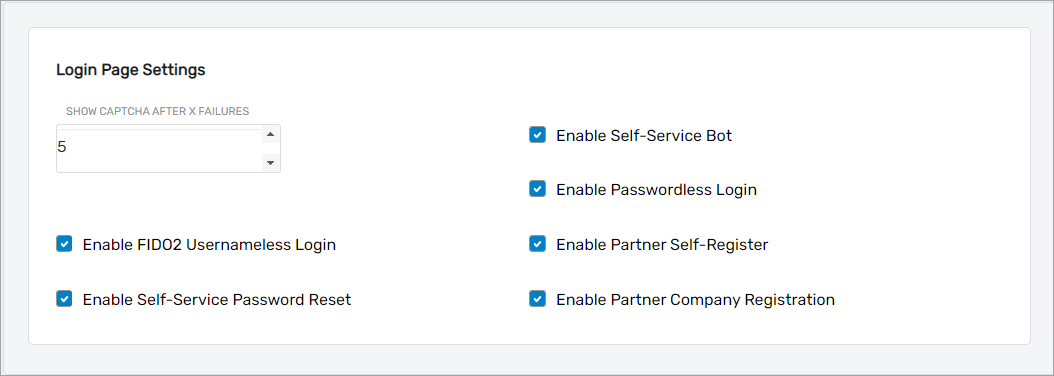
EmpowerID allows administrators to configure a variety of login page features that control authentication behavior, user assistance options, and available self-service functionality. These settings can be adjusted directly from the Web UI to align with organizational security and usability requirements.
Prerequisites
Before modifying login page settings, ensure the following:
- You have Administrative access in the EmpowerID Web UI.
- Optional integrations such as Google reCAPTCHA or FIDO2 WebAuthn are properly configured.
- Supporting workflow policies (e.g., Password Manager, Partner Registration) are already in place.
Viewing and Configuring Login Page Settings
To view or modify the available options:
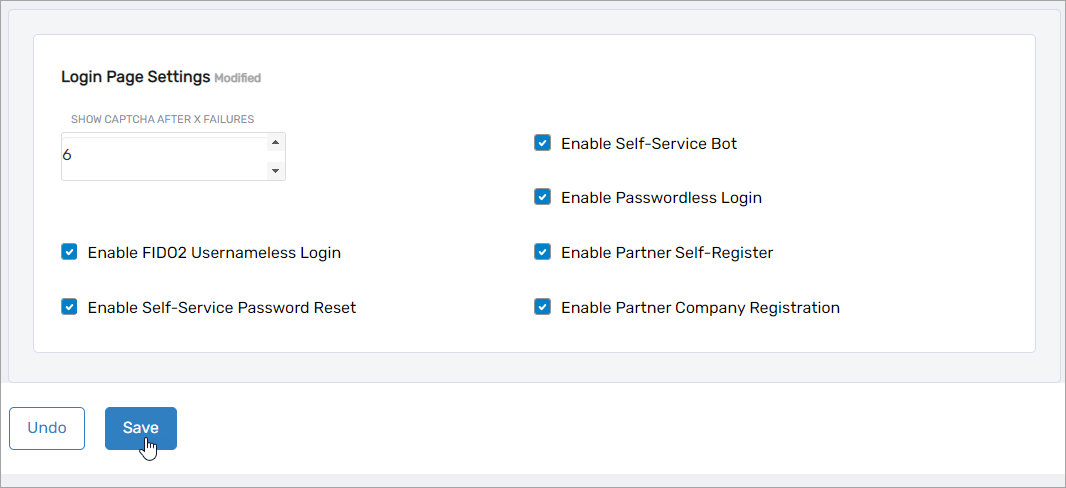
- In the Web UI, go to
Apps and Authentication > SSO Connections > Login Page Settings. - Adjust the settings as needed.
- Click Save to apply your changes.
Login Page Settings Reference
The table below lists each configurable login page setting and its behavior.
| Login Page Setting | Description |
|---|---|
| Show Captcha After X Failures | Determines how many failed login attempts must occur before a CAPTCHA challenge is displayed. ℹ️ Note: Google reCAPTCHA must be integrated with EmpowerID before this setting can enforce CAPTCHA. |
| Enable FIDO2 Usernameless Login | Enables authentication with FIDO2 Security Keys that support resident credentials, allowing login without a username or password. ℹ️ Note: EmpowerID must be configured for FIDO2 WebAuthn. Users must have a FIDO2 device with a registered resident key. |
| Enable Self-Service Password Reset | Shows the Forgot your Password link, allowing users to initiate the password reset workflow. ℹ️ Note: Users must be enrolled for Self-Service Password Reset to use this feature. |
| Enable Self-Service Bot | Shows the Chat Bot Help link on the login page, allowing users to interact with the EmpowerID Chat Bot. ⚠️ Important: Only users with EmpowerID accounts can use the Chat Bot. |
| Enable Passwordless Login | Displays the Passwordless Login button for passwordless authentication methods. ℹ️ Note: Requires supporting Password Manager configuration. |
| Enable Partner Self-Register | Displays the Sign Up > Partner Self-Register link, allowing external users to create partner accounts. |
| Enable Partner Company Registration | Displays the Sign Up > Partner Company Registration link, allowing partner organizations to register new companies. |