Create Two-Level Attribute Nested Group Policies
Two-Level Attribute Nested Group policies dynamically generate nested groups based on two specified person attributes, such as State and City. When the policy runs, EmpowerID creates a top-level group for the first attribute and a nested group under it for the second attribute. People with matching attributes are placed in groups according to your configuration—either in both levels or only in the nested group.
Prerequisites
To create Dynamic Hierarchy policies, you need appropriate permissions to access and configure Dynamic Hierarchies in EmpowerID.
Create a Two-Level Attribute Nested Groups Policy
-
On the navbar, expand Dynamic Hierarchies and select Policies.
-
Click the Add (+) button.
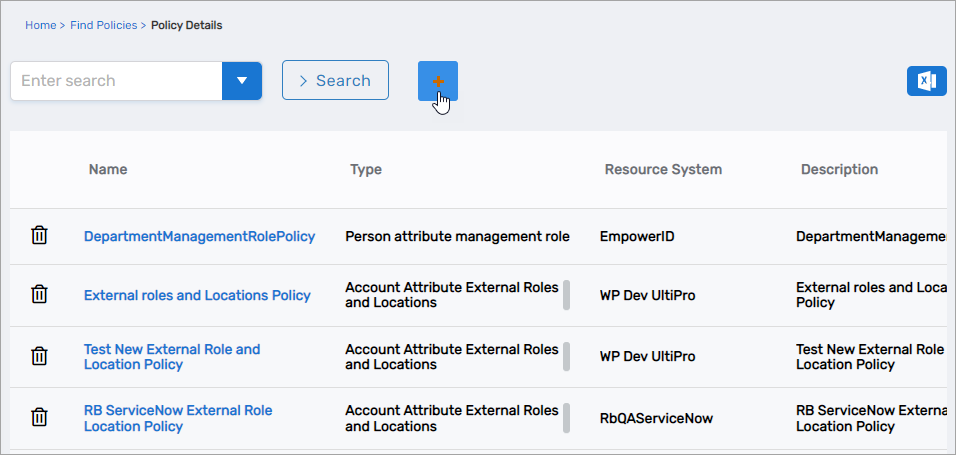 The Policy Details form opens.
-
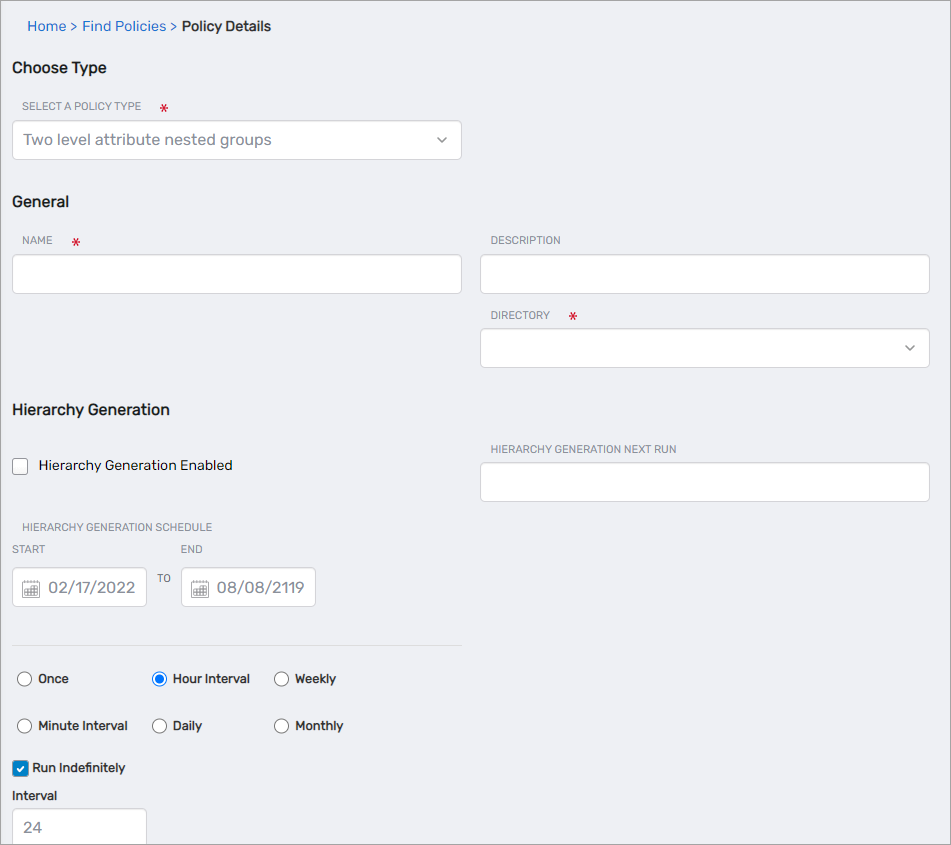
In the General section, configure:
- Select a Policy Type – Select Two level attribute nested groups
- Name – Enter a name for the policy
- Description – Enter a description for the policy
- Directory – Select the account store where the groups are to be created
-
Configure the Hierarchy Generation schedule.
View Hierarchy Generation Settings
-
Hierarchy Generation Enabled – Select this option to enable EmpowerID to generate hierarchies from the policy
-
Hierarchy Generation Next Run – Click the field and select the date and time for the next run of the Hierarchy Generation job
-
Hierarchy Generation Schedule – Set the start and end dates for hierarchy generation to occur
-
Hierarchy Generation Interval – Set the interval for the Hierarchy Generation job to process the policy:
-
Once – Hierarchy generation occurs one time
-
Minute Interval – Hierarchy generation occurs "X" times every "Y" minutes as specified in the Run Indefinitely, Iterations and Interval fields. For example, if you select an iteration of 2 and an interval of 24, hierarchy generation occurs twice: first at the date and time specified in the Hierarchy Generation Next Run field, and again 24 minutes after the first run completes. If you select Run Indefinitely with an interval of 24, hierarchy generation occurs once every 24 minutes, indefinitely.
-
Hour Interval – Hierarchy generation occurs "X" times every "Y" hours as specified in the Run Indefinitely, Iterations and Interval fields. For example, if you select an iteration of 2 and an interval of 24, hierarchy generation occurs twice: first at the specified date and time, and again 24 hours after the first run completes. If you select Run Indefinitely with an interval of 24, hierarchy generation occurs once every 24 hours, indefinitely.
-
Daily – Hierarchy generation occurs once every "X" days at a designated time as specified in the Run Indefinitely, Iterations and Times fields. For example, if you select an iteration of 2, hierarchy generation occurs twice: first at the specified date and time, and again on the following day at the time specified in the Times field. If you select Run Indefinitely, hierarchy generation occurs daily at the time specified in the Times field.
-
-
-
Configure the Membership Recalculation schedule.
View Membership Recalculation Settings
-
Membership Recalculation Enabled – Select this option to enable the system to update group membership as specified by the schedule and interval
-
Membership Recalculate Next Run – Set the date and time for the next run of the Dynamic Hierarchy Membership Recalculation job
-
Membership Recalculation Schedule – Set the start and end dates for membership recalculation to occur
-
Membership Recalculation Interval – Set the interval for membership recalculation to run:
-
Once – Membership recalculation occurs one time
-
Minute Interval – Membership recalculation occurs "X" times every "Y" minutes as specified in the Run Indefinitely, Iterations and Interval fields. For example, if you select an iteration of 2 and an interval of 24, membership recalculation occurs twice: first at the date and time specified in the Membership Recalculate Next Run field, and again 24 minutes after the first run completes. If you select Run Indefinitely with an interval of 24, membership recalculation occurs once every 24 minutes, indefinitely.
-
Hour Interval – Membership recalculation occurs "X" times every "Y" hours as specified in the Run Indefinitely, Iterations and Interval fields. For example, if you select an iteration of 2 and an interval of 24, membership recalculation occurs twice: first at the specified date and time, and again 24 hours after the first run completes. If you select Run Indefinitely with an interval of 24, membership recalculation occurs once every 24 hours, indefinitely.
-
Daily – Membership recalculation occurs once every "X" days at a designated time as specified in the Run Indefinitely, Iterations and Times fields. For example, if you select an iteration of 2, membership recalculation occurs twice: first at the specified date and time, and again on the following day at the time specified in the Times field. If you select Run Indefinitely, membership recalculation occurs daily at the time specified in the Times field.
-
-
-
In the Policy Settings section, configure:
- First Attribute to Group By – Select the first attribute on which to base group membership (top-level groups)
- Second Attribute to Group By – Select the second attribute on which to base group membership (nested groups)
- Add Users as Members at All Levels and Do Not Nest Groups – When enabled, EmpowerID adds people to both the top-level and nested groups. For example, if you selected State as the first attribute and City as the second, people are added to both the State group and the City group. When disabled, people are added only to the nested group (State-City group).
- Create level 1 Groups Even if No Level 2 – Select to create top-level groups even when no nested groups exist for that level
- Claim Matching Group – Select this option to mark any matching groups already in the system as dynamic hierarchy groups
- Create OU for Level 1 – Select to have EmpowerID create an OU for the first-level groups
- Claim Matching OU – Select to mark any matching OUs already in the system as dynamic hierarchy OUs
- Mail-Enable Level 1 Groups – Select to mail-enable all first-level groups created by the policy
- Mail-Enable Level 2 Groups – Select to mail-enable all second-level groups created by the policy
- Empty Group Action – Select an appropriate action for EmpowerID to take if a group created by the policy has no members
- Delay Removal of Membership by X Days – Set the number of days EmpowerID waits before removing people who no longer meet the criteria for group membership. This allows people moving between locations to retain access temporarily. If left blank, EmpowerID immediately removes all people no longer meeting the criteria.
- Group Type – Select the type for the groups being created by the policy
- Level 1 Naming Convention
{Value1}– At a minimum enter{Value1}. EmpowerID uses this value to dynamically create top-level groups. For example, if you have users in different states, a group is created for each state. - Level 2 Naming Convention
{Value1} And {Value2}– At a minimum enter{Value1} And {Value2}. EmpowerID uses these values to dynamically create nested groups under the top-level groups. - Group Creation Location – Click the Select an OU link and select an OU for the groups. If you do not pick a location, EmpowerID creates groups in the default group creation location selected for the account store.
-
In the Alerts section, configure notification settings:
- Create Group Alert Active – Select to send alerts when groups are created
- Create Group Alert – When active, sends an alert to subscribers when EmpowerID creates a new group from the policy (default: Hierarchy Create Group alert)
- Delete Group Alert Active – Select to send alerts when groups are deleted
- Delete Group Alert – When active, sends an alert when EmpowerID deletes a group that was previously created from the policy
- Membership Change Alert Active – Select to send alerts when group membership changes
- Membership Change Alert – When active, sends an alert when the membership of a group created by the policy changes (default: Hierarchy Group Membership Changed alert)
noteGroups are only deleted automatically when the Empty Group Action is set to Delete and the group has no members.
-
Click Save.
Results
After creating and running the policy:
- Top-level groups are automatically created for each unique value of the first attribute
- Nested groups are automatically created under the top-level groups for each unique value of the second attribute
- People with matching attribute values are automatically added to groups according to your membership configuration
- If configured, OUs are created for first-level groups
- As attribute values change in the authoritative source, group structure and memberships are automatically updated
- Empty groups are handled according to the configured Empty Group Action
- Configured alert subscribers are notified of group creation, deletion, and membership changes
Related Topics
- About Dynamic Hierarchies – Overview of Dynamic Hierarchies capabilities
- One-Level Dual Attributes – Create single-level groups based on two attributes
- Organization Chart Groups – Create nested groups based on manager relationships