Use ResAdmin Mode to Restrict the Visibility of Resources
Visibility restriction policies with ResAdmin mode control which resources appear to users in Resource Admin. These policies work with Management Role assignments to scope resource visibility based on organizational structure, location, ownership, or other criteria.
Configuring a Visibility Restriction Policy
To configure a visibility restriction policy with ResAdmin mode:
-
On the navbar, expand Role Management and select Visibility Restriction Policies.
-
On the Find Visibility Filters page, click the Create Policy tab.
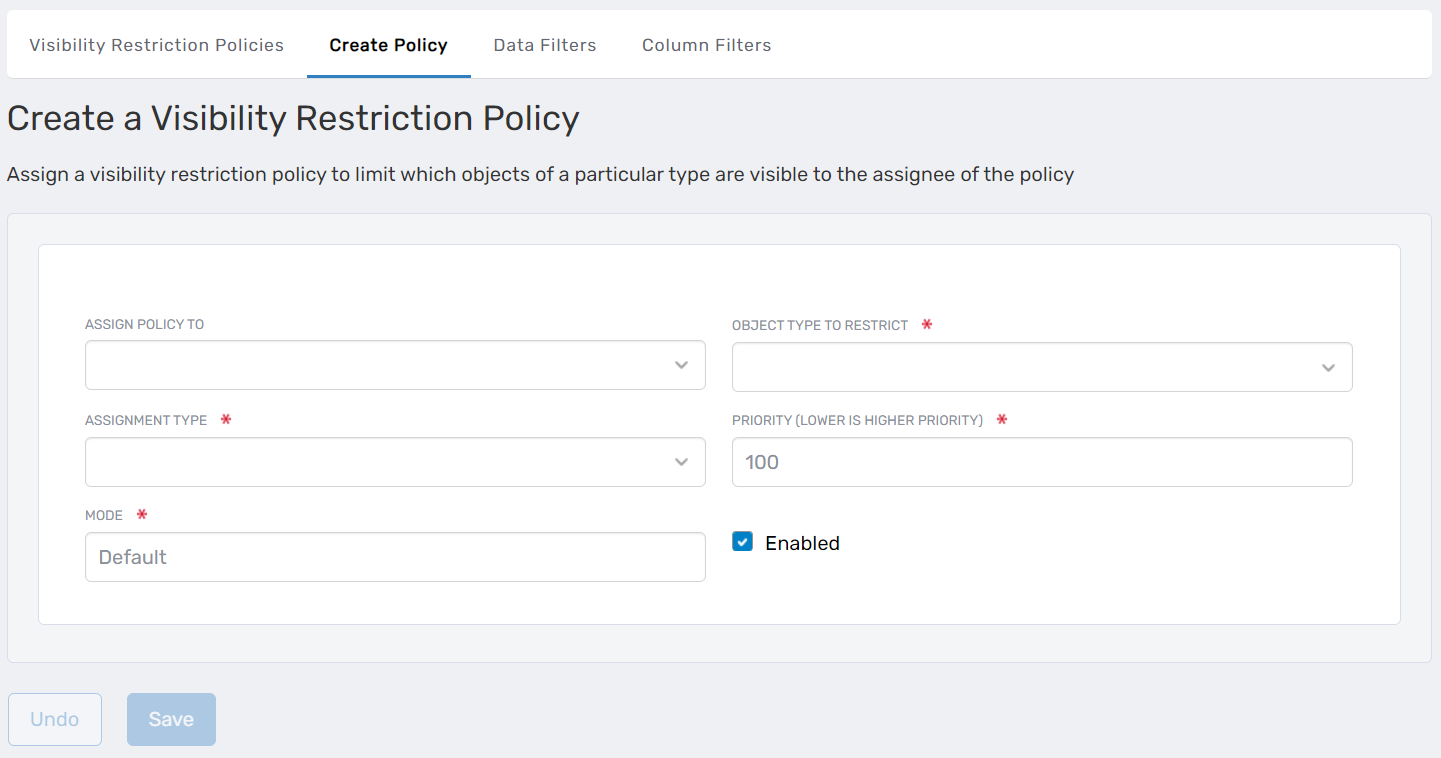 Create a Visibility Restriction Policy form
 -
Complete the policy form:
Assign Policy To
Select the assignee type to whom the policy will be applied:- Person
- Group
- Business Role and Location
- Management Role
- Management Role Definition
- Query-Based Collection (SetGroup)
Enter a <Assignee Type> Name to Search
Search for and select the specific assignee instance (e.g., a Management Role name).Object Type To Restrict
Select the resource type to restrict:- ProtectedApplicationResource (Applications)
- Group
- Management Role
- Shared Folder
- Mailboxes
- Person
Assignment Type
Define the scope of the visibility restriction:- Person Relative Resource – Limits visibility to resources with a specific relationship to the policy assignee (e.g., "Security Groups I am RBAC owner of")
- Scoped At Location – Limits visibility to resources in and below the selected location
Enter a <Target Assignee> Name to Search
If required by the assignment type, search for and select the target (e.g., a location for Scoped At Location policies).Priority
Enter a numeric priority value. Lower numbers indicate higher priority (e.g., 1 is higher priority than 10).Mode
Replace "Default" with ResAdmin.Required SettingThe Mode field must be set to "ResAdmin" for the policy to apply to Resource Admin.
Enabled
Leave checked to enable the policy immediately, or uncheck to create it in a disabled state.Example Configuration
The configuration below restricts visibility for members of the "Docs-SA" Management Role to people in or below the "Columbus" location:
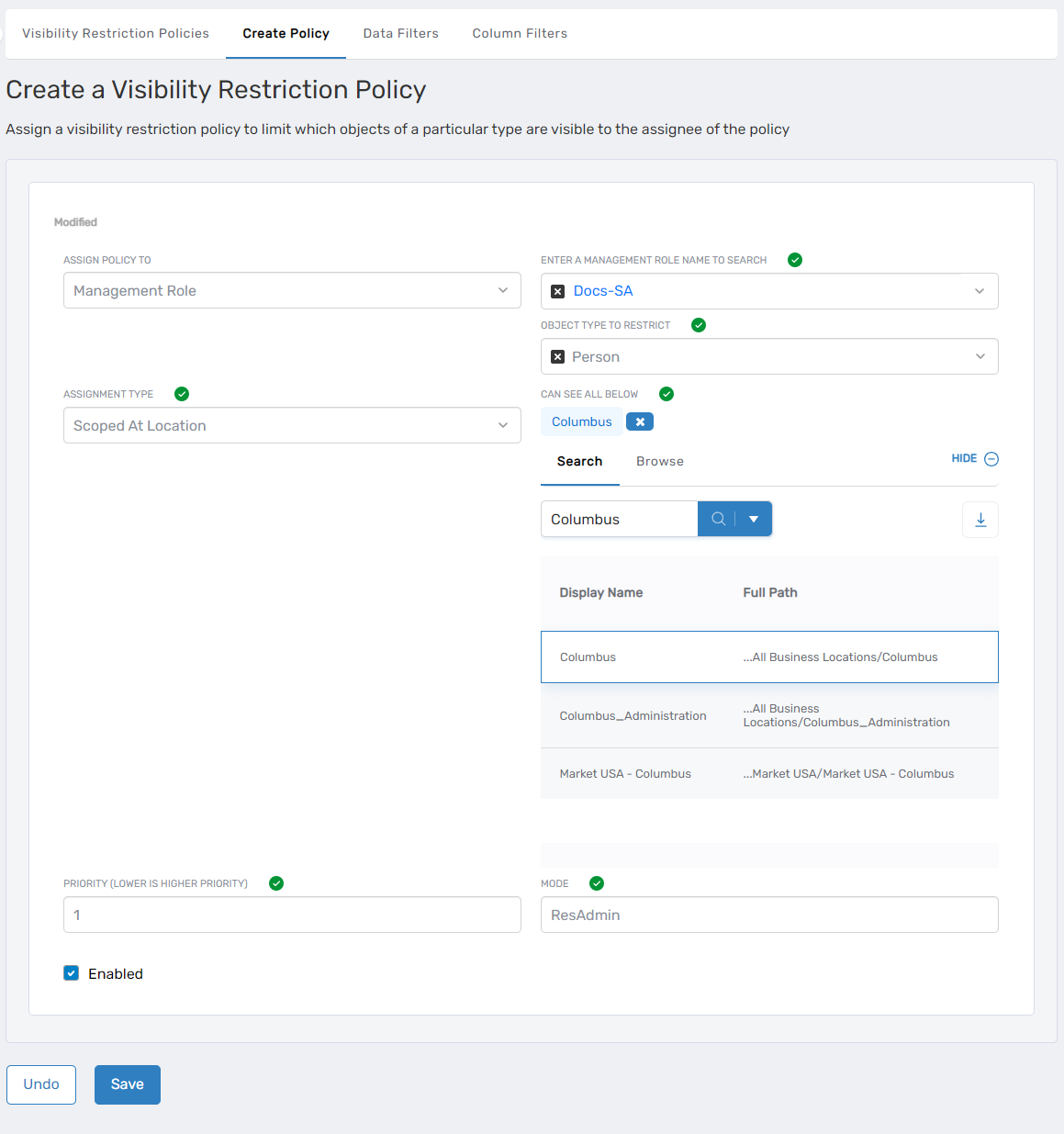 Policy restricting visibility to Columbus location
 -
Click Save.
Verifying the Policy
To verify the policy is working:
- Sign in to Resource Admin as a user assigned the policy
- Navigate to the appropriate resource type
- Confirm the user sees only resources that meet the policy restrictions
Test with user accounts both with and without the policy to confirm the visibility restrictions are working as expected.
Troubleshooting
User sees no resources
- Verify the policy criteria match actual resources in the system
- Check that the user is a member of the policy assignee (Management Role, Group, etc.)
- Review if multiple policies are assigned and check priority values
User sees resources outside policy scope
- Confirm the Mode field is set to "ResAdmin" (not "Default")
- Verify the policy is enabled
- Have the user log out and log back in to refresh their session
Policy changes not taking effect
- Have the user log out and log back in
- Wait 5-10 minutes for policy changes to propagate through the system
Related Pages
- Assigning Management Roles Needed to Access Resource Admin - Configure user access to Resource Admin
- Navigating Resource Admin - Overview of the Resource Admin interface