Login Assistance Workflow
If you're having trouble logging in to EmpowerID or Azure, the Login Assistance Wizard can help. It walks you through step-by-step recovery options including password resets, MFA issues, account unlocks, and identity validation.
What the Wizard Can Help With
You can use the wizard to resolve issues like:
- Forgotten EmpowerID or Azure passwords
- Locked accounts
- Problems with multi-factor authentication (MFA)
- Changing your phone or MFA device
- Issuing an Azure Temporary Access Pass (TAP)
- Resetting or deleting MFA preferences
Launch the Login Assistance Wizard
- From the EmpowerID login screen, click the Login Assistance Workflow link.
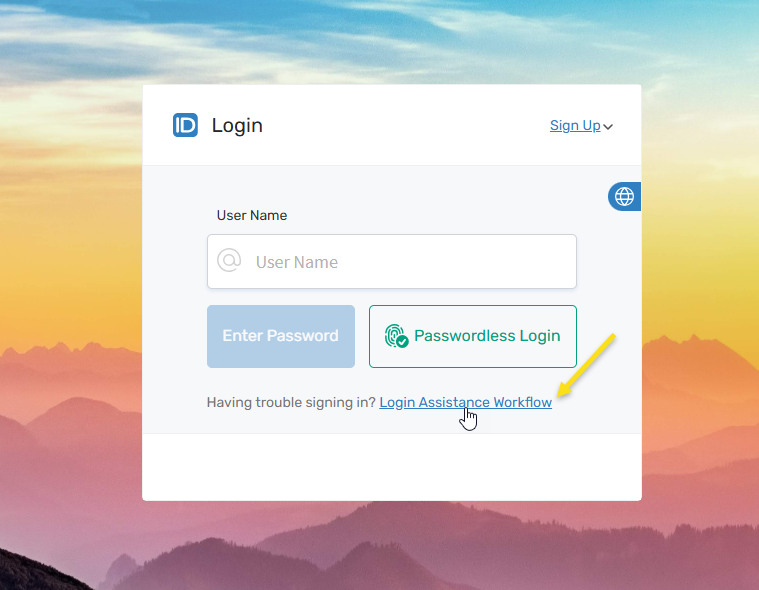
- Enter your EmpowerID login name or the email address associated with your account.
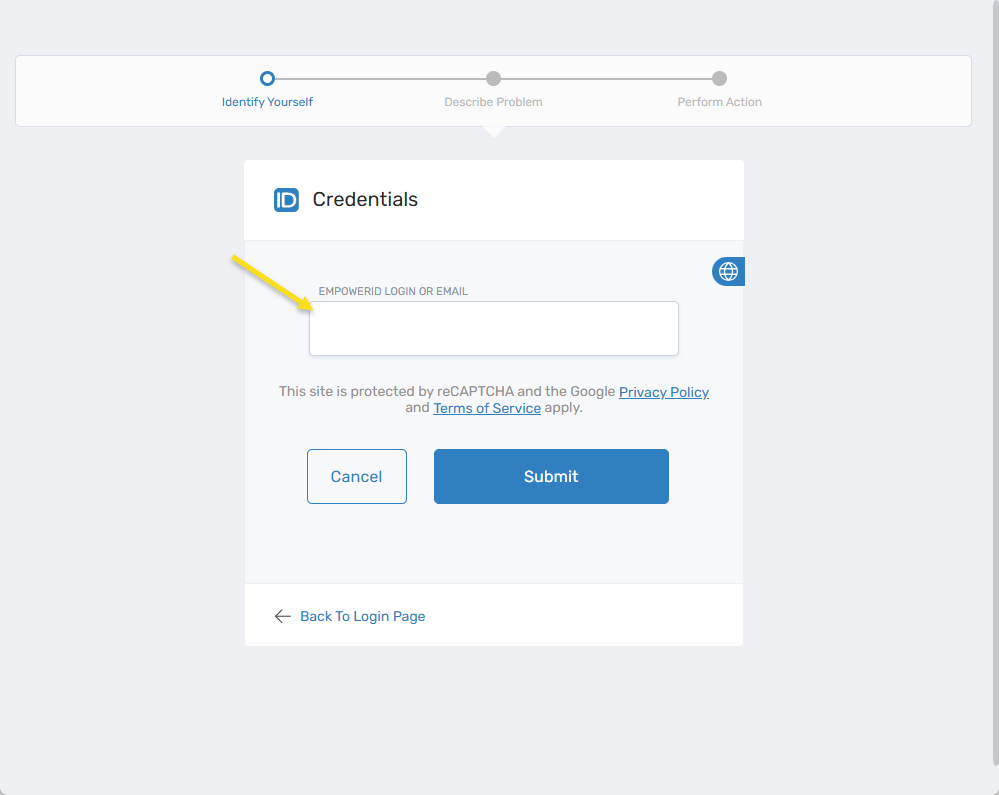
- Click Submit.
- Choose your Identity Provider:
- I login using EmpowerID
- I login using Microsoft Azure
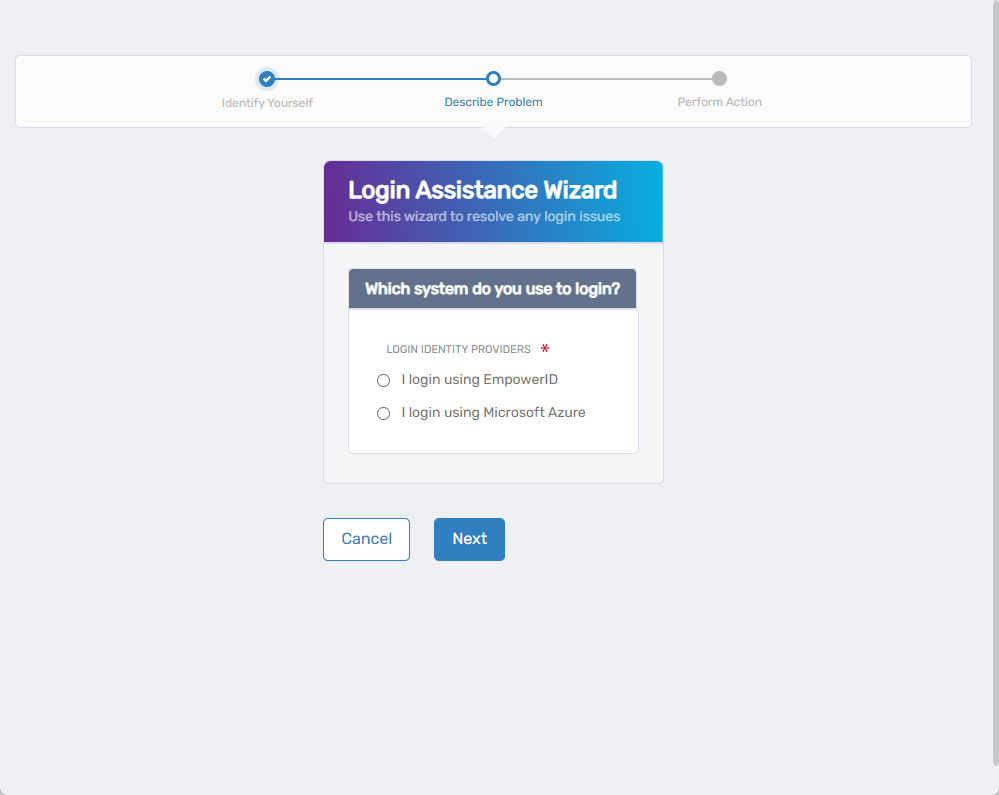
- You will be presented with options best describing your current challenge.
Recovery Options for Users Logging in using EmpowerID
I'm unable to remember my password or I've gotten locked out
- Select I'm unable to remember my password or I've gotten locked out.
- Click Next. If MFA is registered, you’ll be prompted to authenticate. See Login Assistance with MFA.
- If no MFA is found, the wizard will use registered email or phone for recovery. See Login Assistance with Email or Phone.
- If no OTP methods are available, you'll request identity verification. See Login Assistance by Requesting Identity Validation.
I Remember my password, but I can't perform multi-facotr authentication (lost or new phone or othe issue)
If your MFA device was lost or changed:
- You’ll receive a one-time password (OTP) by email or phone
- This allows you to reset your MFA settings
See Resetting MFA
I’m not sure what the problem is but I can't logon
If you're unsure, choose this option to be guided through an appropriate recovery path, starting with identity validation.
Recovery Options for Users Logging in Using Microsoft Azure
Azure recovery steps mirror EmpowerID, but credentials and policies are managed by Azure.
- For password or lockout issues, see Login Assistance with MFA or Email/Phone
- For MFA issues, see Resetting MFA
- If unclear, proceed with Requesting Identity Validation
Login Assistance with MFA
If your administrator requires higher assurance (LOA), you may need to complete multiple MFA steps.
- Choose your preferred MFA method. Options will vary based on what’s registered.
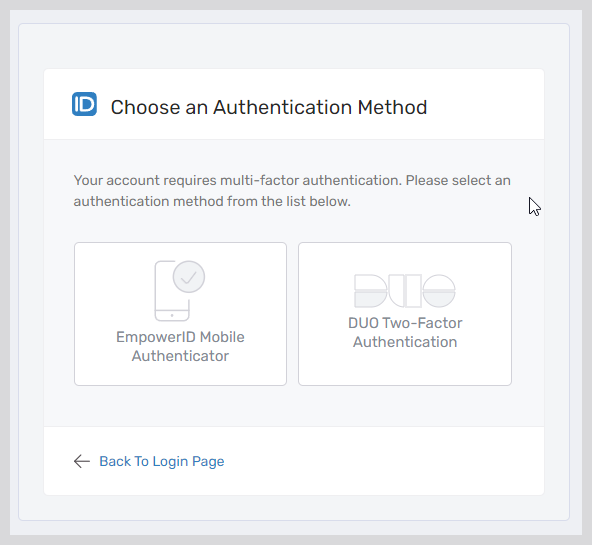
- Complete the challenge. For example, approve a push or enter a code.
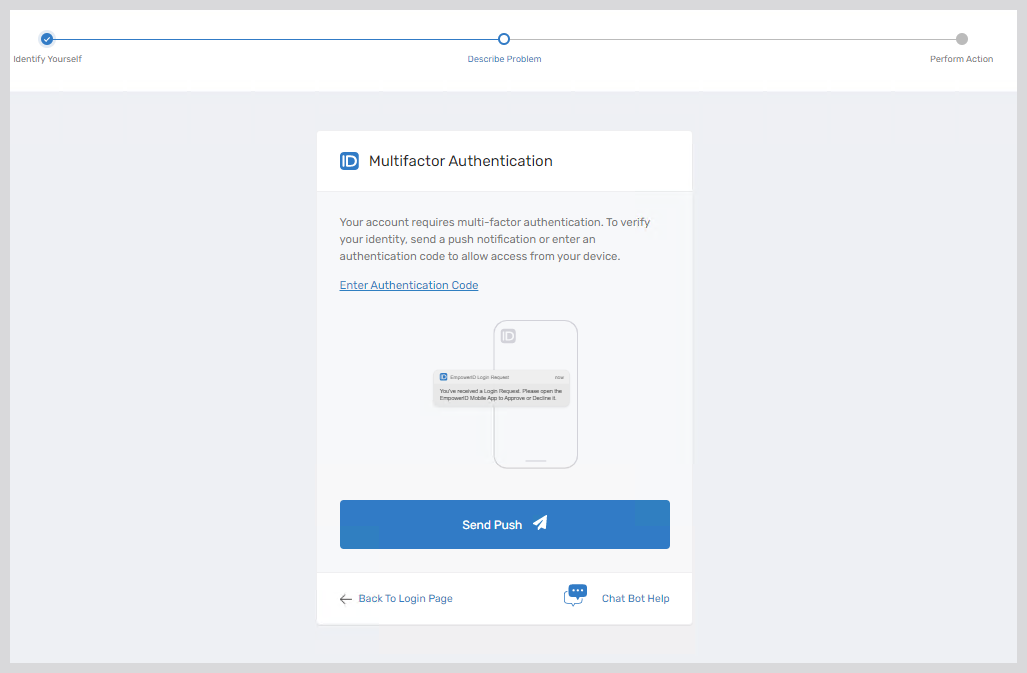
- After success, reset your password on the Change Password screen.
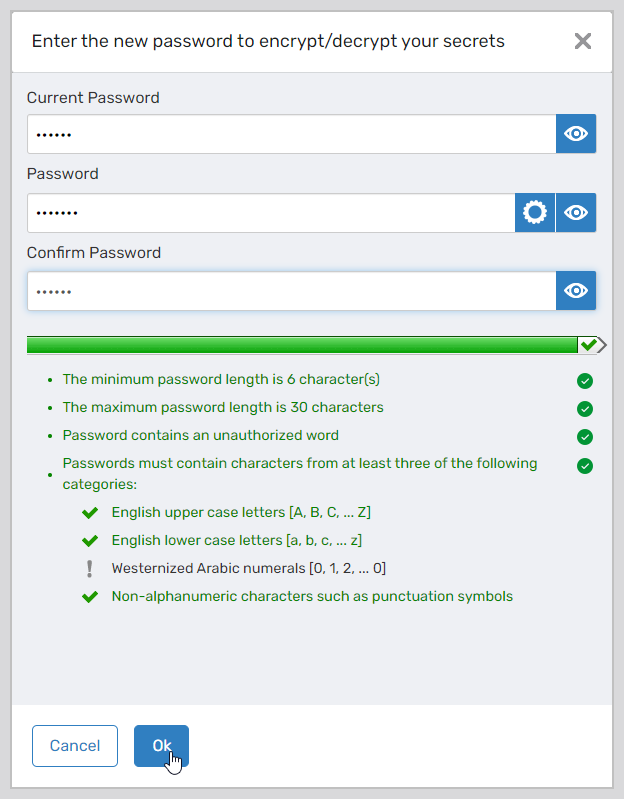
- You'll see a list of accounts where your password was updated.
Login Assistance with Email or Phone
You must have a verified email or phone in your profile to use this method.
- An OTP is sent to your registered contact method.
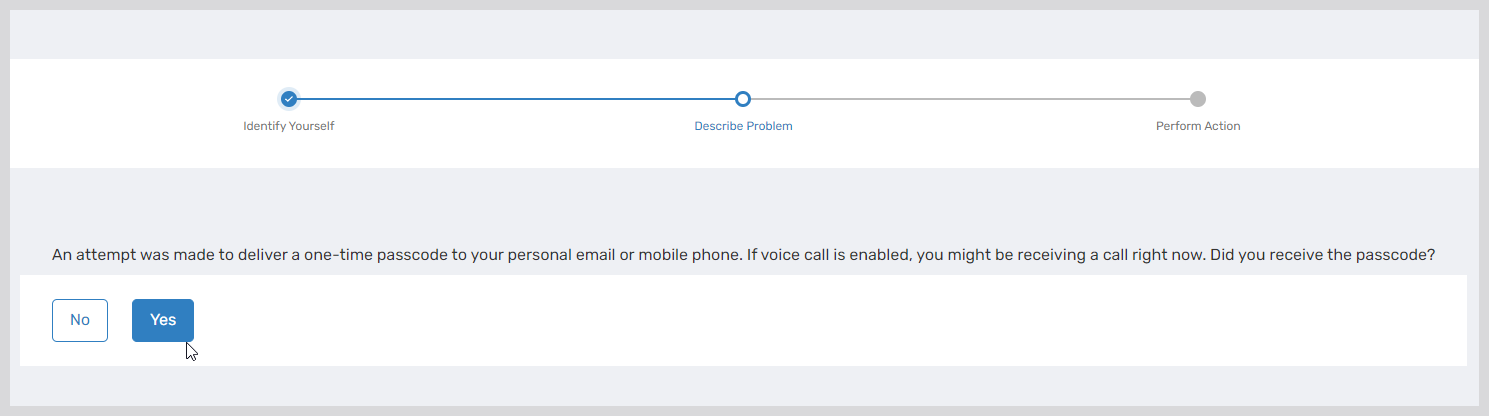
- If received, click Yes and enter the code.
If not, click No until you are offered the identity validation option.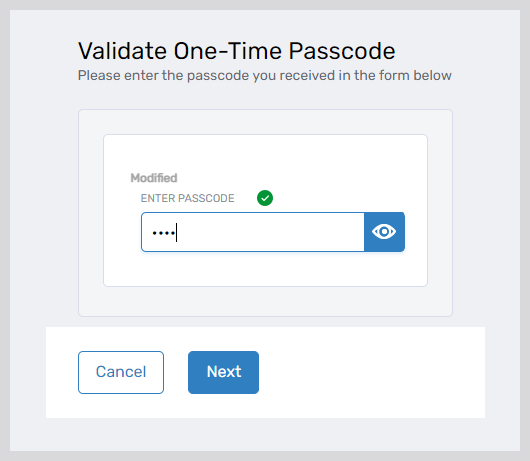
- You'll proceed to reset your password.
- A list of updated accounts will be displayed.
Login Assistance by Requesting Identity Validation
Available approvers depend on your organization’s policies. You may see only one approver.
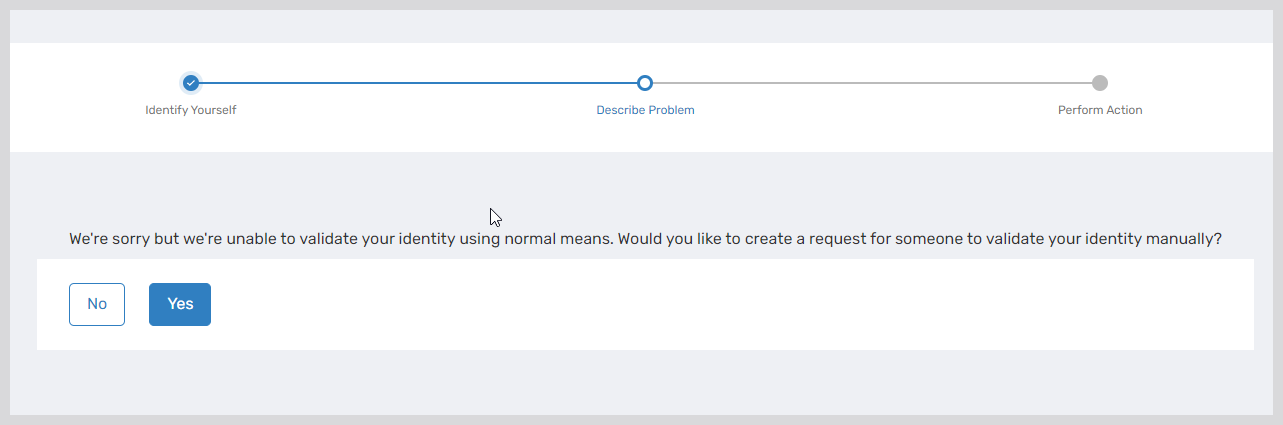
- If no OTP or MFA methods work, the wizard will prompt you to request manual identity validation.
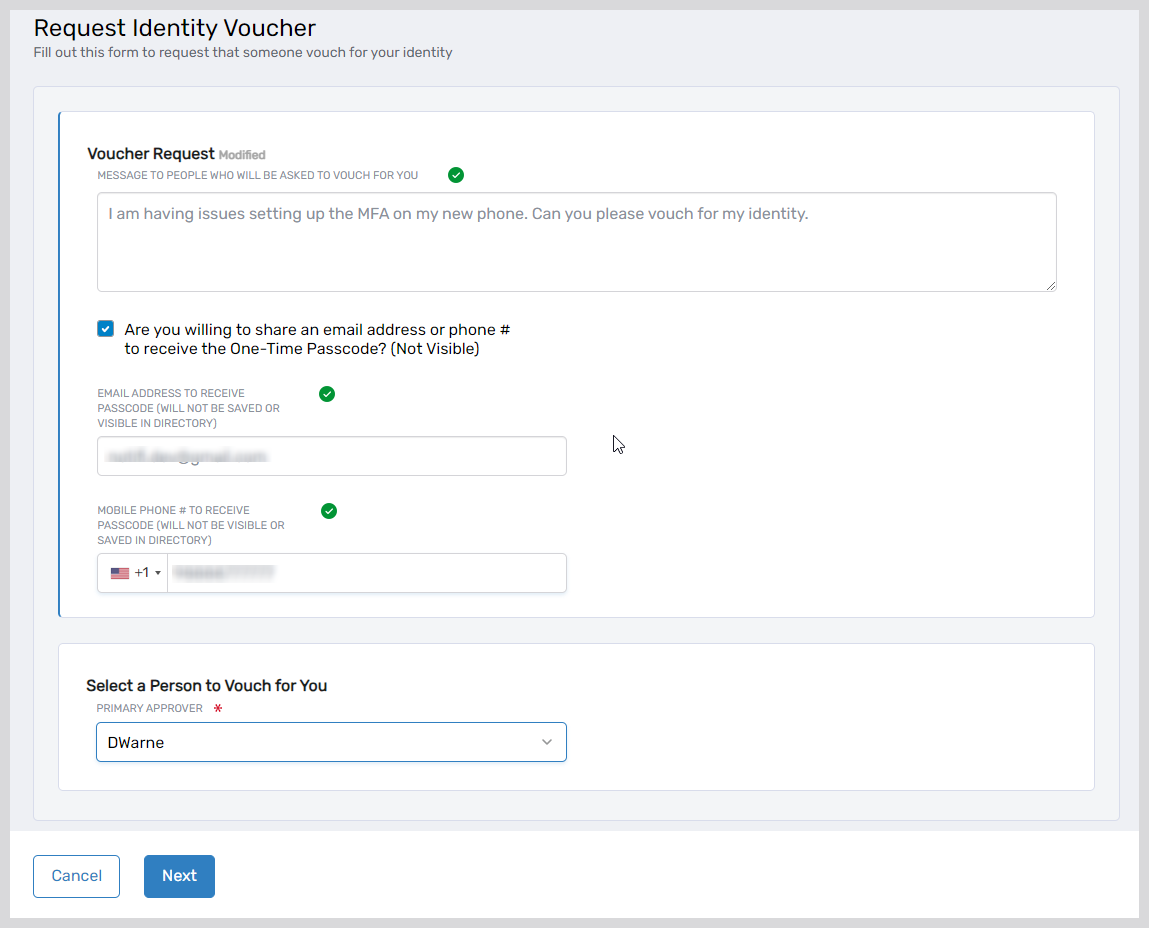
- Enter the following:
- A message explaining your request
- Your accessible email or phone
- Choose a person who can vouch for you
- Once approved, you'll receive an OTP to complete the login recovery process.
Login Assistance by Resetting MFA
If you can’t perform MFA but still know your password:
- The system sends an OTP to your registered email or phone.
- Enter the passcode to continue.
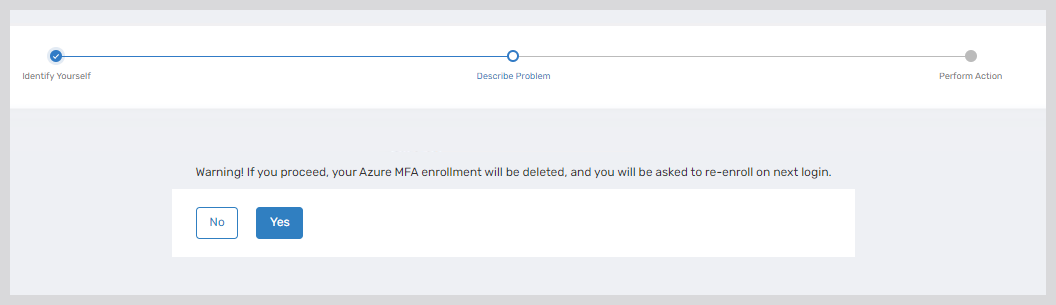
- Confirm the warning and proceed.
- Follow the instructions to open a browser in incognito mode and click the My Apps link.
- Register your new MFA method and return to the EmpowerID portal to log in again.