Delete Shared Folder
When shared folders are no longer needed, you can delete them directly from EmpowerID. This removes the folder from both the EmpowerID system and the underlying file server, permanently deleting the folder and all its contents.
This action is permanent. Deleting a shared folder completely removes the folder and all its contents from the server. Ensure you have proper backups and authorization before proceeding.
Access Requirements: You must have appropriate access to manage shared folders.
Use this workflow when decommissioning projects, cleaning up unused storage, or removing folders that are no longer required for business operations.
Before You Start
Make sure you have:
- Confirmation that the shared folder is no longer needed
- Proper authorization from folder owners or stakeholders
- Backup copies of any important data in the folder
- Understanding that this action cannot be undone
Get Started
- Navigate to the Resource Admin portal.
- Select Shared Folders from the resource type menu.
- Click the Workflows tab.
- Find and click Delete Shared Folder.
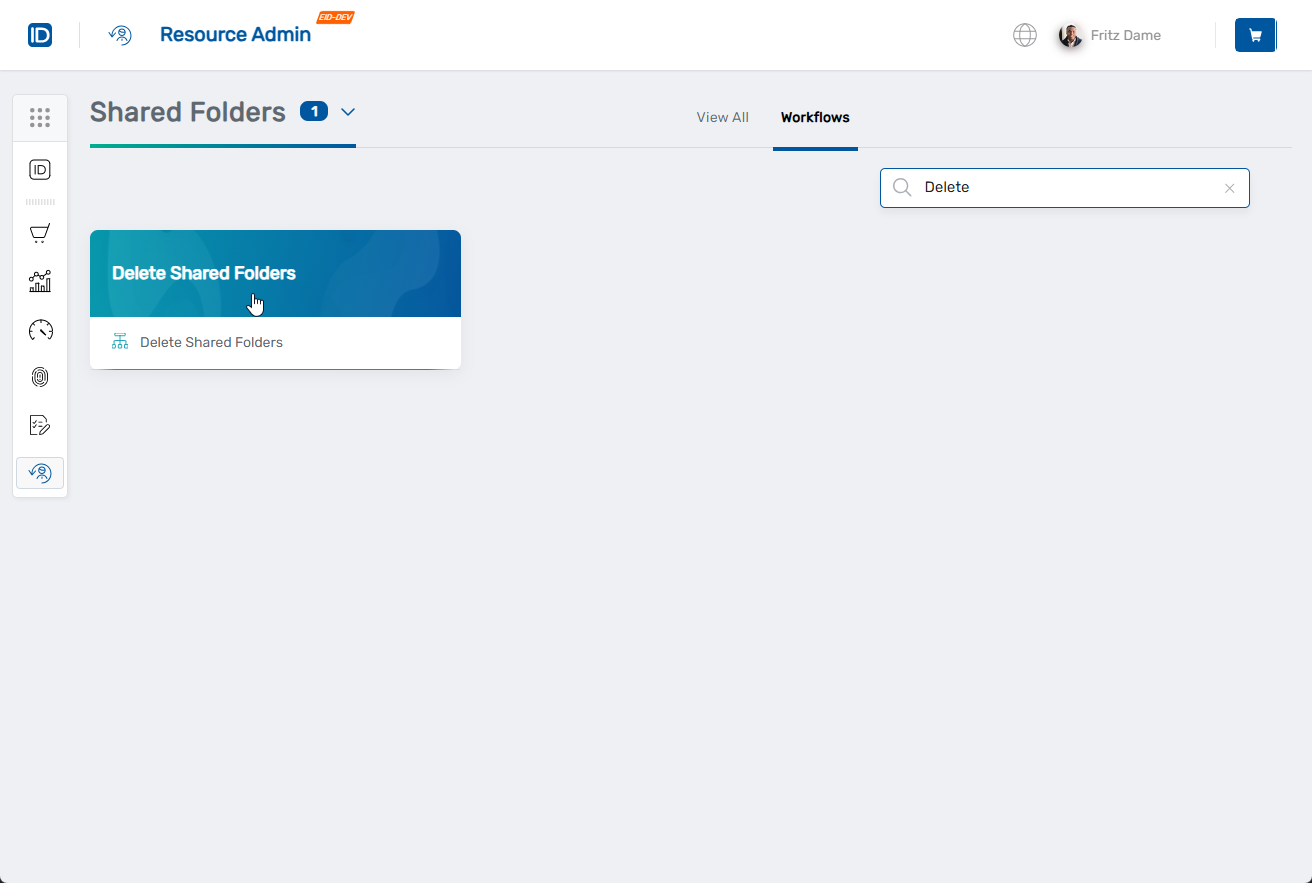
Step 1: Select Shared Folders
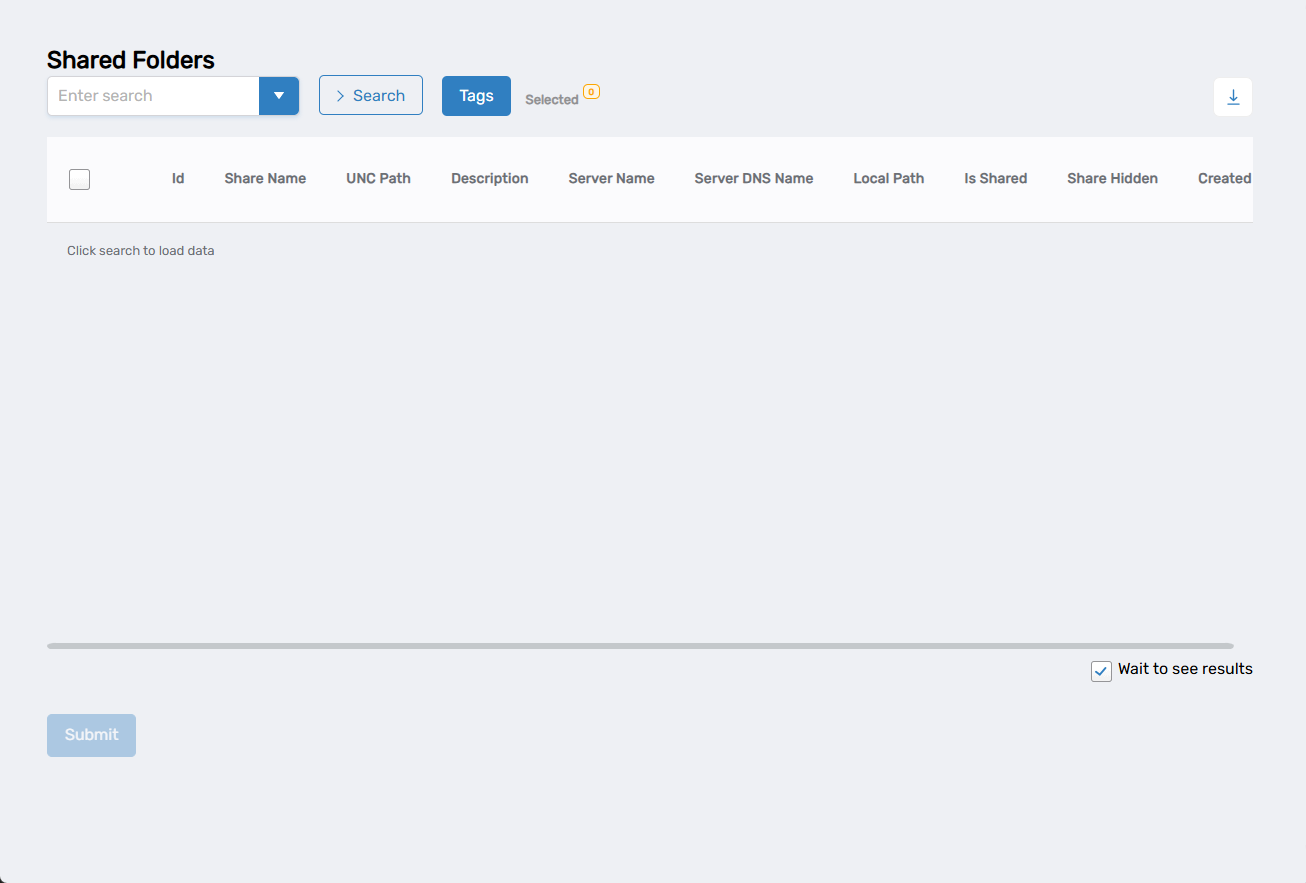
Search for and select the shared folders you want to permanently remove.
-
Search and select folders:
- Enter search criteria in the search field.
- Click Search to load available shared folders.
- Select folders by checking the box next to each one.
-
Add more folders (if needed):
- Enter different search criteria to find other folders.
- Click Search again to load new results.
- Select additional folders as needed.
- The Selected counter shows your total selections.
-
Configuration:
- Uncheck Wait to see results to create a collaboration task in My Tasks that you can complete or cancel later. This will end the current workflow session.
-
Click Submit to proceed.
Step 2: Confirm Deletion
-
Review the selected folders and confirm the permanent deletion.
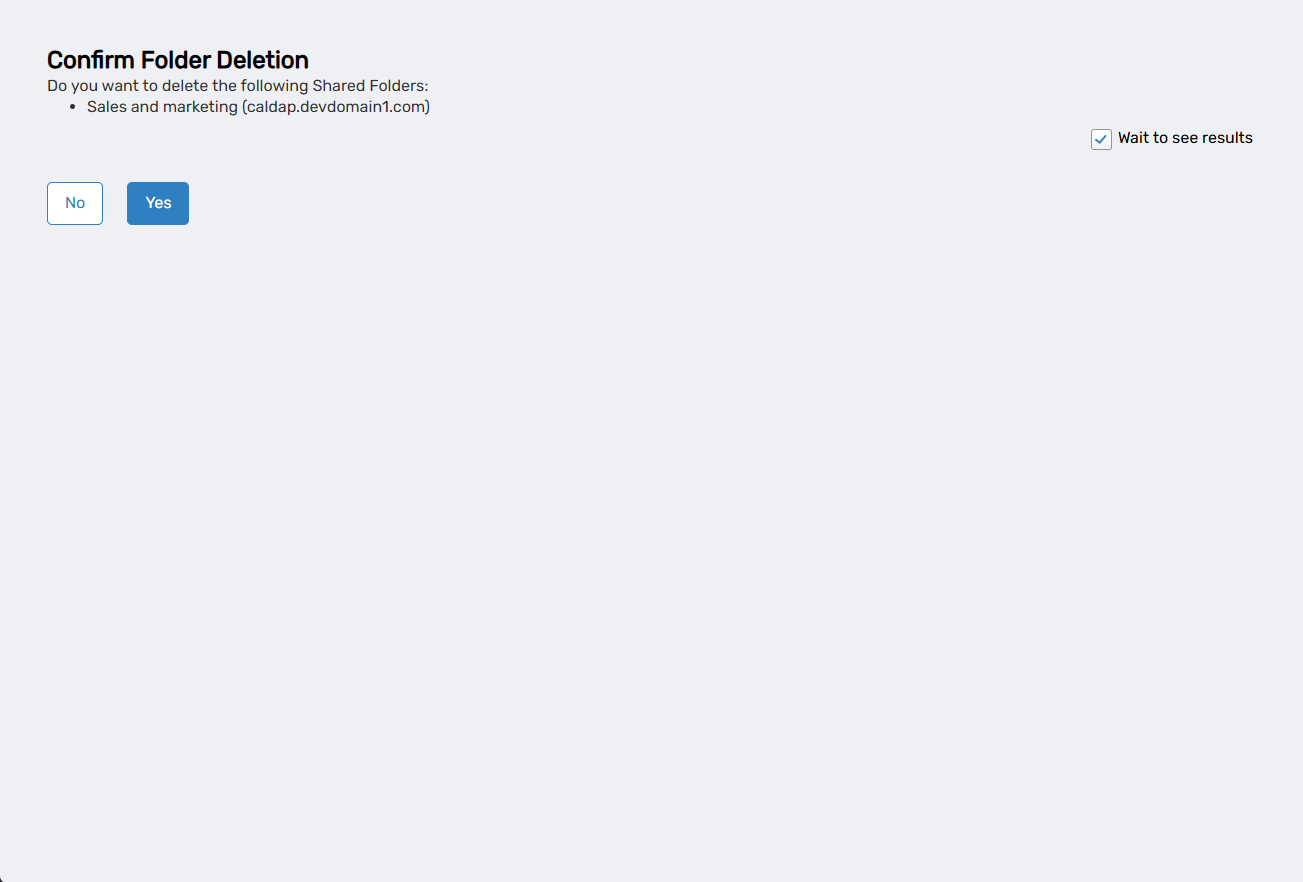
- Review the folders that will be permanently deleted.
- Verify the folder names and locations are correct.
- Uncheck Wait to see results to create a collaboration task in My Tasks that you can complete or cancel later.
-
Click Submit to permanently delete the selected folders.
Step 3: Complete the Workflow
- Review the Operation Execution Summary to confirm the shared folder was deleted successfully.
- Click Submit to exit the workflow.
What Happens Next
- The shared folders are permanently removed from the file server.
- The folders are deleted from EmpowerID management.
- All files and subfolders within the shared folders are permanently deleted.
- Any access policies or assignments associated with the folders are removed.
- The folders will no longer appear in network shares or EmpowerID interfaces.
If You Run Into Problems
Folder not found: The folder may have been deleted, moved, or you may not have access to view it.
Related Actions
- To create new shared folders, see Create a Shared Folder.
- To bring existing folders under management, see Register Shared Folder.