How to Use Passwordless Login in EmpowerID
EmpowerID supports Passwordless Login, allowing you to securely access your organization's site without entering your password. Instead, you'll authenticate using your EmpowerID username or email and one or more Multi-Factor Authentication (MFA) methods, such as Device Registration or EmpowerID One-Time Passwords.
Overview
With Passwordless Login, you eliminate the need for passwords while maintaining strong security through MFA. This guide will walk you through the full login process using the Passwordless Login option.
What You’ll Need
Before you begin, make sure you have:
- An EmpowerID user account
- At least one MFA method already configured in your Password Manager policy (e.g., device registration or one-time password)
- Access to your organization’s EmpowerID Web portal
- Internet connection and a modern web browser
If you’re not sure which MFA methods are set up for your account, contact your administrator.
Before You Begin
Passwordless Login must be enabled by your organization. If the option is not visible, it may not be configured or permitted for your account.
Steps to Log in Using Passwordless Login
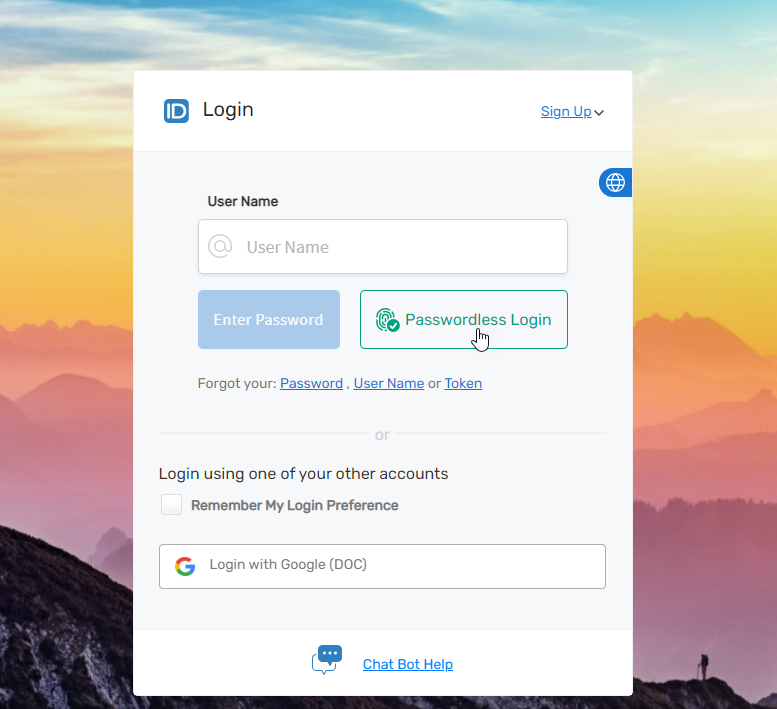
1. Open Your Organization’s EmpowerID Web Portal
- Navigate to your organization’s EmpowerID Web login page.
- Click the Passwordless Login link.
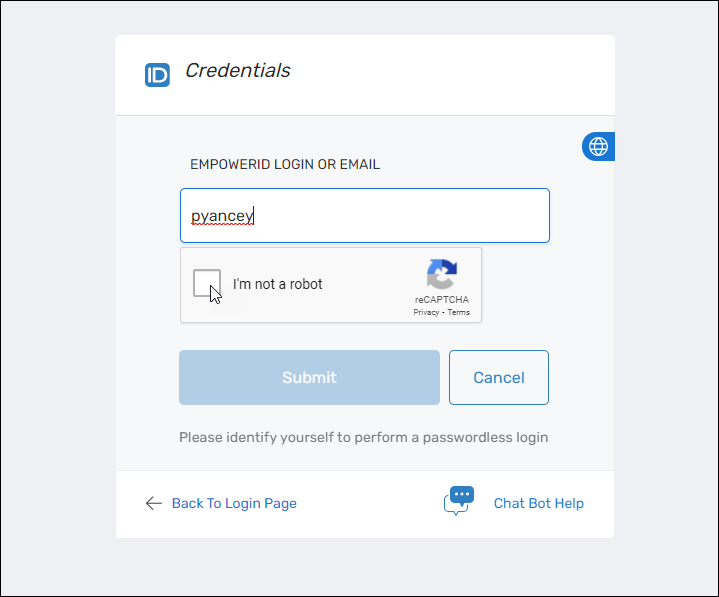
2. Enter Your Credentials
- Type your EmpowerID login name or email address.
- Select the I'm not a robot checkbox.
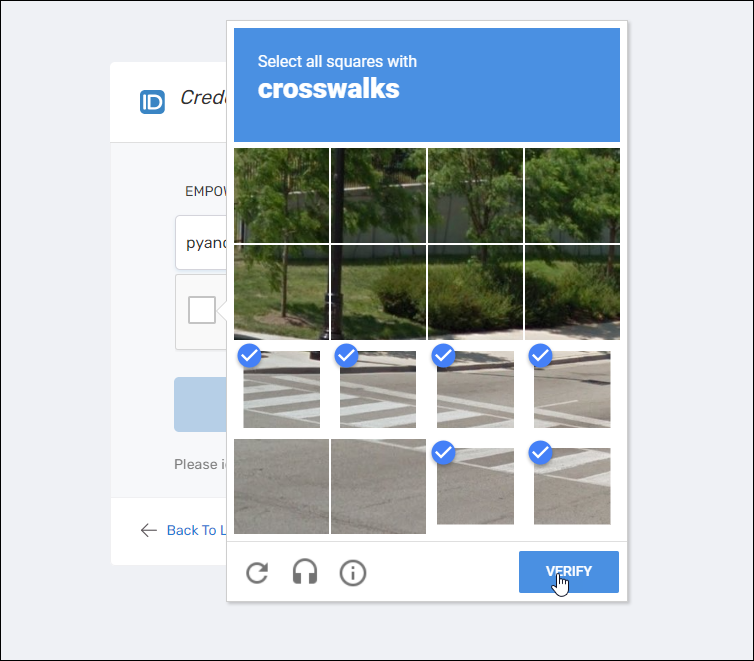
3. Complete the CAPTCHA
- Complete the reCAPTCHA challenge to verify you're human.
4. Submit Your Login Information
- Click Submit to proceed.
5. Choose an Authentication Method
- You’ll be prompted to choose one of the available authentication methods.
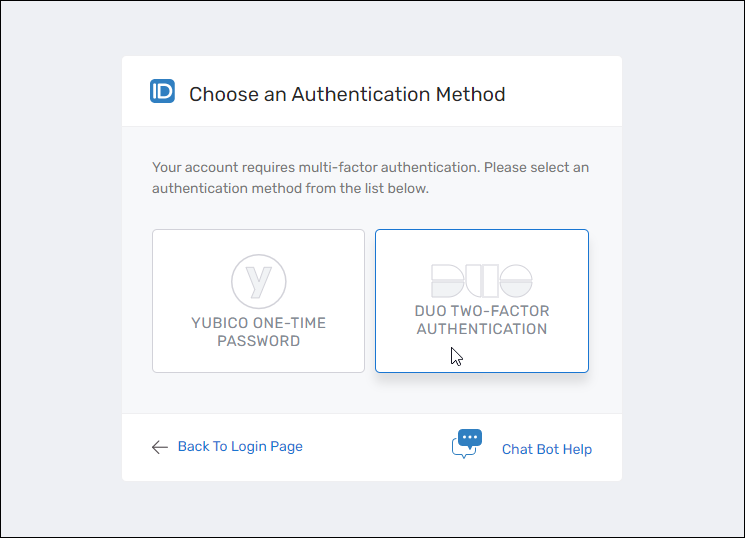
The methods shown may differ based on your configuration and policies.
6. Complete Authentication
- Follow the on-screen prompts to complete the selected MFA method.
What Happens Next
If your account doesn't require additional MFA steps, you’ll be logged in immediately. On future logins, just repeat these steps and authenticate using your chosen method(s).
If prompted for another factor, simply select the desired authentication method and follow the instructions.
Troubleshooting
Problem: Passwordless Login link not visible
Solution: Confirm with your administrator that Passwordless Login is enabled for your organization.
Problem: No available authentication methods
Solution: Ensure your account has at least one MFA method registered in your Password Manager policy.
Problem: reCAPTCHA challenge fails
Solution: Try again in a different browser or clear cache and cookies.