Onboarding PBAC Applications
The Onboard Application workflow enables administrators to integrate PBAC and non-Azure applications into EmpowerID. This wizard-driven process includes configurable parameters, approval settings, and IAM Shop integration to align with your organization's security policies.
EmpowerID grants the person who creates a new resource All Access to the resource for a period of two hours to allow the creator to modify the resource as needed.
Prerequisites
Before onboarding a PBAC application, ensure you have:
- Access to Resource Admin with the Application RBAC Owner Management Role (or higher)
- Appropriate account store already configured in EmpowerID
- Application authorization model determined (PBAC vs non-PBAC)
- Owner and responsible party information identified
Procedure
Configure Workflow Parameters (Optional)
Before running the workflow, you can customize which fields appear and their default values by configuring workflow parameters. This step is optional—skip to the next section if using default settings.
View Workflow Parameters
| Parameter | Description |
|---|---|
| CreateTrackingOnlyAccountStore_IsVisible | Boolean value to determine whether the "Create a Tracking-Only Account Store" selector is visible in the first step of the workflow. |
| DefaultAccessRequestPolicyID | Optional setting that specifies the default Access Request policy bound to the "Access Request Policy" dropdown in the IAM Shop Settings step of the workflow. If set, the value must be the GUID for the policy. |
| DefaultAccountStoreID | Optional setting that specifies the default account store bound to the "Select Account Store" dropdown in the first step of the workflow. If bound, users can select other account stores from the dropdown as needed. The value must be the AccountStoreID short. |
| DefaultOrgZoneID | Optional setting that specifies the default EmpowerID location bound to the "Select a Location" tree drop-down. If the "SelectaLocation_IsVisible" parameter is set to false, this parameter must be set to the integer of the default OrgZoneID. |
| DefaultProtectedApplicationResourceUsageTypeID | Optional setting that specifies the default Protected Application Resource Usage Type ID bound to the "App Authorization Model" dropdown. Possible values include:
|
| DeputyResourceTypeRoleName | Specifies the Access Level assigned to deputy owners of the application. The default Access Level is the "ACT-Application-Object-Administration" Access Level, which grants access to create, edit and delete applications. |
| IAM_EligibleAssignees_IsVisible | Boolean value to determine whether the "Eligible to Request" option is visible in the IAM Shop Settings step of the workflow. |
| IAM_PreApprovedAssignees_IsVisible | Boolean value to determine whether the "Pre-Approved for Access" option is visible in the IAM Shop Settings step of the workflow. |
| IAM_SuggestedAssignees_IsVisible | Boolean value to determine whether the "Suggested" option is visible in the IAM Shop Settings step of the workflow. |
| ManagementRoleIDsToNotify | Comma separated list of Management Role IDs to be notified via email upon creation of the PBAC application |
| OwnerResourceTypeRoleName | Specifies the Access Level assigned to owners of the application. The default Access Level is the "Resource Role Assigner" Access Level. |
| SelectAccountStore_IsVisible | Boolean value to determine whether the "Select Account Store" selector is visible in the first step of the workflow. |
| SelectaLocation_IsVisible | Boolean value to determine whether the "Select a Location" selector is visible in the first step of the workflow. If false, the DefaultOrgZoneID parameter mentioned above must be set. |
To Configure Parameters
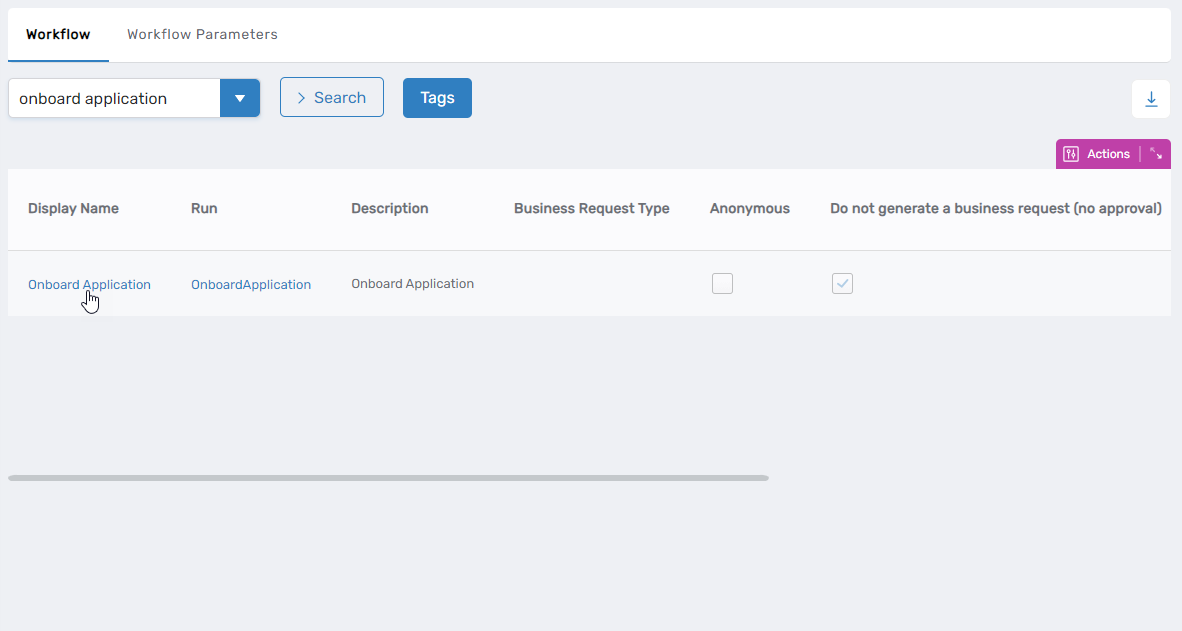
- Sign in to EmpowerID as an administrator and browse to Low Code/No Code Workflow > Low Code Workflows.
- Select the Workflow tab and search for Onboard Application.
- Click the Display Name link to browse to the workflow's View One page.
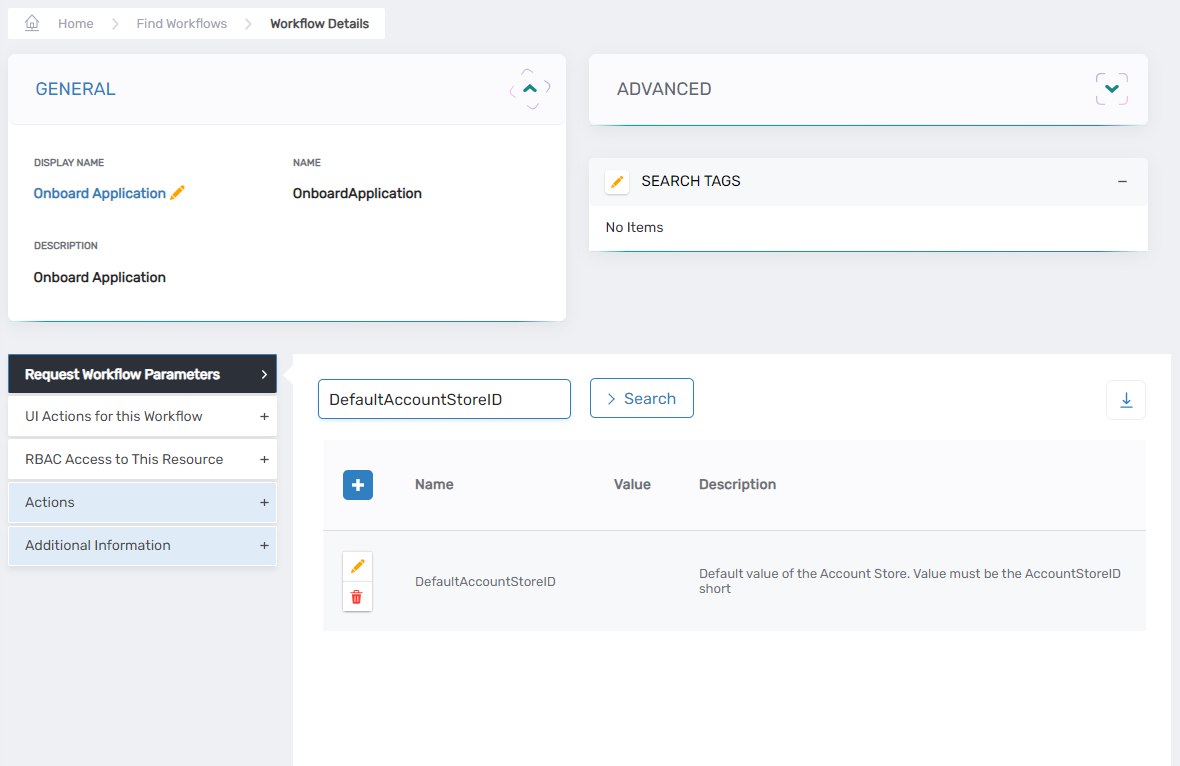
- Expand the Request Workflow Parameters accordion on the View One page for the workflow and search for the parameter you need to configure. In this example, we set the DefaultAccountStoreID parameter to populate the "Select Account Store" field with the selected account store.
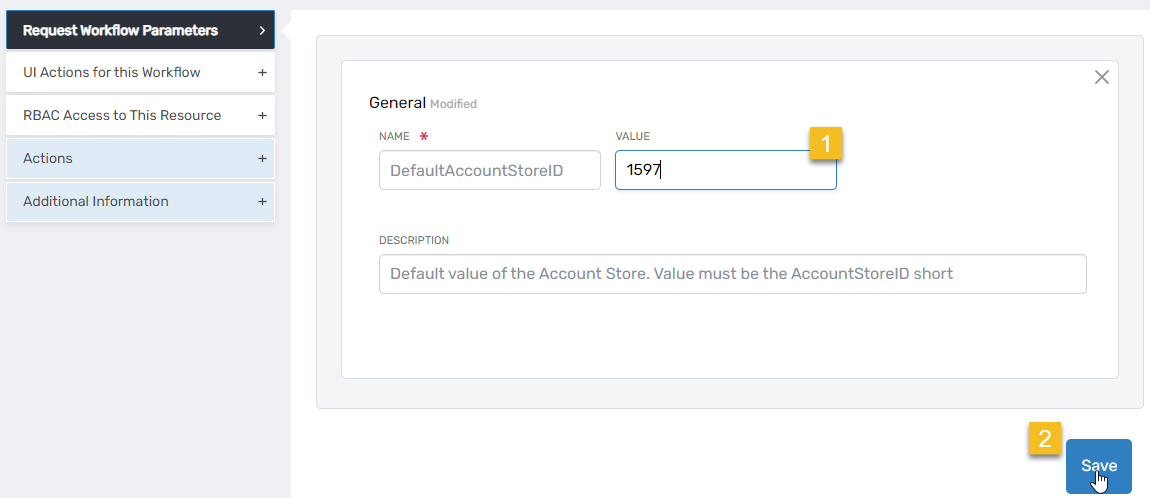
- Click the edit button for the parameter, enter the appropriate Value, and click Save.
- Configure any other parameters as needed.
Run the Onboard Application Workflow
-
Sign in to Resource Admin with at least the Application RBAC Owner Management Role.
-
Under "Applications," select the Workflows tab and click Onboard a Non-Azure Application.
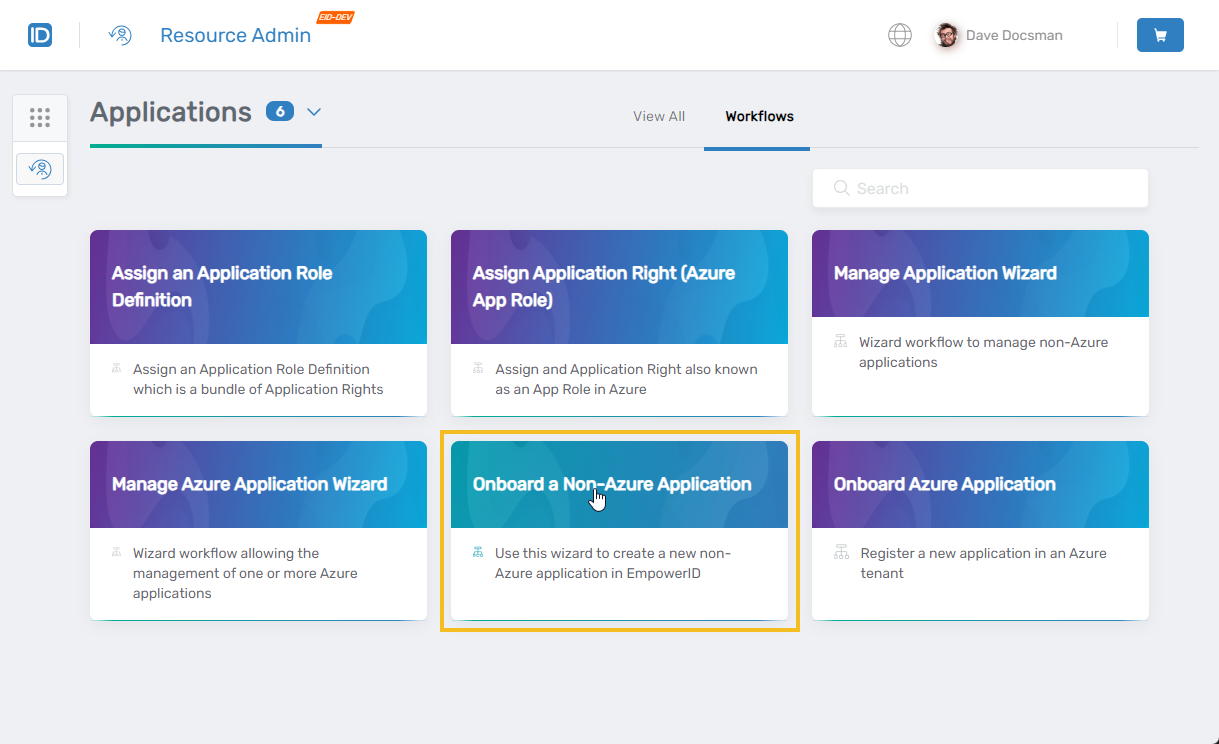
The Onboard Application wizard opens.
 Field Visibility
The fields displayed in the workflow may differ based on your workflow parameter configuration.
-
Complete the wizard sections with the appropriate information for your application.
Application Details
Field Description Action Name Name of the application Enter the application name (no spaces or special characters). Display Name User friendly name of the application Enter a display name for the application. Description Brief characterization of the application Enter a description. Select a Location EmpowerID location to be used for RBAC access to the application. Select an EmpowerID location for the application. Select Account Store Inventoried account store (directory) with application resources. In most cases, EmpowerID should be selected. Select the inventoried account store (directory) with the resources the application applies to. PBAC App Specifies whether the application is a PBAC app. When selected, EmpowerID creates a Resource Module for the application. Select this option to specify that the app is a PBAC app. App Authorization Model Defines the framework within the application for managing user access to its data, specifying how permissions are structured and enforced. Select the appropriate app authorization model. For example, if the app does not have any app resources stored in the EmpowerID Identity Warehouse for access control, but does have field types, you would select "PBAC App: No App Resources, Yes Field Types." Allow Shop for Role Definitions Specifies whether users can shop for any role definitions created for the application. Enable/disable the setting for your situation. Allow Shop for Rights Specifes whether users can shop for any rights created for the application. Enable/disable the setting for your situation. Allow Shop for App Management Roles Specifies whether users can shop for any Management Roles created for the applications. Enable/disable the setting for your situation. Owner Information
When onboarding an application, specify the individuals responsible for its management and oversight, including the responsible party, owners, and deputies.
Field Description Action Responsible Party Identifies the primary individual accountable for the application. Enter the name of the person responsible for managing the application (required). Owners Lists the people who have ownership rights over the application. Enter the names of individuals designated as owners, one at a time (optional but recommended). Deputies Specifies secondary contacts or assistants to the owners. Enter the names of individuals assigned as deputies, one at a time (optional). IAM Shop Settings
When making an application requestable in the IAM Shop, configure settings that dictate how requests are handled and who can access them.
Field Description Action Set Requestable Setting Specifies if users can request access to the application in the IAM Shop. Enable to make the application available to eligible users in the IAM Shop; otherwise, disable. Select Access Request Policy Defines the policy to be used for processing application requests. Choose the policy that defines how requests for the application are handled. For applications, the Default policy is suggested—it routes access requests to application owners for approval. Eligible to Request Specifies users allowed to request access to the application. Select the assignee type (Person, Group, Management Role) and identify the individuals, groups, or roles eligible to make requests. Pre-approved for Access Specifies users who are pre-approved for access to the application, bypassing the need for manual request approval. Select the assignee type and identify the individuals, groups, or roles pre-approved for the application. Suggested Assignees Identifies users who will see the application as a suggested resource that they can request. Select the assignee type and identify the individuals, groups, or roles suggested for application access. -
Review the summary information for the application and click Submit.
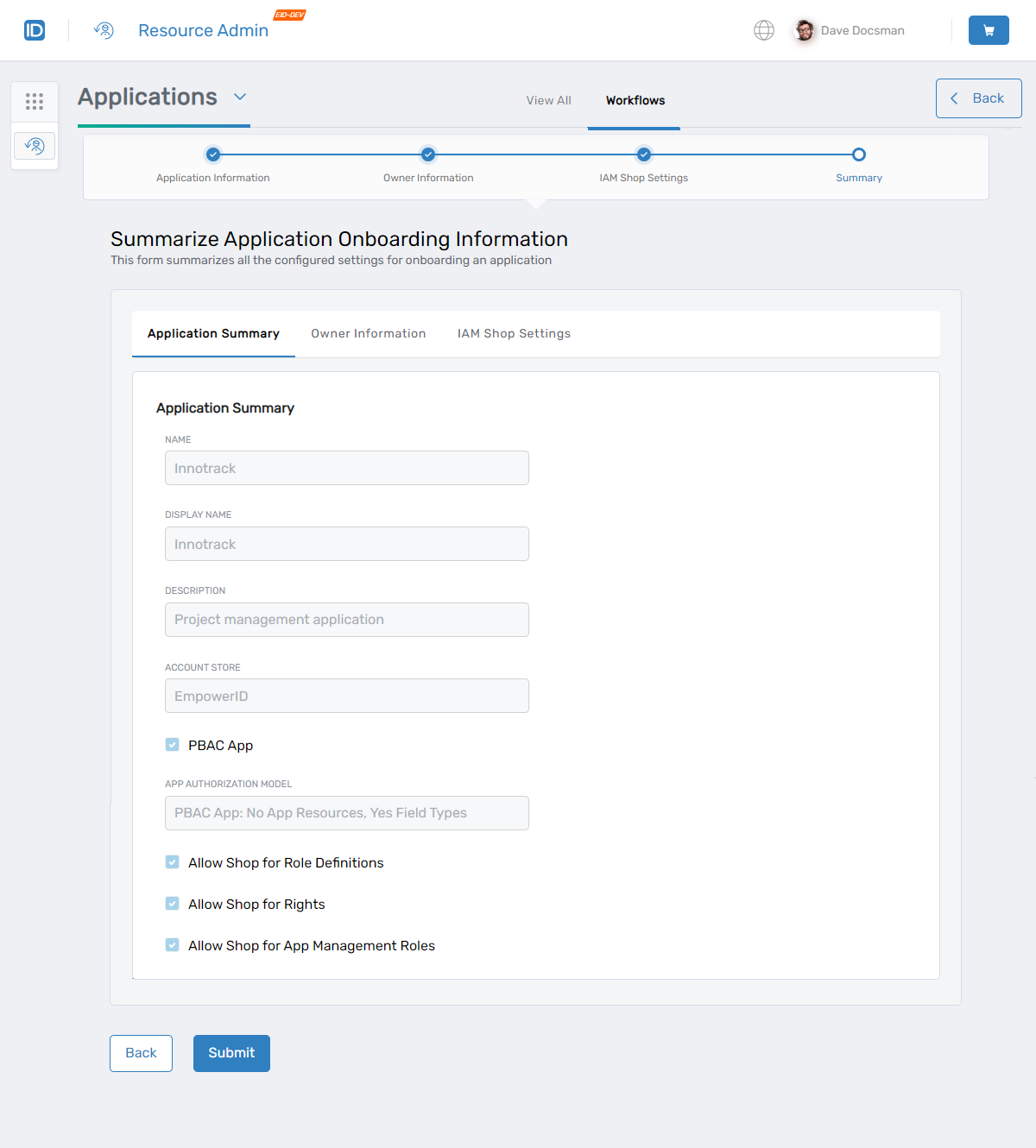
-
Click Submit to close the Operation Execution Summary and exit the wizard.
Verify the Results
To confirm the application was onboarded successfully:
- Locate the application in Resource Admin and click the Details button for the application record.
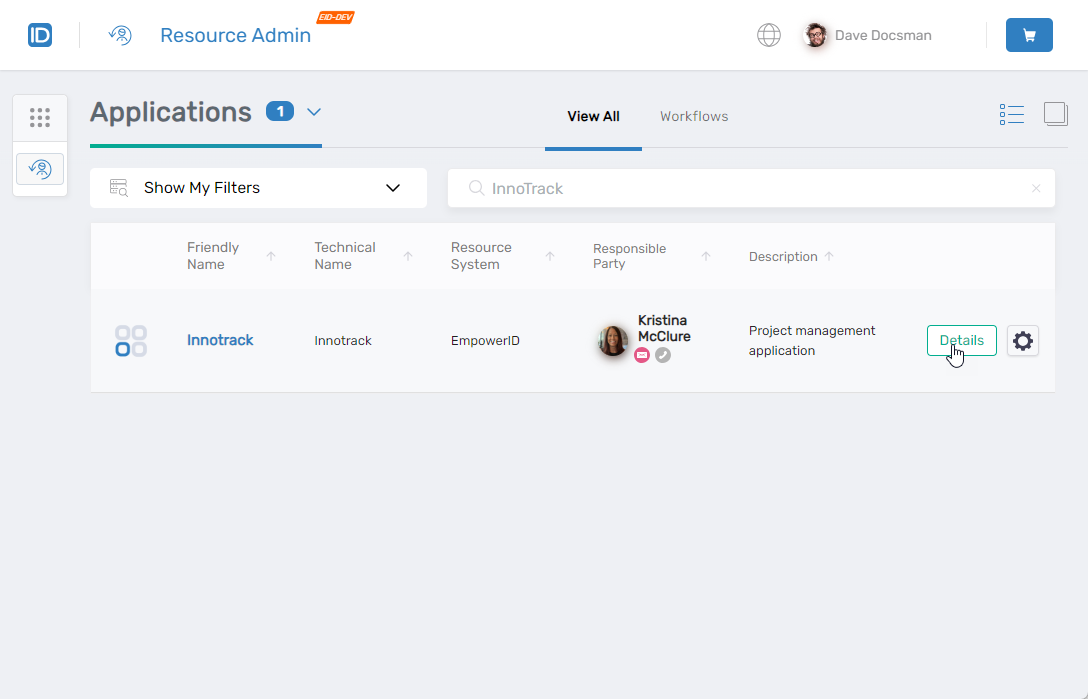
- On the Overview page, verify that the general information and eligibility settings match what was submitted.
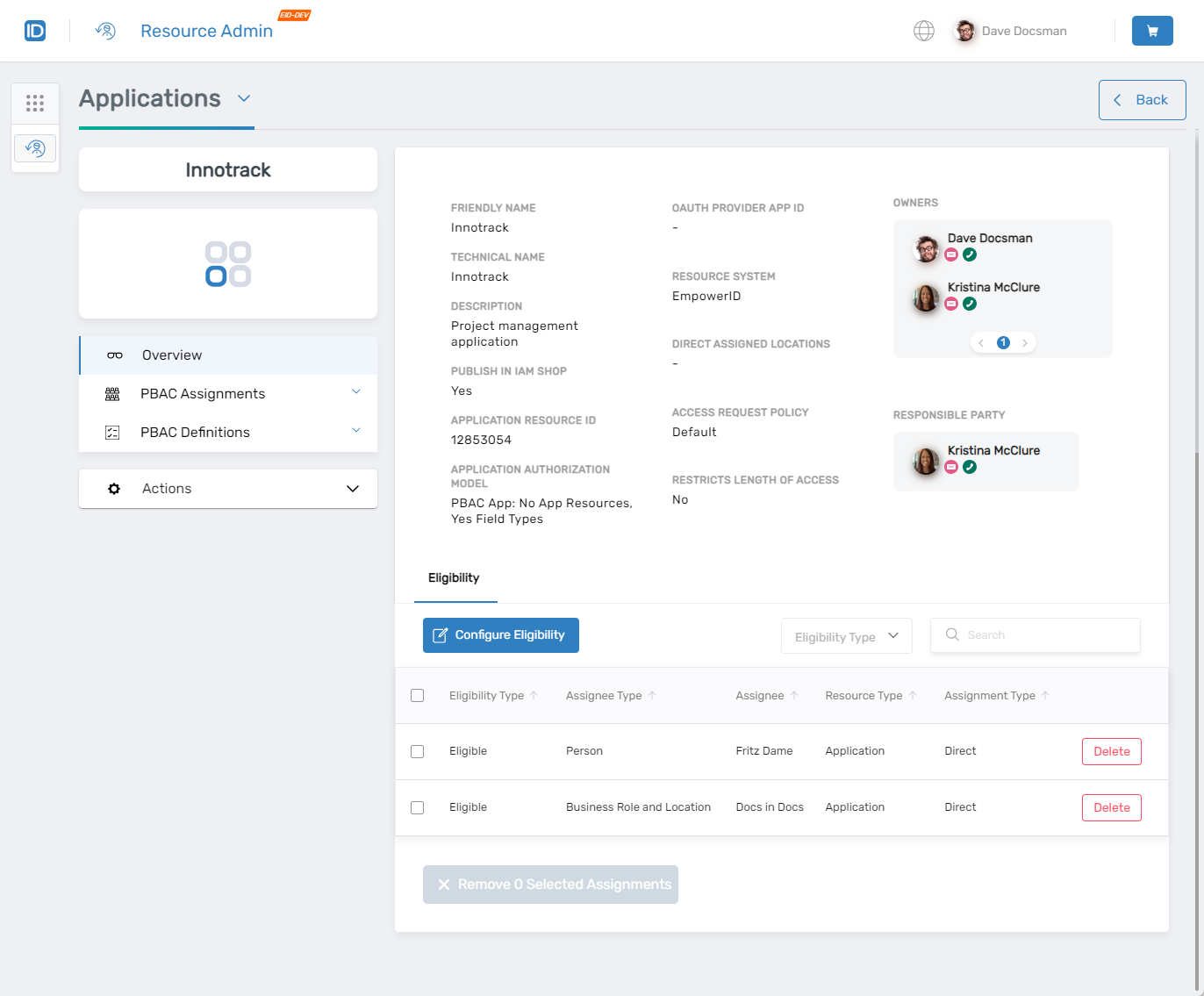
All onboarding actions are logged for audit purposes. The application creator receives temporary "All Access" for two hours to complete initial configuration.
Next Steps
After onboarding your PBAC application:
- Create application-owned field types for fine-grained access control
- Configure application rights users can request
- Set up PBAC policies to enforce access rules
- Test the application request flow in the IAM Shop (if configured as requestable)