Create Flow Definitions
Flow Definitions are blueprints that outline the sequence of actions required for a specific business process. This guide walks through creating a Flow Definition for employee offboarding.
Create a Flow Definition
-
Navigate to the Find Business Request Flow page by expanding Low Code/No Code Workflow and selecting No Code Flows from the navbar.
-
Click the New Flow Definition button.
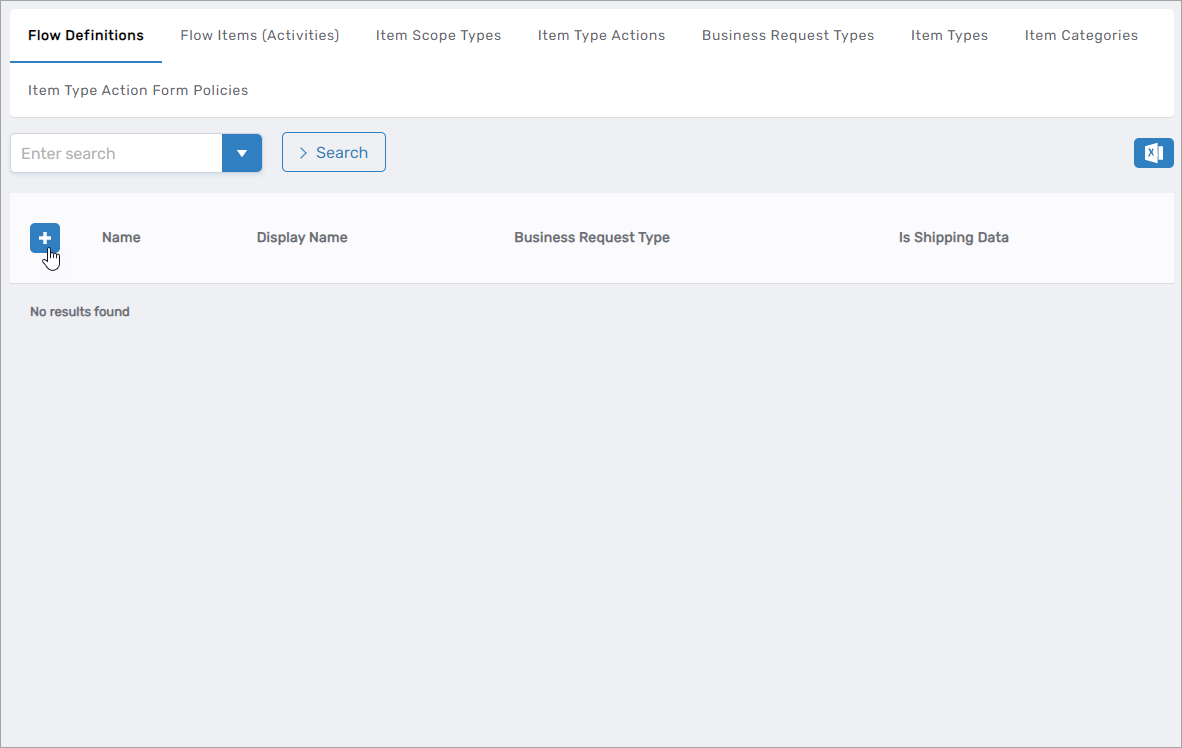 Figure 1: Click New Flow Definition to create a new Flow Definition
 -
Enter the details for the Flow Definition:
Field Description Name Name of the Flow Definition (e.g., "Employee Offboarding") Display Name Name displayed in the EmpowerID UI Locale Key (Unique Name) Optional locale key for the Flow Definition name Description Description of the Flow Definition's purpose Locale Key For Description Optional locale key for the Flow Definition description BR Generation SPROC Stored procedure to convert the Flow Definition into a Business Request. Leave at default value: BusinessRequest_GenerateBusinessRequestFlowDefinitionRequestBusiness Request Type Business Request Type for the Flow Definition (e.g., "Person Leaver") -
Click Save.
The new Flow Definition appears in the Flow Definitions tab of the Find Business Request Flow page.
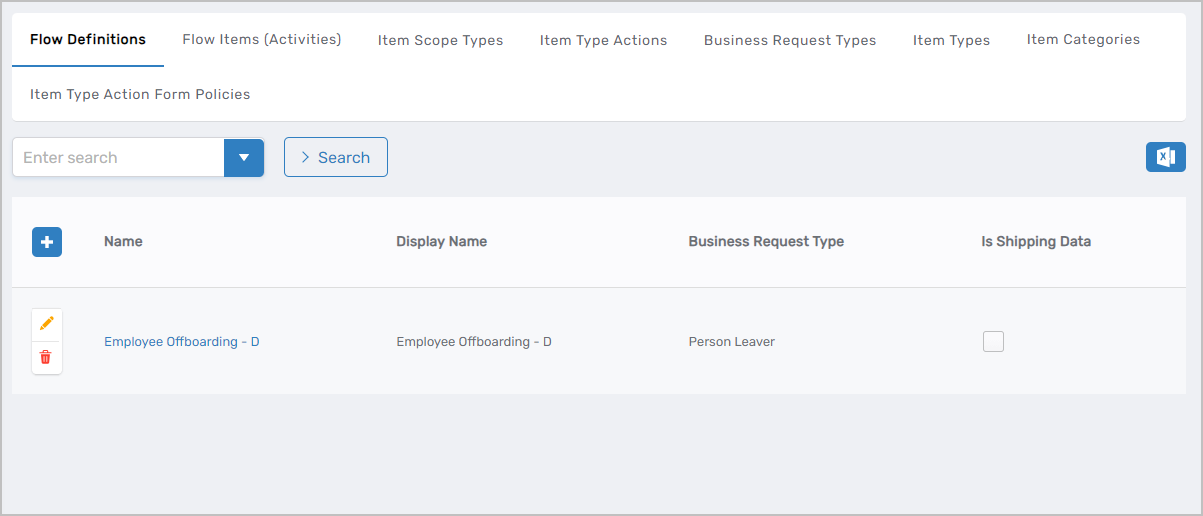 Figure 2: Flow Definition appears in the Flow Definitions tab after creation
Next Steps
After creating the Flow Definition, create Flow Items that define the individual actions to occur within the flow. Once created, you will add these Flow Items to the Flow Definition.