Create & View Vaulted Secret
Vaulted Secrets allow users to store sensitive personal credentials in a secure and encrypted form within EmpowerID. The stored data is protected using a Master Password, known only to the user. EmpowerID stores only a hash of this password, ensuring that:
- If the Master Password is lost, the associated secrets cannot be recovered.
- Users may create a new Master Password, but previously created secrets will remain inaccessible unless the original password is recovered.
The Vault supports the following secret types:
- Password – Stores account credentials including username, password, and login URL.
- Credit Card – Stores cardholder and payment information.
- Note – Stores personal or sensitive notes.
Prerequisites
- Users must have an active EmpowerID account.
- Users must have access to the EmpowerID Chatbot.
- Users must have configured a Master Password for secure access to Vaulted Secrets.
Creating Vaulted Secrets
Vaulted secrets can be created directly through the EmpowerID Chatbot.
The Chatbot understands natural language commands such as:
"create a new secret" or "create a vault secret"
These commands initiate the Create Vault Secret workflow.
For a full list of supported commands, refer to Chatbot Commands.
Steps to Create a Vaulted Secret
- In the Chatbot, type help to open the options menu.
- Click Create Vault Secret.
- Choose the type of secret you wish to create: Password, Note, or Credit Card.
- Complete the relevant form fields.
- Click Submit.
- A confirmation message will appear upon successful creation.
🔐 Password Secret
Complete the following fields in the form:
| Field | Description |
|---|---|
| Display Name | Friendly name for the vaulted password |
| Username | Username associated with the credential |
| Password | Password to be stored |
| Login Url (V2) | (Optional) Application login URL |
| Notes | (Optional) Additional notes |
| Master Password | Required for encrypting the secret |
Click Submit. You should receive a success message confirming creation.
📝 Note Secret
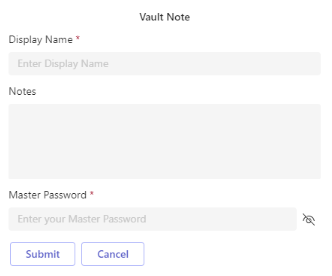
Complete the following fields:
| Field | Description |
|---|---|
| Display Name | Friendly name for the note |
| Notes | (Optional) Additional details |
| Master Password | Required for encrypting the secret |
Click Submit. You will see a success confirmation.

💳 Credit Card Secret
Complete the form fields:
| Field | Description |
|---|---|
| Display Name | Friendly name for the credit card entry |
| Card Type | Card issuer (e.g., Visa, MasterCard) |
| Name on Card | Cardholder's name |
| Card Number | Full credit card number |
| Expires | Expiration date (MM/YY) |
| Verification Code | CVV or security code |
| Notes | (Optional) Additional notes |
| Master Password | Required for encrypting the secret |
Click Submit. A confirmation message will be displayed upon successful creation.
Viewing Vaulted Secrets
Users can retrieve and view previously created secrets using the Chatbot interface.
Tip:
Type commands like"retrieve vault secret"or"show secrets"to trigger the View Vault Secret workflow.
For full command options, see Chatbot Commands.
Steps to View a Vaulted Secret
- Type help in the Chatbot to open the options menu.
- Click on View Vault Secret.
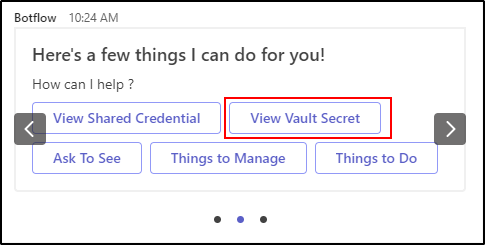
- Select the secret you wish to view.

- Enter your Master Password to decrypt the secret.

- The Chatbot will display the details of the selected secret.

⚠️ Security Note:
Secrets are decrypted locally in the Chatbot session only after successful Master Password verification. Never share your Master Password. For security compliance, secrets are never stored in plaintext within EmpowerID.