Add People to Group
When you need to grant users access to group-based resources and permissions, you can add individual people to existing Groups. This gives them immediate access to all resources and systems that the group provides access to.
Access Requirements: You must have appropriate permissions to manage the specific Group you want to modify.
Use this workflow when onboarding new team members, granting temporary access for projects, or adding users who need the same permissions as existing group members.
Before You Start
Make sure you have:
- Knowledge of which users need to be added to the group
- Understanding of what access and permissions the group provides
- Confirmation that the users should receive all group-based access
Get Started
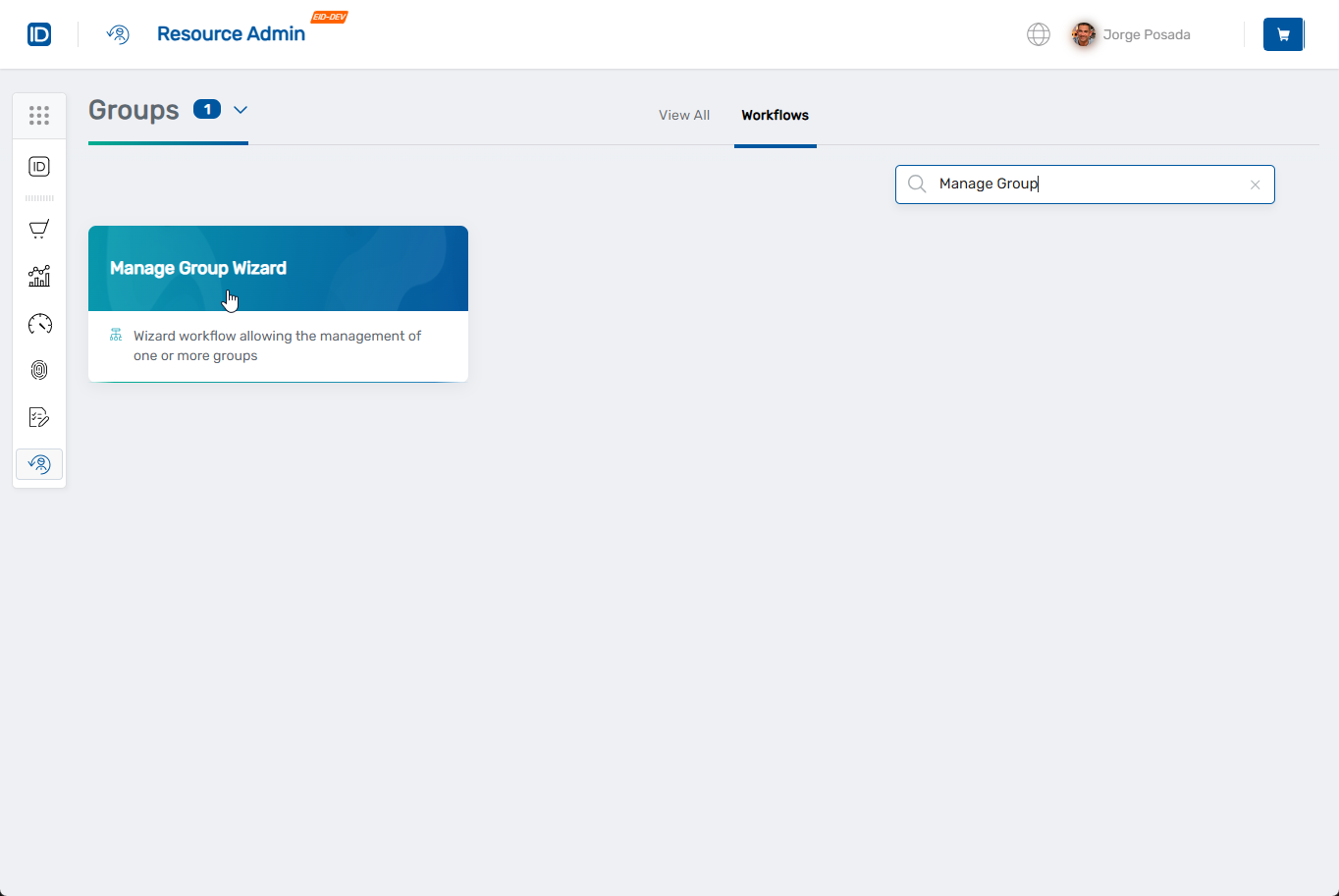
- Navigate to the Resource Admin portal.
- Select Groups from the resource type menu.
- Click the Workflows tab.
- Find and click Manage Group Wizard.
- Search for the Group(s) you want to add people to, then check the box next to each group and click Next.
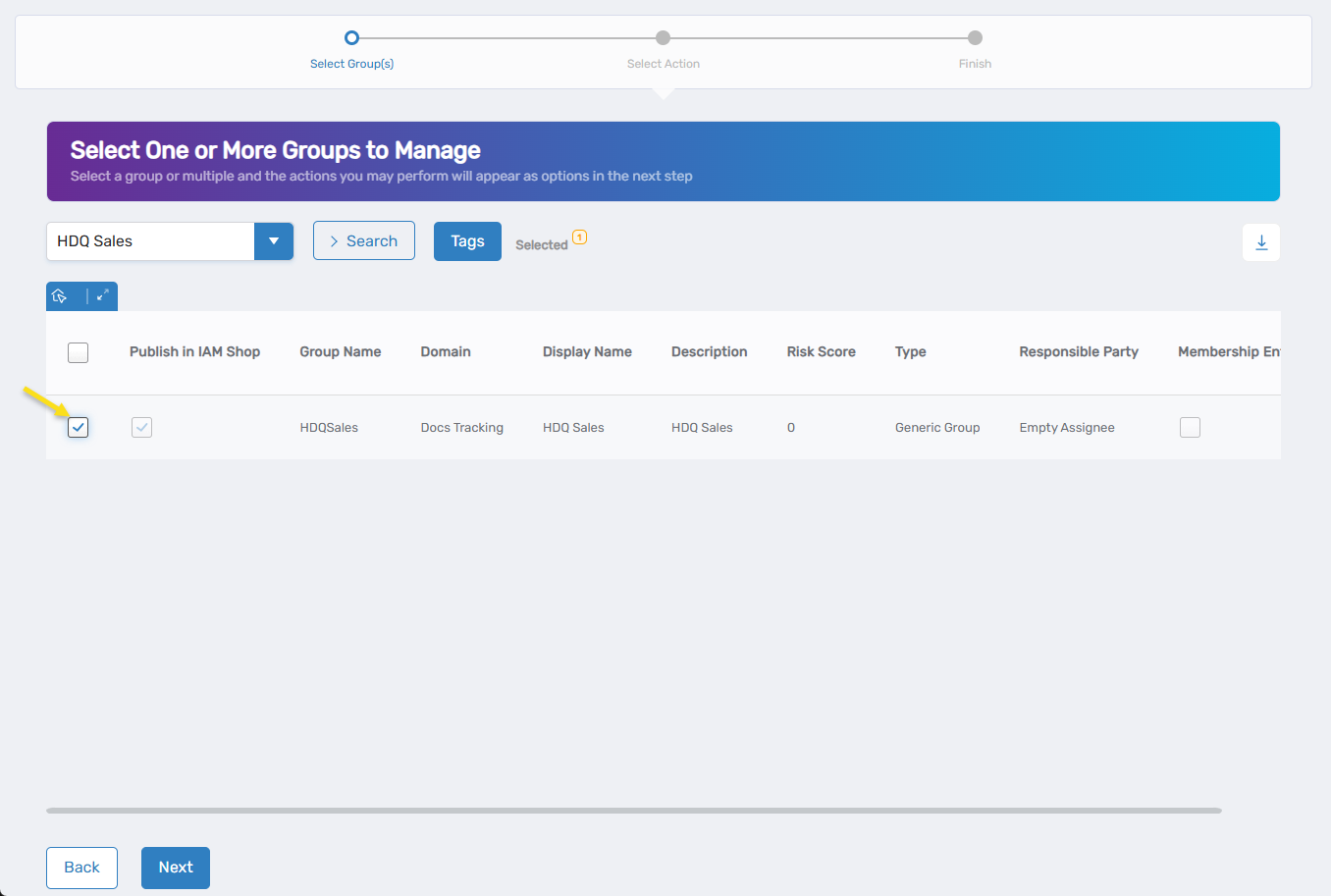 You can select multiple groups if you want to add the same people to several groups at once.
 - Select Add People to Group from the available actions.
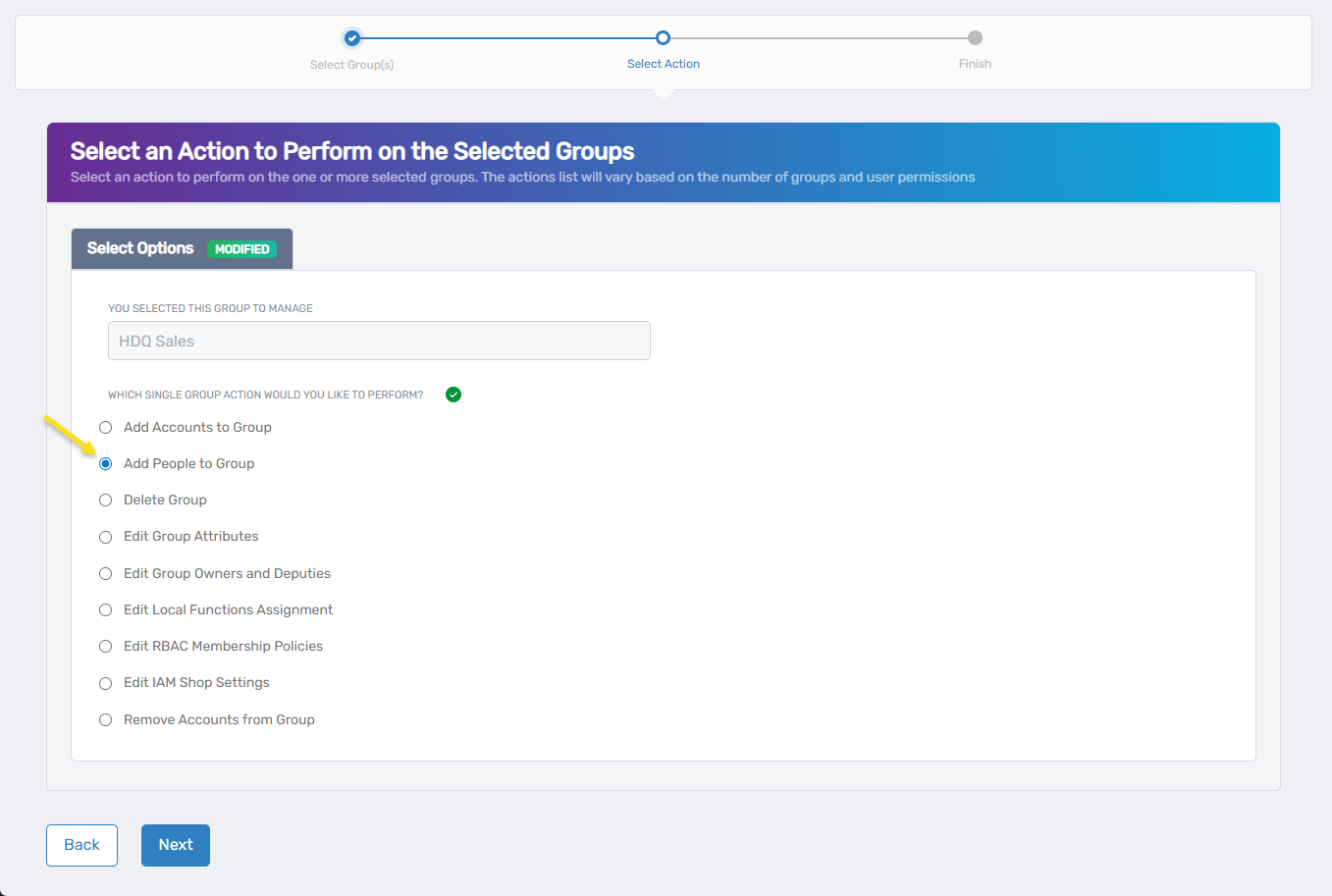
- Click Next to proceed to the people selection interface.
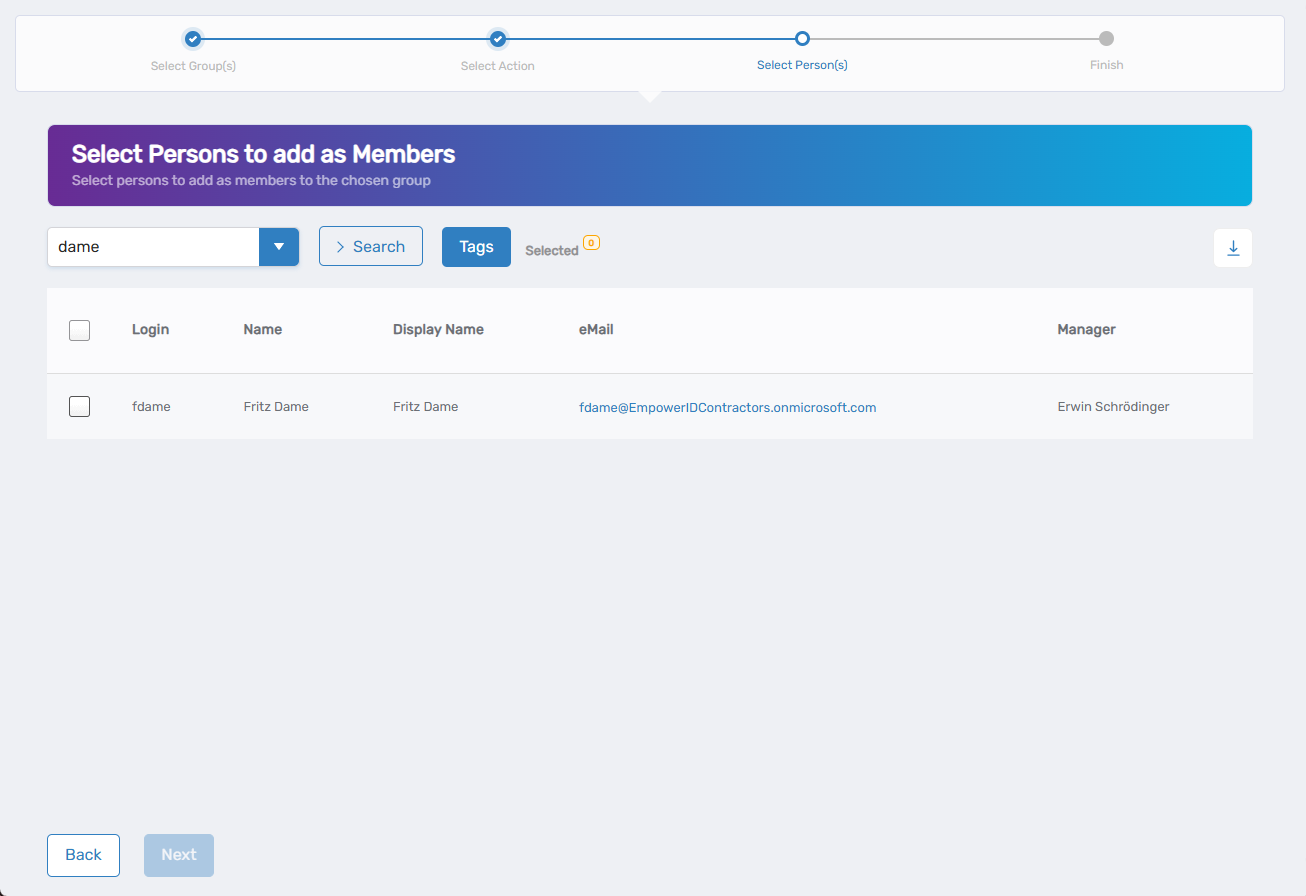
The workflow will open showing the person selection interface.
Add People to the Group
-
Search for and select the people you want to add to the group(s):
- Use the search field or dropdown to find specific individuals by name, login, or other criteria.
- Check the box next to each person you want to add to the group(s).
- The table displays Login, Name, Display Name, eMail, and Manager information to help you identify the correct people.
- Use the Selected counter to track how many people you've chosen.
- Repeat as needed to add multiple people to the group(s).
-
Review your selections to ensure you're adding the correct people.
-
Click Next to proceed to confirmation.
Complete the Workflow
- Review the Operation Execution Summary to confirm your changes were applied successfully.
- Click Submit to continue.
- Choose your next action:
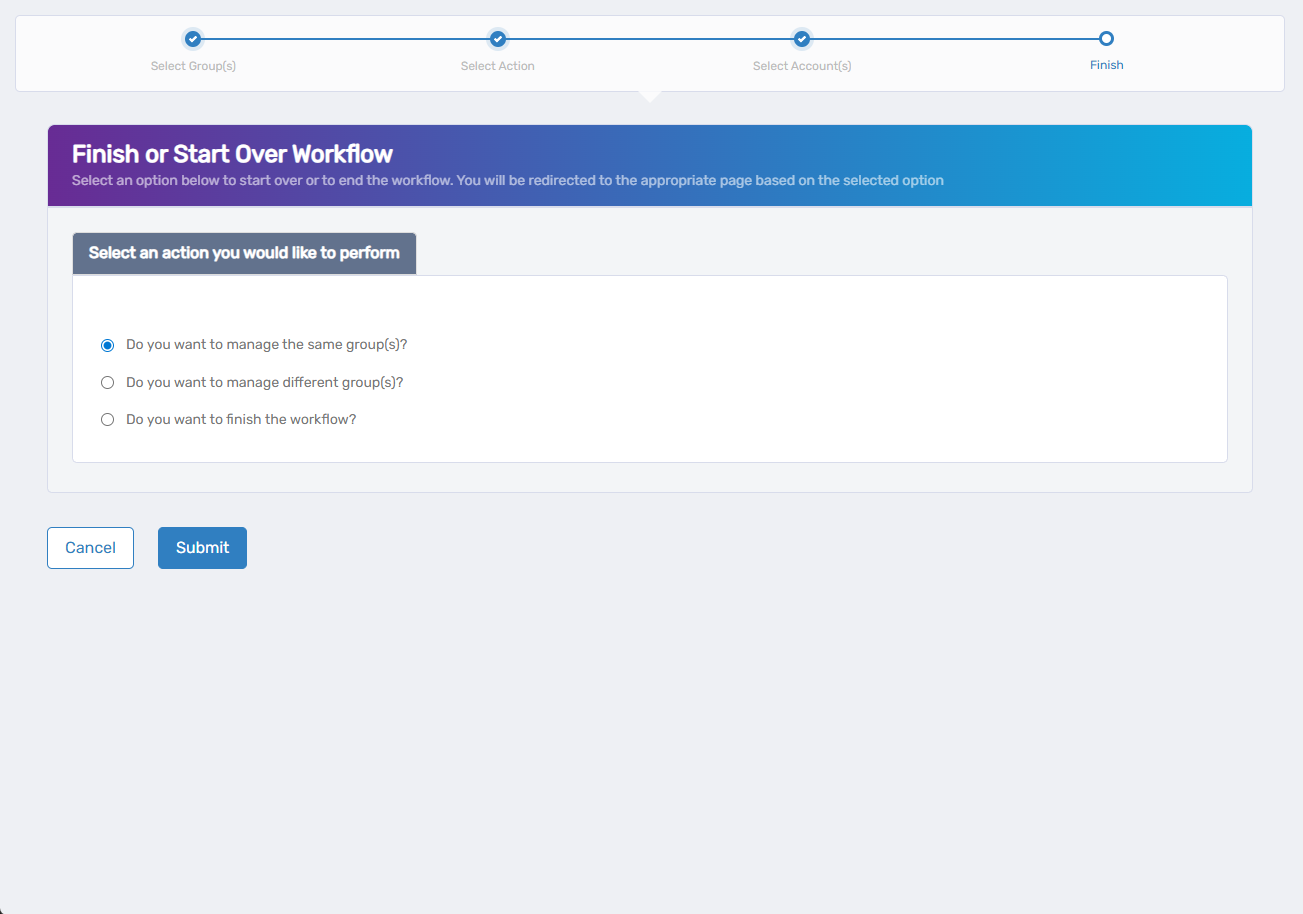
- Do you want to manage the same Group? - Select this to perform additional actions on the same group.
- Do you want to manage different Group(s)? - Select this to work with other Groups.
- Do you want to finish the workflow? - Select this to complete the process and exit the wizard.
- Click Submit to proceed with your selected option.
What Happens Next
- Added users immediately gain access to all resources and permissions associated with the selected group(s).
- Users will see new access appear in their available applications and systems.
- Group membership changes may trigger notifications to group owners or administrators.
- The users can now access group-based resources such as shared folders, applications, or systems for all selected groups.
If You Run Into Problems
Can't find the person you want to add: Verify the person exists in the system and has an active account. Check spelling and try searching by employee ID or different name variations.
Person appears to be added but doesn't get access: Group membership changes are immediate, but some systems may require users to log out and back in to see new access.
Related Actions
- To modify group ownership, see Edit Group Owners and Deputies.
- To manage automatic group membership, see Edit RBAC Membership Policies.