Approve Management Role Changes
Management Role membership changes may require approval according to your organization's policies. As a designated approver, review pending requests and approve or reject changes to maintain appropriate access control.
Prerequisites
Before approving Management Role changes, ensure you have:
- Access to approve membership changes for the target Management Role
Procedure
- Navigate to My Tasks in EmpowerID.
- Locate pending Management Role change requests in your task list and click the request to open it.

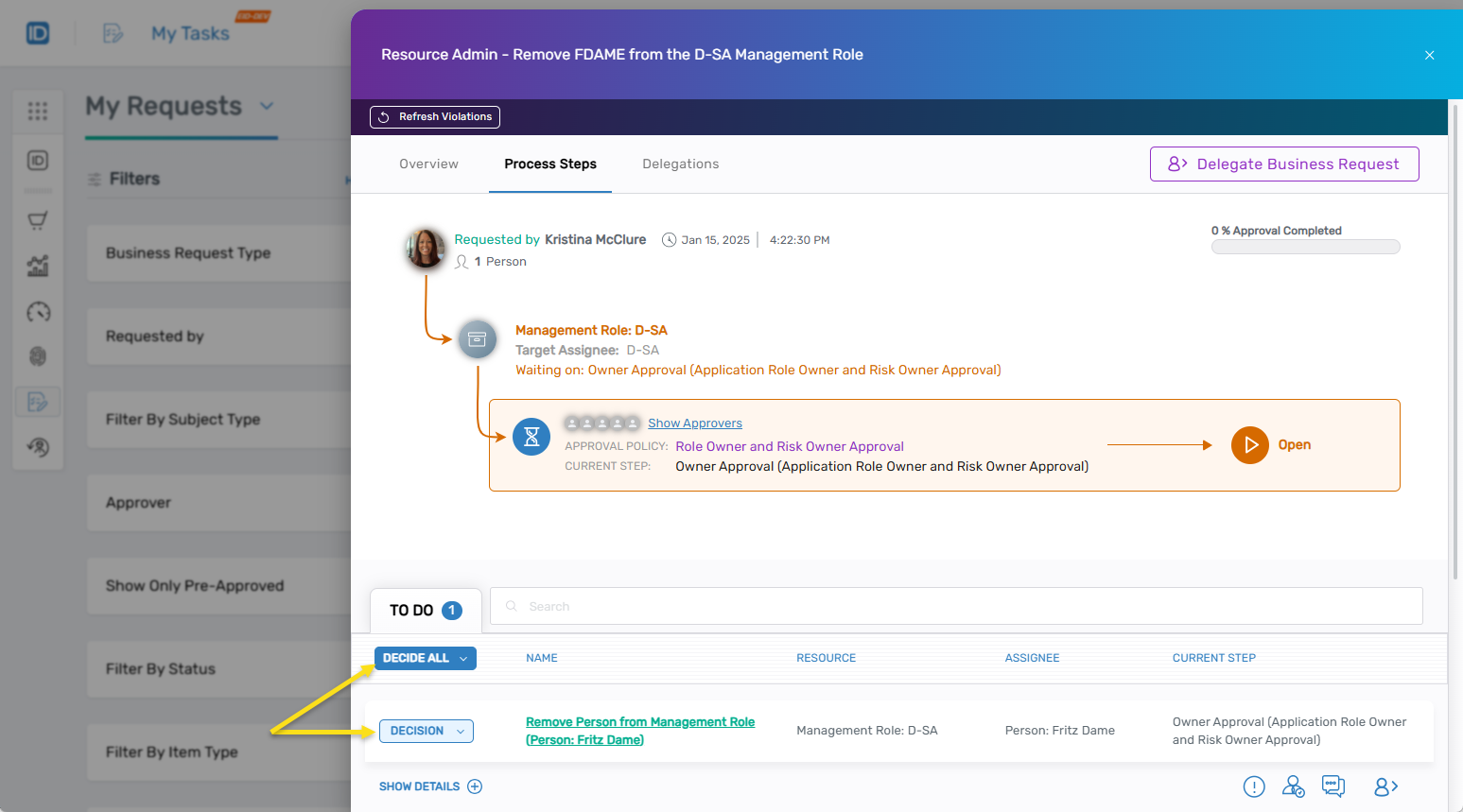
- Navigate to the Process Steps tab to view the approval workflow status.
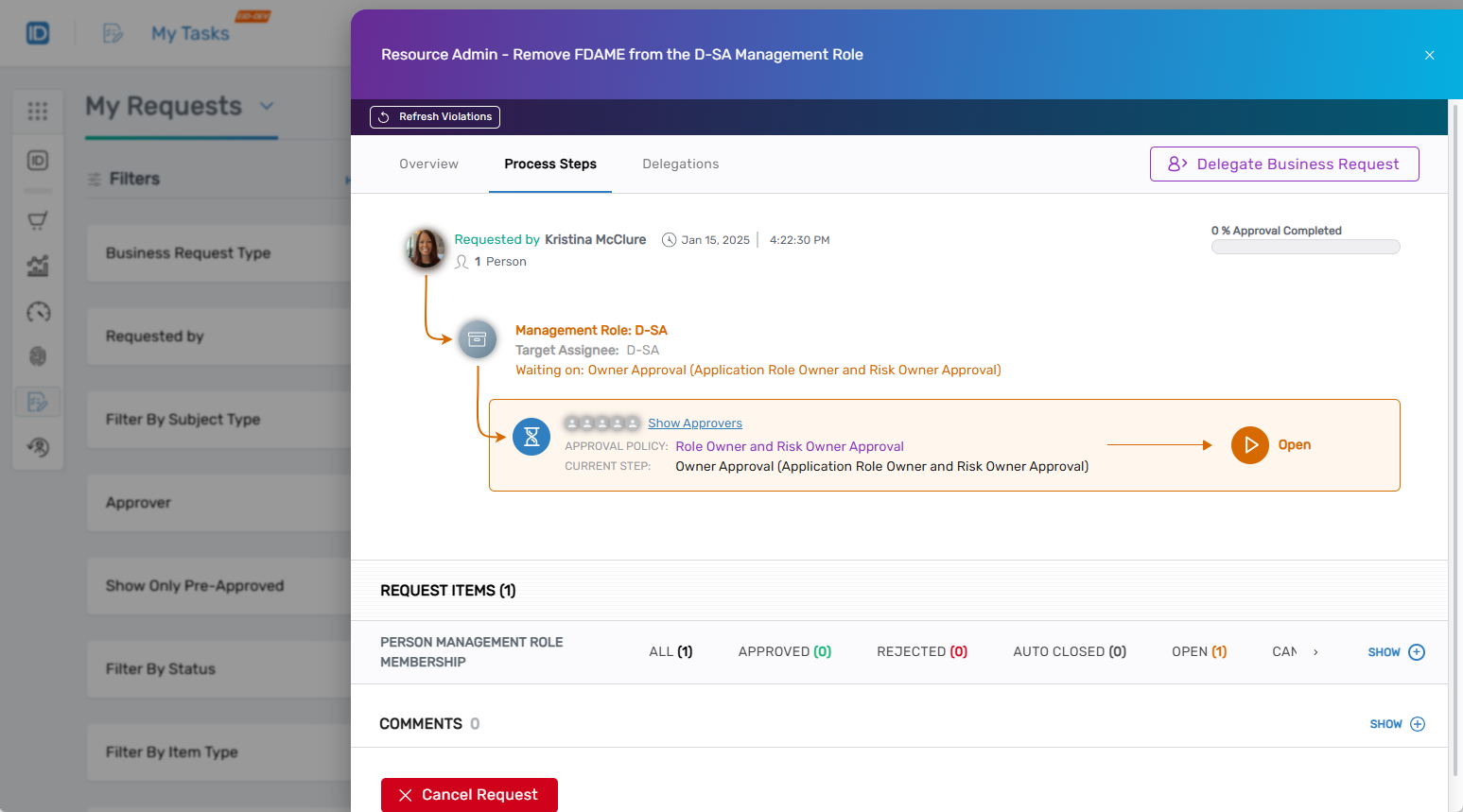
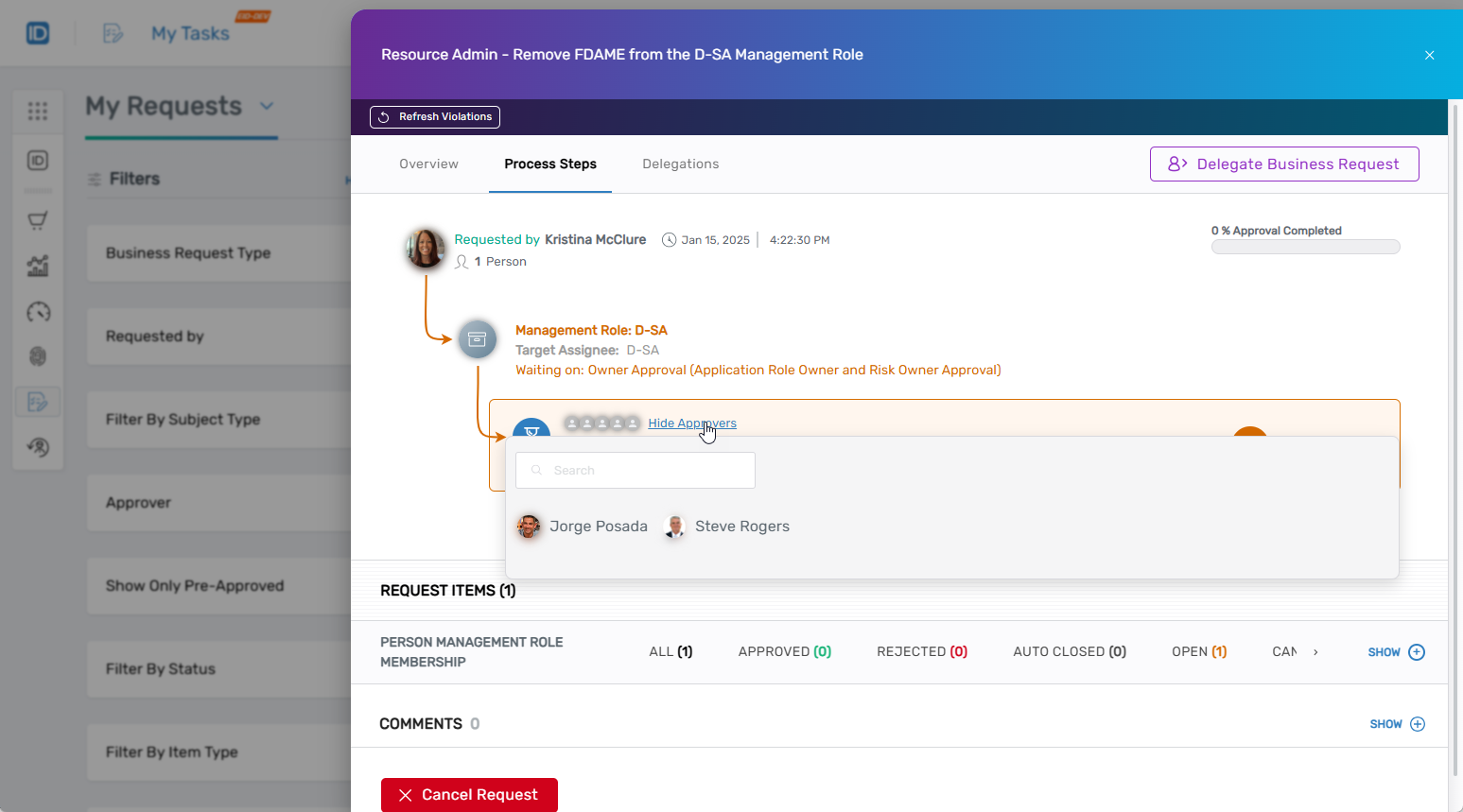
- Click Show Approvers to view the designated approvers for the current approval step.
- Review the request justification and business context before making a decision.
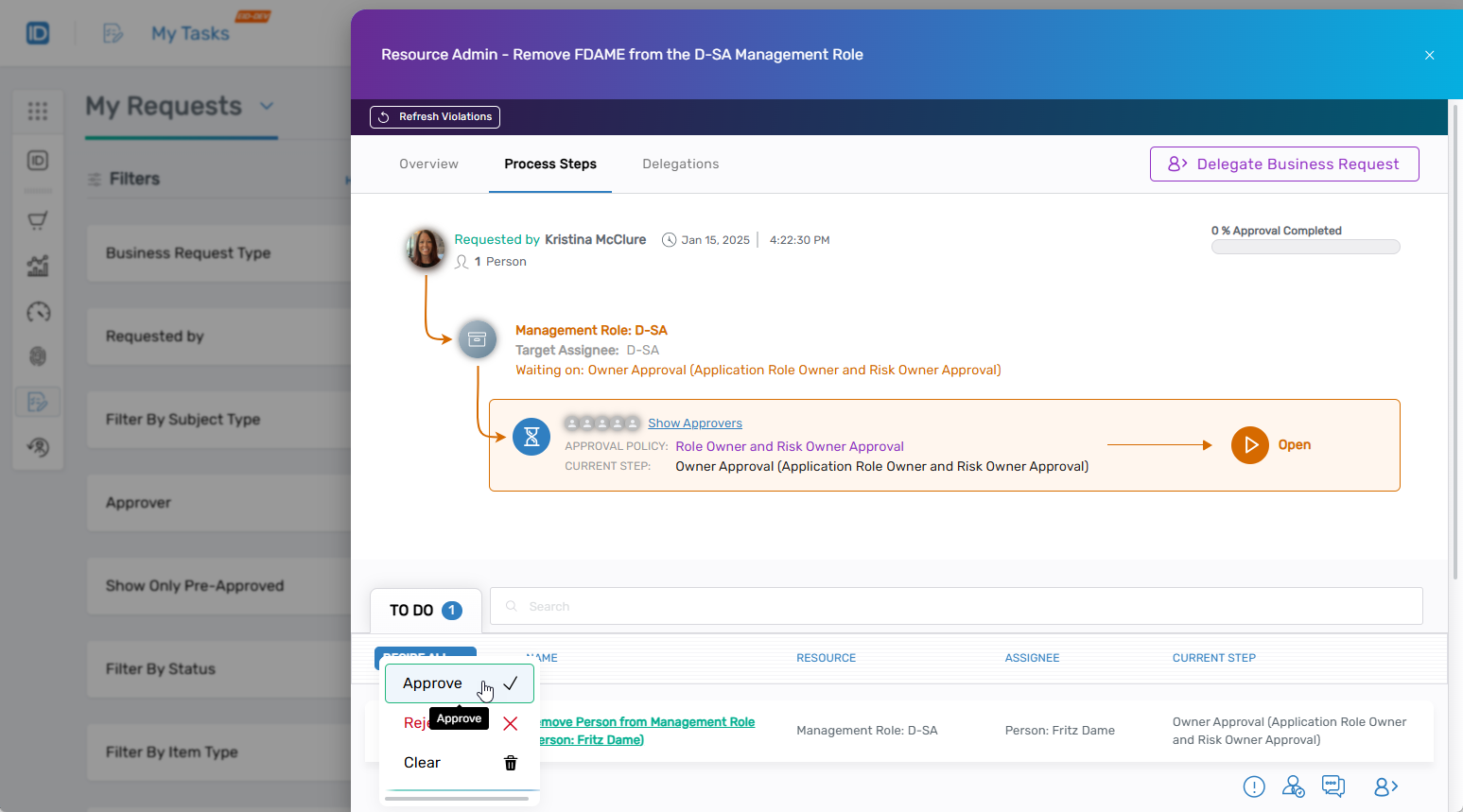
- Click the Decision button and select either Approve or Reject.
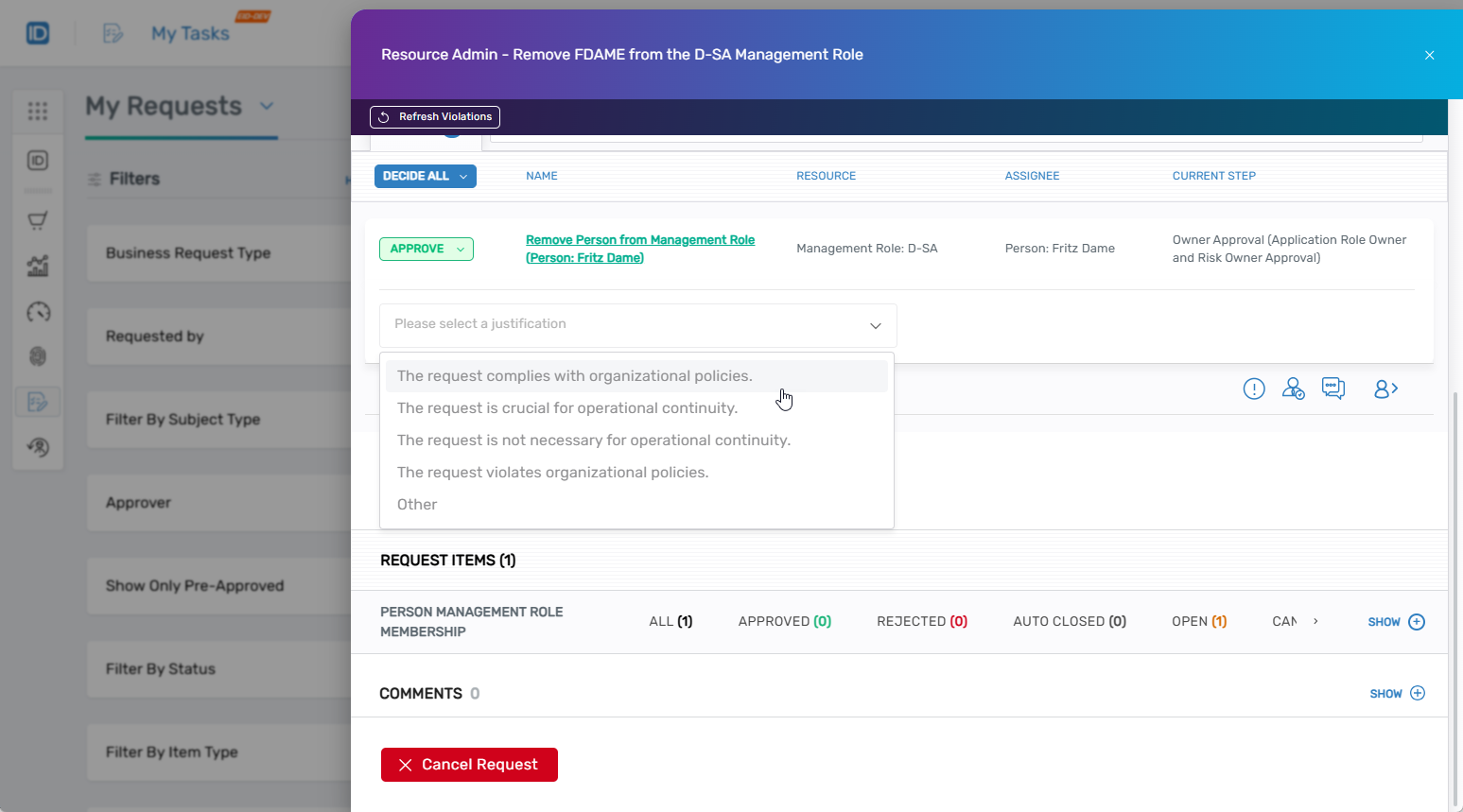
- Select a justification for your decision from the dropdown.
- (Optional) Add additional comments explaining your decision.
- Click Submit to record your approval or rejection.
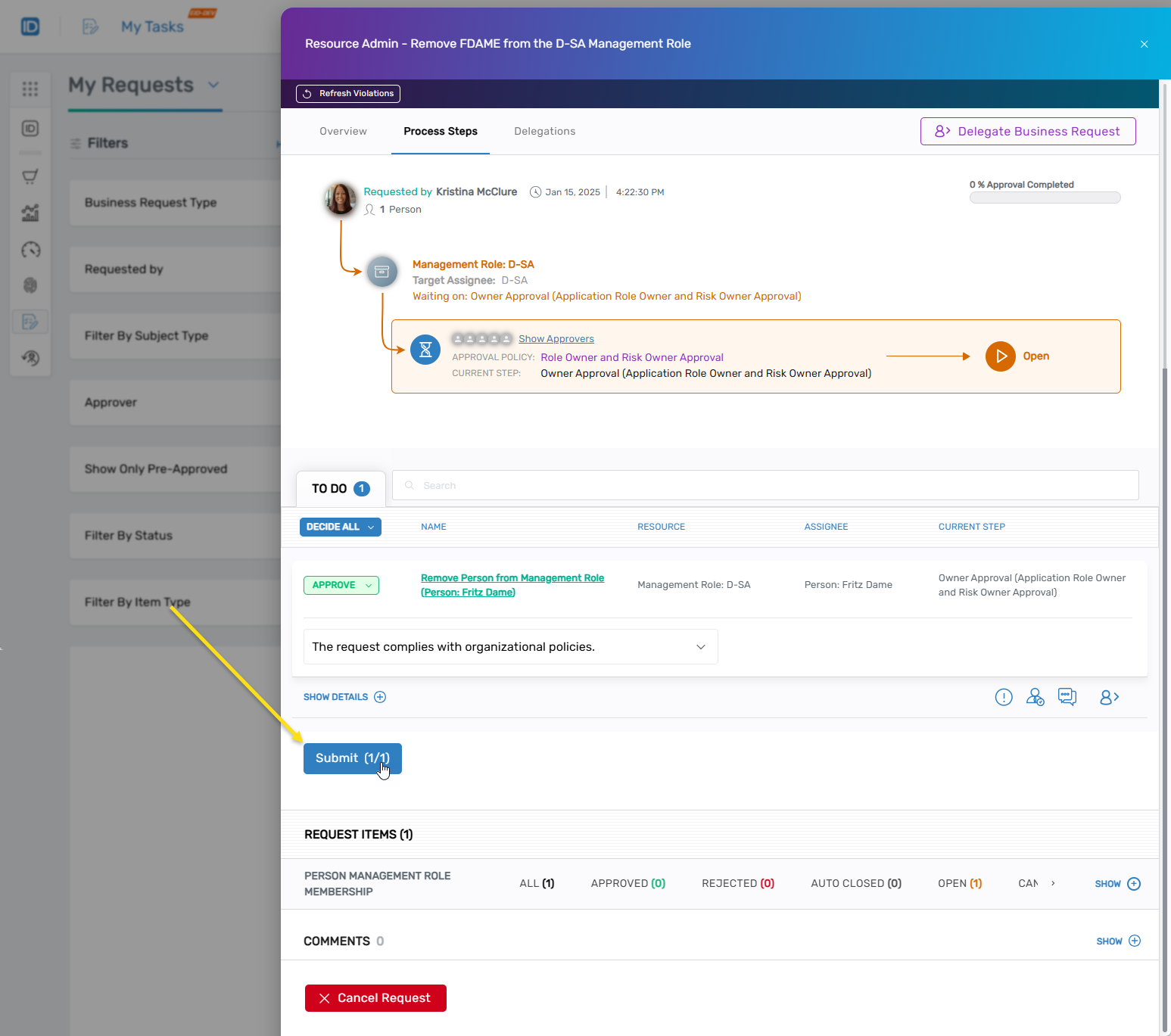
Verify the Results
After submitting your decision:
- Verify the request status shows as approved or rejected in My Tasks.
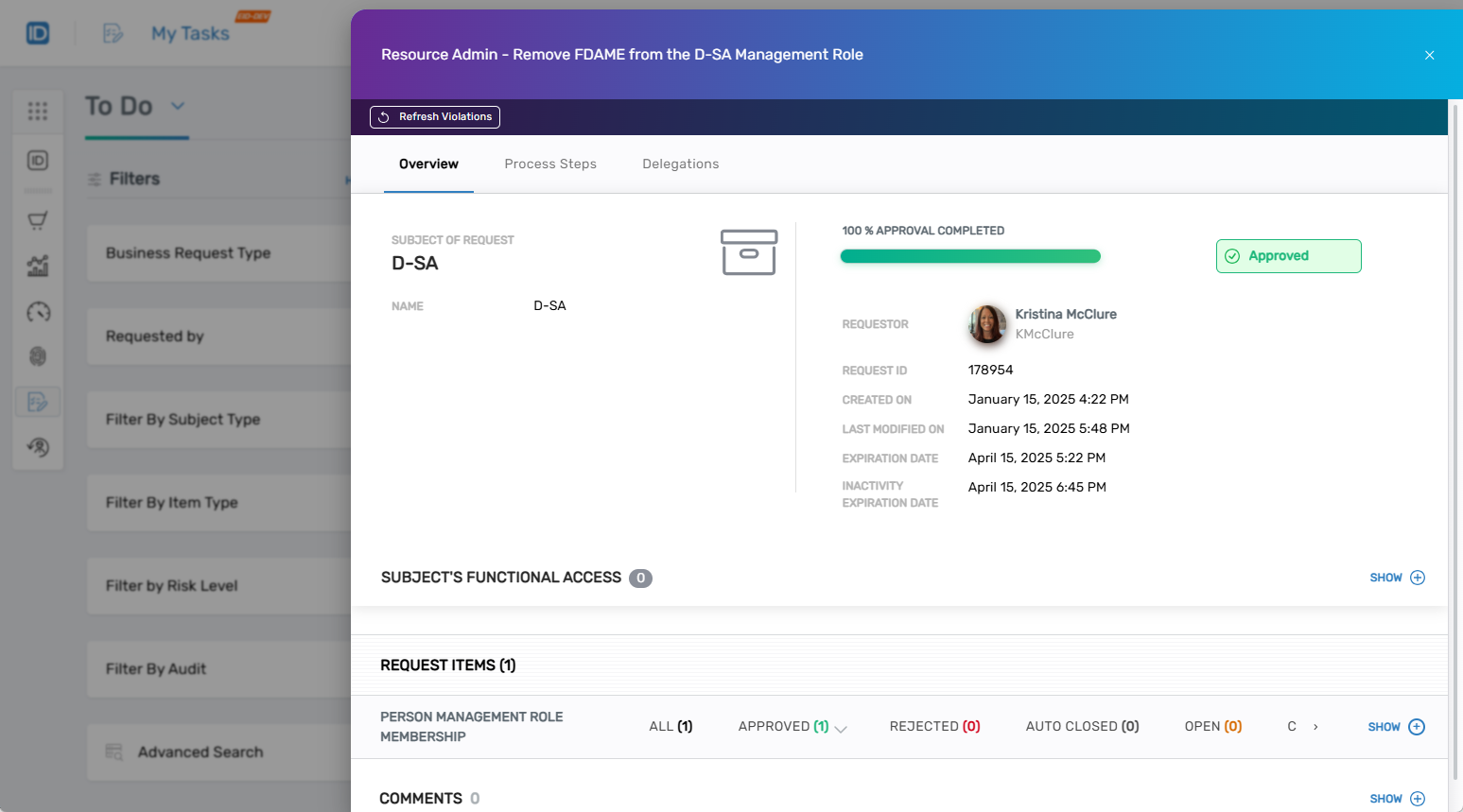
- Note that if multiple approvals are required, your approval moves the request to the next step but changes won't take effect until all approvals are obtained.
Delegate Approval Rights
If you need to delegate approval authority temporarily, follow these steps:
- From any tab of the opened business request, click Delegate Business Request.
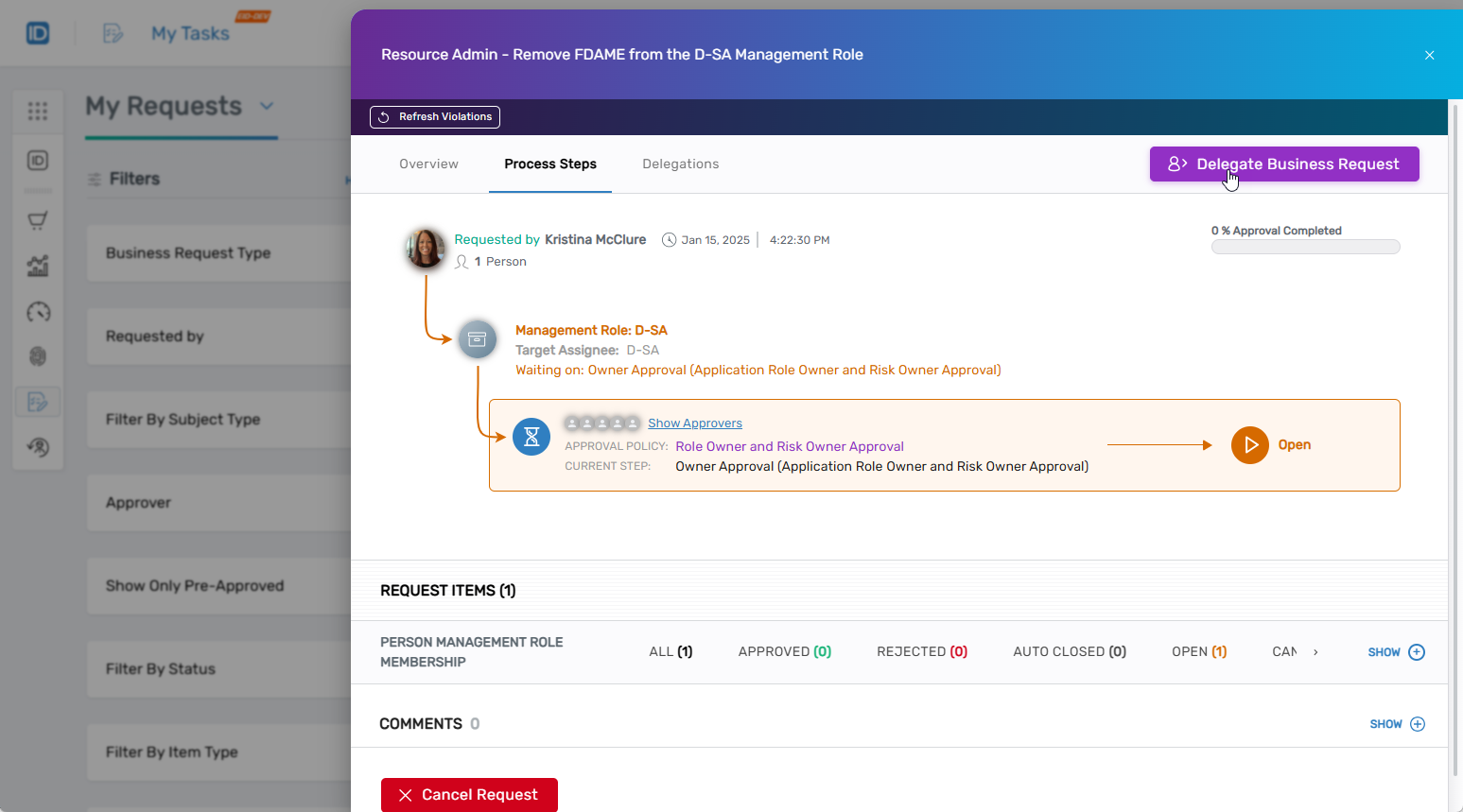
- In the Add Additional Approvers modal, search for and select the person to delegate to.
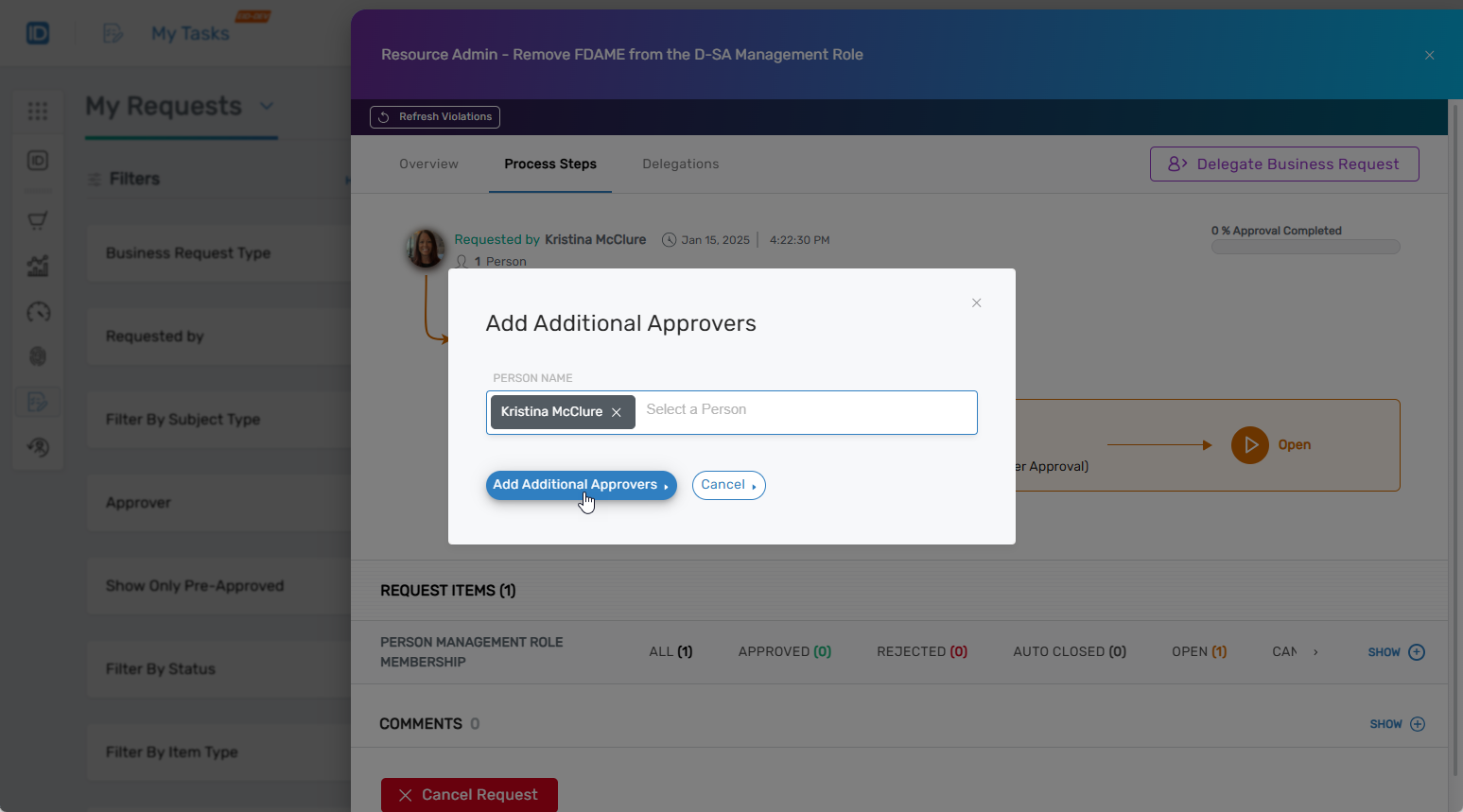
- Click Add Additional Approvers.
The delegated user will see the request in their task list.
Related Topics
- Remove Users from Management Roles - Create removal requests
- Add People to Management Roles - Create assignment requests
- Edit Management Role Owners & Deputies - Manage who can approve requests