Remove Widgets from Dashboards
You can remove widgets from EmpowerID dashboards by overriding the .cshtml files that define the dashboard layout. This allows you to hide or modify dashboard components without altering EmpowerID’s installed files.
This example demonstrates removing the My Last 10 Login Failures widget from the Home dashboard.
Required Override Directory Structure
To override a dashboard page, you must replicate the original application’s folder structure inside the Overrides directory.
Override Path
...\EmpowerID.Web.Overrides\Areas\Common\Views\Dashboards
Corresponding Original Path
...\EmpowerID.Web.PortableAreas.Common\Views\Dashboards
Remove the Widget
- Open Command Prompt and navigate to:
C:\Program Files\TheDotNetFactory\EmpowerID\Web Sites
- Create the override directory (if it does not already exist):
mkdir EmpowerID.Web.Overrides\Areas\Common\Views\Dashboards
- Navigate to the original dashboard view folder:
EmpowerID.Web.PortableAreas.Common\Views\Dashboards
Locate the file:
Index.cshtml
- Copy the file into the override directory:
EmpowerID.Web.Overrides\Areas\Common\Views\Dashboards
- Open the copied
Index.cshtmlfile. - Search for the section containing:
mylast10loginfailures
- Comment out the entire
<div>block for the widget.
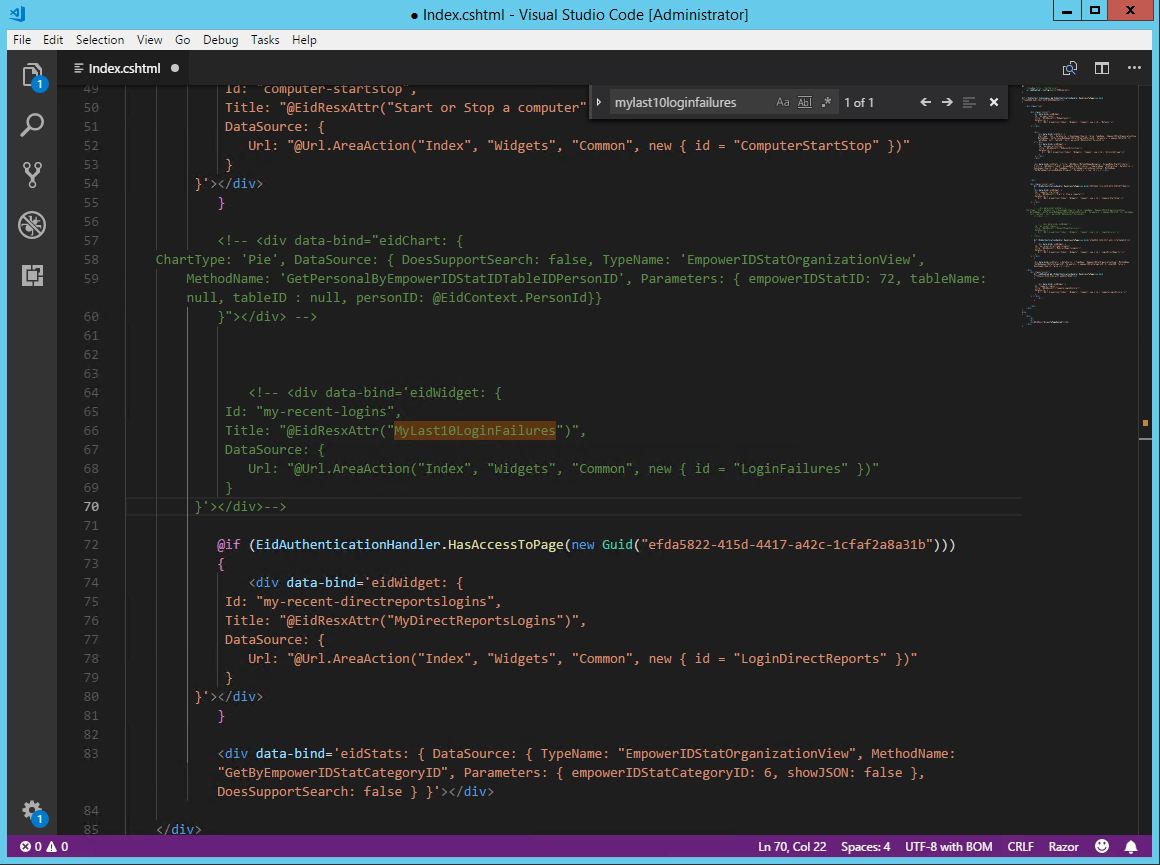
- Save the file.
- Reload the Home dashboard. The widget should no longer appear.
Notes
- No application restart is required.
- If the changes do not appear, clear your browser cache.