Edit Client Secrets
As an application owner or deputy, you can update the core credential properties of a client secret—including the username and password, encrypted notes, and usage instructions.
note
To edit a credential, you must have a master password registered with EmpowerID. You will be prompted to enter it to complete the update.
What You'll Need
| Requirement | Description |
|---|---|
| Ownership of the Secret | You must be listed as an owner or deputy of the client secret. |
| Registered Master Password | A valid master password is required to save changes to the credential. |
Steps to Edit a Client Secret Credential
- Log in to Resource Admin.
- In the Resource Type dropdown, select Applications.
- Search for and locate the Azure application.
- Click the Details button to open the application Overview page.
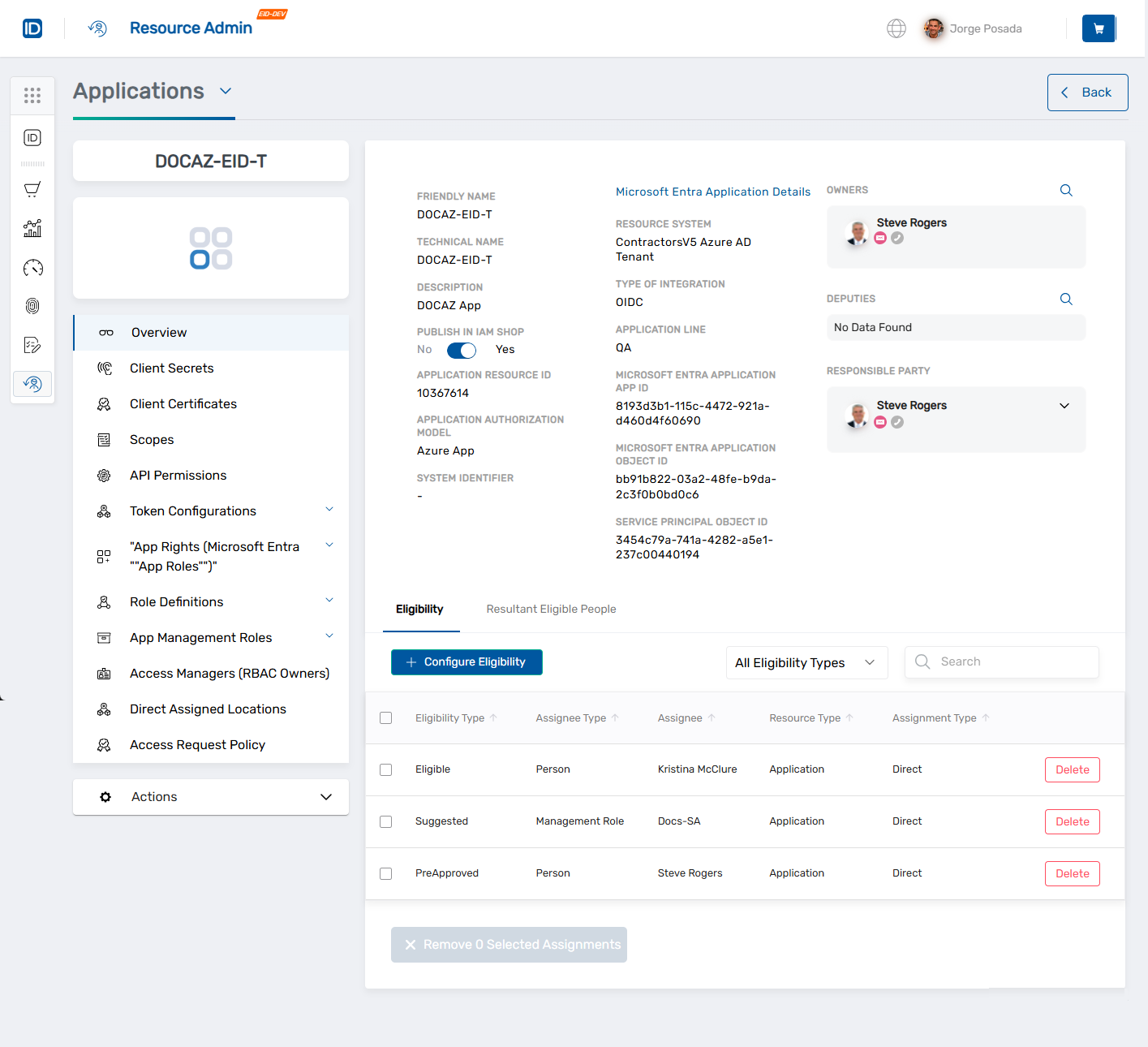
- In the left navigation, click Client Secrets.
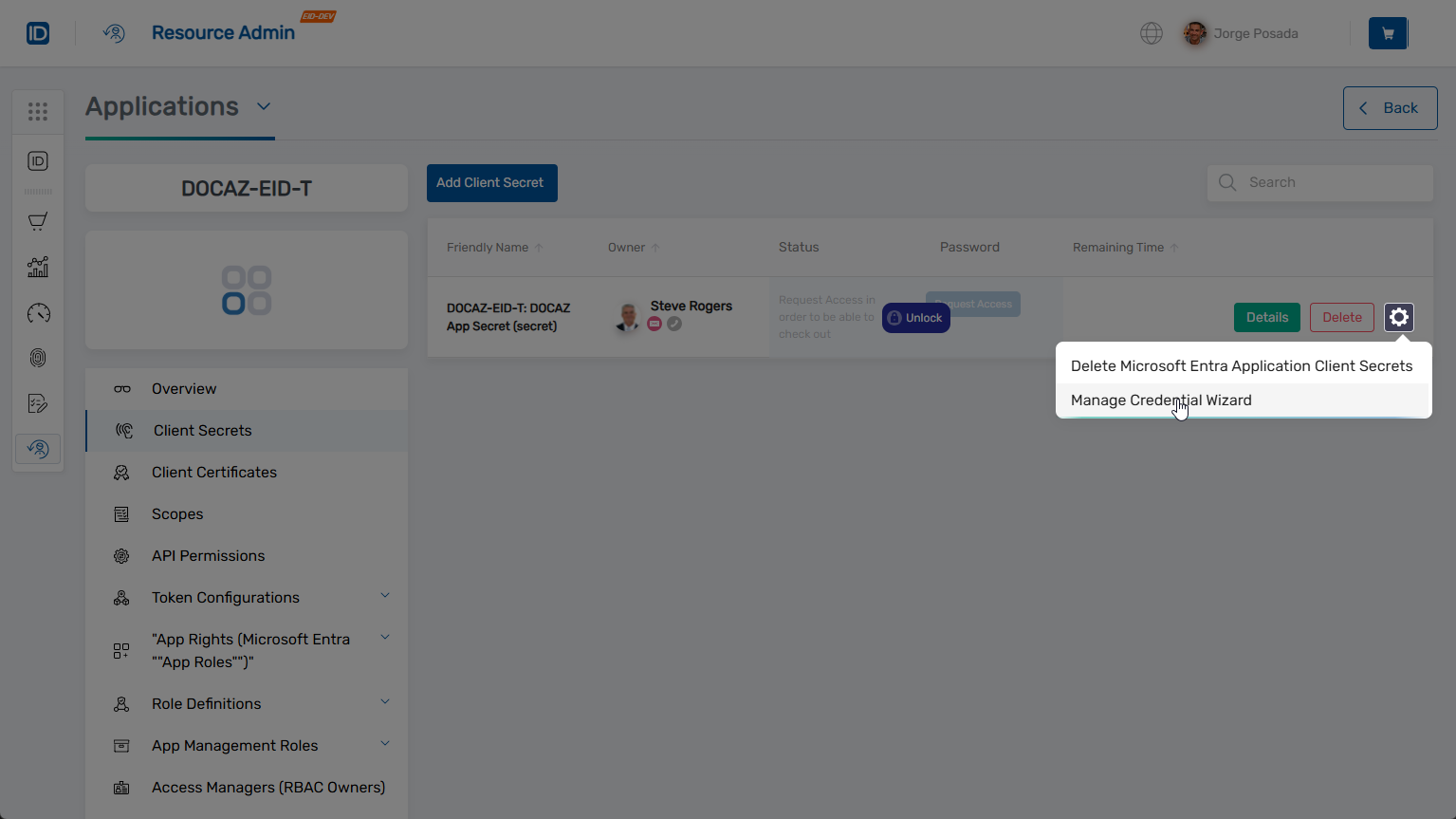
- Find the client secret you want to edit.
- Click the gear icon on the secret record and select Manage Credential Wizard.
- On the Select Options screen, select Edit Credential.
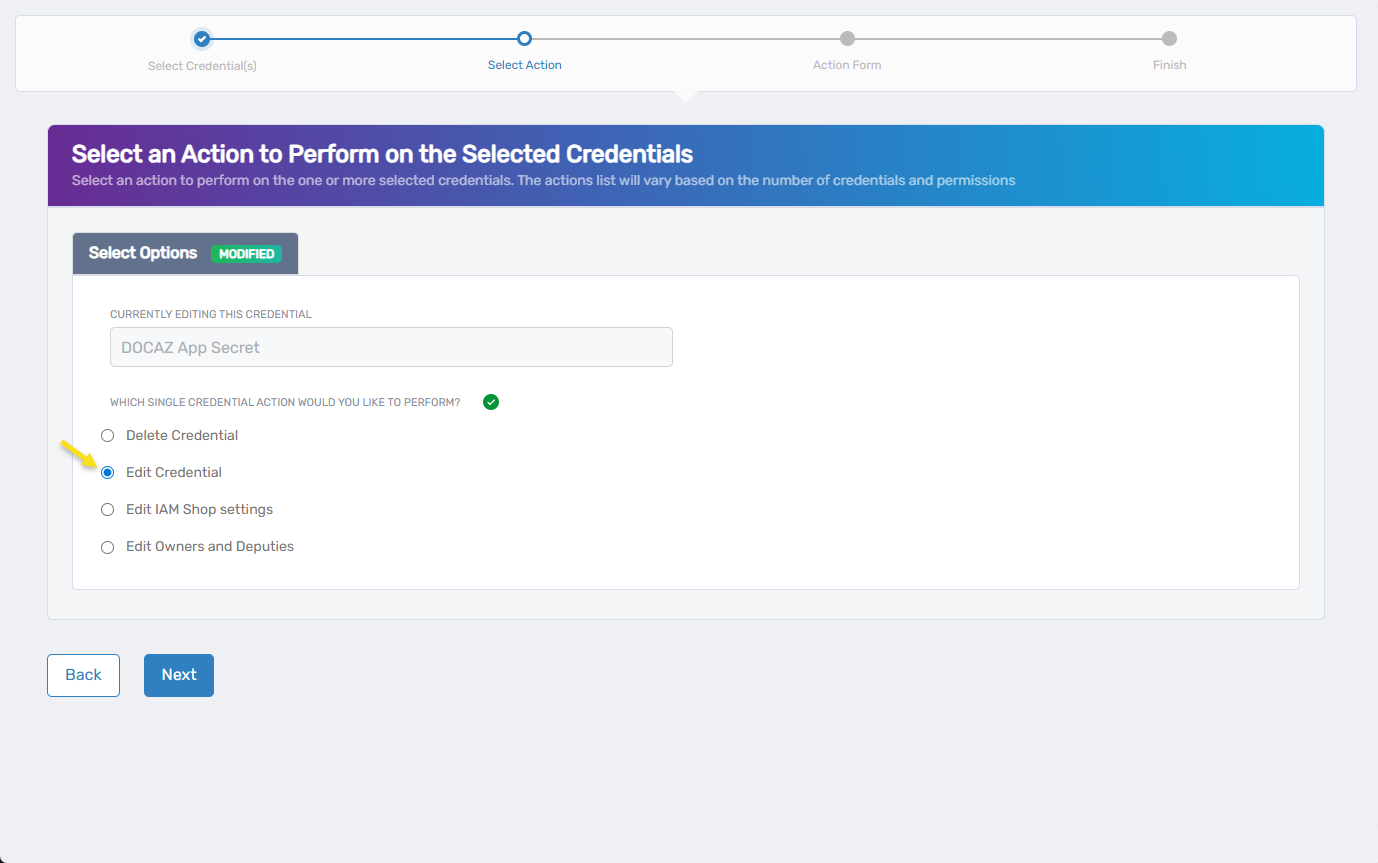
- Click Next.
The Edit Credential form opens.

- Use the form to update the desired credential values:
| Field | Description |
|---|---|
| Name (required) | The internal name of the credential. Used for identification in the system. |
| Display Name (required) | The label shown in the UI and IAM Shop. Often matches the Name. |
| Credential Type | Defaults to Azure Application Secret and cannot be changed. |
| Personal Credential | If checked, the credential will be visible only to the owner and not shareable. Leave unchecked for app secrets. |
| User Name (required) | The service principal or username associated with the secret. |
| Password (required) | The updated value of the secret. |
| SSH Key | Check this box if the secret is an SSH private key instead of a password. |
| Encrypted Notes | Optional field for any sensitive internal documentation. This content is encrypted and stored securely. |
| Enter Your Master Password (required) | You must enter your master password to confirm the changes. This password is never stored. |
| Description | An optional description for reference and context. |
| Instructions | Optional usage or handling guidance for those accessing the credential. |
| Enabled | If checked, the credential is active and usable. Uncheck to disable access. |
- Once finished, click Next.
- Review the Operation Execution Summary to confirm the update succeeded.
- Click Submit to continue.
- On the Finish or Start Over Workflow screen, choose what to do next:
- Manage the same credential(s)
- Manage different credential(s)
- Finish the workflow
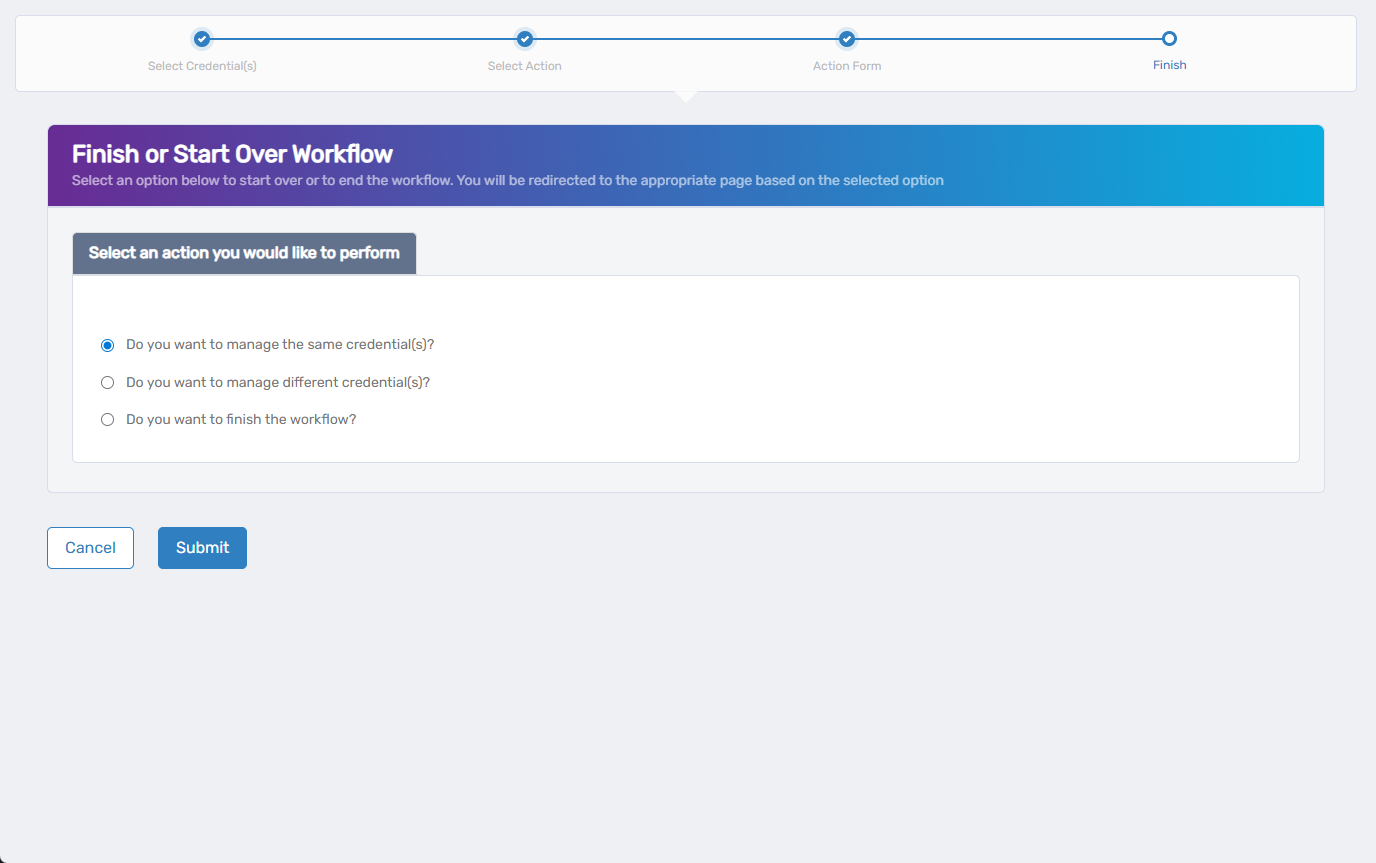
- Click Submit to complete.
What Happens Next
- The credential values are updated securely in EmpowerID.
- Vaulted secrets remain encrypted with the new data.
- The updated metadata is reflected in the Client Secrets tab for the application.
- All changes are logged for audit and compliance tracking.