Creating App Rights
Application rights (app rights) define the specific actions users or groups can perform within an application. These rights control what users can create, read, update, or delete based on their roles or attributes. For example, in a commerce application, app rights determine who can update the product catalog, view customer information, and access sales data.
App rights are the foundation of application-level access control in EmpowerID's PBAC model. Before creating app rights, consider reviewing About EmpowerID PBAC to understand how rights, field types, and policies work together.
This article demonstrates how to create app rights for PBAC applications in EmpowerID.
Prerequisites
Before creating app rights, ensure you have:
- Access to Resource Admin with the Application RBAC Owner Management Role (or higher)
- An existing PBAC application to which you'll add rights
- Understanding of the specific actions users should perform in the application
Procedure
-
Sign in to Resource Admin with at least the Application RBAC Owner Management Role.
-
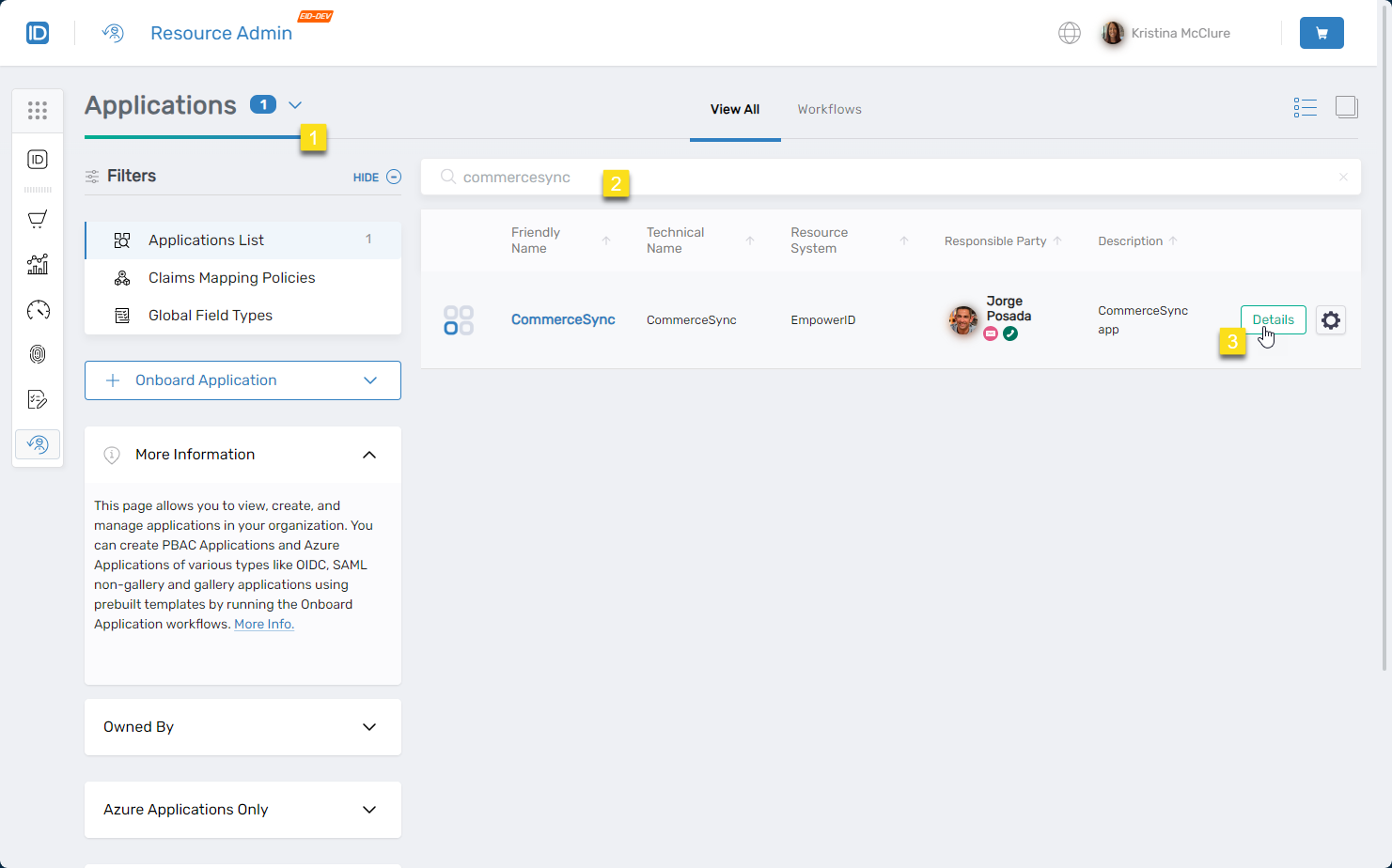
Select Applications from the Resource Type menu, search for the target PBAC application, and click the Details button.
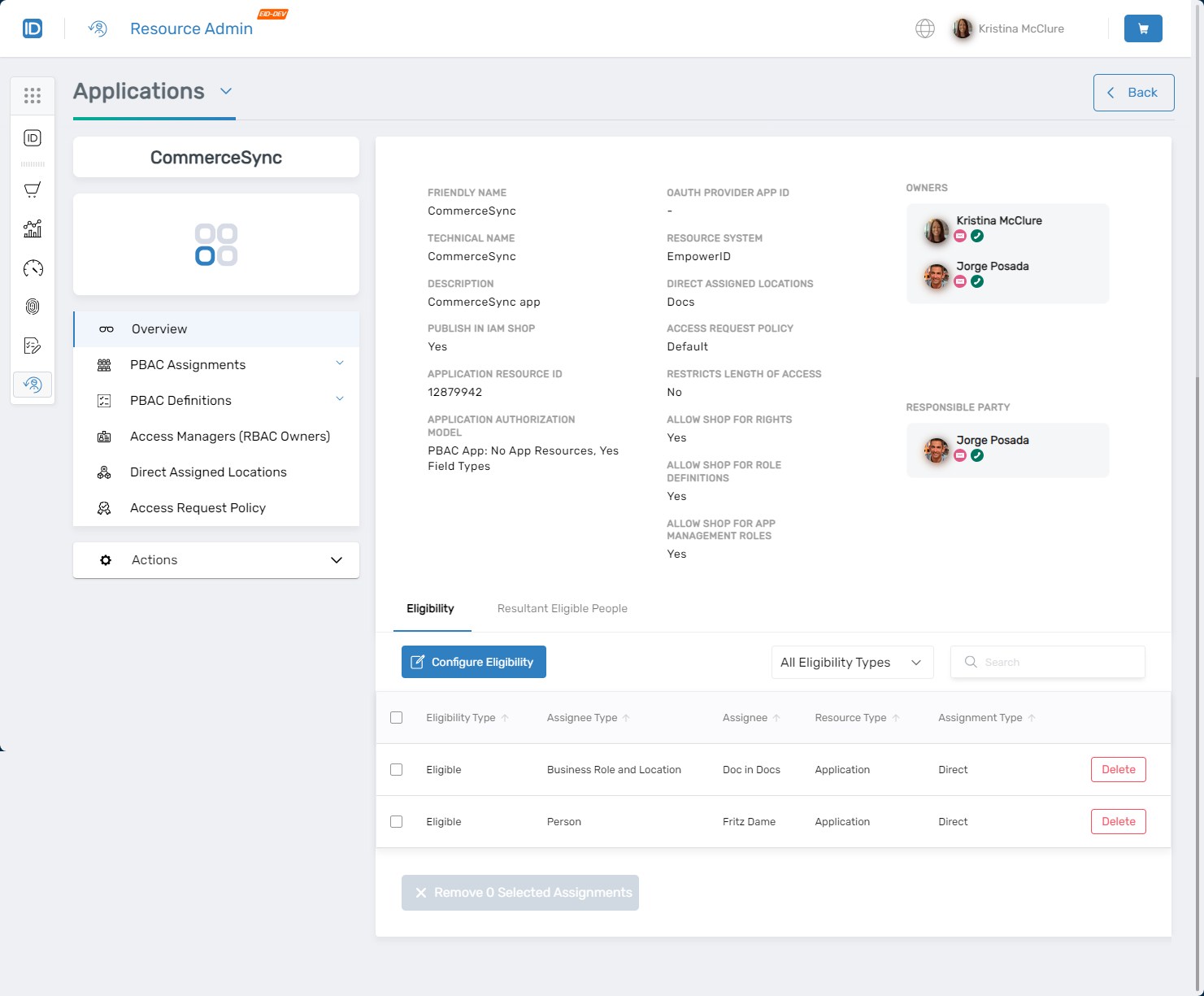
The application Overview page opens.
-
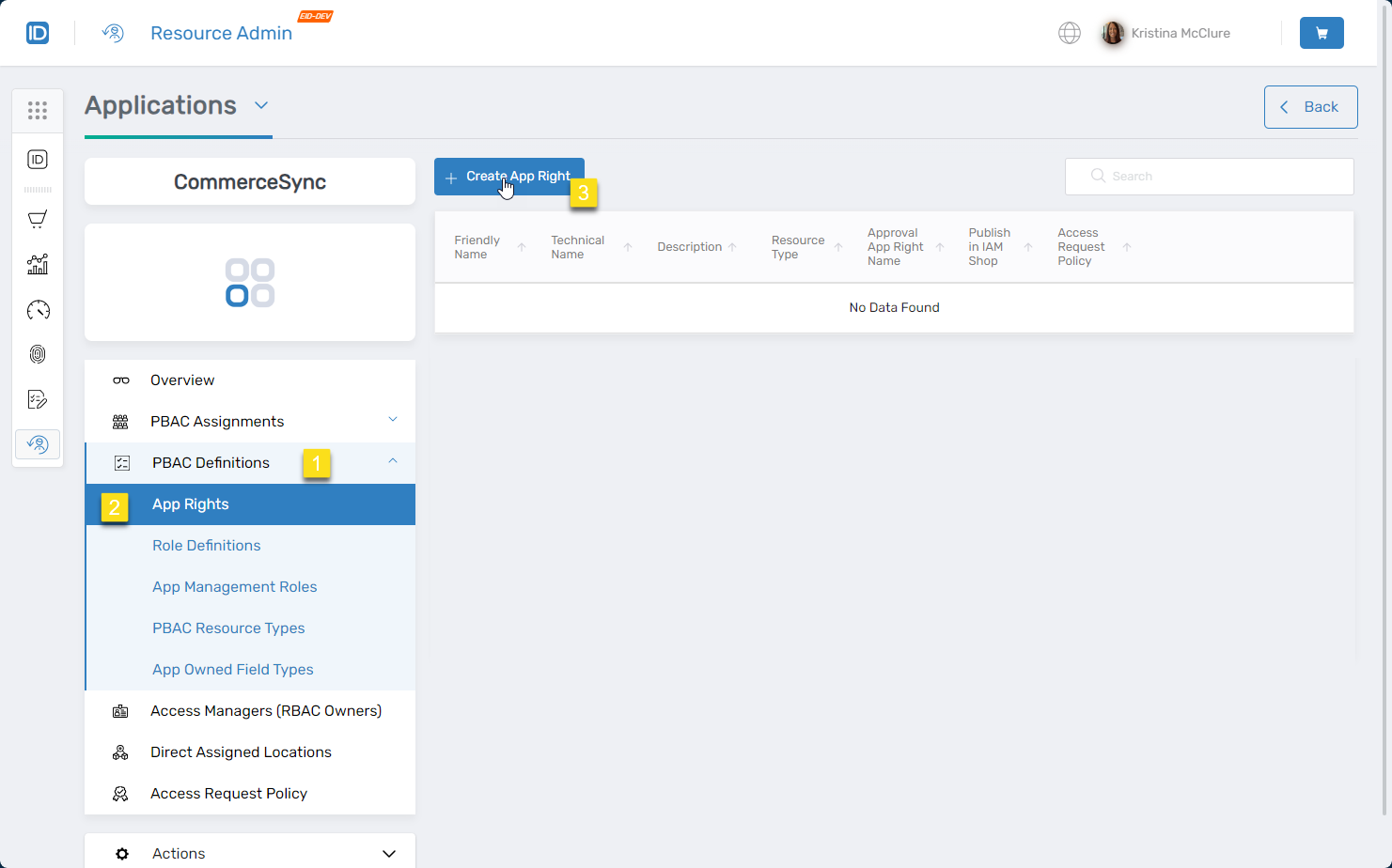
On the application menu, expand PBAC Definitions, select App Rights, and click Create App Right.
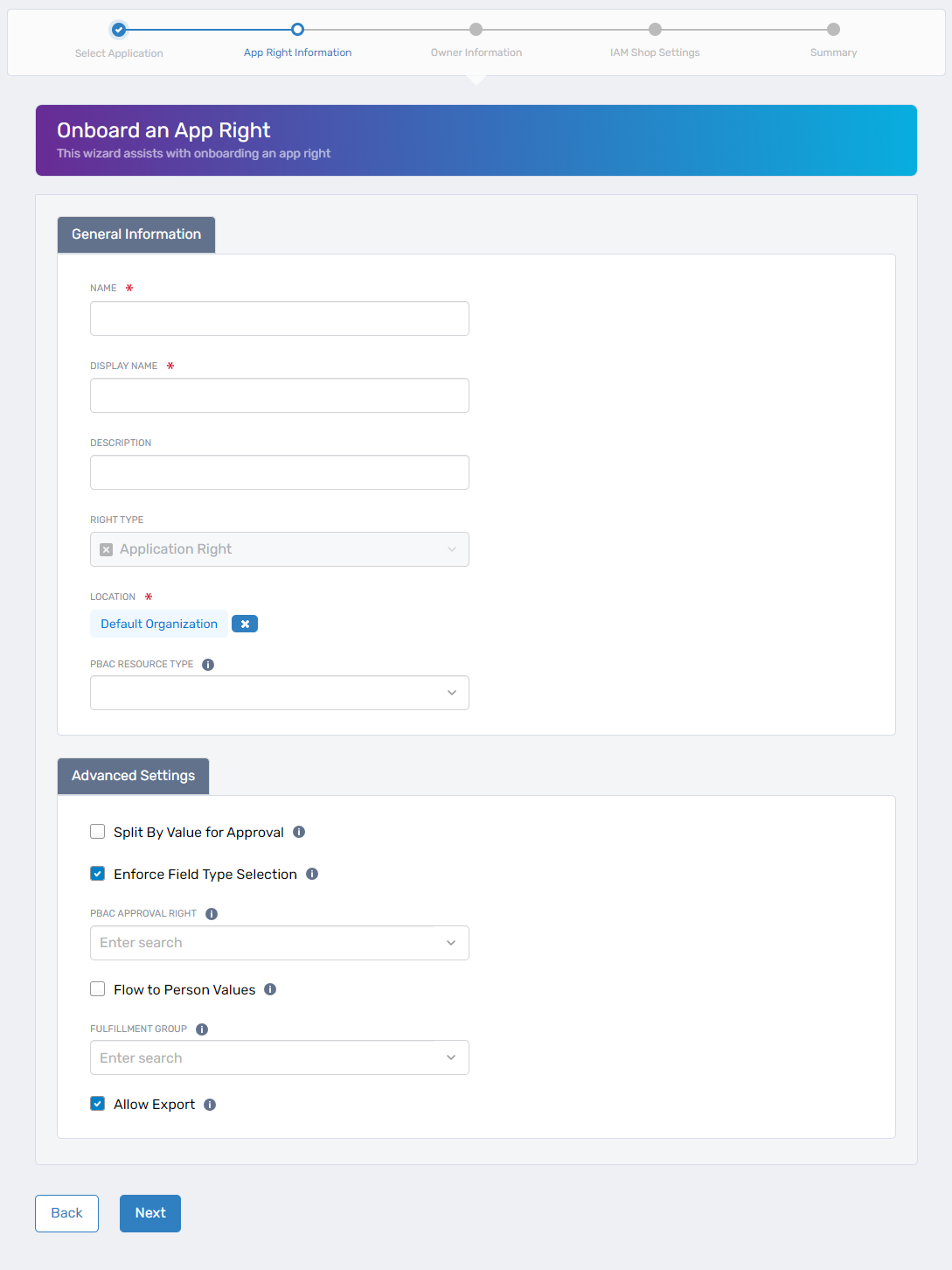
The "Onboard Az Local Right" wizard opens.
-
Complete the wizard sections with the appropriate information for your app right.
General Information
Field Description Action Name Name of the app right Enter the app right name. Display Name User-friendly name shown to end users Enter a display name. Description Brief characterization of the app right Enter a description. Right Type Application Right N/A (read-only, defaults to Application Right) Location EmpowerID location for RBAC access. Default Organization is selected by default. Clear the default and select a different location if needed. PBAC Resource Type Resource type to which the app corresponds (optional) Select the PBAC Resource Type if applicable. Options include only those previously created for the application. Advanced Information
Field Types and Approval RoutingField types enable fine-grained access control by allowing users to specify attributes like region or department when requesting the app right. Several of these settings pertain to field type-based approval routing. For details, see Understanding Field Types and Setting up PBAC Approval Routing.
Field Description Action Split By Value for Approval Splits Field Type Values into separate approval items Enable as needed. Enforce Field Type Selection Requires at least one Field Type value before adding to cart when no Field Types are marked as required Enable as needed. PBAC Approval Right PBAC approval right configured for this app right Select the approval right if configured. Flow to Person Values Updates Field Type values on people when edits are made (used in PBAC Membership policies) Enable as needed. Fulfillment Group Group memberships assignees should receive when granted this right Select a group as needed. Allow Export Makes right assignments available for export to downstream systems Enable as needed. Owner Information
Specify the individuals responsible for managing and overseeing the app right.
Field Description Action Responsible Party Primary individual accountable for the app right Enter the responsible party's name (required). Owners People who have ownership rights over the app right Enter owner names (optional but recommended). Deputies Secondary contacts or assistants to owners Enter deputy names (optional). IAM Shop Settings
Configure how the app right appears and functions in the IAM Shop.
Field Description Action Set Requestable Setting Makes the app right requestable in the IAM Shop Enable to allow user requests. Select Access Request Policy Policy governing how requests are processed Select the appropriate policy. For PBAC approval routing, use the PBAC Approval Access Request Policy. Eligible to Request Users allowed to request the app right Select assignee type and identify eligible individuals, groups, or roles. Pre-approved for Access Users pre-approved for the app right (bypasses manual approval) Select assignee type and identify pre-approved individuals, groups, or roles. Suggested Assignees Users who see the app right as a suggested resource Select assignee type and identify suggested individuals, groups, or roles. -
Review the summary information for accuracy. Click Back to revisit previous steps if needed.
-
Click Submit to create the app right.
-
Repeat the procedure to add additional app rights to the application as needed.
Verify the Results
To confirm the app right was created successfully:
- Return to PBAC Definitions > App Rights in the application menu.
- Locate the newly created app right in the list.
- Click Details to verify:
- The app right displays the correct name and description
- Owner and responsible party assignments are accurate
- IAM Shop settings reflect the configured requestability and approval policy
- Any configured field types appear in the associated sections
Only users with the Application RBAC Owner Management Role can create app rights. All app right creation actions are logged for audit purposes.
Next Steps
After creating app rights:
- Configure field types for the app right to enable fine-grained access control
- Set up PBAC approval routing if using field type-based approval workflows
- Create PBAC policies that evaluate the app right
- Test the app right request flow in the IAM Shop (if configured as requestable)