Edit IAM Shop Settings
Modify how Management Roles appear and behave in the IAM Shop self-service portal. Control whether roles are requestable, who can see and request them, and what approval processes apply to requests.
Prerequisites
Before modifying IAM Shop settings, ensure you have:
- Access to Resource Admin with permissions to manage the target Management Role
- Understanding of the IAM Shop settings and their impact on role visibility
Procedure
-
Navigate to Resource Admin.
-
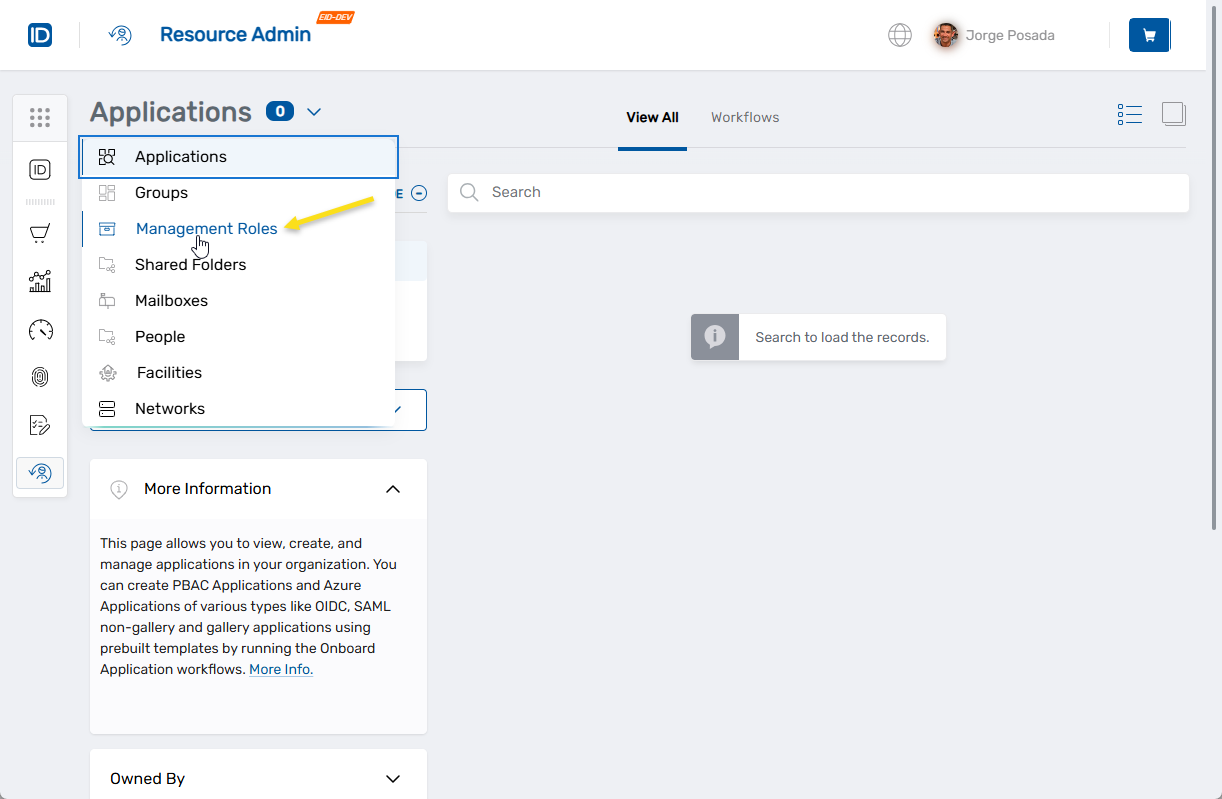
Select Management Roles from the resource type menu.
-
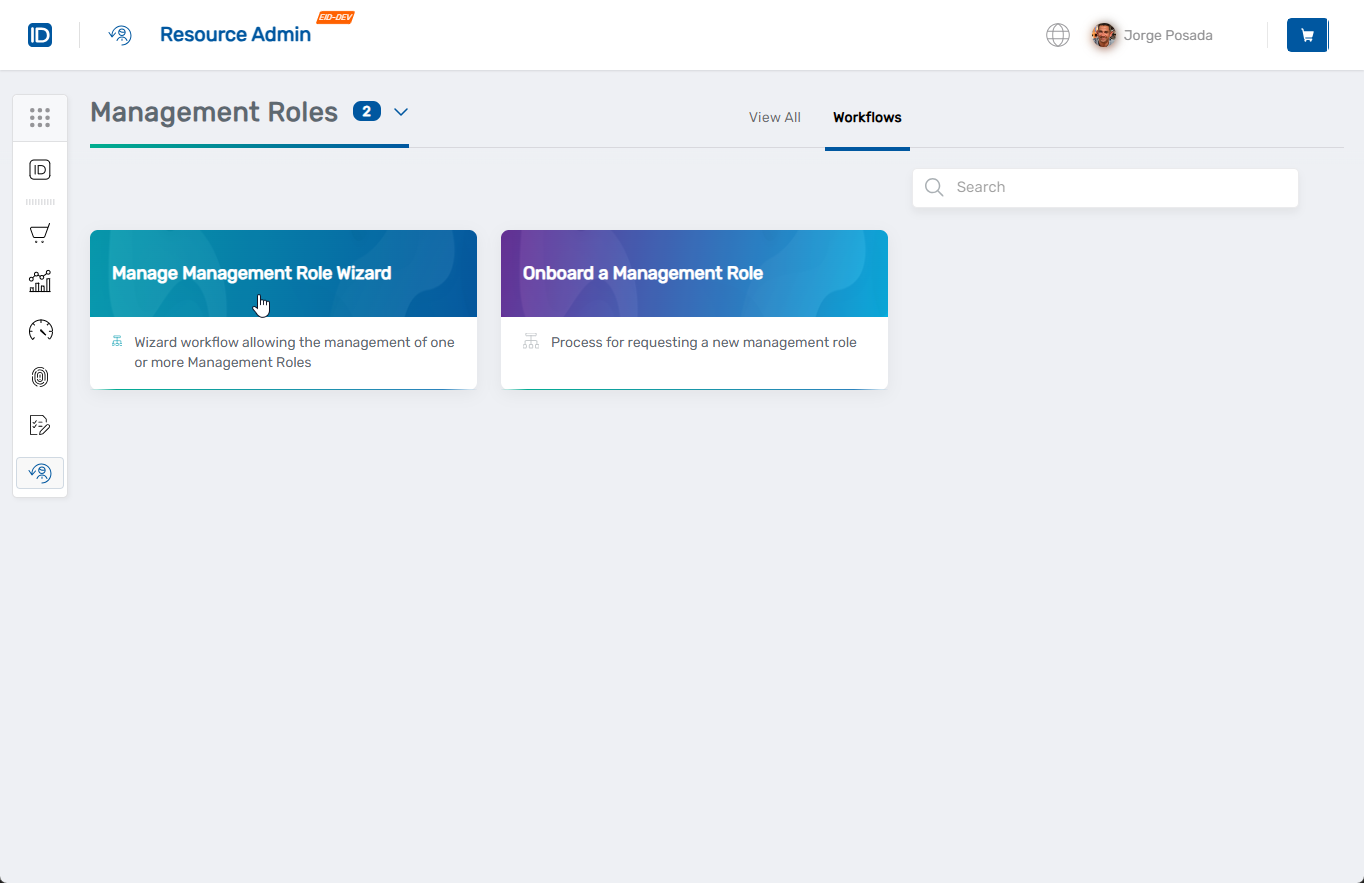
Click the Workflows tab.
-
Find and click Manage Management Role Wizard.
-
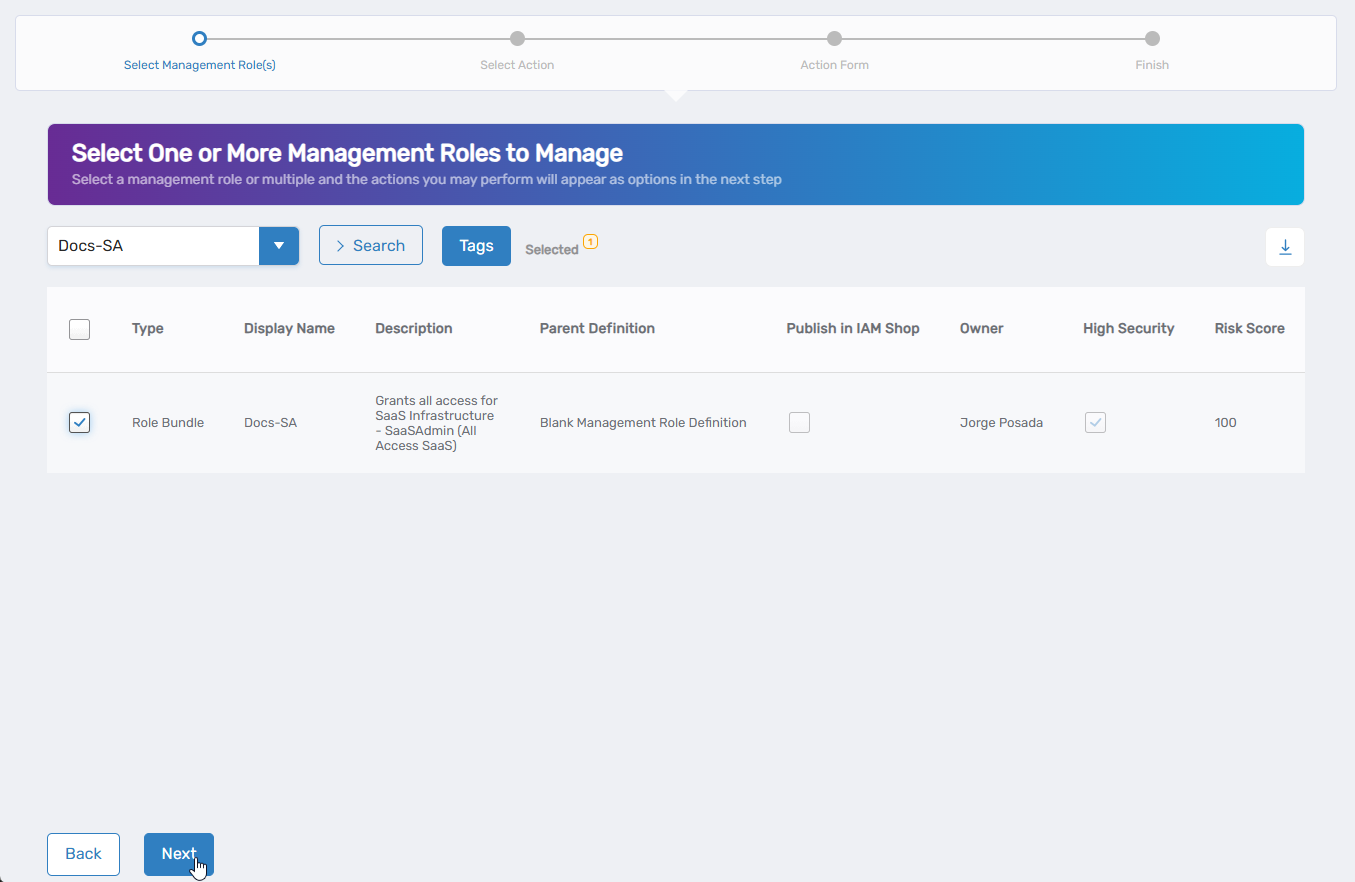
Select the Management Role you want to modify by checking the box next to it and click Next.
-
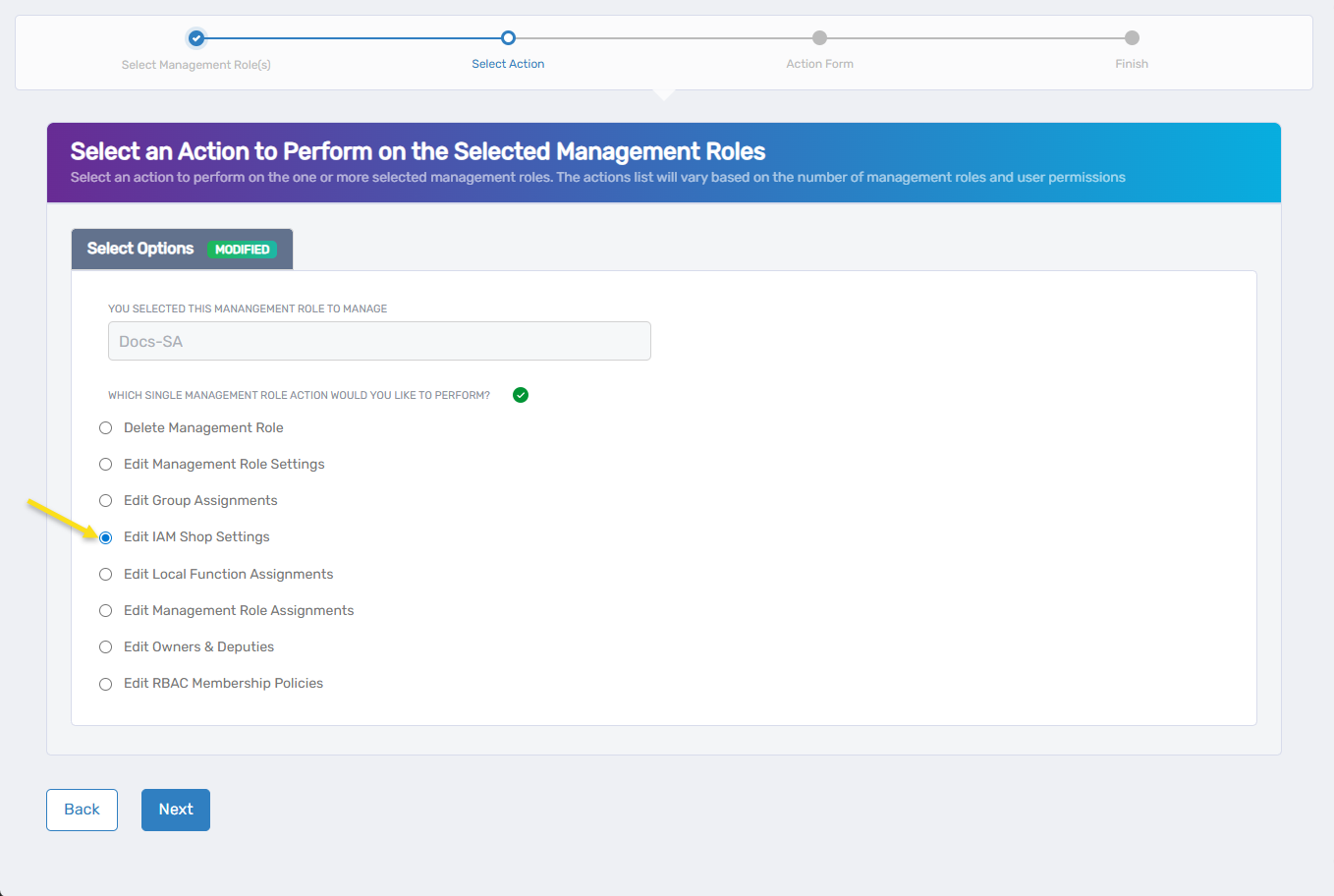
Select Edit IAM Shop Settings from the available actions and click Next.
-
Configure Requestable in IAM Shop:
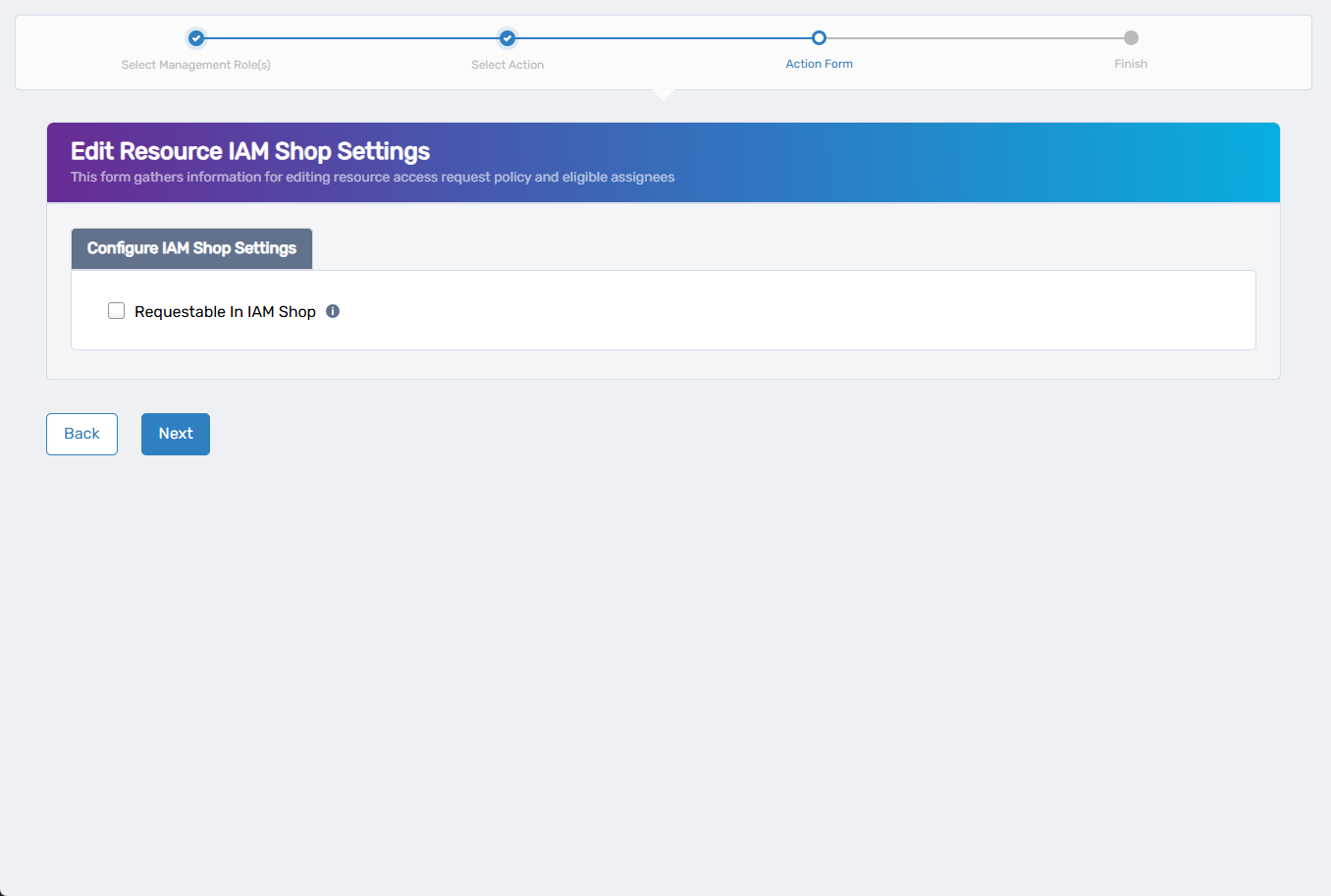
- Check the box to enable self-service requests
- Uncheck the box to hide the role from the IAM Shop
If you disable self-service, skip to step 12.
-
If self-service is enabled, select the Access Request Policy that governs request processing:
- Click the X to remove the current policy if needed
- Search for and select the appropriate policy
- The policy determines approval workflows, time restrictions, and fulfillment behavior
-
Configure Eligible Assignees (users who can request the role with approval):
- Select a type from the Choose Type dropdown (Person, Group, SetGroup, Management Role, Business Role, or Location)
- Search for and select the specific entity
- Repeat to add multiple criteria
- Use the Added counter to view or remove selections
- To remove existing assignees, toggle the Keep switch to Remove
-
Configure Preapproved Assignees (users who receive immediate access without approval):
- Follow the same process as Eligible Assignees
- Note: Preapproved assignees bypass all approval workflows
-
Configure Suggested Assignees (users who see the role as a recommendation):
- Follow the same process as Eligible Assignees
-
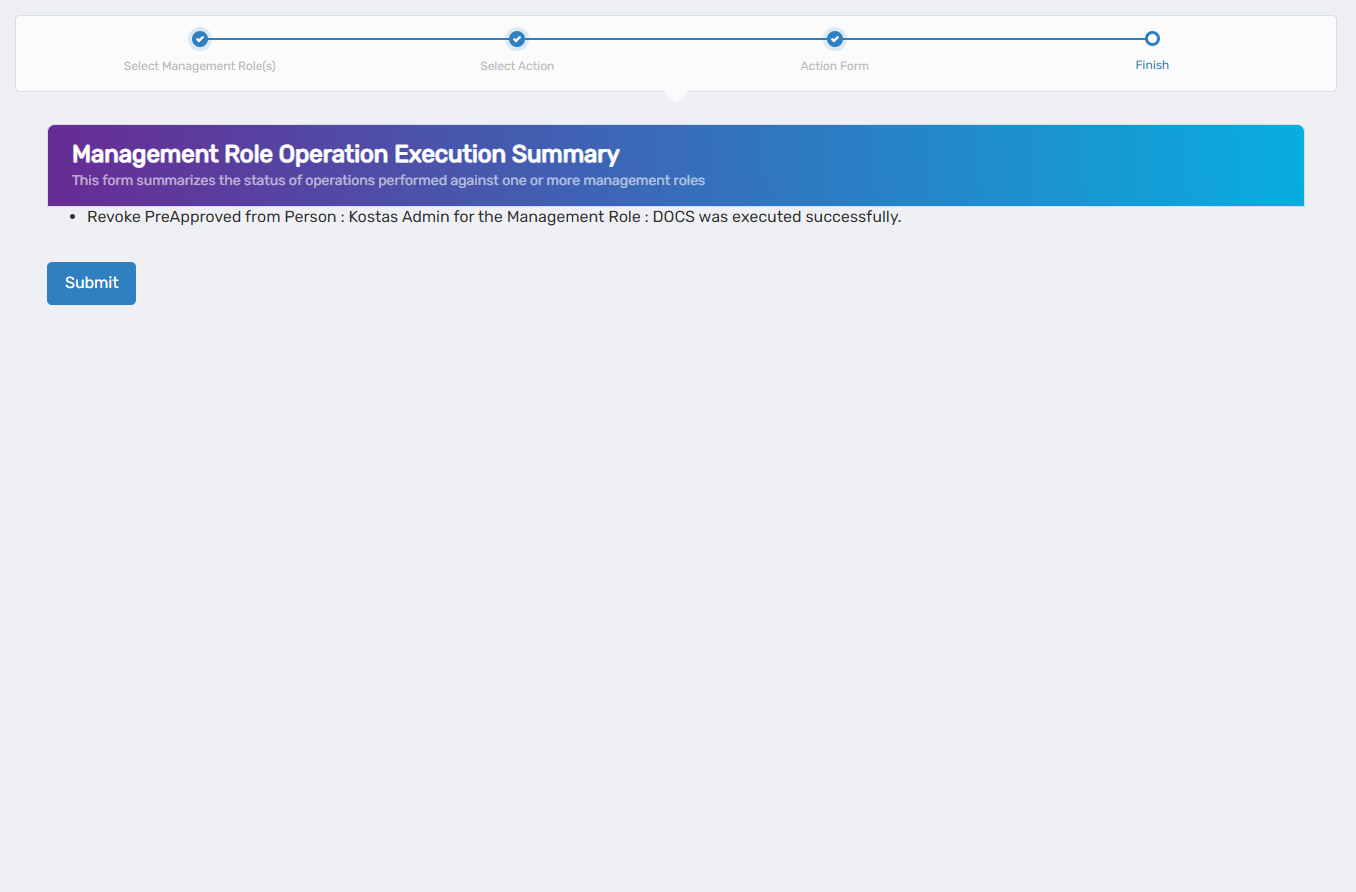
Review the Operation Execution Summary to confirm your changes and click Submit.
-
Choose your next action and click Submit:
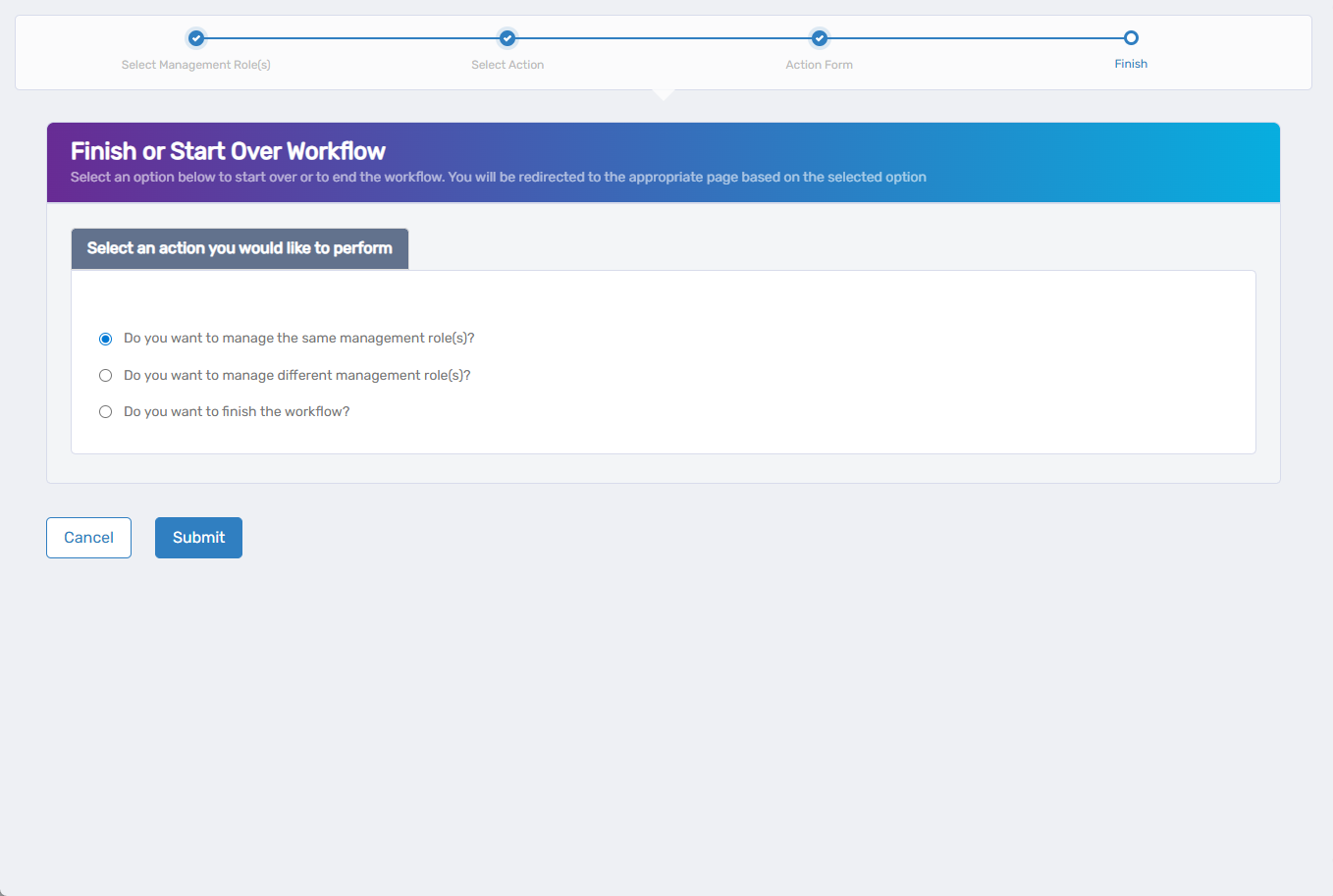
- Do you want to manage the same Management Role? - Perform additional actions on the same role
- Do you want to manage different Management Role(s)? - Work with other Management Roles
- Do you want to finish the workflow? - Exit the wizard
Verify the Results
IAM Shop settings changes may require approval depending on your organization's policies. To verify the changes:
- After approval, navigate back to Resource Admin > Management Roles.
- Select the Management Role and review its IAM Shop settings to confirm your changes were saved.
- If you enabled self-service, verify that eligible users can see the role in the IAM Shop catalog.
Related Topics
- Onboard Management Roles - Configure IAM Shop settings during role creation
- Edit Management Role Owners & Deputies - Manage role ownership
- Edit RBAC Membership Policies - Configure automatic membership rules
- Delete Management Role - Remove roles that are no longer needed