Edit Management Role Settings
Update basic Management Role information such as display name, description, and extension attributes. Changes to these settings do not affect role assignments or permissions.
Prerequisites
Before modifying role settings, ensure you have:
- Access to Resource Admin with permissions to manage the target Management Role
Procedure
-
Navigate to Resource Admin.
-
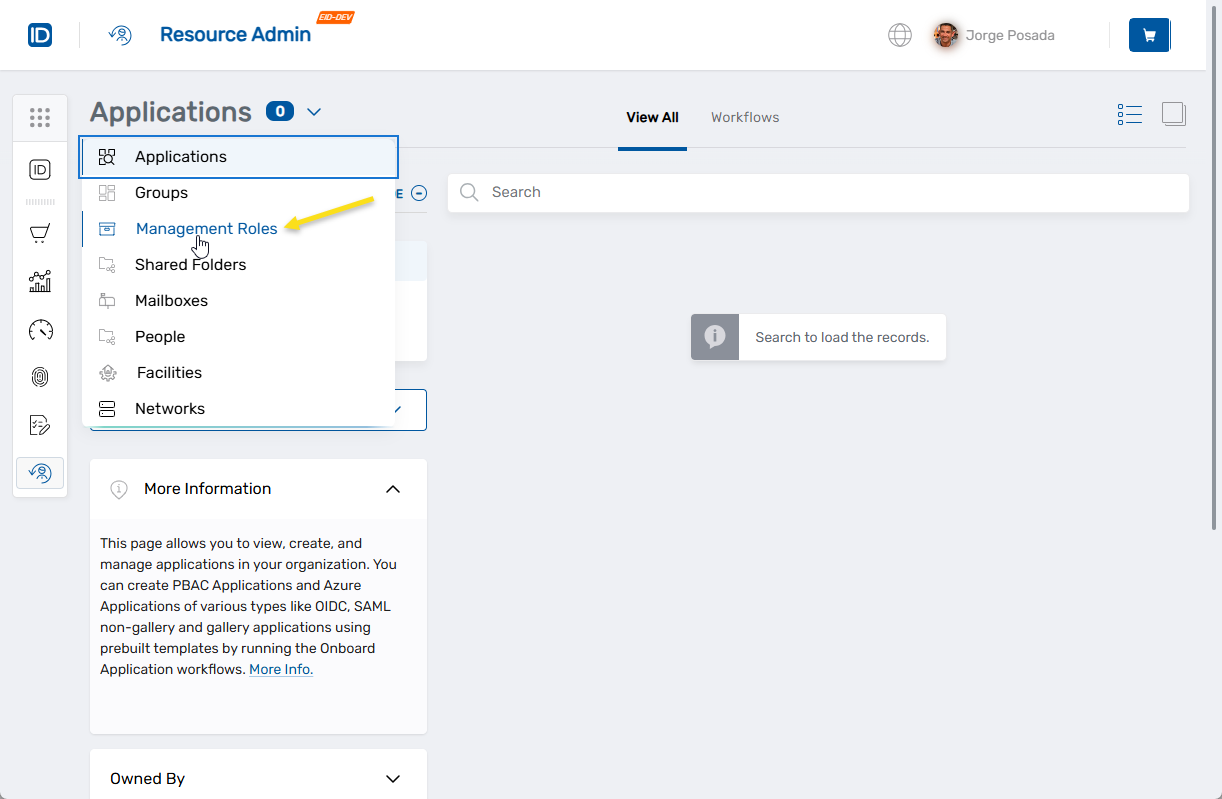
Select Management Roles from the resource type menu.
-
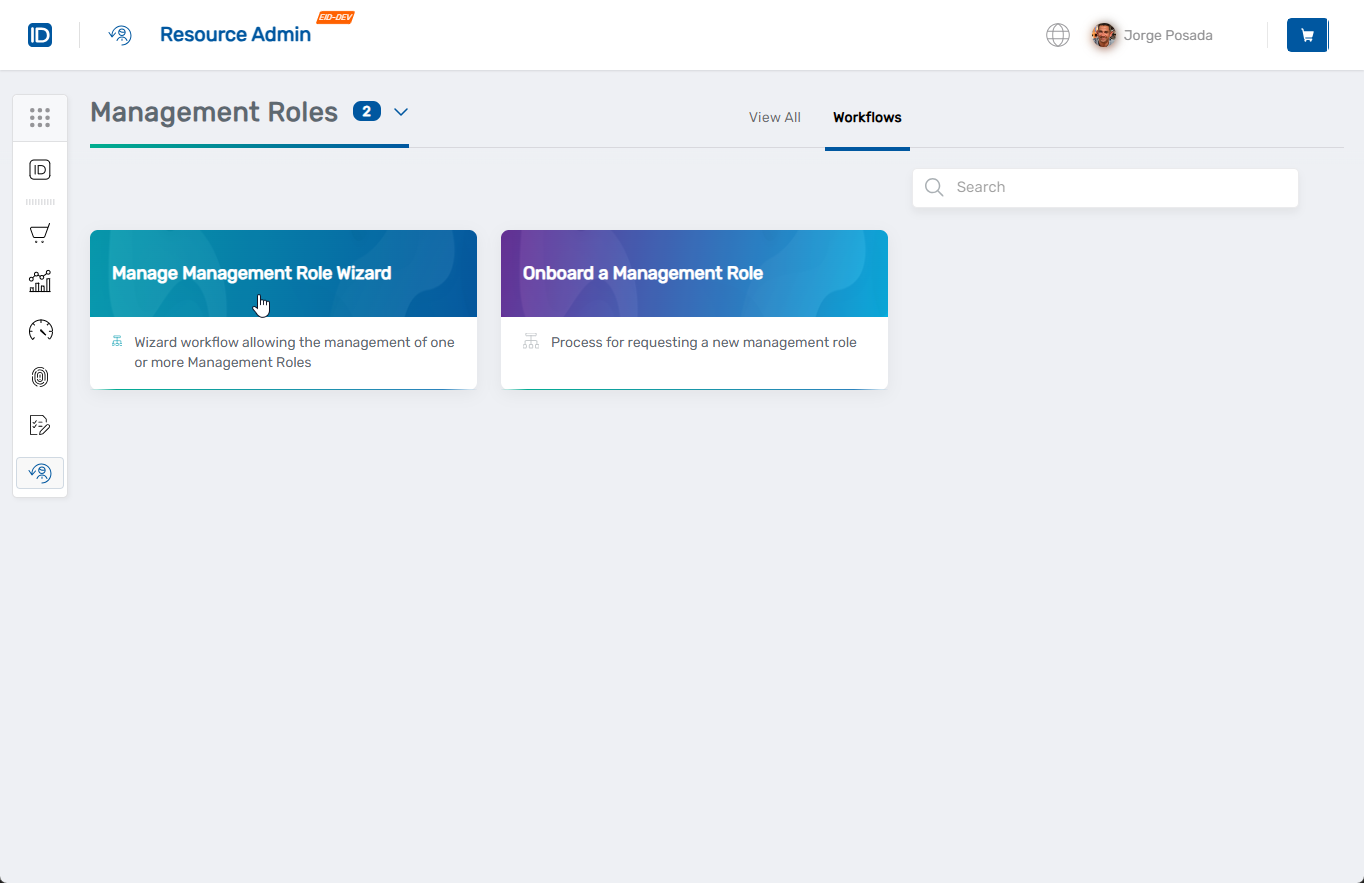
Click the Workflows tab.
-
Find and click Manage Management Role Wizard.
-
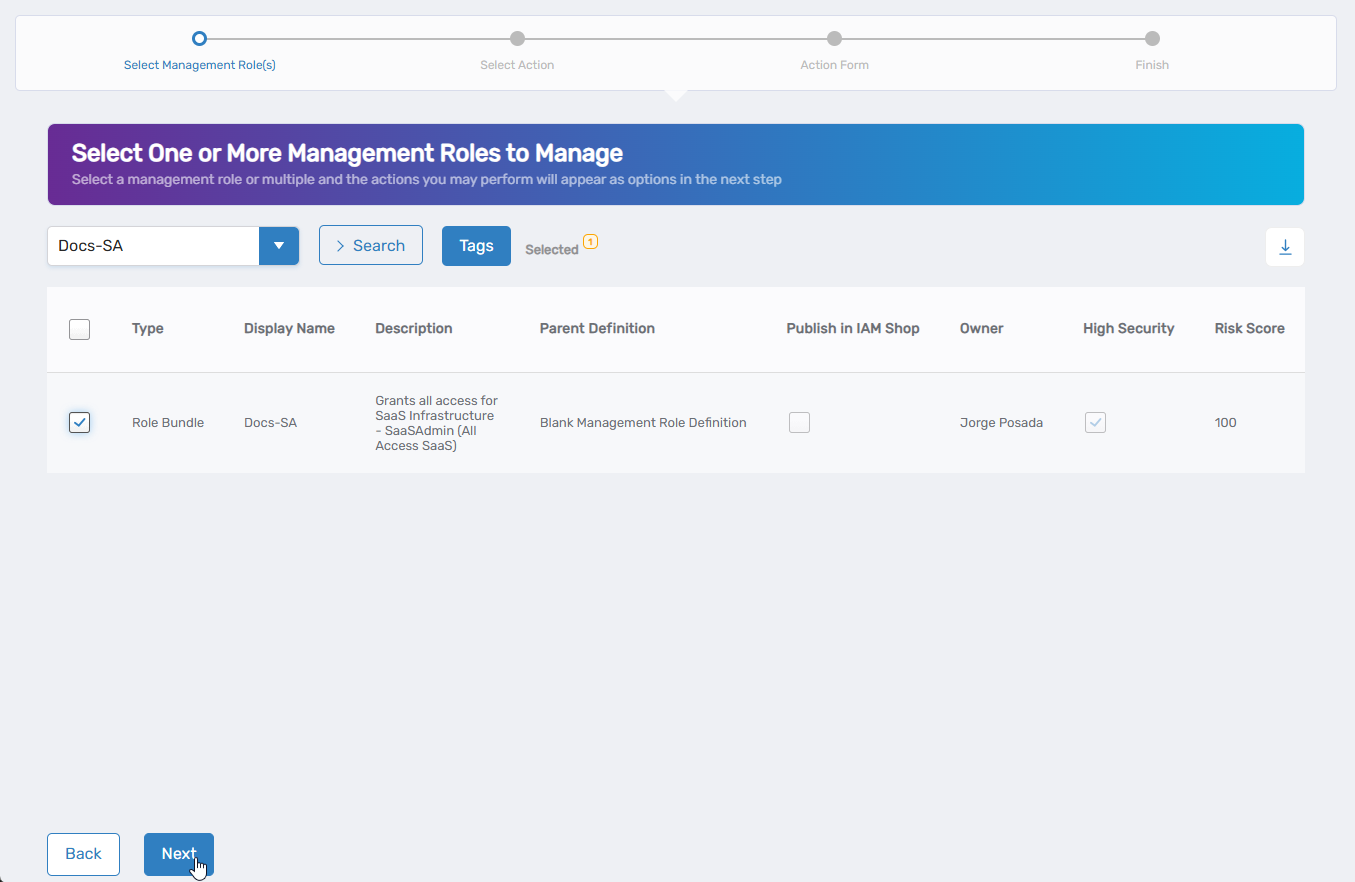
Select the Management Role you want to modify by checking the box next to it and click Next.
-
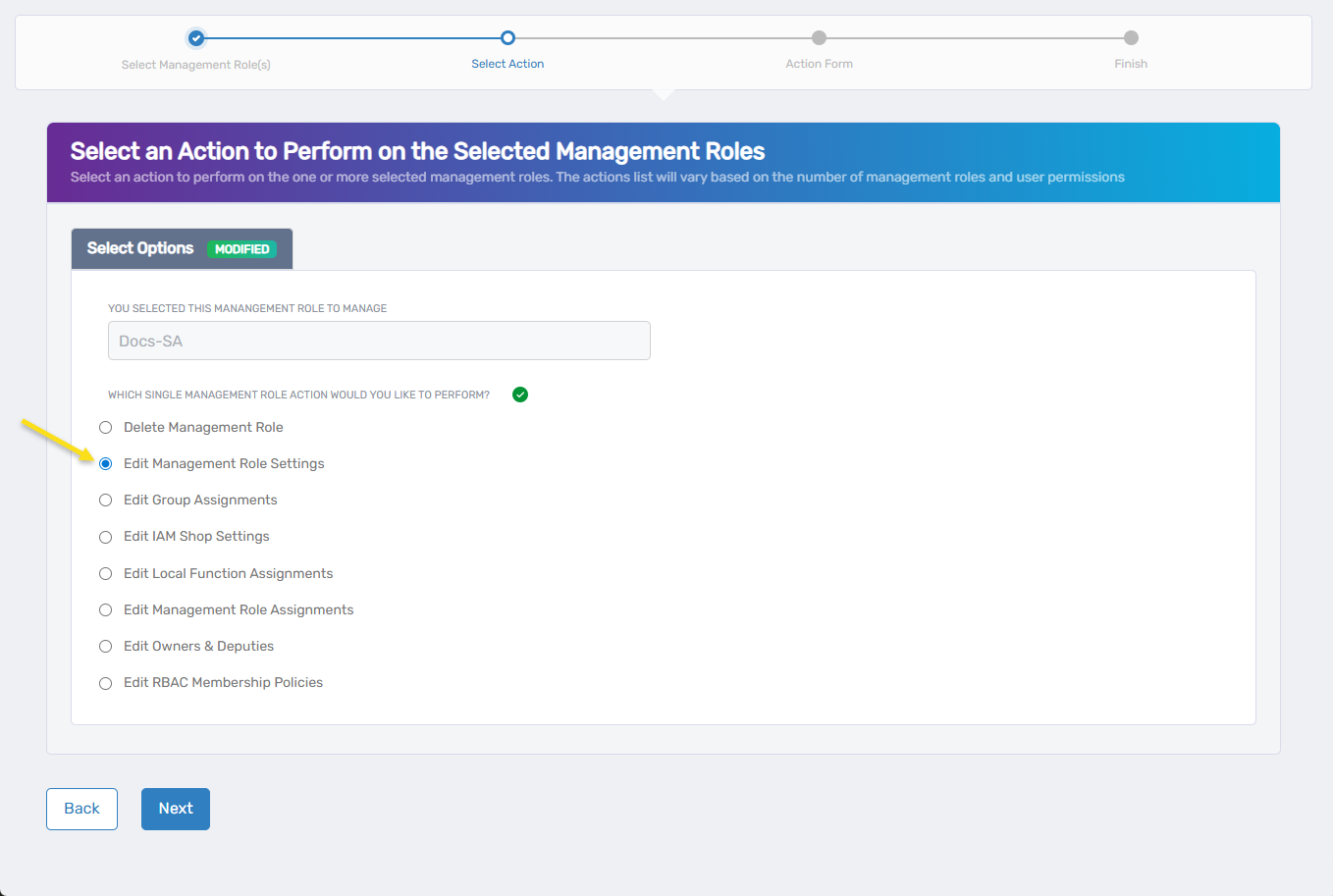
Select Edit Management Role Settings from the available actions and click Next.
-
On the General Info tab, modify the available fields:
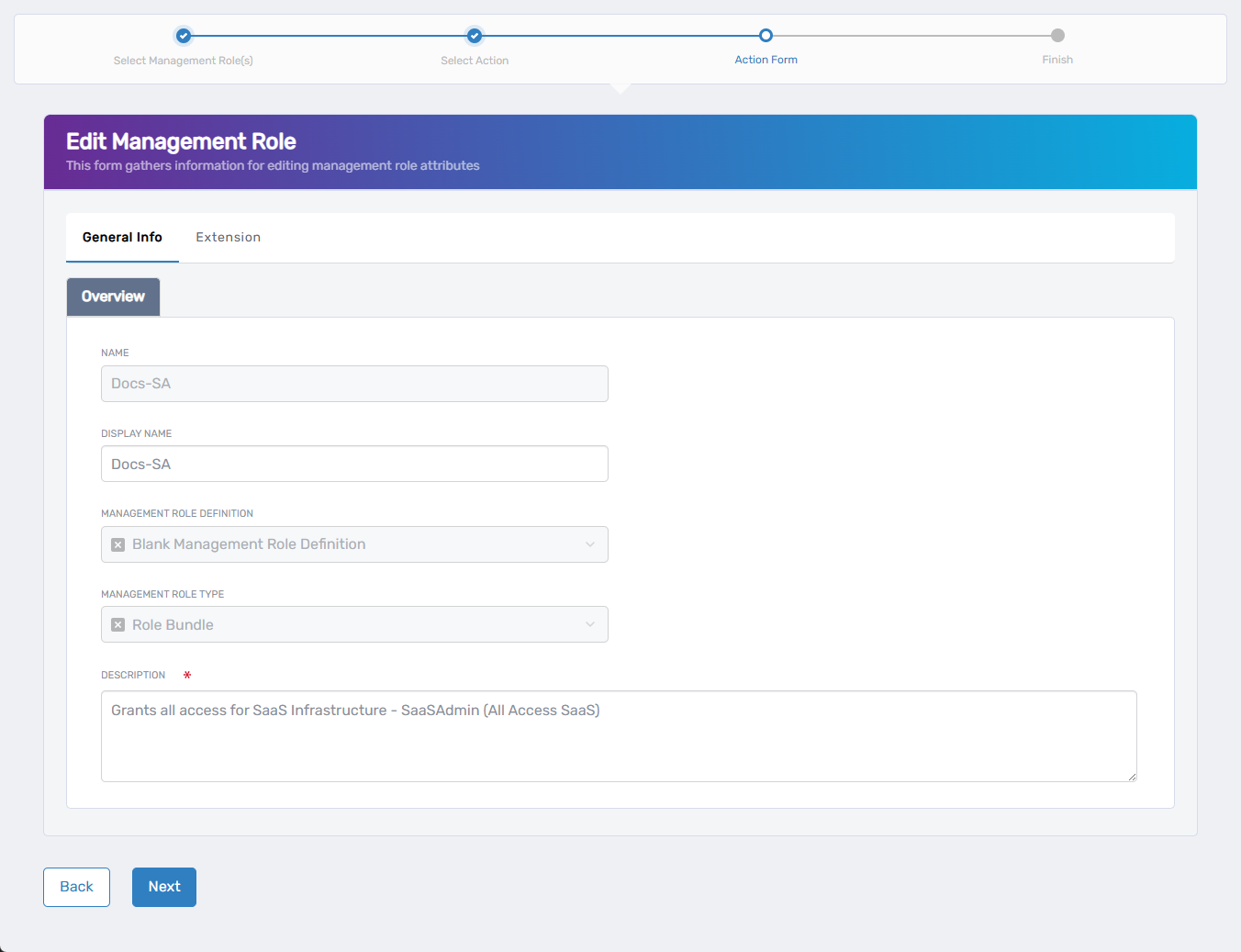
- Display Name - Update the user-friendly name
- Description - Revise the role's purpose and responsibilities
Some fields cannot be modified and appear grayed out (Name, Management Role Definition, Management Role Type).
-
If your organization uses extension attributes, click the Extension tab to modify custom metadata.
-
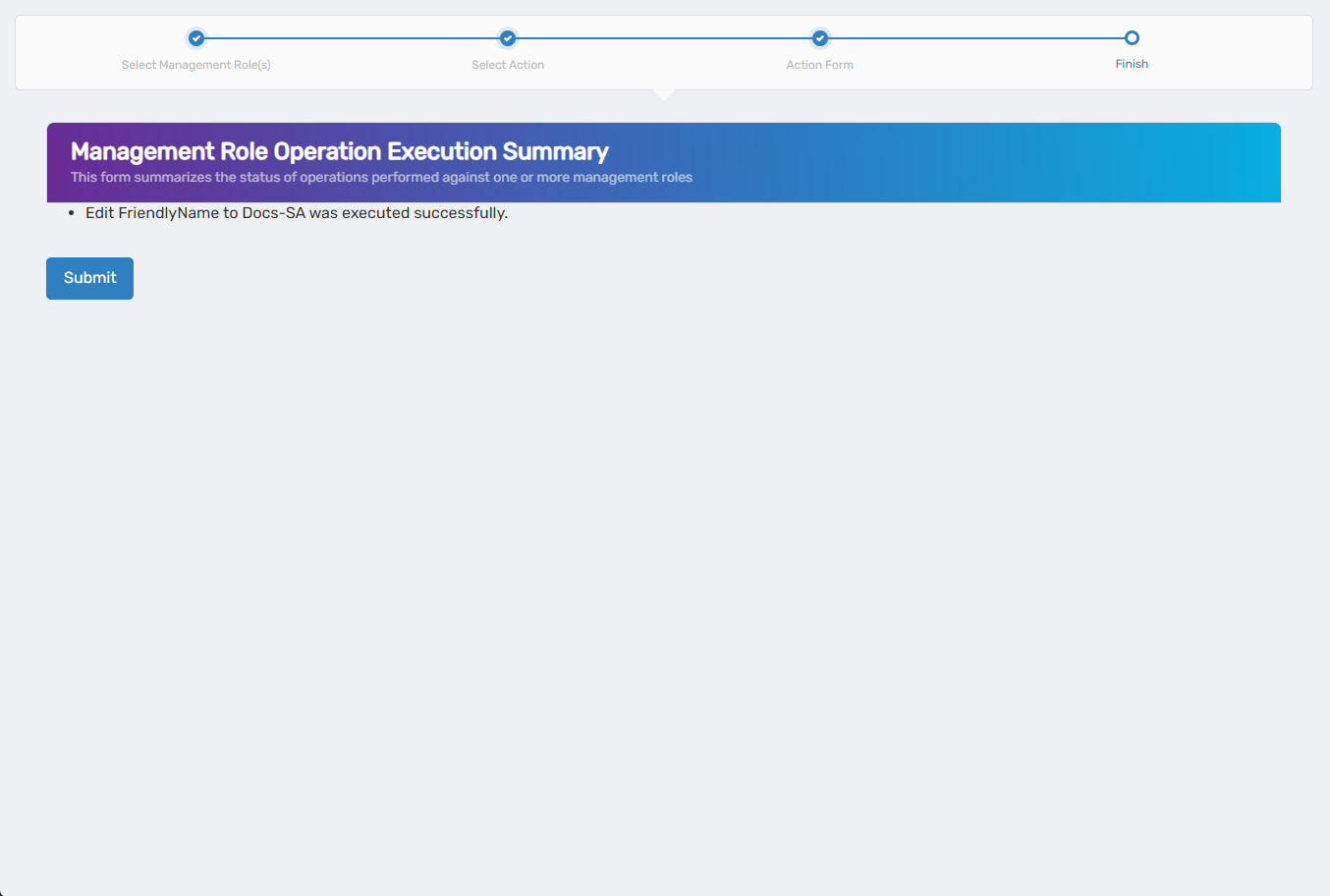
Review the Operation Execution Summary to confirm your changes and click Submit.
-
Choose your next action and click Submit:
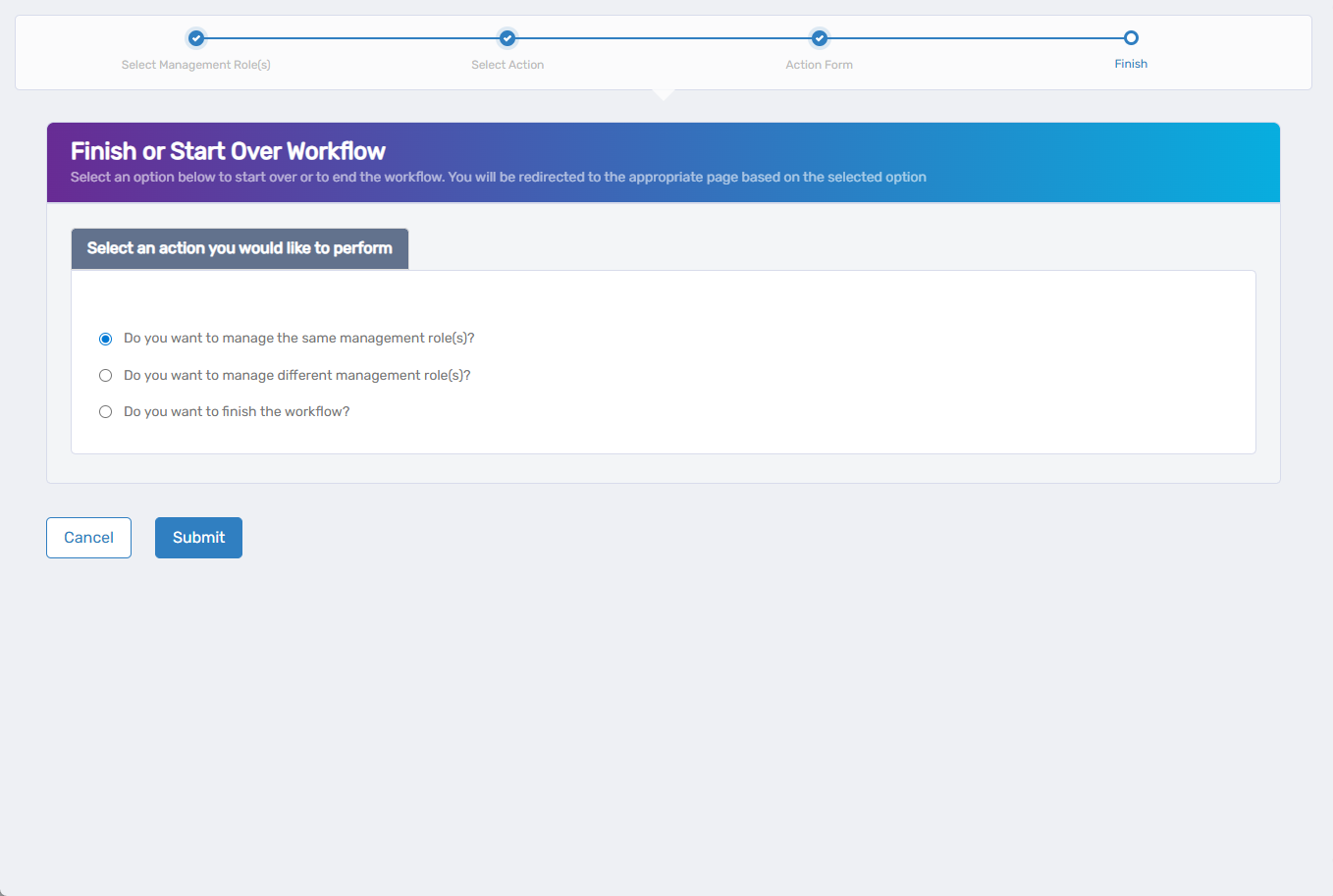
- Do you want to manage the same Management Role? - Perform additional actions on the same role
- Do you want to manage different Management Role(s)? - Work with other Management Roles
- Do you want to finish the workflow? - Exit the wizard
Verify the Results
Settings changes may require approval depending on your organization's policies. To verify the changes:
- After approval, navigate back to Resource Admin > Management Roles.
- Select the Management Role you modified and verify that the display name and description reflect your updates.
Related Topics
- Onboard Management Roles - Create new Management Roles
- Edit Management Role Owners & Deputies - Manage role ownership
- Edit Management Role Assignments - Manage role bundles and nested roles
- Delete Management Role - Remove roles that are no longer needed