Add PBAC Attributes to Users
PBAC Membership Policies evaluate attributes assigned to users to determine group and role memberships. Without attributes assigned to users, policies cannot match actors to membership criteria, and no memberships will be granted. Assigning PBAC attributes to users is the final step that enables policies to function.
PBAC attributes represent Field Types and their values assigned to individuals. For example, assigning a user the attribute "Department: Finance" allows any policy requiring Department = Finance to include that user in its target membership.
This is the third step in configuring PBAC Membership Policies. First create the policy, then add attribute conditions, and finally assign attributes to users (this article) so policies can evaluate them. For conceptual background, see Overview of PBAC Membership Policies.
This article demonstrates how to assign PBAC attributes to users in EmpowerID.
Prerequisites
Before adding PBAC attributes to users, ensure you have:
- Administrative access to EmpowerID
- PBAC Field Types created with values
- PBAC Membership Policies created with attribute conditions defined
- Understanding of which attributes each user should receive based on their role and organizational position
Procedure
-
Sign in to EmpowerID as an administrator.
-
Expand Identity Administration in the navbar and select People.
-
Search for the person to whom you want to add PBAC attributes and click the EmpowerID Login link for the person.
-
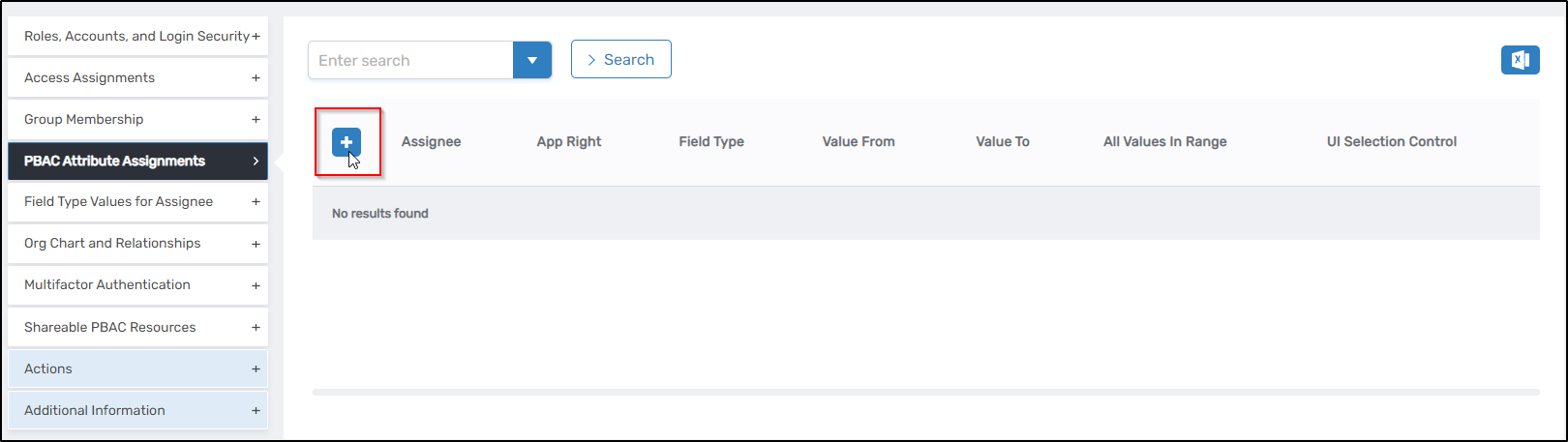
On the person's detail page, locate the PBAC Attribute Assignment section in the accordion menu and click the Add button.
-
In the attribute configuration dialog:
- Select the Attribute Only (Field Type) option to assign a new attribute.
- Use the search box to select the desired Attribute (Field Type).
- Choose the PBAC Right Values for the selected attribute. These values represent the specific attribute data assigned to the user.
UI Selection ControlsThe UI control displayed (dropdown, checkbox list, text field, etc.) depends on the Default Selection Rule configured when the Field Type was created. For example, a Field Type created with
MultiSelectCheckBoxListdisplays available values as checkboxes, as shown below.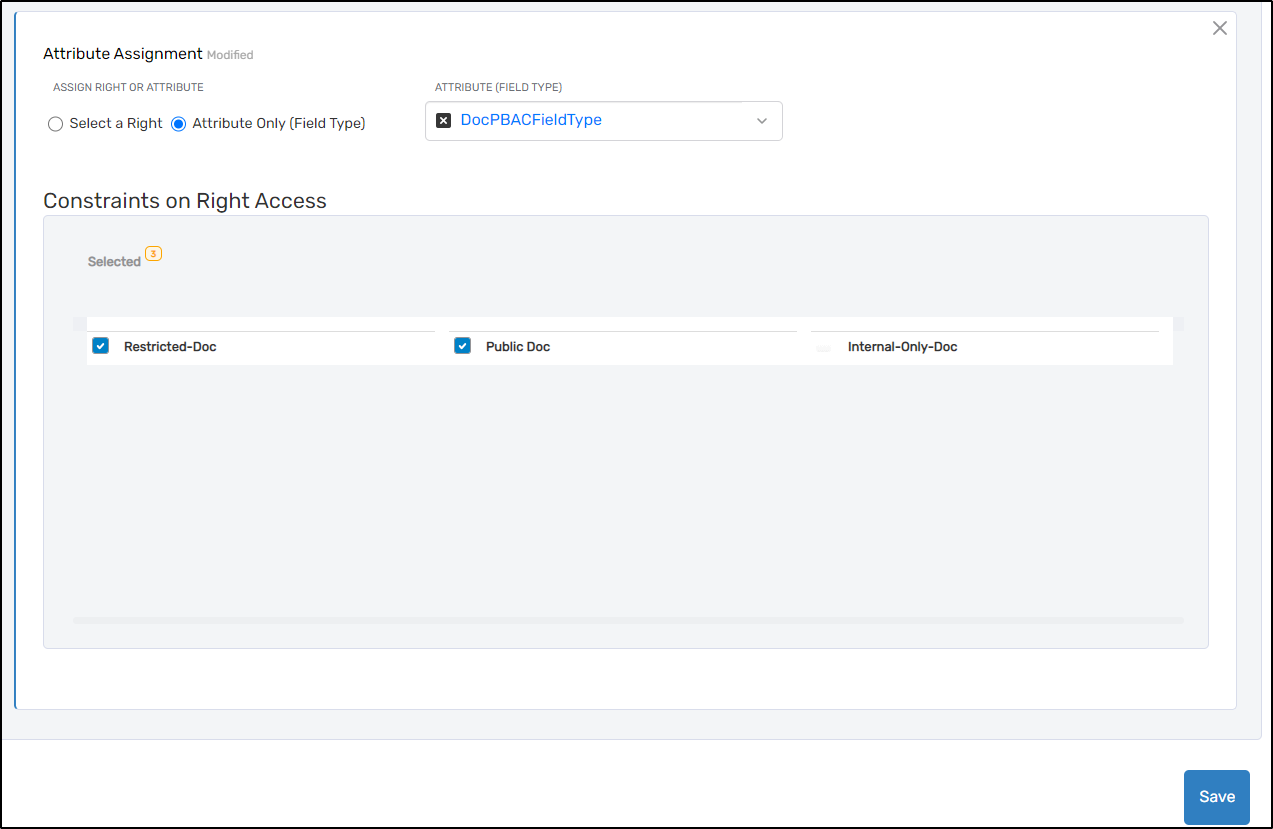
-
After selecting the appropriate values, click Save.
-
To assign additional PBAC attributes or values, repeat steps 4-6 for each attribute.
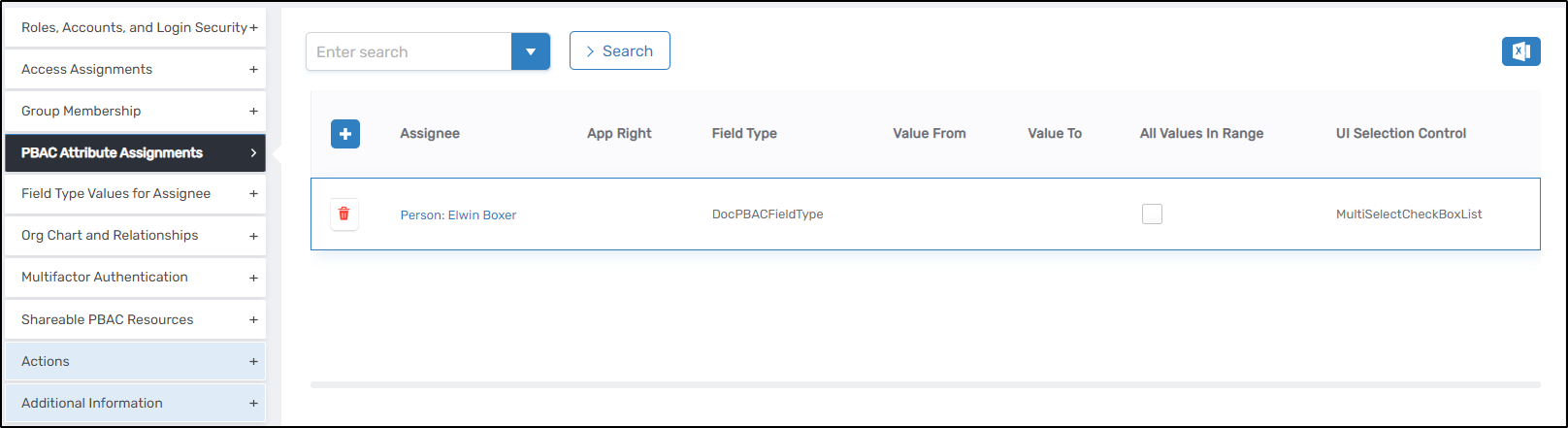
After saving, assigned attributes appear in the PBAC attribute assignment listing grid.
Verify the Results
After assigning PBAC attributes to users:
- Return to the person's detail page and locate the PBAC Attribute Assignment section.
- Verify that all assigned attributes appear in the listing grid with the correct Field Types and values.
- Confirm that the attributes match the requirements of the PBAC Membership Policies you want the user to satisfy.
- Wait for the next scheduled policy execution or check the target groups/roles to confirm the user was added based on the assigned attributes.
Next Steps
After assigning PBAC attributes to users:
- Monitor PBAC Membership Policy execution to confirm users are being added to the correct groups and roles
- Adjust attributes as needed when users change departments, projects, or roles
- Review membership assignments regularly to ensure policies are functioning as expected