Adding Attribute Conditions to PBAC Membership Policies
A PBAC Membership Policy without Attribute Conditions will never assign any members—the conditions define which actors qualify for membership. Attribute Conditions specify the Field Types and values that the policy evaluates to determine whether an actor meets the criteria for inclusion in the target group, role, or collection.
For example, a policy targeting a "Finance Team" group might include an Attribute Condition requiring Department = Finance. Only actors with that attribute value will be added to the group.
This is the second step in configuring PBAC Membership Policies. First create the policy, then add Attribute Conditions (this article), and finally assign attributes to actors so the policy can evaluate them. For conceptual background, see Overview of PBAC Membership Policies.
This article demonstrates how to add Attribute Conditions to existing PBAC Membership Policies.
Prerequisites
Before adding Attribute Conditions, ensure you have:
- Administrative access to EmpowerID
- An existing PBAC Membership Policy to which you'll add conditions
- PBAC Field Types created with values that represent the attributes you want to evaluate
Procedure
-
Sign in to EmpowerID as an administrator.
-
Navigate to Role Management > Role Modeling Inbox.
-
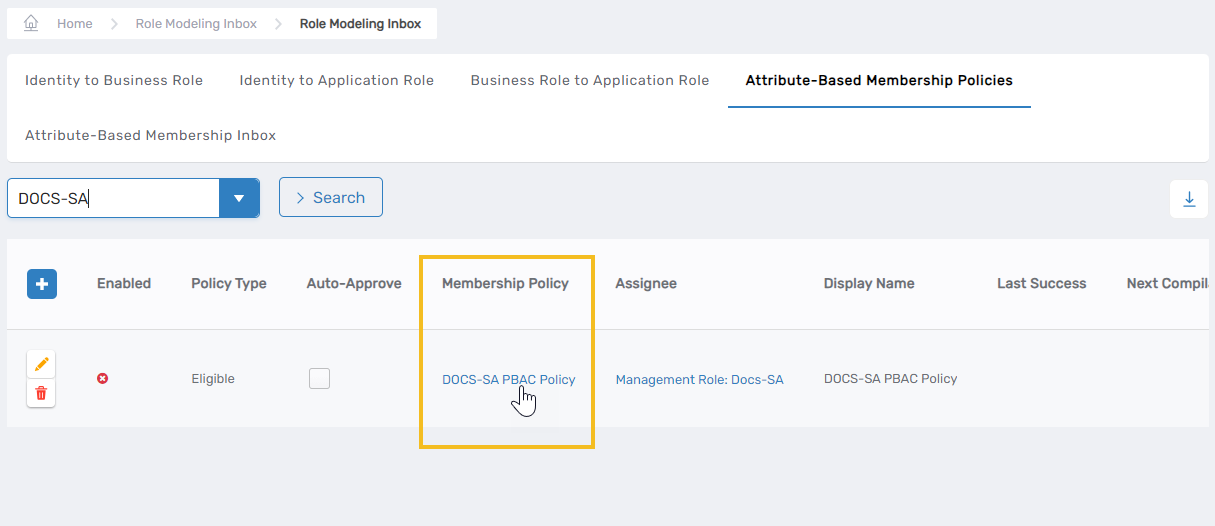
Click the Attribute-Based Membership Policies tab and search for the target policy.
-
Click the Membership Policy link for the policy.
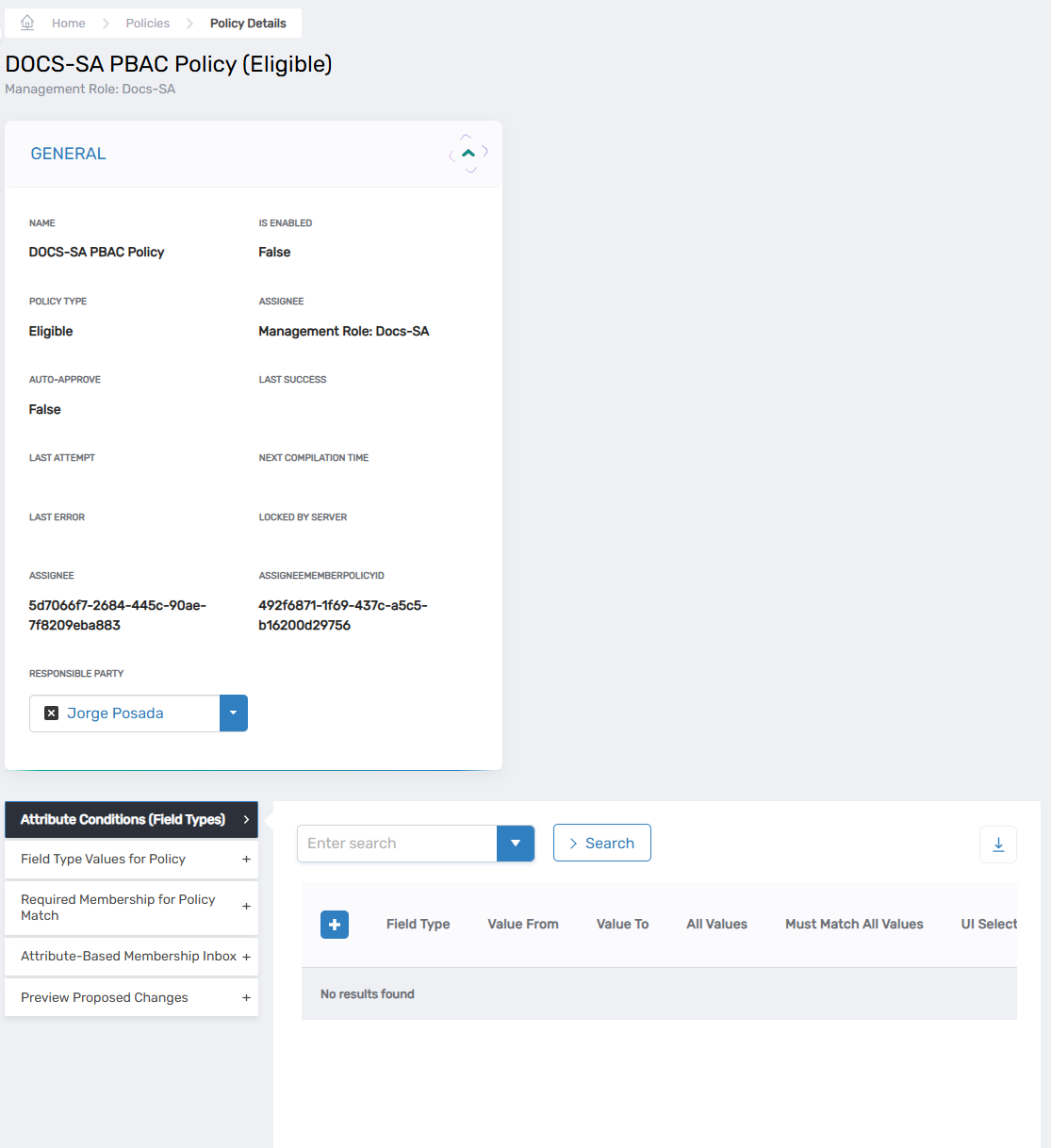
The policy's View One page opens.
-
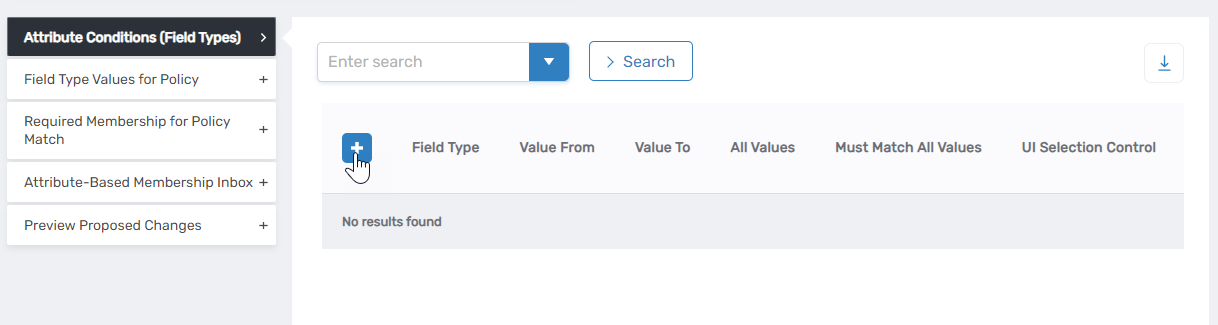
In the Attribute Conditions (Field Types) accordion, click the Add New button on the grid header.
-
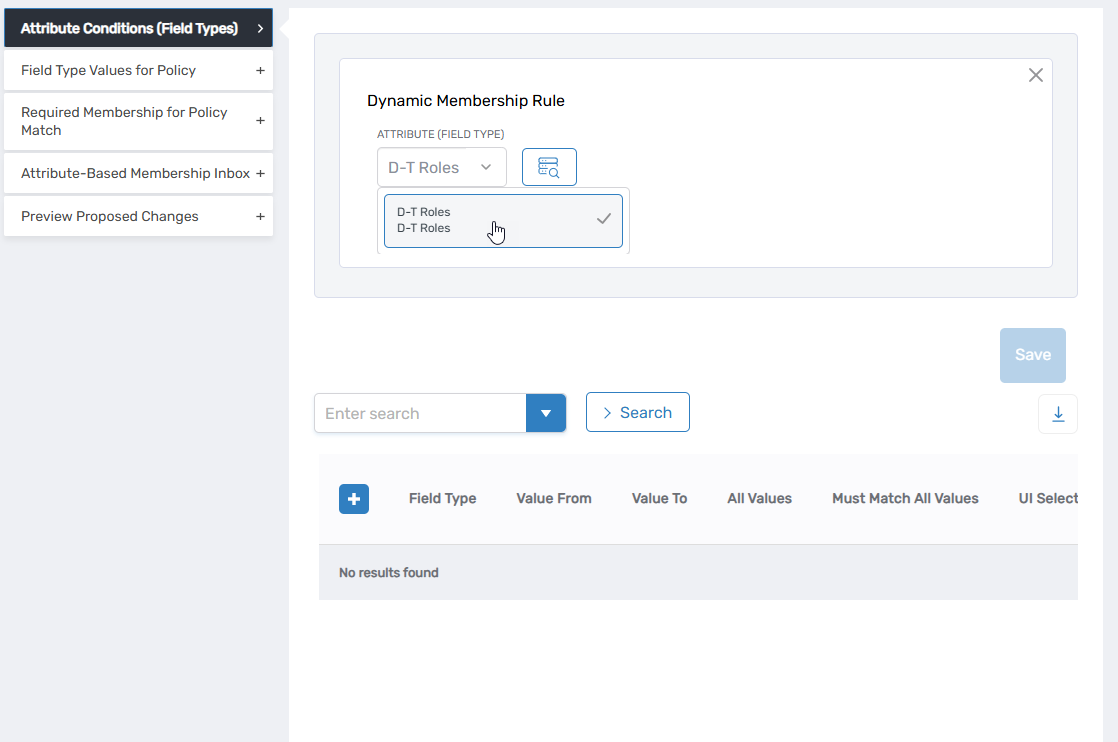
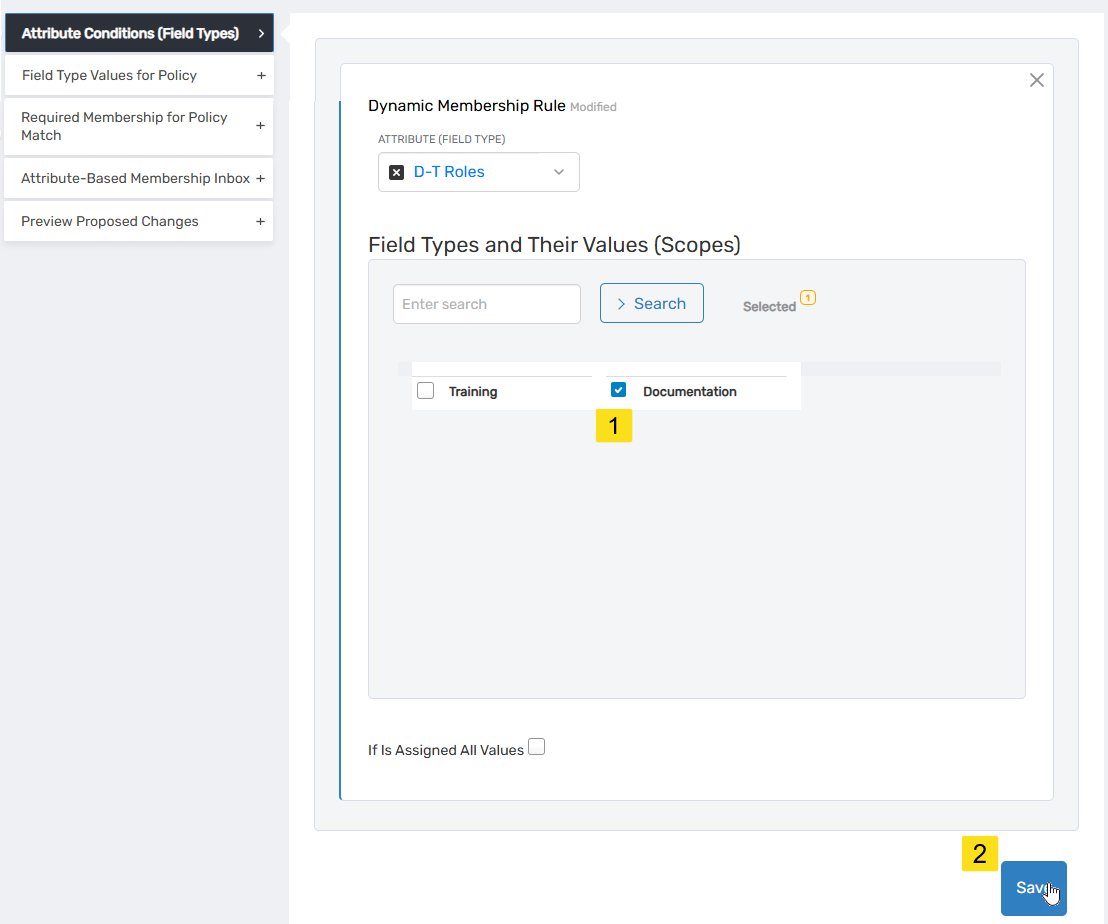
In the Dynamic Membership Rule popup, search for and select the Attribute (Field Type) to add.
-
Under Field Types and Their Values (Scopes), select one or more values and click Save.
Selecting All ValuesTo require that actors have the Field Type assigned with ANY value, choose If Is Assigned All Values.
-
Repeat steps 5-7 to add additional Attribute Conditions as needed.
Understanding Multiple Conditions
When you add multiple Attribute Conditions to a policy, actors must satisfy ALL conditions to qualify for membership (AND logic):
Example:
- Condition 1: Department = Finance
- Condition 2: Region = North America
Only actors who have BOTH Department = Finance AND Region = North America will be added to the policy target.
Verify the Results
After adding Attribute Conditions:
- Return to the policy's View One page.
- Expand the Attribute Conditions (Field Types) accordion.
- Verify that all added Field Types appear in the grid.
- Click on each condition to confirm the selected values are correct.
- Check that the combination of conditions accurately represents your membership requirements.
Next Steps
After adding Attribute Conditions to your policy:
- Assign PBAC Attributes to actors - Ensure users have the attributes the policy will evaluate
- Wait for policy execution - The policy will run according to its configured schedule and evaluate actors against the conditions
- Monitor membership assignments - Verify that the policy is adding the correct actors to the target group or role