Edit Mailbox Owners and Deputies
When you need to change who manages a mailbox or assign deputy administrators, you can modify mailbox ownership and deputy assignments. This controls who has administrative rights to manage the mailbox settings, permissions, and other configurations.
Use this workflow when staff roles change, you need to delegate mailbox management responsibilities, or when establishing backup administrators for critical mailboxes.
Before You Start
Make sure you have:
- Appropriate permissions to manage ownership of the specific mailbox you want to modify.
- Knowledge of who should have primary ownership responsibilities.
- Understanding of which users should serve as deputy administrators.
- Decisions about the level of administrative access each person needs.
Get Started
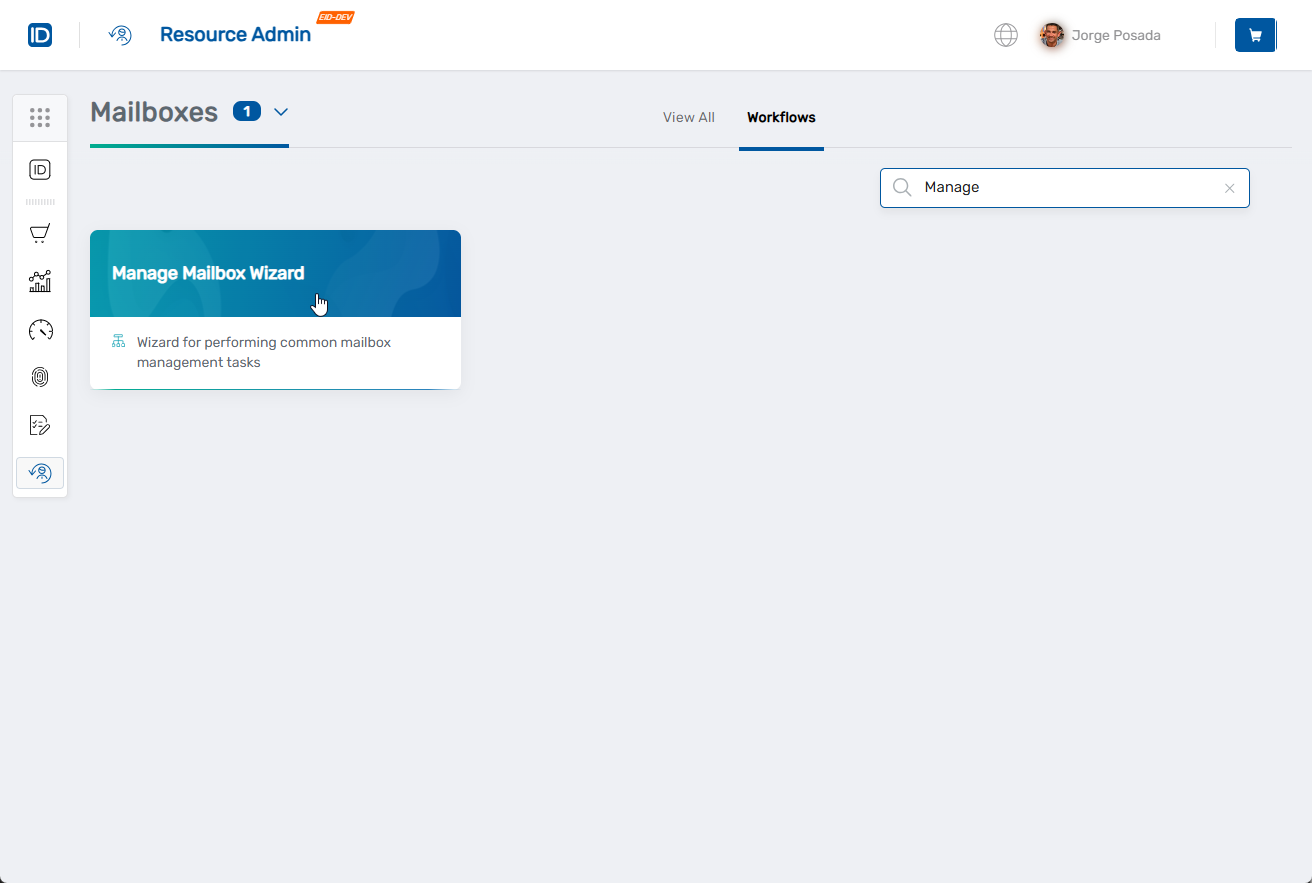
- Navigate to the Resource Admin portal
- Select Mailboxes from the resource type menu
- Click the Workflows tab
- Find and click Manage Mailbox Wizard
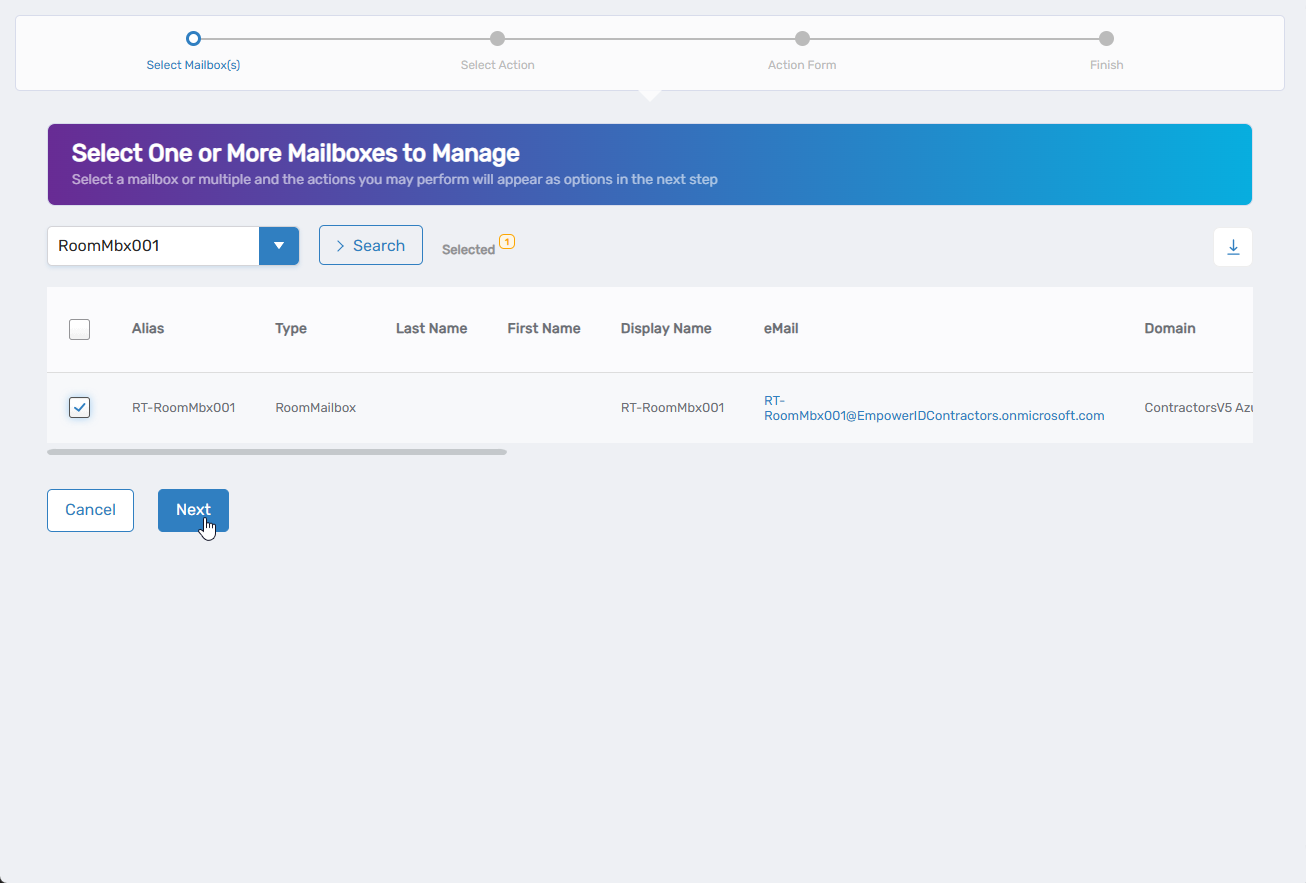
- Search for the mailbox you want to modify, then check the box next to it and click Next
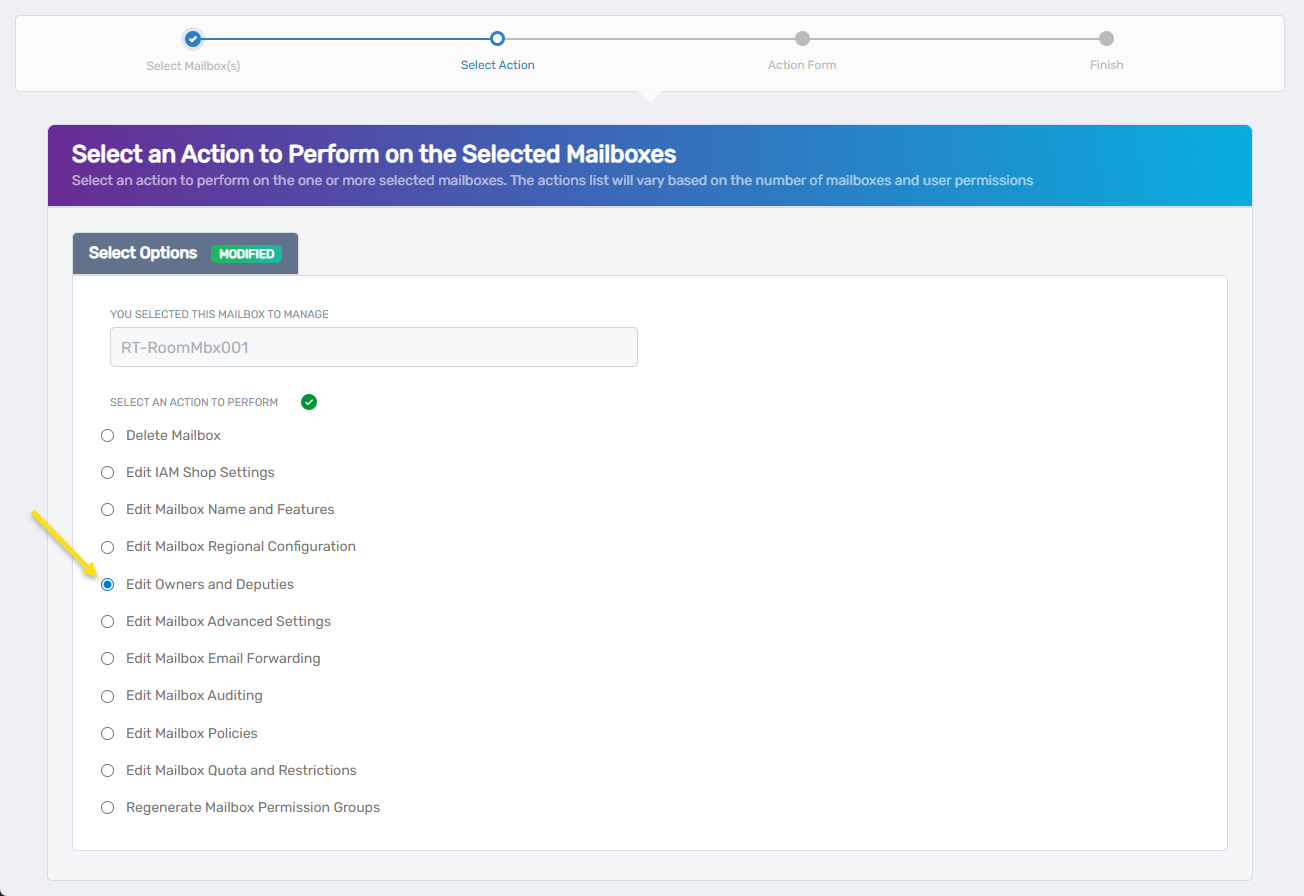
- Select Edit Owners and Deputies from the available actions
- Click Next to proceed to the ownership configuration
Update Mailbox Ownership and Deputies
The interface is organized into three sections: assigning a responsible party, managing current owners, and managing deputies.
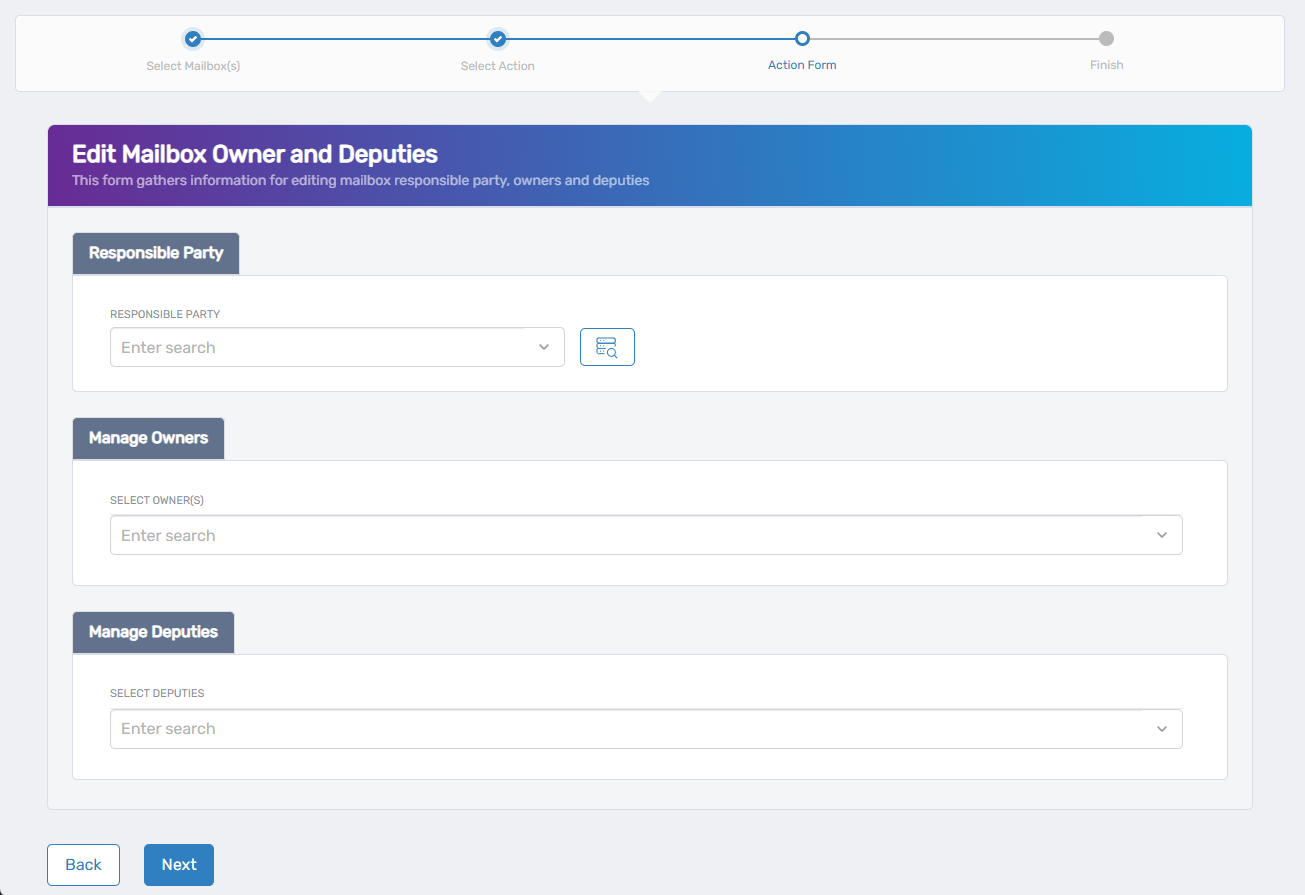
- Assign the Responsible Party:
- Use the search field to find and select the person with business accountability for this mailbox.
- To change the current Responsible Party, clear the existing selection and search for a new person.
- Manage Mailbox Owners:
- Select Owner(s) - Use the search field to find and add new owners who can manage this mailbox.
- Current Owners are shown below with Remove/Keep options for each.
- Owners can modify mailbox settings and manage permissions.
- Manage Deputies:
- Select Deputies - Use the search field to find and add new backup managers for the mailbox.
- Deputies can act as backup managers when primary owners are unavailable.
- Recommended for business continuity.
- Click Next to proceed.
Complete the Workflow
- Review the Operation Execution Summary to confirm your changes were applied successfully:
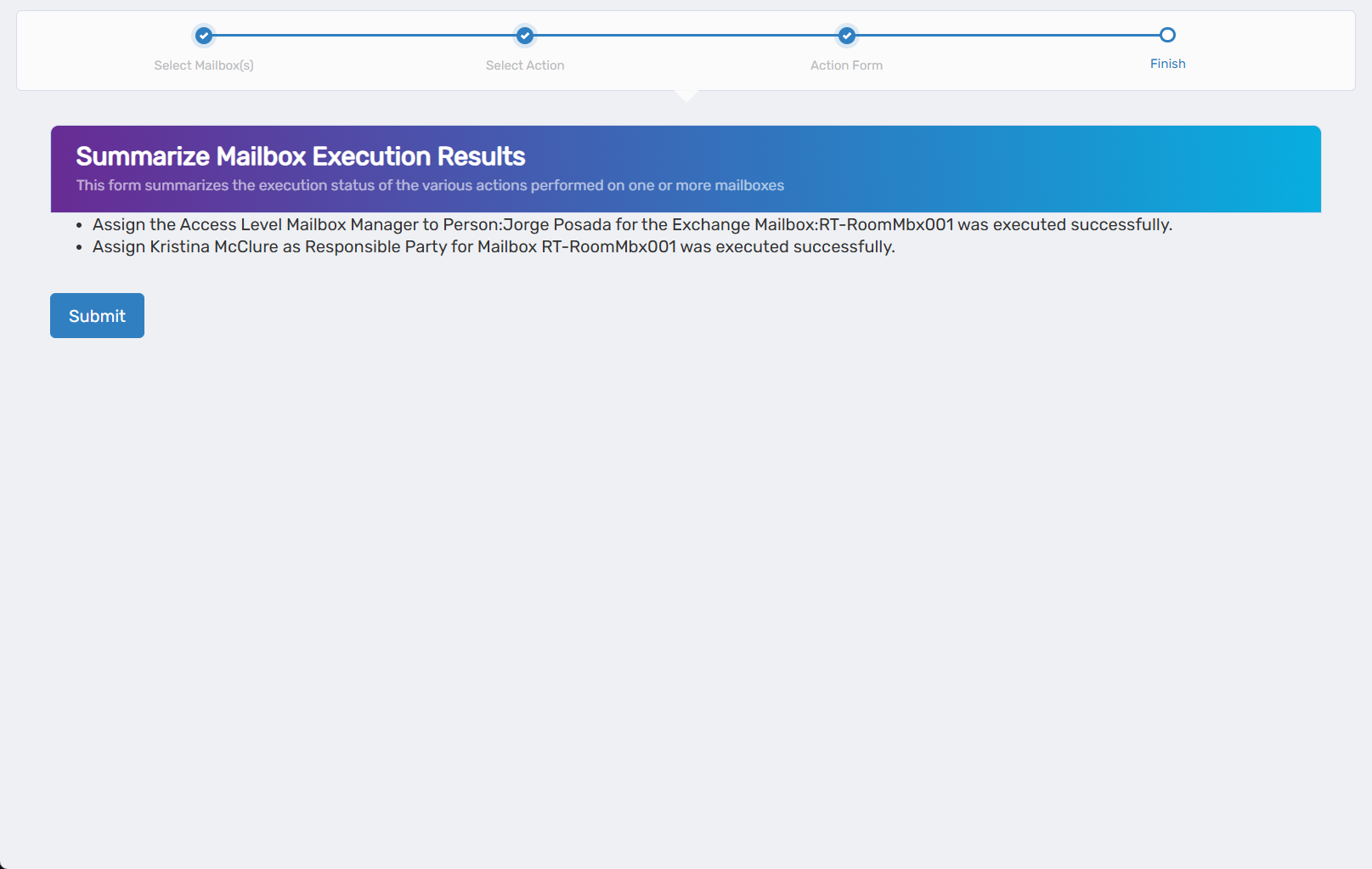 The summary shows the specific ownership and deputy assignments that were updated.
 - Click Submit to continue.
- Choose your next action:
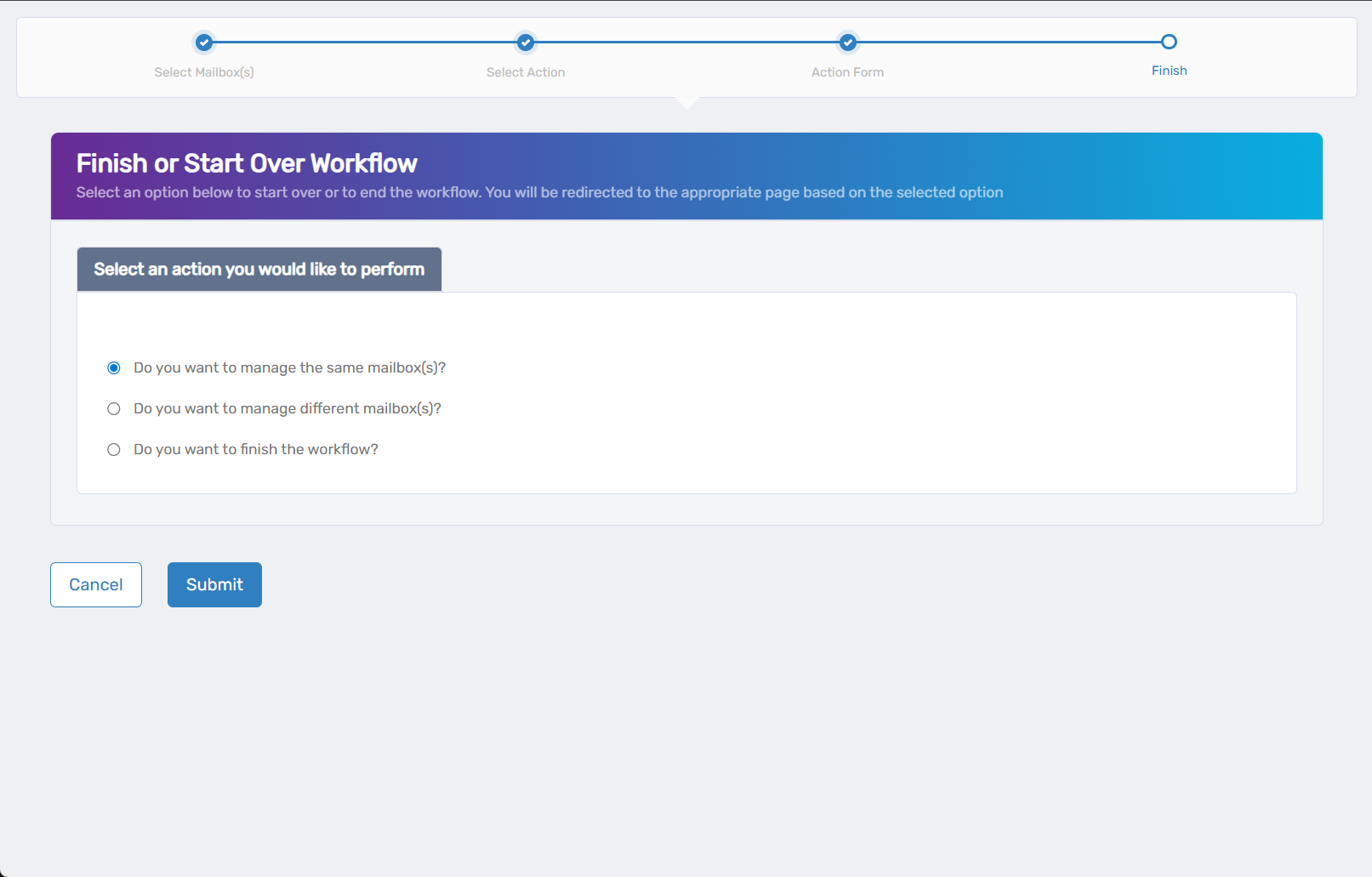
- Do you want to manage the same Mailbox? - Select this to perform additional actions on the same mailbox.
- Do you want to manage different Mailbox(es)? - Select this to work with other mailboxes.
- Do you want to finish the workflow? - Select this to complete the process and exit the wizard.
- Click Submit to proceed with your selected option.
Verify Your Changes
After completing the workflow:
- Confirm new owners can access mailbox management functions.
- Test deputy permissions to ensure they have appropriate administrative access.
- Verify removed users no longer have ownership or deputy privileges.
What Happens Next
- Ownership changes take effect immediately for mailbox administrative functions.
- Deputy assignments provide backup administrative access without full ownership rights.
- Removed owners lose administrative privileges to the mailbox.
- New assignments may generate notification emails to the affected users.
If You Run Into Problems
New owners can't access mailbox settings: Verify the user has the necessary Exchange management permissions in addition to mailbox ownership.
Deputy permissions too restrictive: Check that the deputy role is configured with appropriate administrative rights for the intended tasks.
Ownership changes don't take effect: Some Exchange management functions may require a brief delay. Wait 5-10 minutes and try again.
Can't remove existing owner: Ensure you have sufficient permissions to modify ownership of the mailbox and that you're not removing the last owner.
Related Actions
- To configure mailbox features and protocols, see Edit Mailbox Name and Features
- To modify email forwarding settings, see Edit Mailbox Email Forwarding
- To set up mailbox quotas, see Edit Mailbox Quota and Restrictions
- To configure advanced mailbox features, see Edit Mailbox Advanced Settings