Edit Mailbox Policies
When you need to assign or modify policies for a mailbox, you can configure mailbox policy settings. This controls which role assignment, retention, sharing, and other organizational policies apply to the mailbox.
Use this workflow when you need to apply specific policies for security, compliance, or functionality requirements, or when changing policy assignments due to organizational changes or updated requirements.
Before You Start
Make sure you have:
- Appropriate access to manage policy assignments for the specific mailbox you want to modify.
- Understanding of which policies should be applied based on the mailbox's purpose and requirements.
- Knowledge of your organization's policy standards and compliance requirements.
- Decisions about management access, retention, and other policy-controlled features.
Get Started
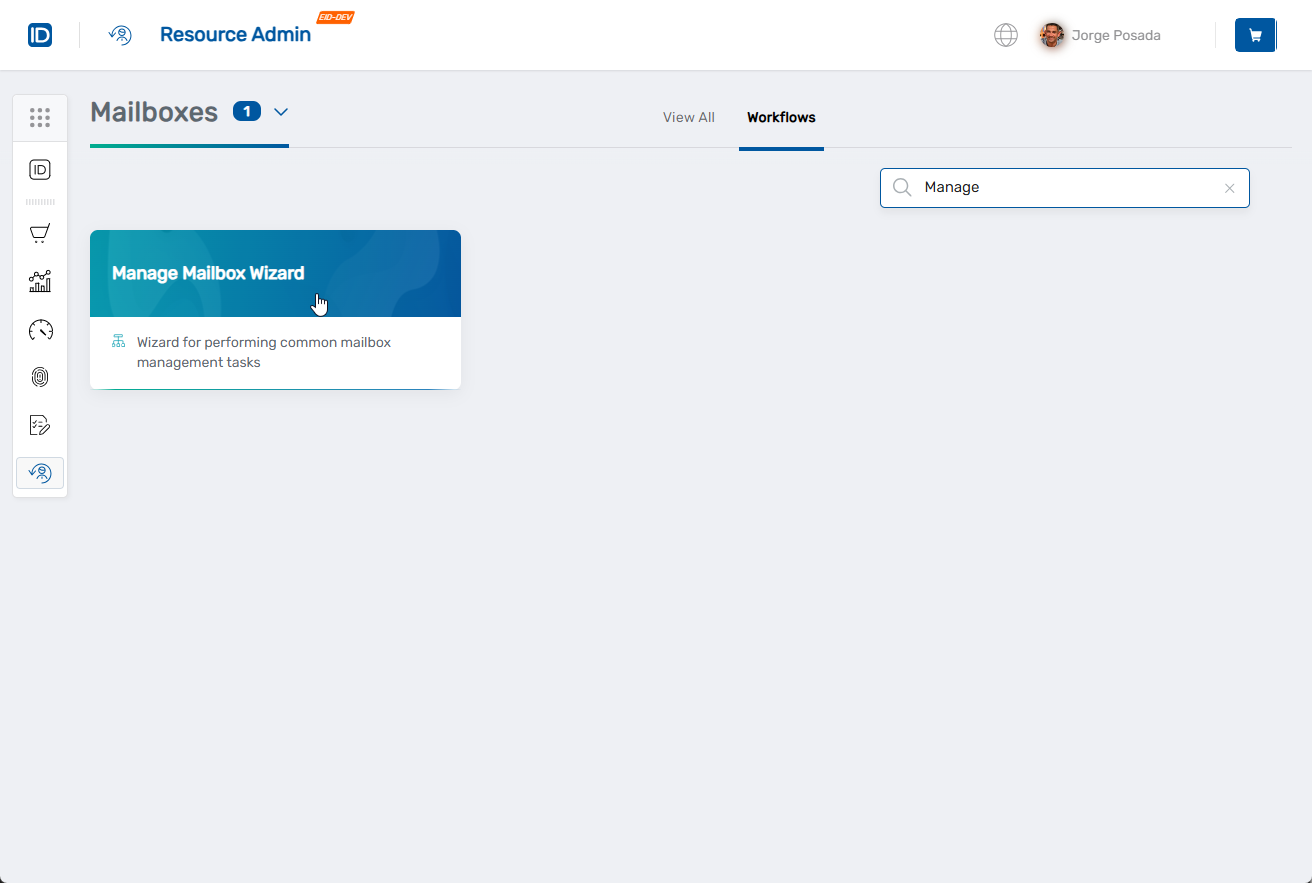
- Navigate to the Resource Admin portal
- Select Mailboxes from the resource type menu
- Click the Workflows tab
- Find and click Manage Mailbox Wizard
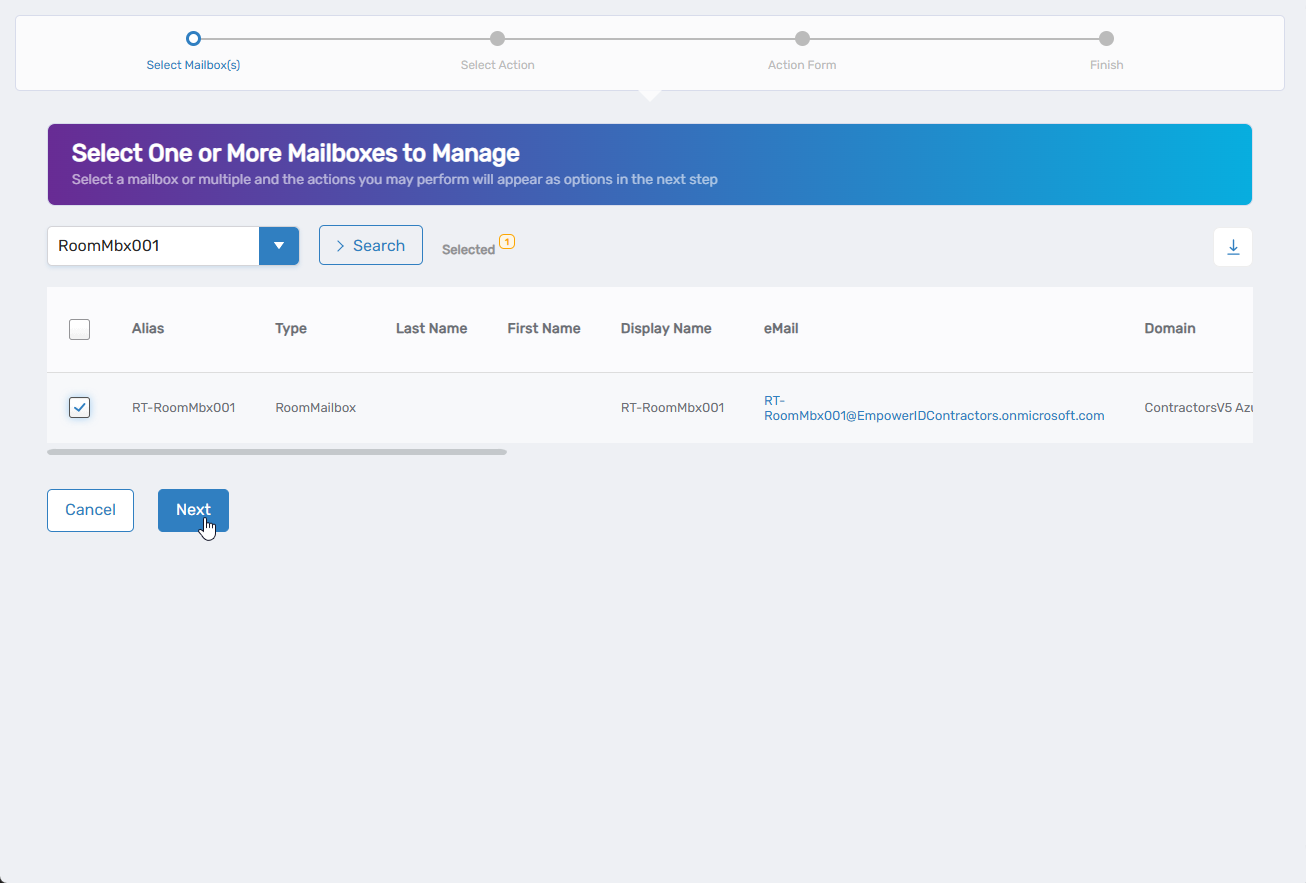
- Search for the mailbox you want to modify, then check the box next to it and click Next
- Select Edit Mailbox Policies from the available actions
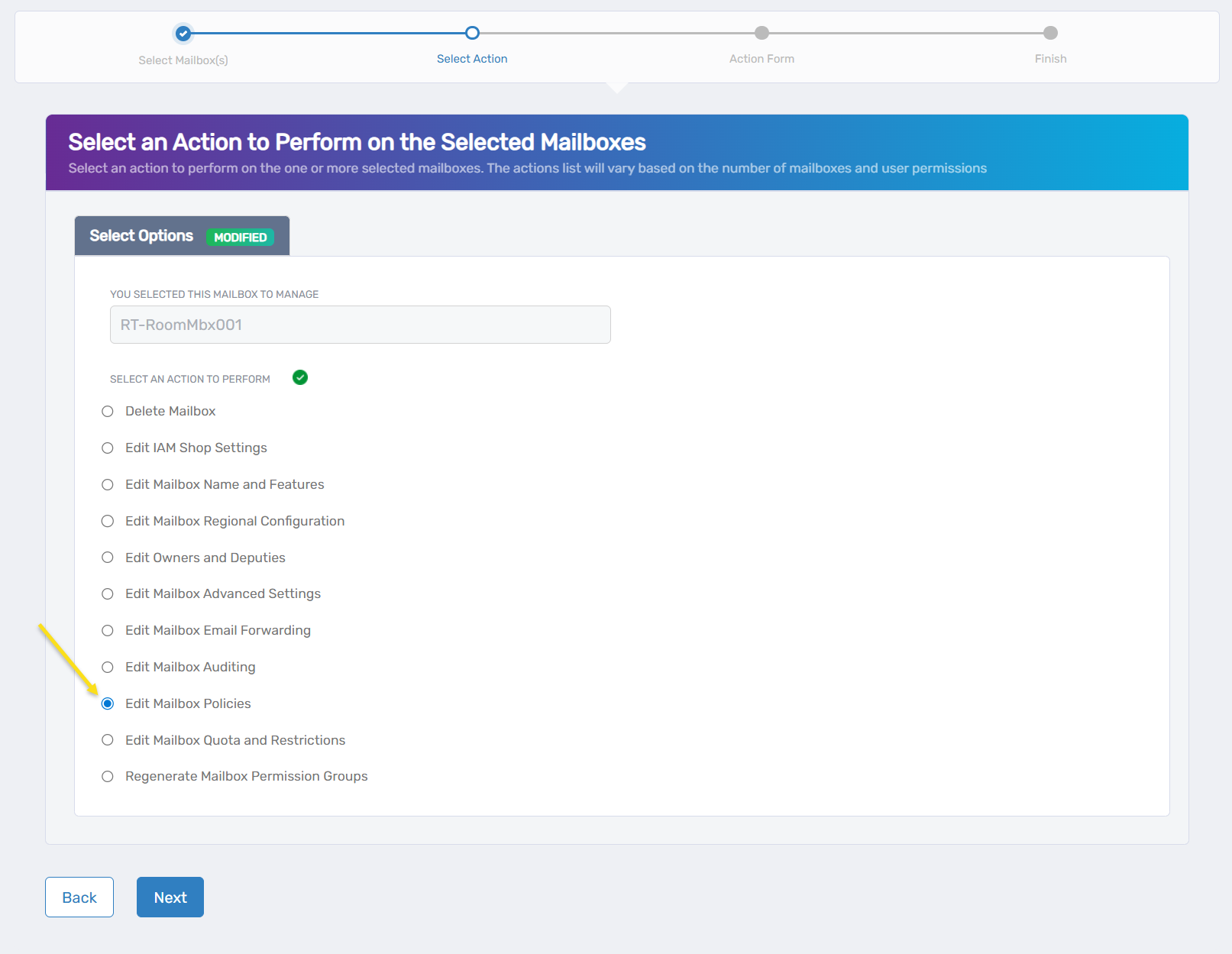
- Click Next to proceed to the policy configuration
Configure Mailbox Policies
The interface displays policy assignment options in a simple Policies section with dropdown fields for various Exchange policies.
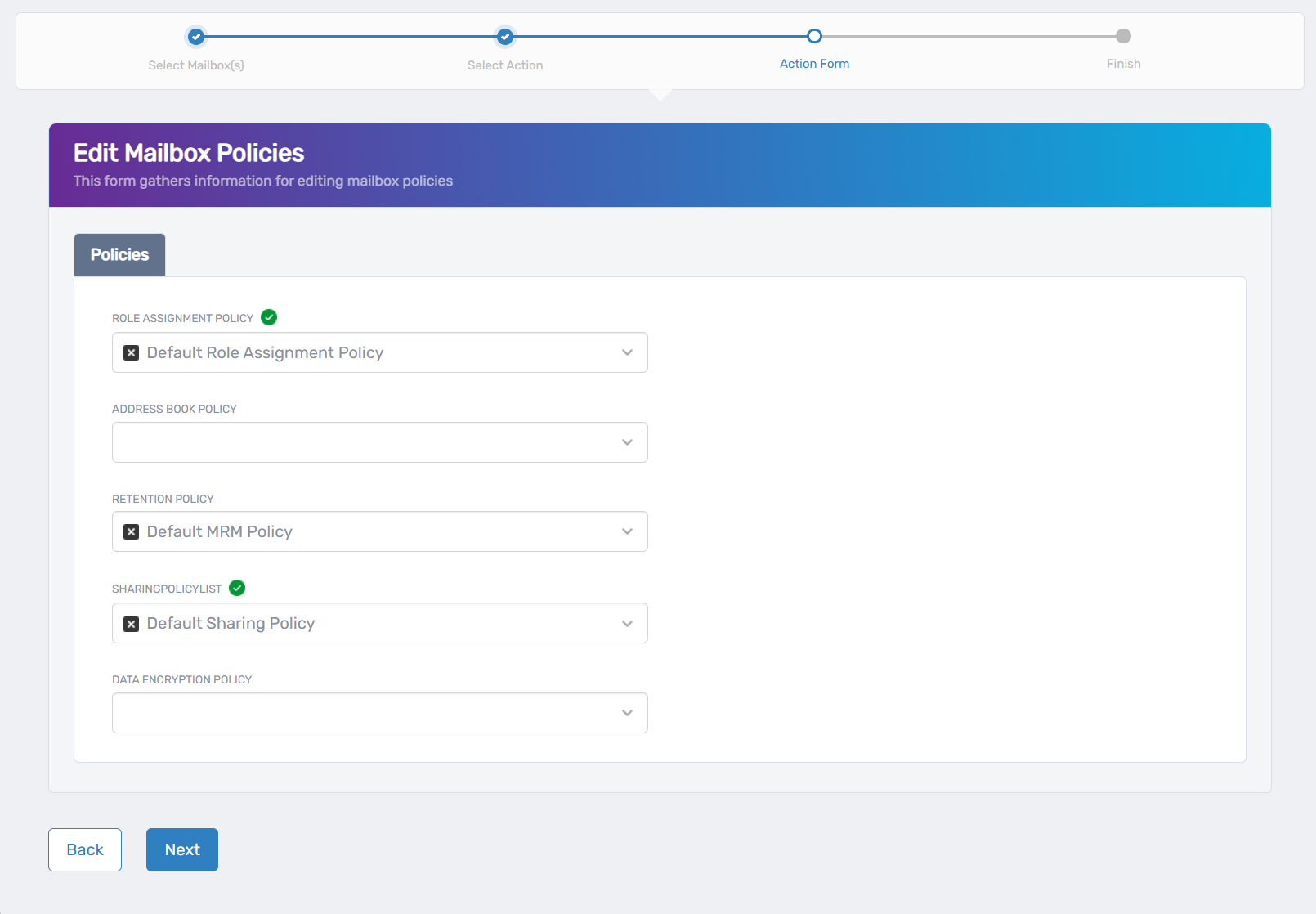
- Configure mailbox policies:
- Role Assignment Policy: Select the policy that defines what management tasks can be performed on this mailbox.
- Address Book Policy: Choose the policy for segmented address book access if your organization uses address book segregation.
- Retention Policy: Select the policy that controls message retention and deletion (shows "Default MRM Policy" in the example).
- Sharing Policy: Choose the policy that controls calendar and contact sharing permissions (shows "Default Sharing Policy" in the example).
- Data Encryption Policy: Select the policy for data encryption requirements and settings.
- Click Next to proceed with your changes.
Complete the Workflow
- Review the Operation Execution Summary to confirm your changes were applied successfully:
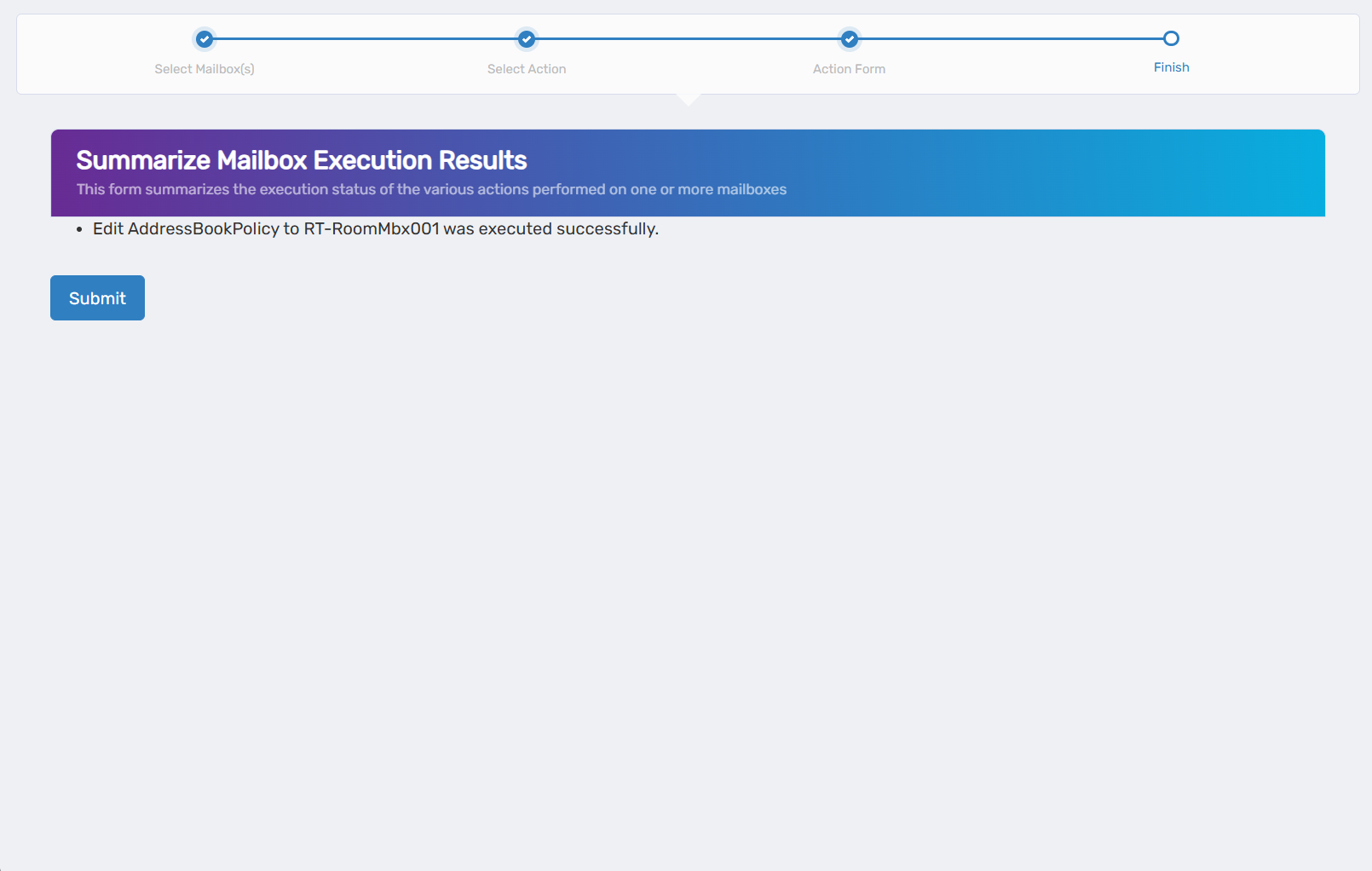 The summary shows the specific policy assignments that were updated.
 - Click Submit to continue.
- Choose your next action:
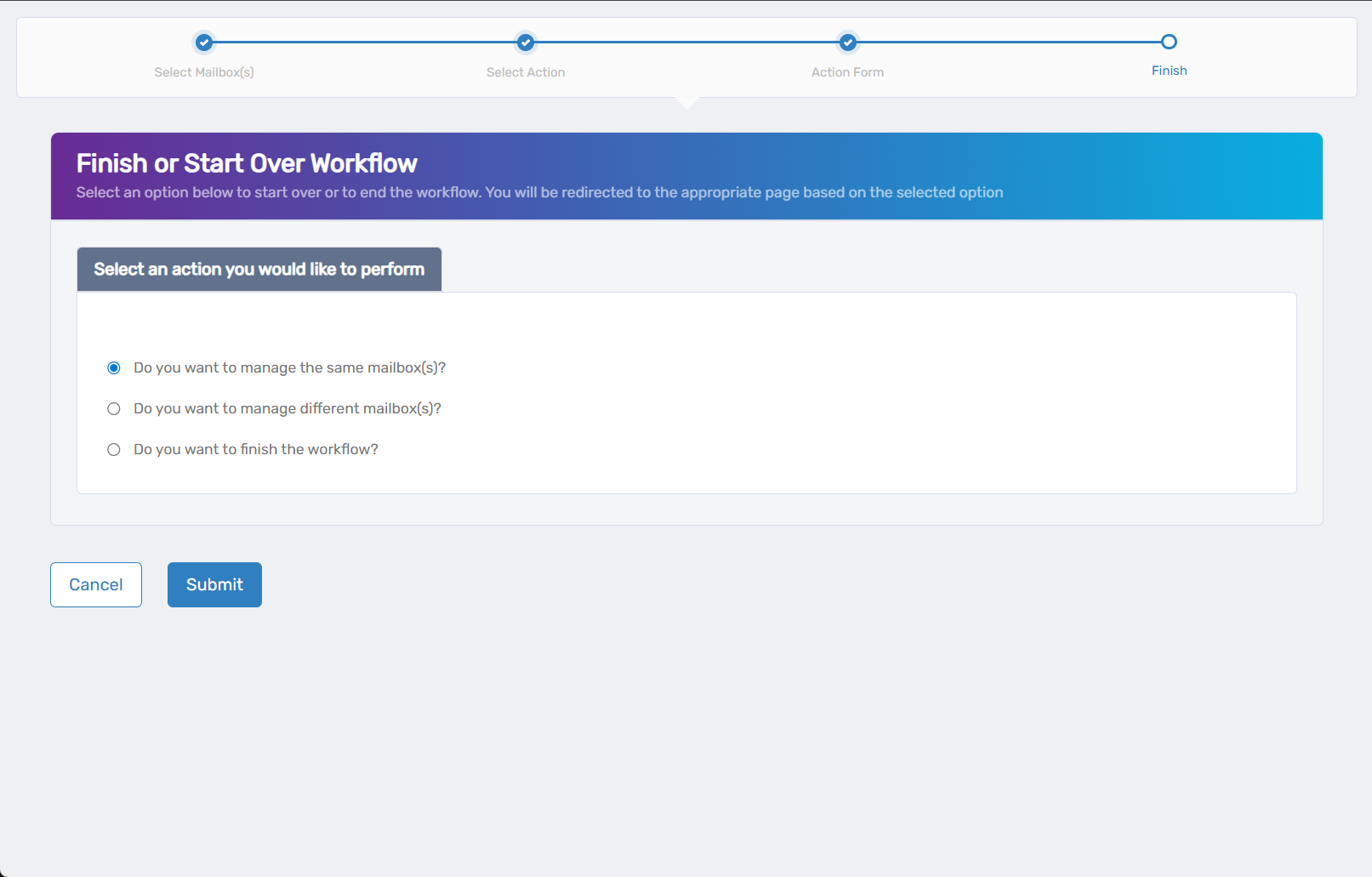
- Do you want to manage the same Mailbox? - Select this to perform additional actions on the same mailbox.
- Do you want to manage different Mailbox(es)? - Select this to work with other mailboxes.
- Do you want to finish the workflow? - Select this to complete the process and exit the wizard.
- Click Submit to proceed with your selected option.
Verify Your Changes
After completing the workflow:
- Check policy application by reviewing mailbox properties in management tools.
- Verify retention behavior if retention policies were modified.
- Confirm sharing restrictions are working as expected.
- Test policy inheritance to ensure settings are applied correctly.
What Happens Next
- Policy changes take effect immediately for most settings, though some may require reconnection to the mailbox.
- Retention policies begin processing messages according to the new policy schedule.
- Sharing policies control external calendar and contact sharing capabilities.
- Role assignment changes affect what management tasks can be performed on the mailbox.
If You Run Into Problems
Policy changes not taking effect: Some policy settings may require a brief delay. Wait 5-10 minutes and check mailbox properties again.
Retention policies not processing messages: Verify that the Managed Folder Assistant is running and that retention tags are properly configured in the assigned policy.
Sharing restrictions not working: Check that the sharing policy is properly configured and that external sharing is enabled at the organizational level.
Policy assignment conflicts: Review all assigned policies to ensure they don't contain conflicting settings that could cause unexpected behavior.
Related Actions
- To configure advanced mailbox settings, see Edit Mailbox Advanced Settings
- To set up mailbox auditing, see Edit Mailbox Auditing
- To manage mailbox quotas, see Edit Mailbox Quota and Restrictions
- To configure basic mailbox features, see Edit Mailbox Name and Features