Edit Mailbox Regional Configuration
When you need to configure time zone, language, or locale settings for a mailbox, you can modify regional configuration settings. This controls how dates, times, and regional formatting appear in email clients and affects calendar scheduling behavior.
Use this workflow when mailboxes need different time zone settings, language preferences, or regional formatting that differs from organizational defaults.
Before You Start
Make sure you have:
- Required access to manage regional settings for the specific mailbox you want to modify.
- Understanding of the correct time zone and regional requirements for the mailbox.
- Knowledge of any organizational standards for language and locale settings.
- Decisions about calendar time zone handling and regional display preferences.
Get Started
- Navigate to the Resource Admin portal
- Select Mailboxes from the resource type menu
- Click the Workflows tab
- Find and click Manage Mailbox Wizard
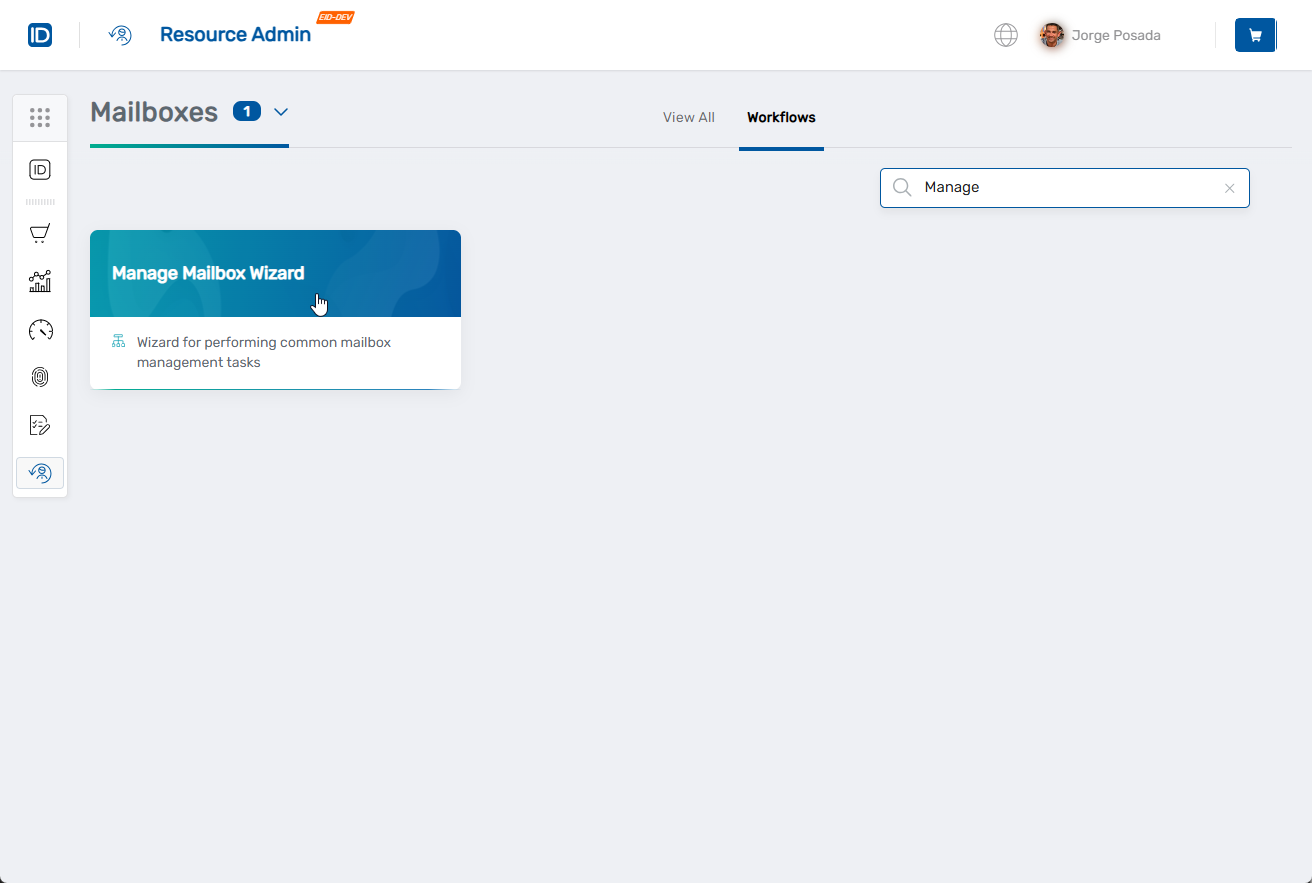
- Search for the mailbox you want to modify, then check the box next to it and click Next
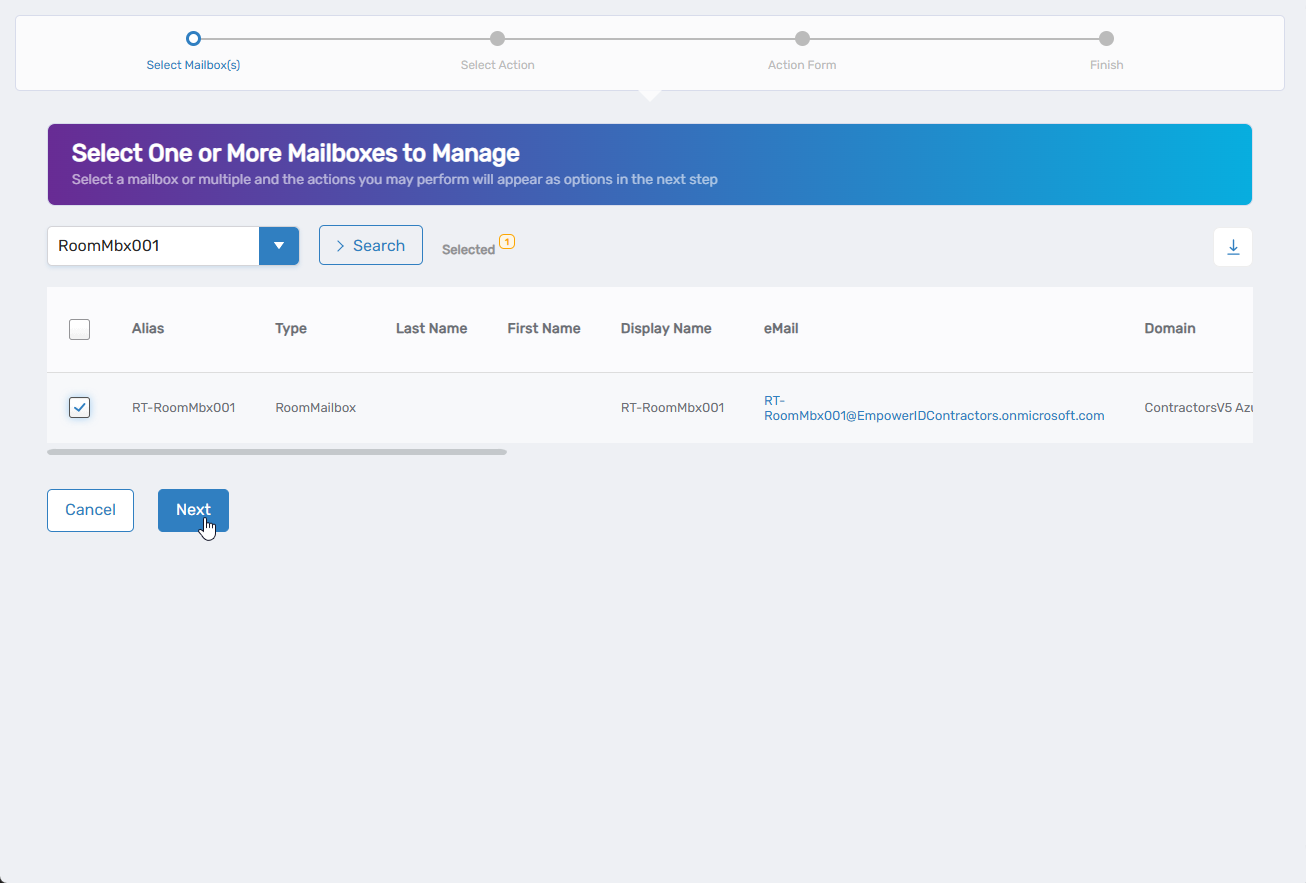
- Select Edit Mailbox Regional Configuration from the available actions
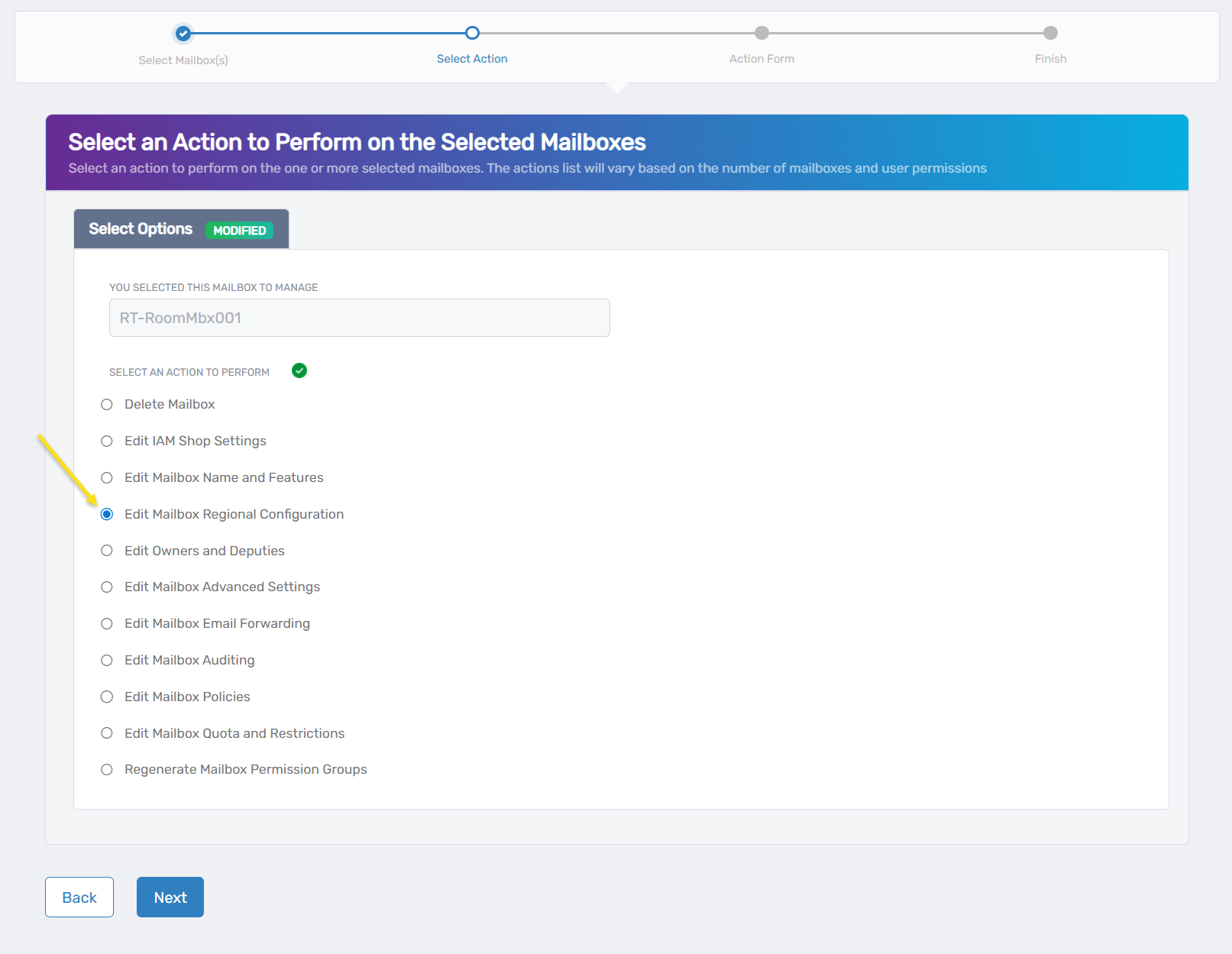
- Click Next to proceed to the regional configuration
Configure Regional Settings
The interface displays regional configuration options in a simple Regional Configuration Settings section with dropdown fields for language, formatting, and time zone preferences.
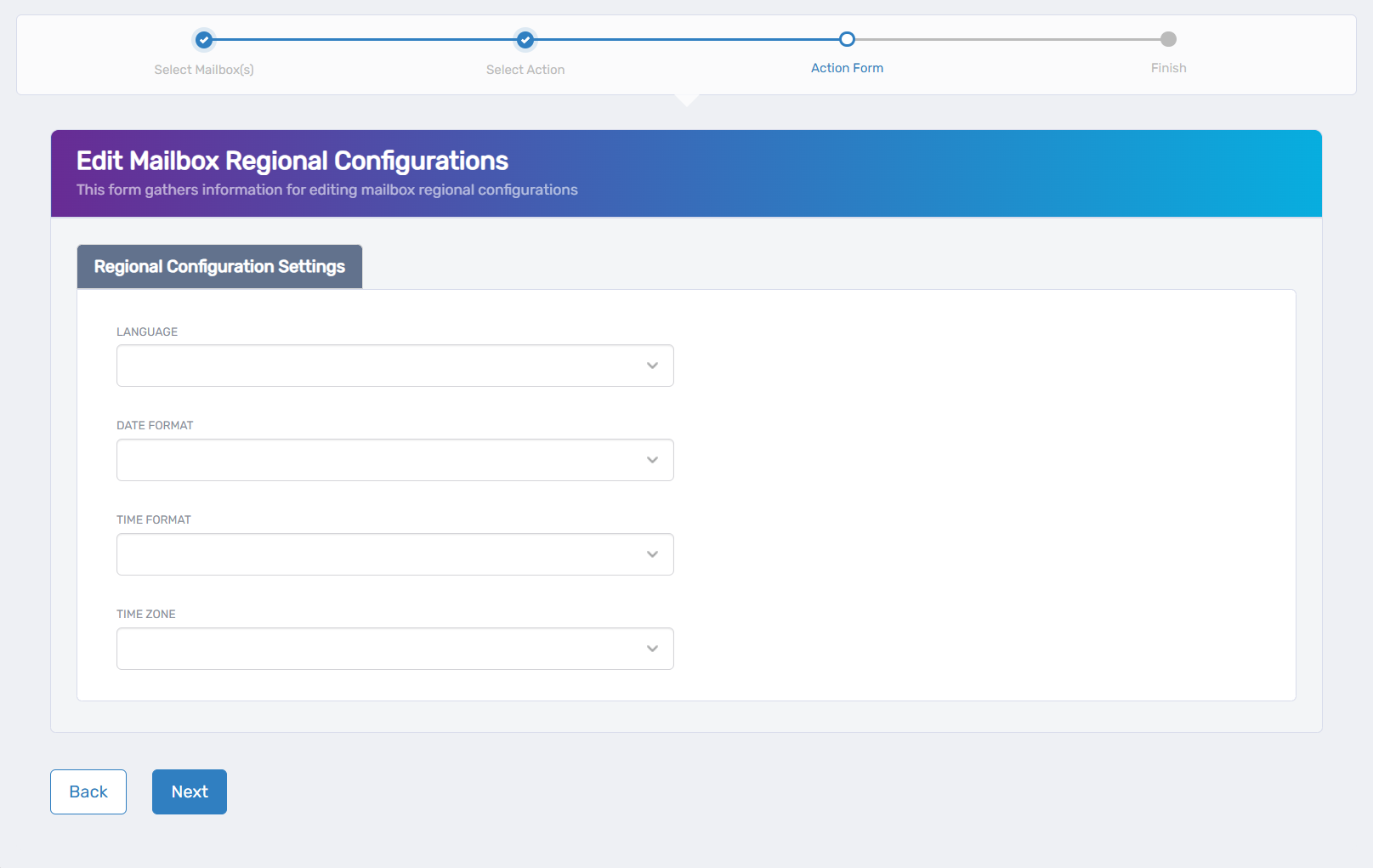
- Configure regional settings:
- Language: Select the primary language for mailbox interface elements.
- Date Format: Choose how dates are displayed in the mailbox.
- Time Format: Set the time display format (12-hour or 24-hour).
- Time Zone: Select the appropriate time zone for the mailbox location or primary usage.
- Localize Default Folder Name: Check this option to enable localization of default folder names (this option appears when a language is selected).
- Click Next to proceed with your changes.
Complete the Workflow
- Review the Operation Execution Summary to confirm your changes were applied successfully.
- Click Submit to continue.
- Choose your next action:
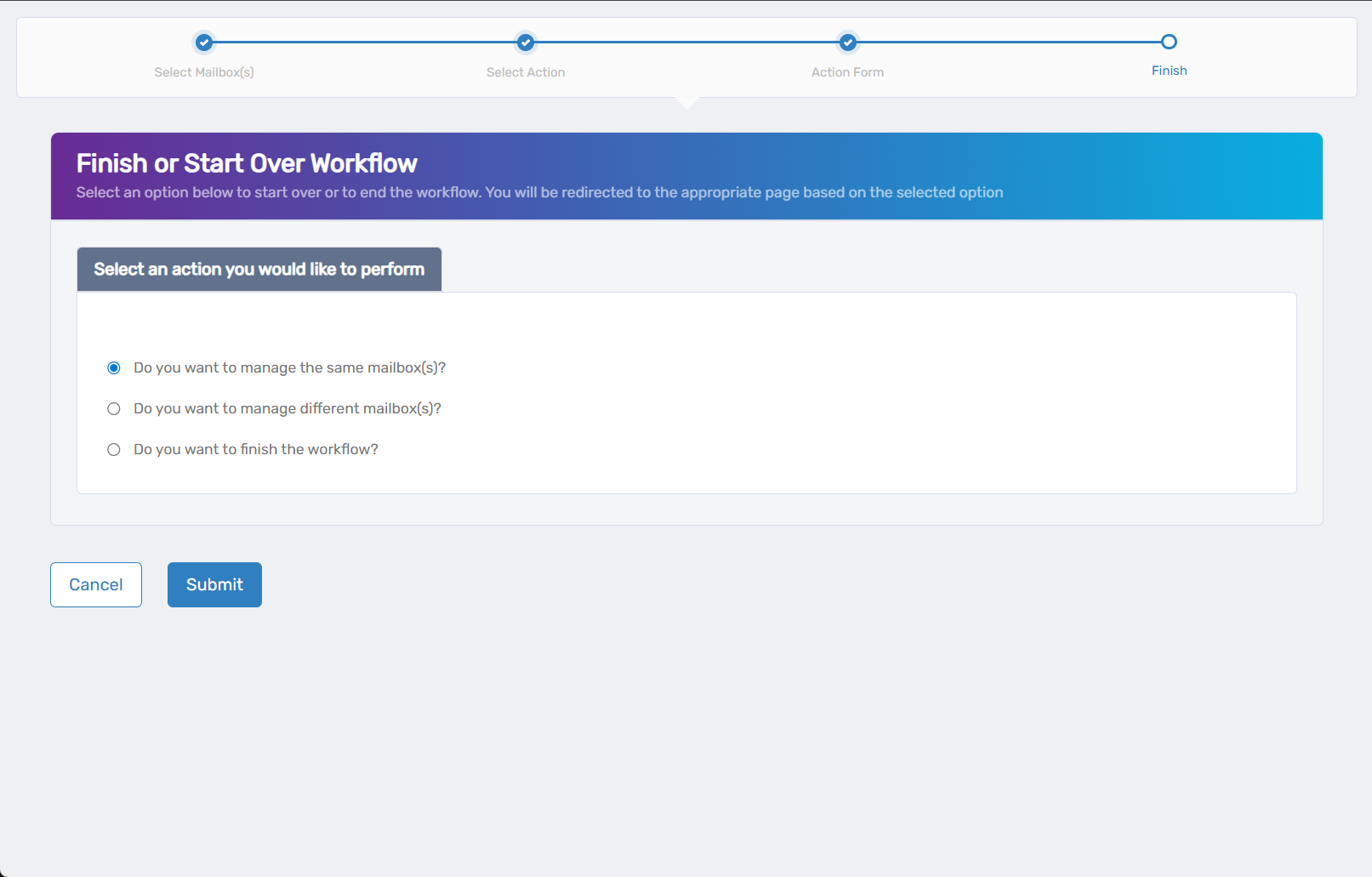
- Do you want to manage the same Mailbox? - Select this to perform additional actions on the same mailbox.
- Do you want to manage different Mailbox(es)? - Select this to work with other mailboxes.
- Do you want to finish the workflow? - Select this to complete the process and exit the wizard.
- Click Submit to proceed with your selected option.
Verify Your Changes
After completing the workflow:
- Check time zone display in calendar applications to ensure appointments show correct times.
- Verify language settings appear correctly in email client interfaces.
- Confirm date and time formatting matches the selected regional preferences.
- Test calendar scheduling to ensure time zone handling works properly.
What Happens Next
- Time zone changes affect how calendar appointments are displayed and scheduled.
- Language settings update interface elements in supported email clients.
- Regional formatting changes how dates, times, and numbers appear in the mailbox.
- Calendar time zones ensure proper scheduling coordination across different regions.
If You Run Into Problems
Time zone not updating in calendar: Some calendar applications may need to refresh or synchronize to reflect new time zone settings.
Language changes not appearing: Email clients may need to restart or refresh to display the new language interface.
Date format not changing: Regional formatting may take time to propagate to all email clients and may require client restart.
Related Actions
- To configure basic mailbox features, see Edit Mailbox Name and Features
- To manage mailbox policies, see Edit Mailbox Policies
- To set up advanced settings, see Edit Mailbox Advanced Settings
- To configure ownership settings, see Edit Mailbox Owners and Deputies