Create Secrets
Create encrypted personal secrets—such as passwords, credit card details, and private notes—secured with your master password.
Overview
EmpowerID allows you to vault personal data as secrets, which are encrypted with your unique master password. Only you can decrypt and access these secrets. Secrets are strictly personal and are not tied to inventoried systems or shared user accounts.
If you don't have a master password, you will be prompted to create one before vaulting a secret.
Secrets can be one of the following types:
- Password – Vaults login information, such as username, password, and login URL
- Credit Card – Vaults credit card number, expiration date, and related details
- Note – Vaults general private notes
Secrets are intended for personal use only. They are not linked to inventoried objects such as computers, nor can they be shared across accounts.
What You’ll Need
- A valid master password (or you will be prompted to create one)
Create a Secret
-
Access Your Profile
- In the EmpowerID Web app, click your username and select View Profile.
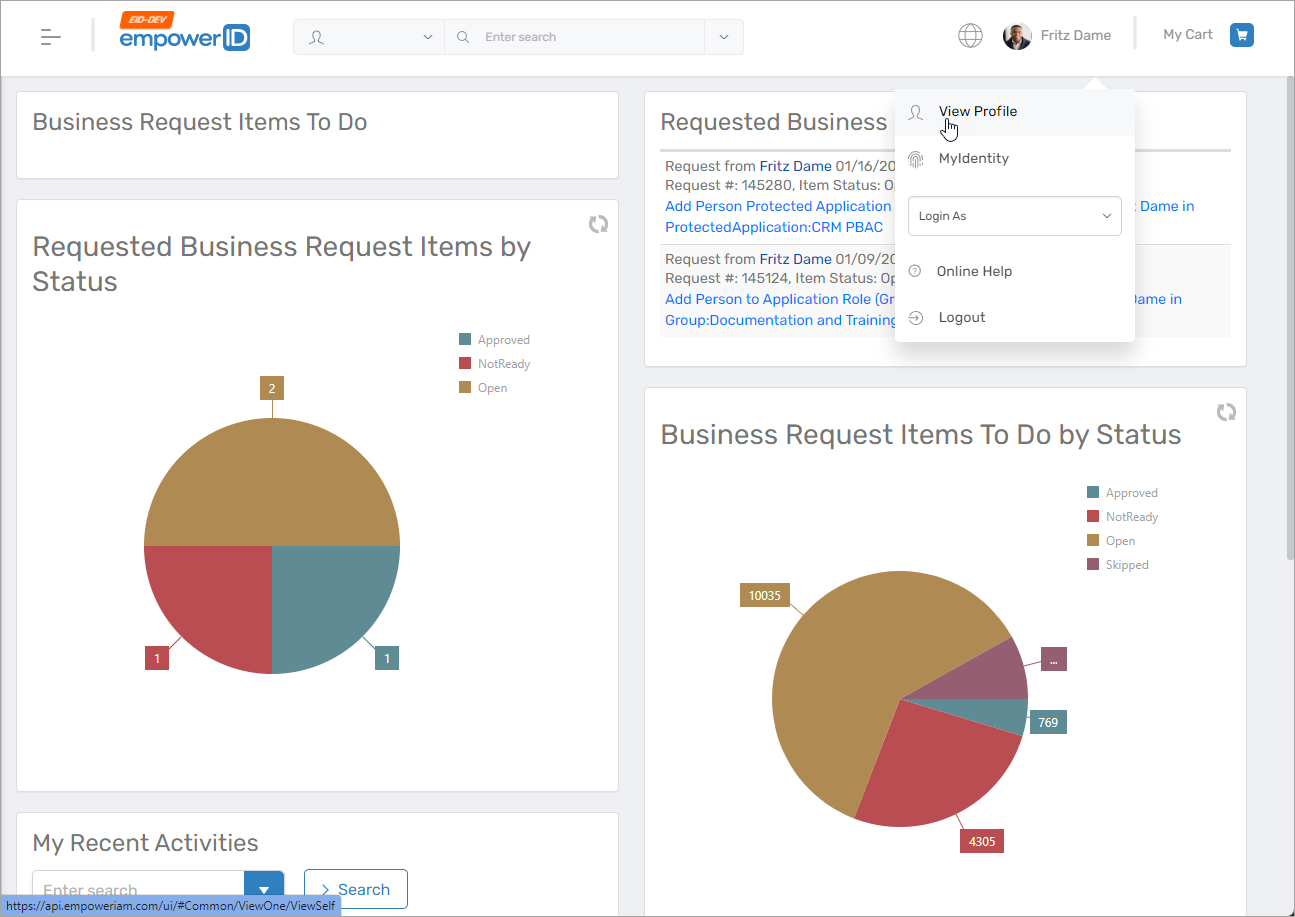
- In the EmpowerID Web app, click your username and select View Profile.
-
Go to the Privileged Access Section
- Click the Privileged Access tab.
- Expand the Secrets section.
-
Click Add to Create a Secret
- In the Secrets grid, click the Add button.
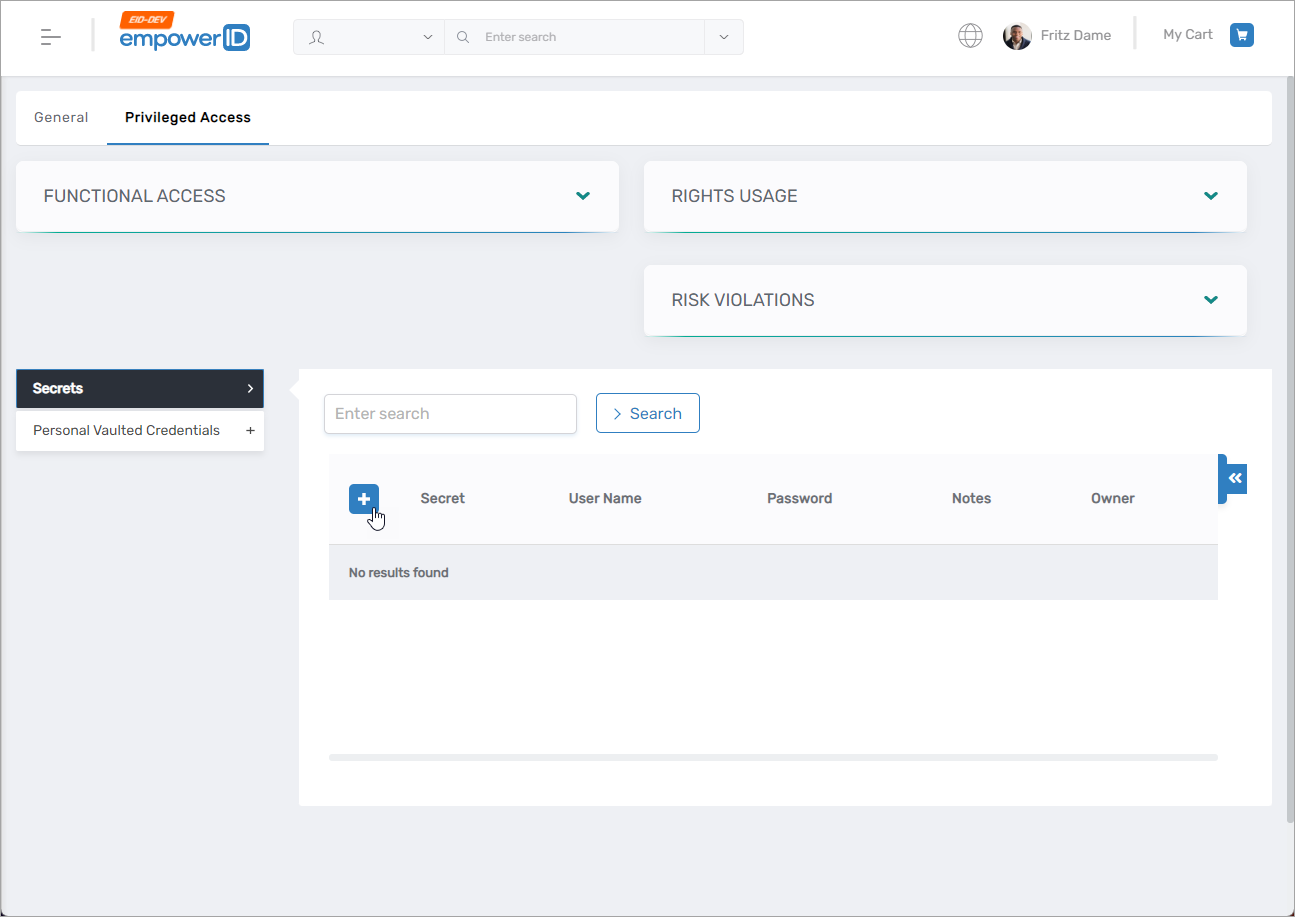
- In the Secrets grid, click the Add button.
-
Complete the Secret Form
The Password Vault Data dialog opens.
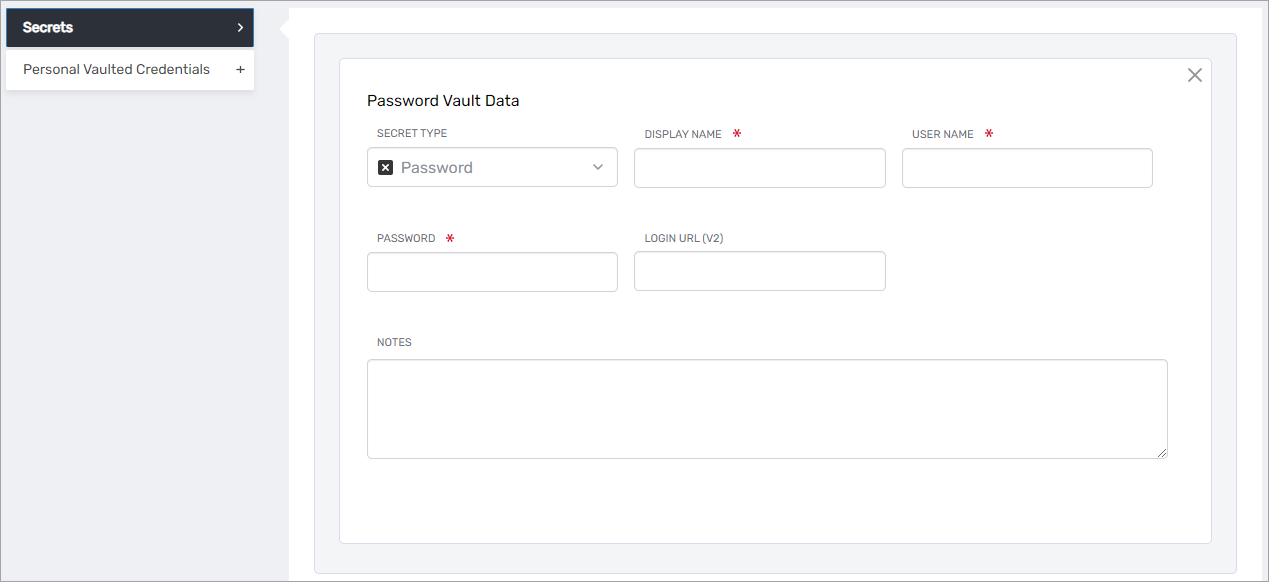
- Choose the secret type and fill in the appropriate fields:
- Password
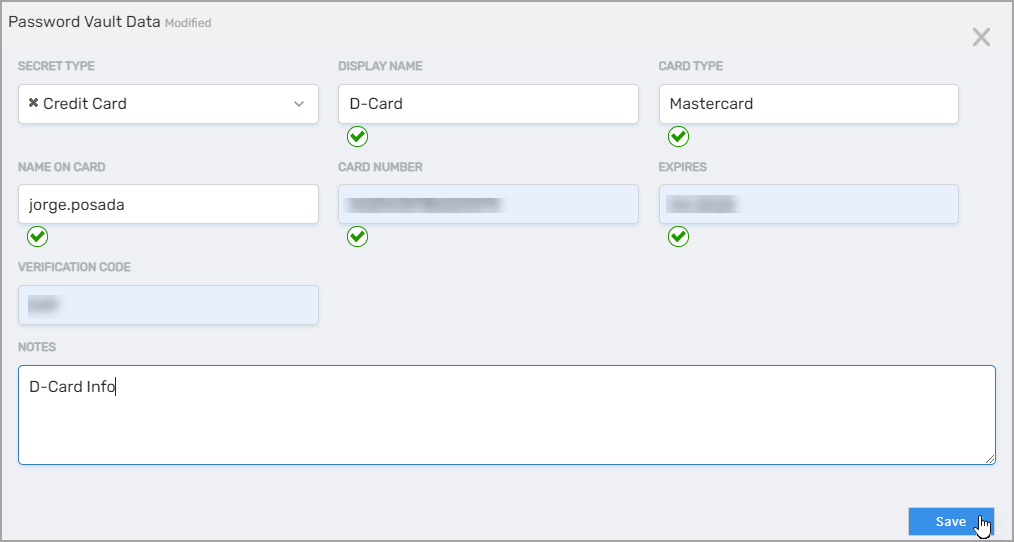
- Credit Card
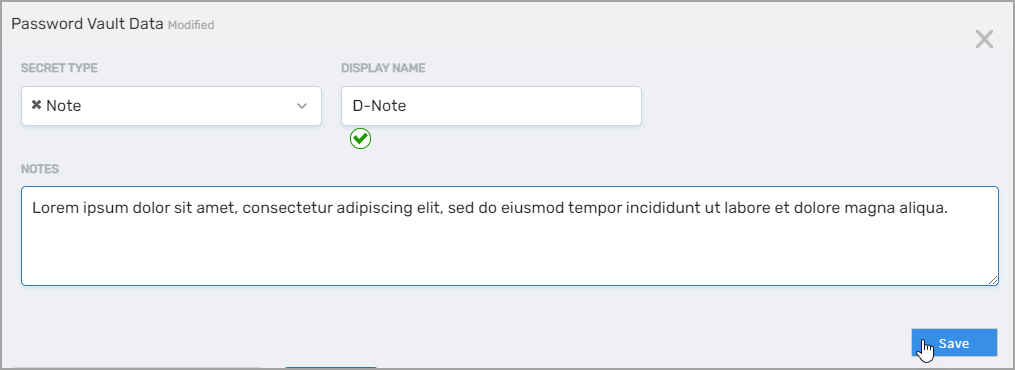
- Note
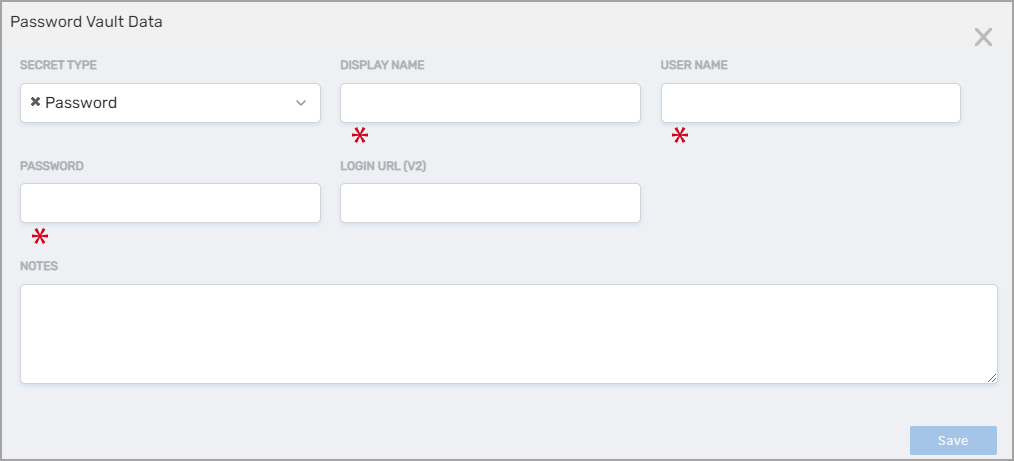
For Password secrets, provide:
- Display Name – Name that appears in your secrets list
- User Name – Username for the account
- Password – The associated password
- Login URL (V2) – Optional URL to the login page
- Notes – Optional additional context or comments
For Credit Card secrets, provide:
- Display Name – A label for the credit card
- Card Type – e.g., Visa, Mastercard
- Name on Card – Cardholder's name
- Card Number – Full credit card number
- Expires – Expiration date
- Verification Code – CVV or similar
- Notes – Optional notes
For Note secrets, provide:
- Display Name – Label for the note
- Notes – The content of your note (encrypted)
-
Enter Your Master Password
- If prompted, enter your master password to encrypt the secret.
Once saved, your secret is stored securely and can only be viewed or decrypted using your master password.