Assign Query-Based Collections to Roles
Assign Query-Based Collections to Management Roles to grant all collection members the permissions and resource access defined by the role. When you assign a Query-Based Collection to a Management Role, membership in the collection automatically grants membership in the role.
Prerequisites
Before assigning Query-Based Collections to Management Roles, ensure you have:
- Access to manage Management Roles in EmpowerID
Procedure
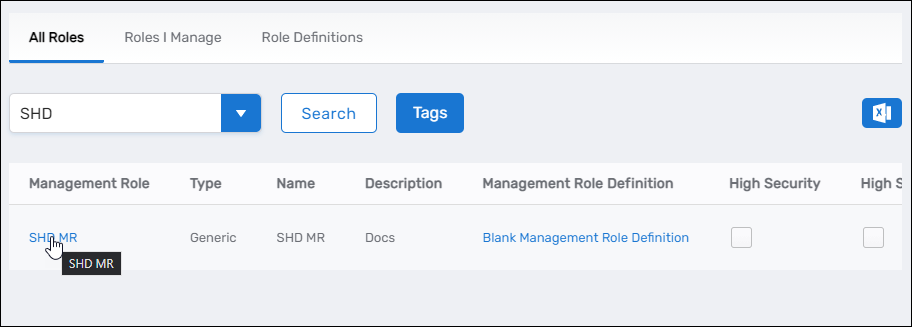
- Navigate to Role Management > Management Roles.
- Select the All Roles tab.
- Search for and locate the Management Role you want to update.
- Click the Management Role link to open its View One page.
The View One page displays all configuration and membership information for the Management Role.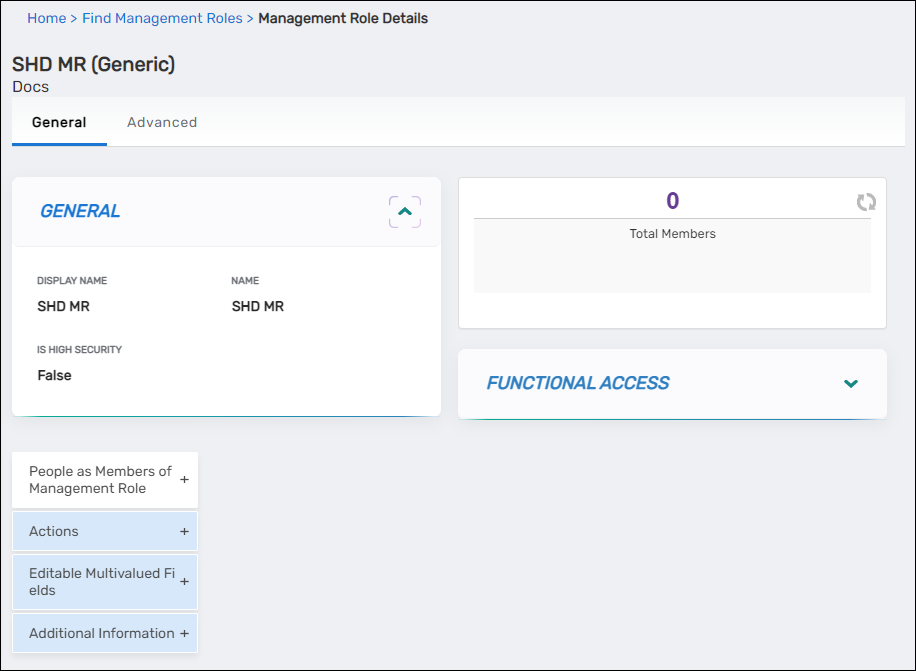
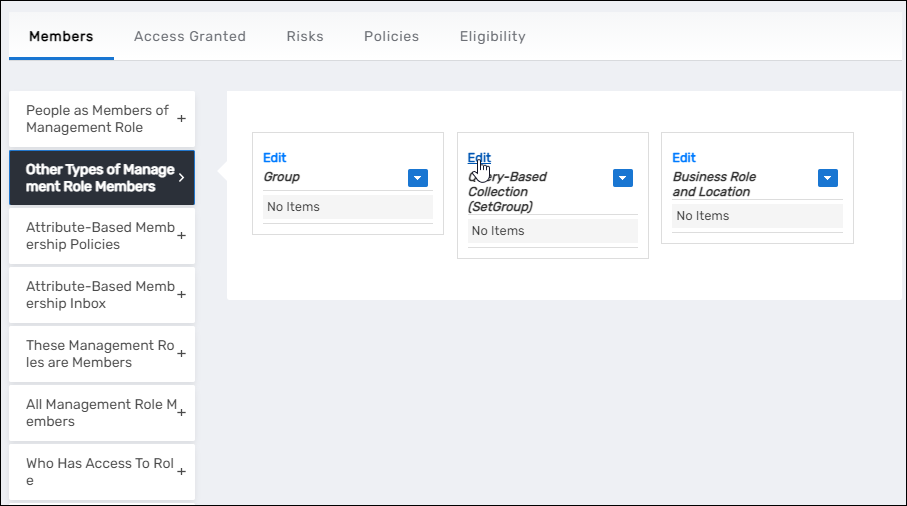
- Select the Advanced tab.
- Expand the Other Types of Management Role Members accordion.
- In the Query-Based Collection (SetGroup) pane, click Edit.
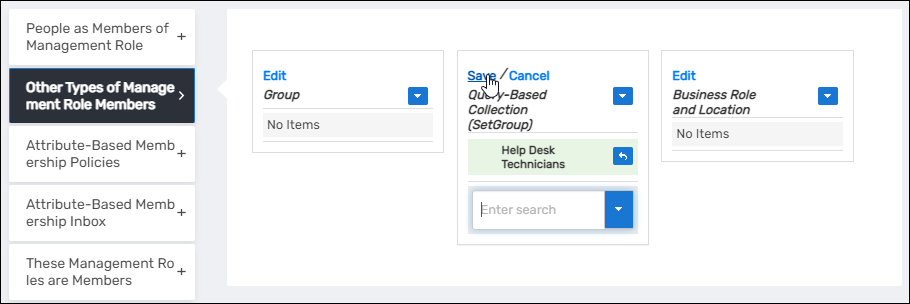
- In the Enter search to add field, enter the name of the Query-Based Collection you want to assign.
- When the Query-Based Collection tile appears in the search results, click it to add it to the Management Role.
- Click Save.
Verify the Results
After assigning the Query-Based Collection to the Management Role:
- The View One page refreshes and displays the updated Management Role.
- In the Query-Based Collection (SetGroup) pane under the Other Types of Management Role Members accordion, verify the Query-Based Collection appears in the list.
- Confirm the Query-Based Collection name is correct.
- (Optional) Verify collection members received the Management Role:
- Navigate to Identity Admin > People
- Search for a person who is a member of the Query-Based Collection
- Confirm they now have the Management Role assigned
Related Topics
- Create Query-Based Collections — Create collections before assigning to roles
- Assign Access Levels to Query-Based Collections — Grant access directly to collections
- Add People to Management Roles — Directly assign people to Management Roles
- About Query-Based Collections — Understand Query-Based Collection concepts