Create SQL Sets
Create SQL Sets to define queries that return collections of resource objects from the EmpowerID Identity Warehouse. SQL Sets can be added to Query-Based Collections and used for dynamic RBAC delegation and automated access control.
SQL Sets must use SELECT queries only. Queries that modify data (DELETE, DROP, UPDATE, INSERT) are not permitted and will cause the Set creation to fail. Additionally, all queries must begin by returning the GUID and FriendlyName columns of the target objects.
Prerequisites
Before creating SQL Sets, ensure you have:
- Access to create SQL Sets in EmpowerID
- The Set Compiler Job is enabled on at least one EmpowerID Server with the Worker Role service (enabled by default)
Procedure
-
In the EmpowerID web application, navigate to Role Management > Query-Based Collections (SetGroup).
-
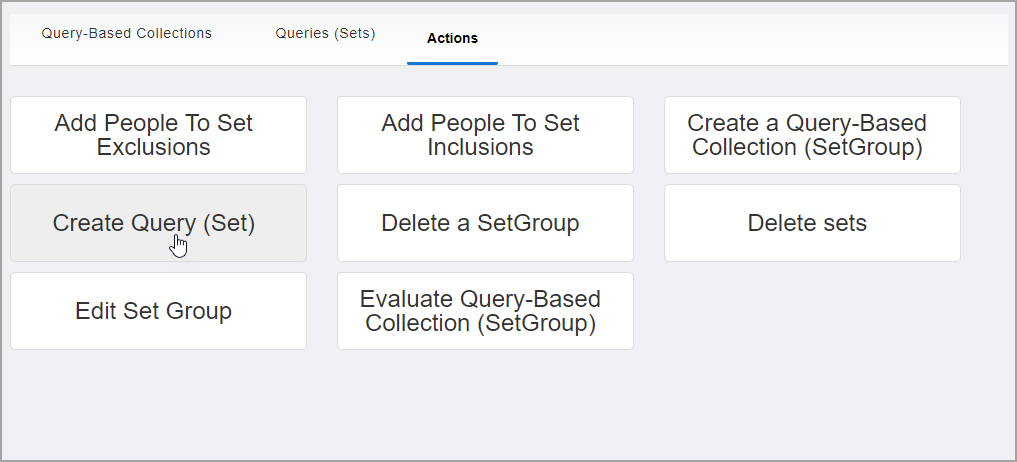
Select the Actions tab.
-
Click Create Query (Set).
-
In the General section of the Set Details form, configure the Set properties:
- Query (Set) Type: Select SQL Query
- Name: Enter the internal name for the Set
- Display Name: Enter the user-friendly name displayed in the interface
- Description: Enter a description explaining what the Set returns
- Is a collection of people: Select if the query returns person objects
- Object Type: Select the object type returned by the query (e.g., EmpowerID Person for person queries)
-
In the Filter section, enter your SQL query in the SQL Query field.
The query must return the GUID and FriendlyName columns first. For example, to return all people hired within the last five days:
  SELECT PersonGUID, FriendlyName
  FROM Person (NOLOCK)
WHERE CreatedDate BETWEEN DATEADD(day, -5, GETUTCDATE()) AND GETUTCDATE(); -
Select Is Enabled to allow EmpowerID to compile the Set (selected by default).
-
Click the Schedule Interval dropdown and configure the compilation schedule:
- Set the Start and End dates for the schedule
- Set the Interval (e.g., Daily, Hourly)
- Set the Iterations (number of times per interval, e.g., 1)
- Set the Times (specific time of day, e.g., 8:00 AM)
-
(Optional) Select Do Not Allow Delete to prevent deletion of this Set through the user interface.
-
(Recommended) Select Create Matching Set Group to automatically create a Query-Based Collection that contains this Set.
-
Click Save.
Verify the Results
After creating the SQL Set:
- The system confirms the Set was created successfully.
- Navigate to Role Management > Query-Based Collections (SetGroups) and select the Queries tab.
- Search for the Set you created by name to verify it appears in the list.
- Click the Set's name to open its details and confirm:
- All configuration settings are correct
- The SQL query is saved correctly
- The schedule is configured as intended
- Is Enabled is selected
- If you selected Create Matching Set Group, verify the corresponding Query-Based Collection was created by navigating to the Query-Based Collections tab and searching for a collection with the same name.
- (Optional) To verify the Set compiles successfully, wait for the next scheduled compilation time and check that members appear in the Set.
Related Topics
- Create Query-Based Collections — Group Sets into Query-Based Collections
- Assign Access Levels to Query-Based Collections — Grant permissions to collection members
- About Query-Based Collections — Understand Query-Based Collection concepts