Delete Mailboxes
This procedure permanently removes mailboxes from the Exchange environment, deleting the mailbox and all its contents.
Warning
This action is permanent and cannot be undone. Ensure all important data has been archived or transferred before proceeding.
Delete Mailboxes
- Navigate to Resource Admin.
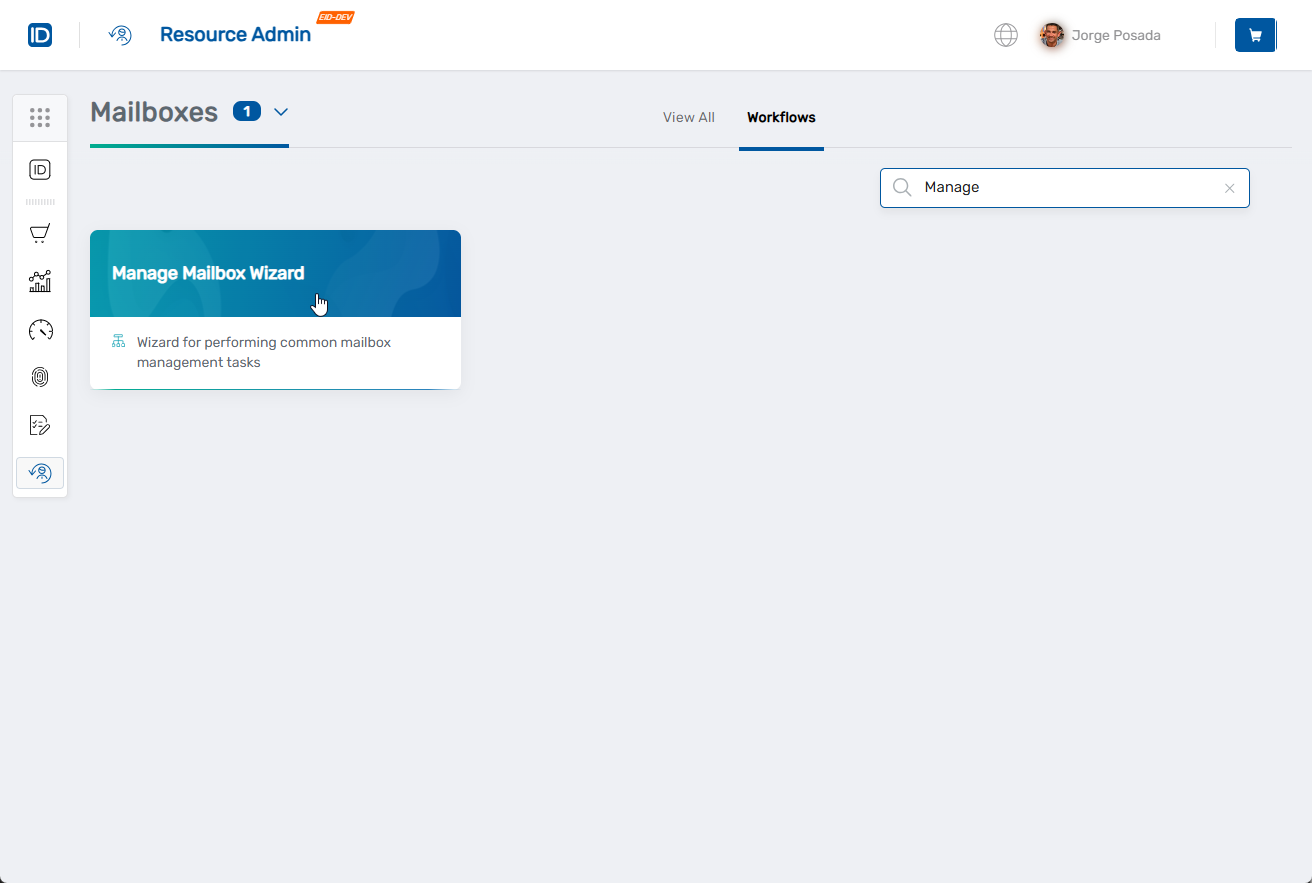
- Select Mailboxes from the resource type menu.
- Click the Workflows tab.
- Click Manage Mailbox Wizard.
- Search for and select the mailboxes to delete by checking the boxes next to them.
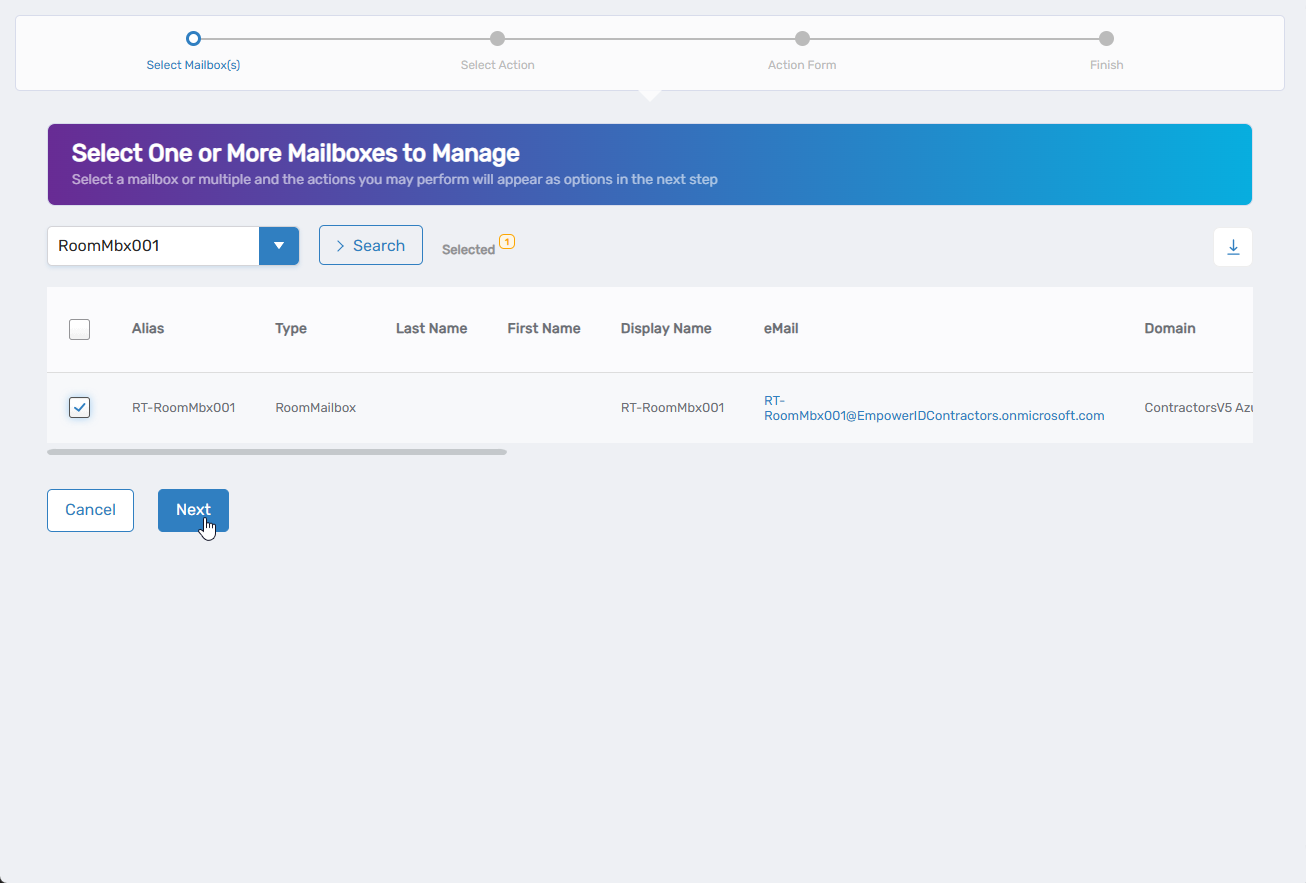
- Click Next.
- Select Delete Mailboxes from the available actions.
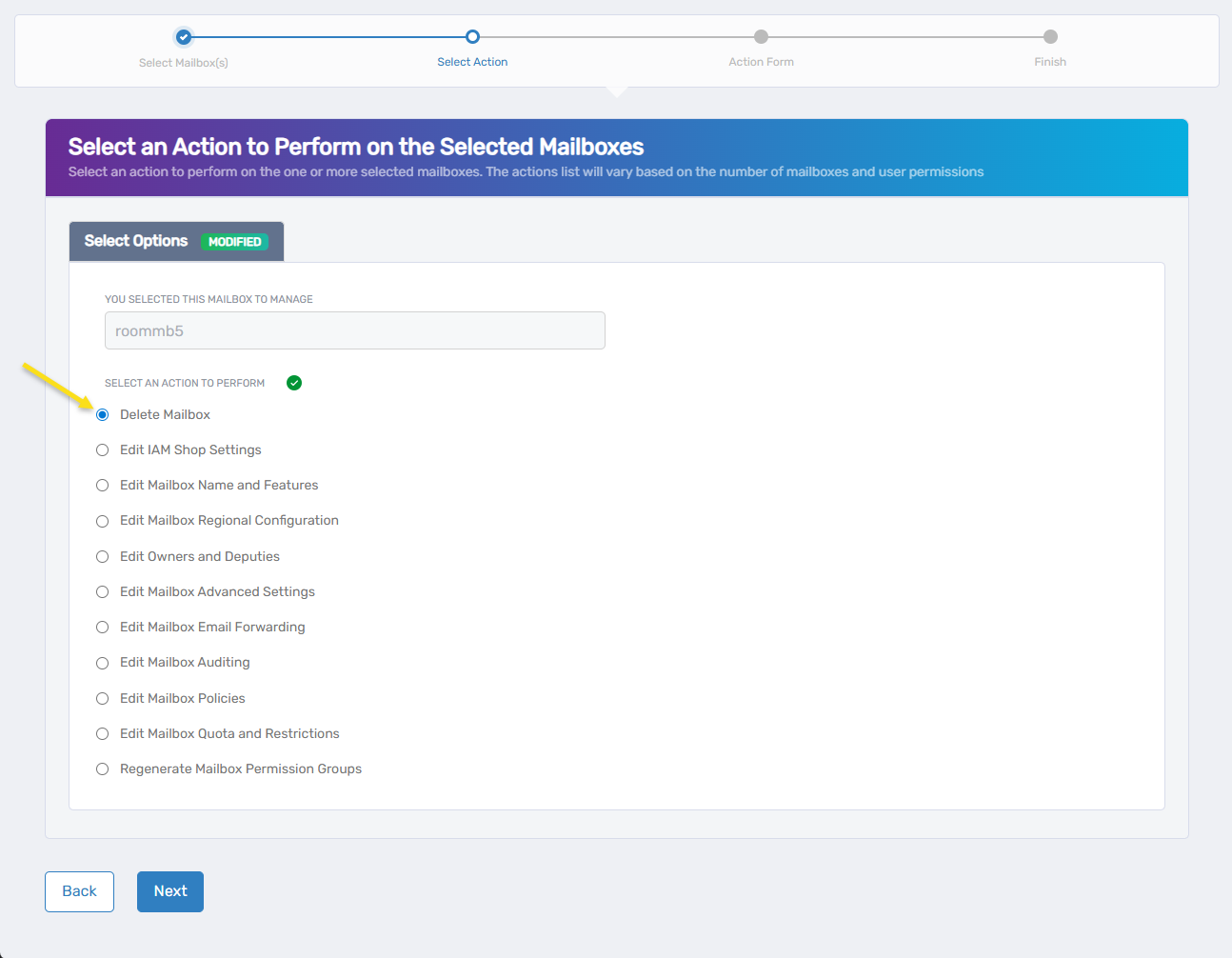
- Click Next.
- Review the mailboxes to be deleted.
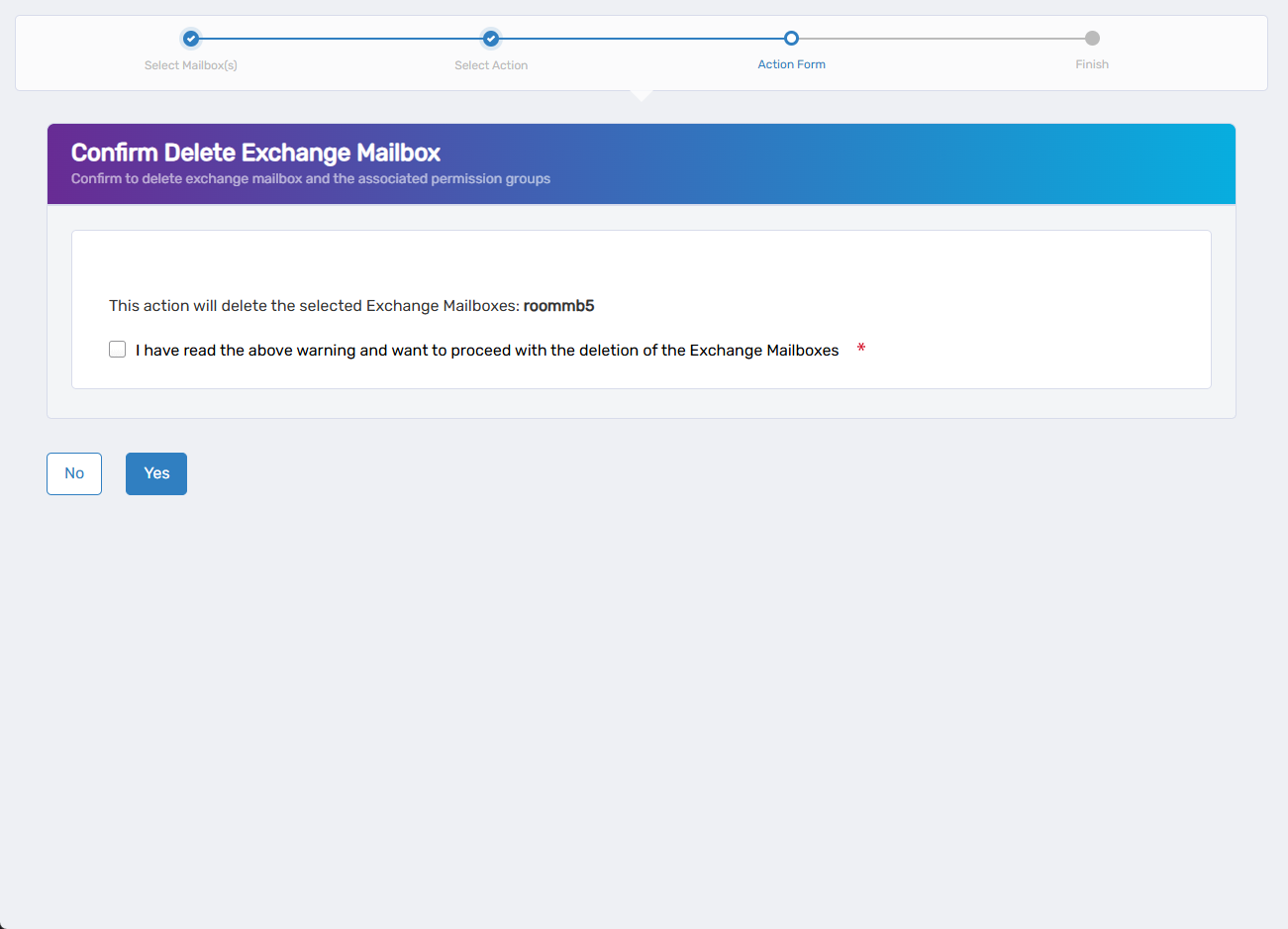
- Verify the system displays the correct mailbox names
- Confirm only intended mailboxes are listed
- Check the box "I have read the above warning and want to proceed with the deletion of the Exchange Mailboxes."
- Click Yes to confirm deletion, or No to cancel.
- Review the Operation Execution Summary.
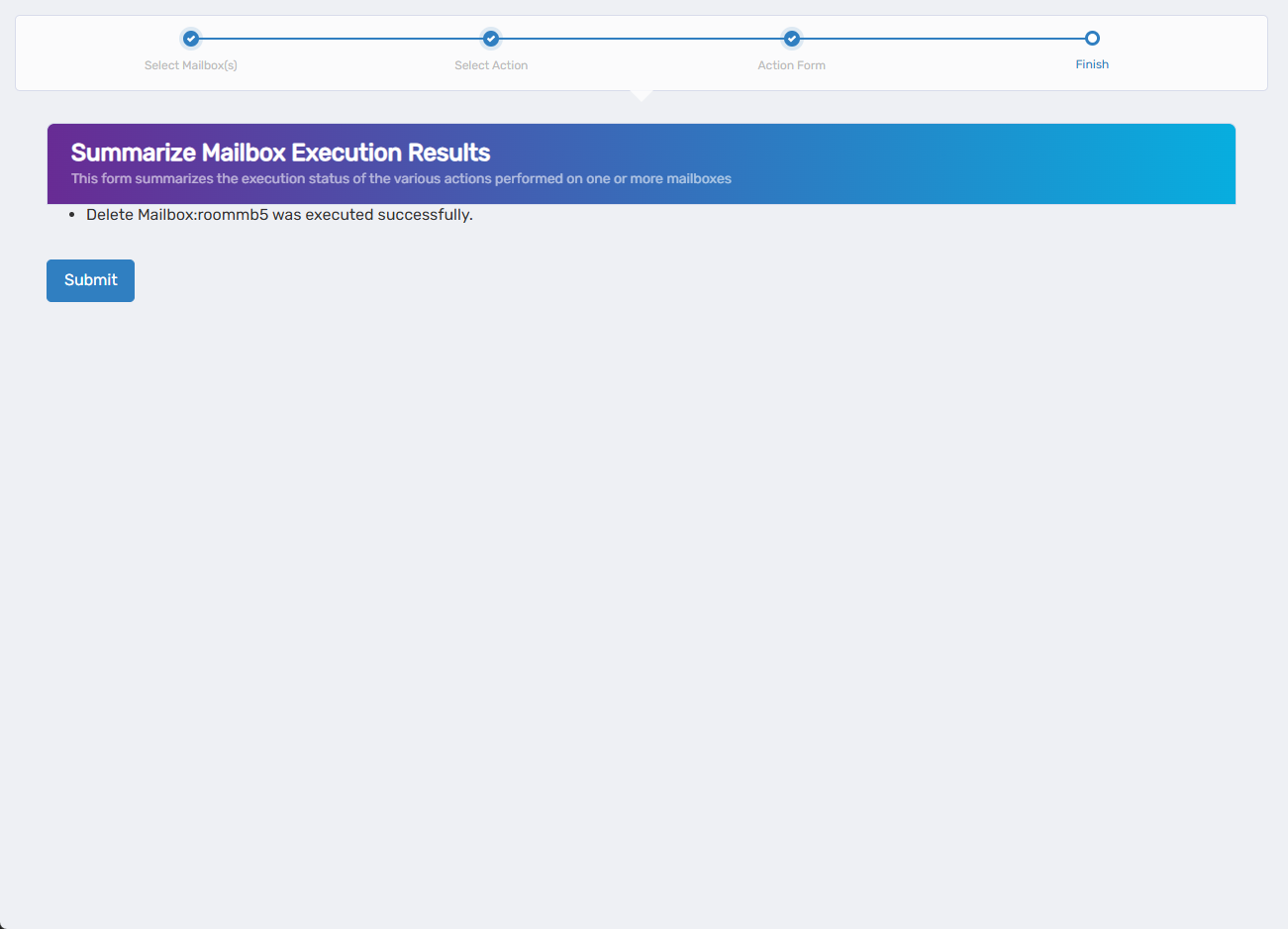
- Click Submit.
- Select your next action:
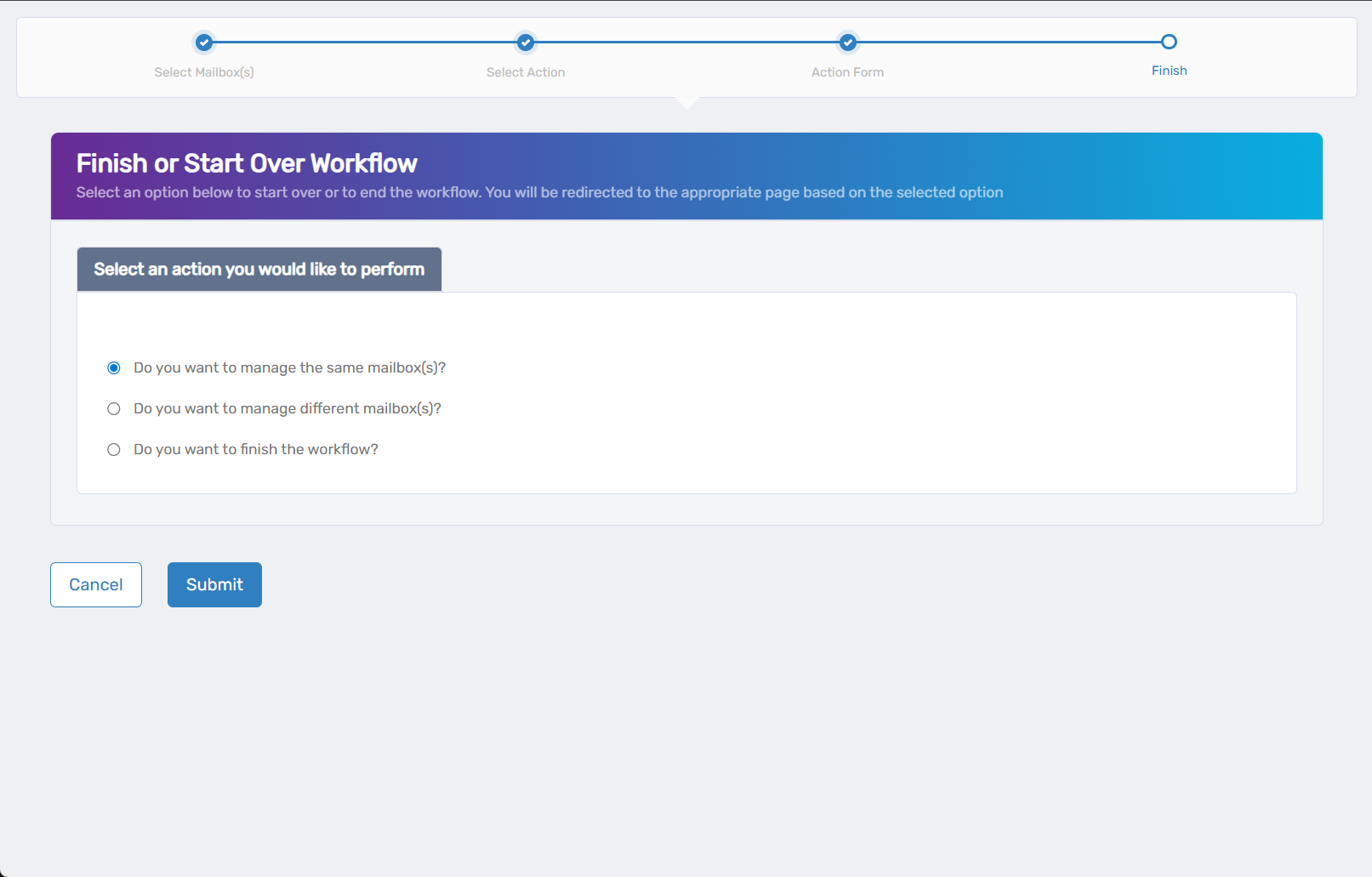
- Do you want to manage different Mailbox(es)? - Work with other mailboxes
- Do you want to finish the workflow? - Complete and exit the wizard
- Click Submit.
Results
- Mailboxes are permanently removed from the Exchange environment
- All mailbox content is deleted including emails, calendar items, contacts, and folders
- Associated policies and settings are removed
- Recovery is not possible once deletion is complete