Edit Mailbox Email Forwarding
This procedure configures email forwarding settings to redirect messages from one mailbox to another address for routing, consolidation, or message continuity.
Edit Mailbox Email Forwarding
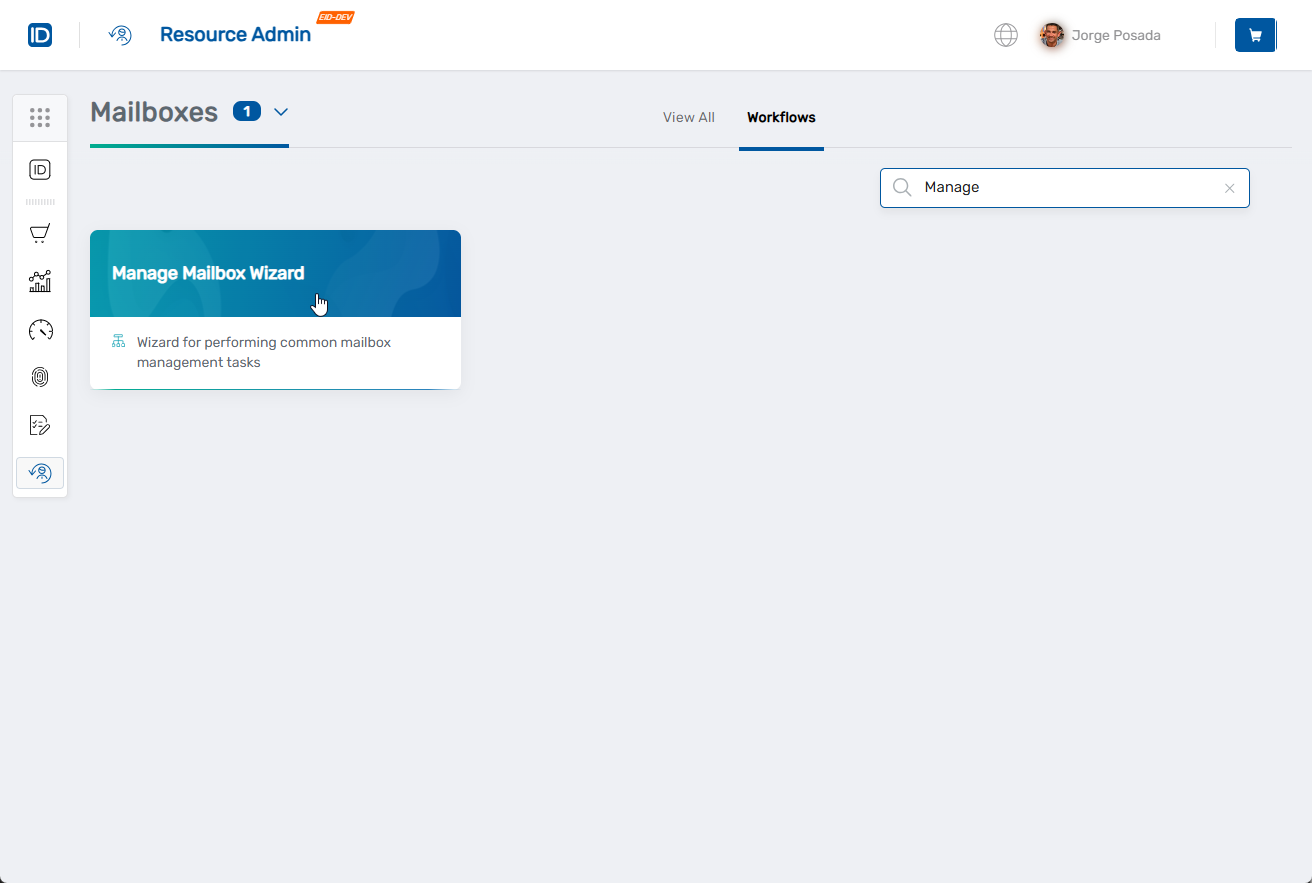
- Navigate to Resource Admin.
- Select Mailboxes from the resource type menu.
- Click the Workflows tab.
- Click Manage Mailbox Wizard.
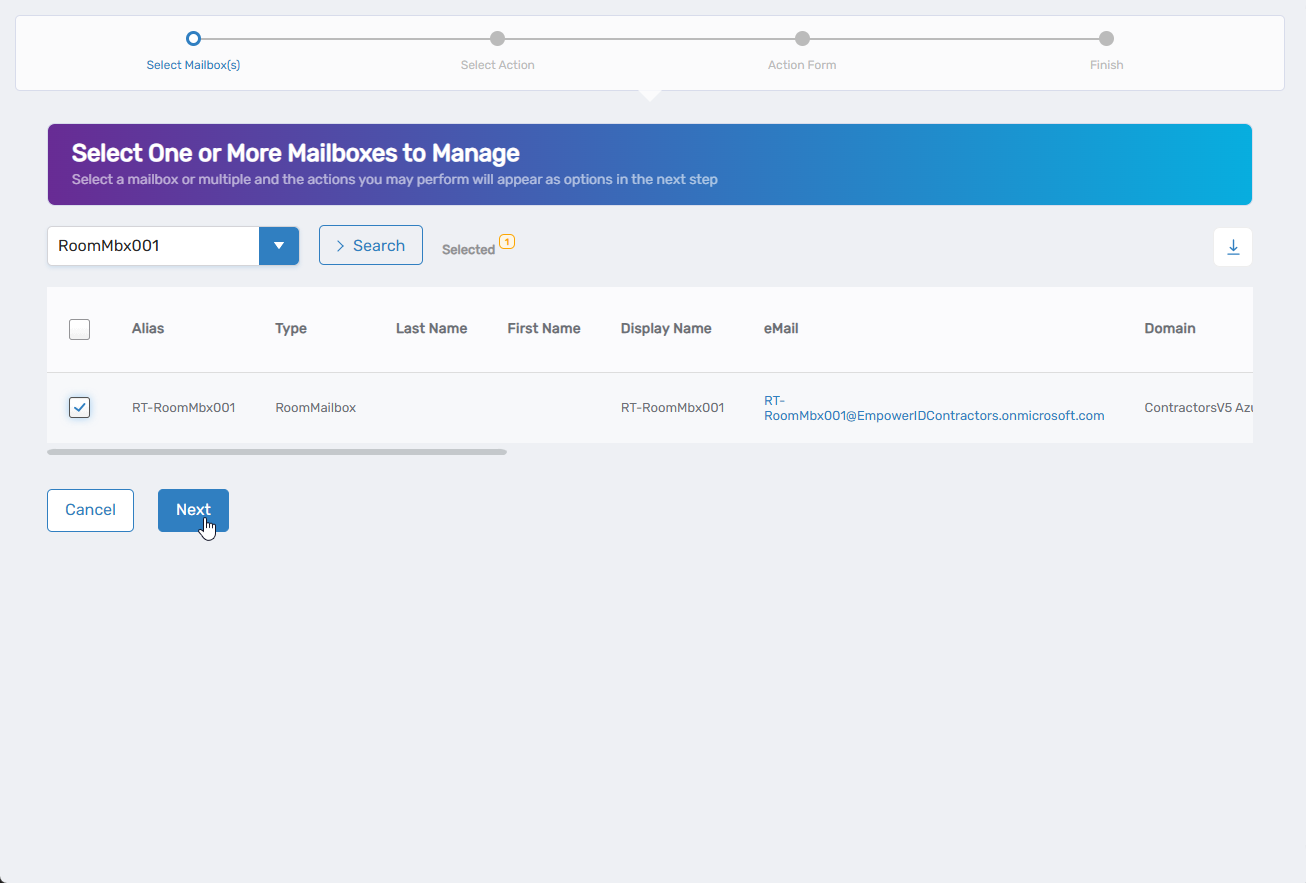
- Search for the mailbox to modify, check the box next to it, and click Next.
- Select Edit Mailbox Email Forwarding from the available actions.
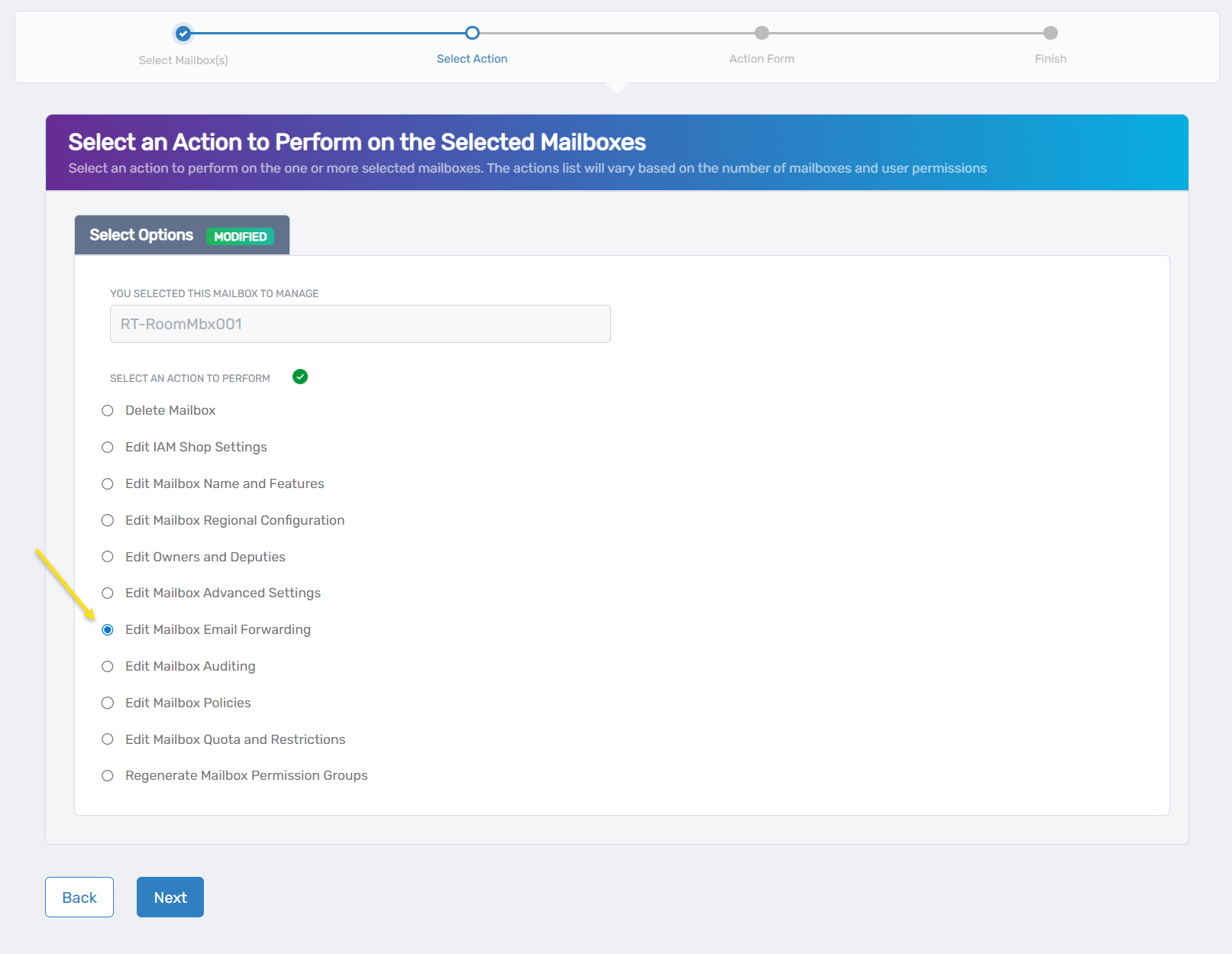
- Click Next.
- Configure forwarding settings:
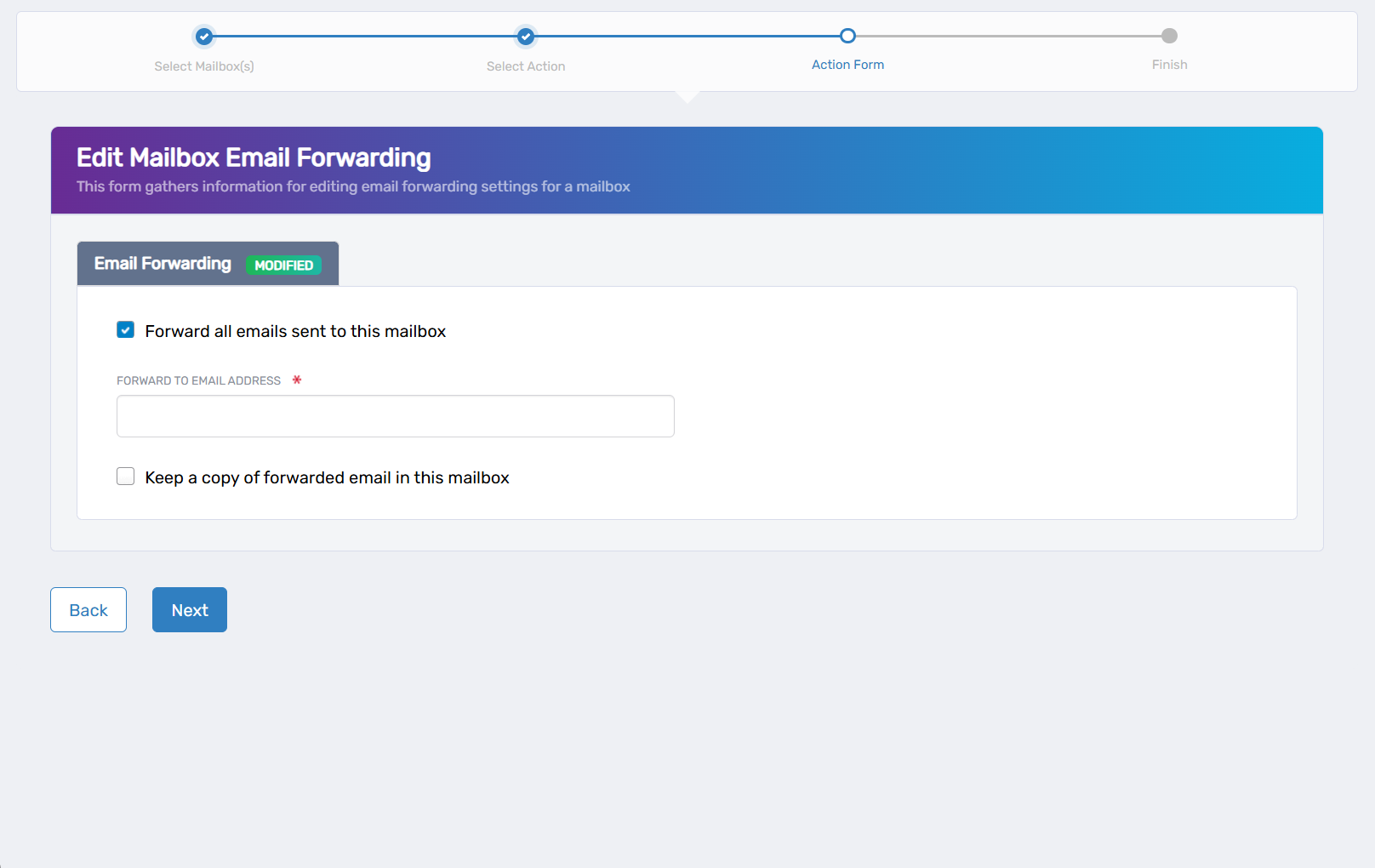
- Forward all emails sent to this mailbox: Check to activate email forwarding
- Forward to Email Address: Enter the destination email address
- Keep a copy of forwarded email in this mailbox: Check to retain copies in the original mailbox, or leave unchecked to forward only
- Click Next.
- Review the Operation Execution Summary.

- Click Submit.
- Select your next action:
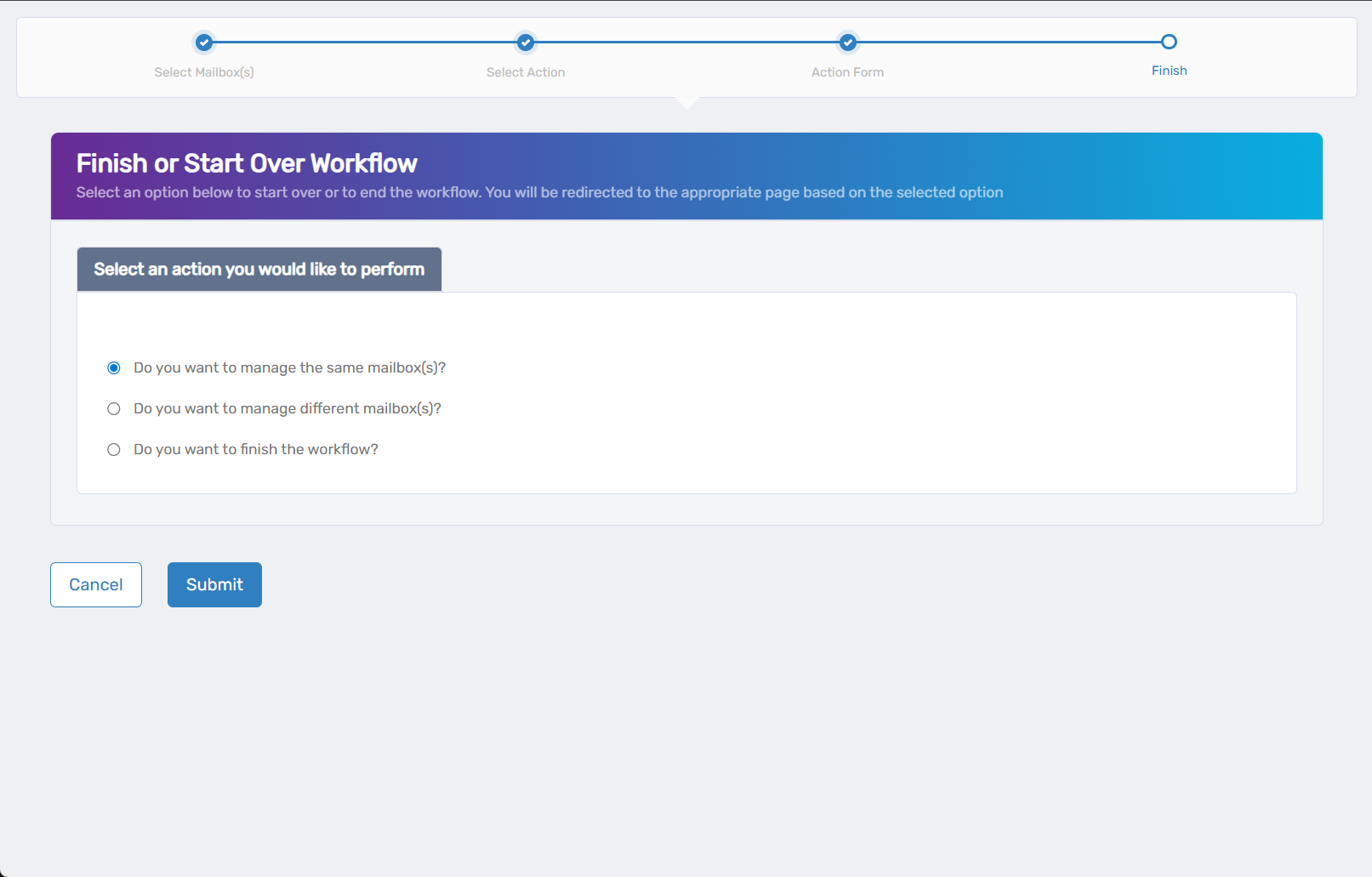
- Do you want to manage the same Mailbox? - Perform additional actions on this mailbox
- Do you want to manage different Mailbox(es)? - Work with other mailboxes
- Do you want to finish the workflow? - Complete and exit the wizard
- Click Submit.
Results
- Email forwarding takes effect for new incoming messages
- Forwarded messages appear in the destination mailbox with original sender information preserved
- Message retention in the original mailbox depends on the copy setting
- Forwarding loops are automatically prevented by Exchange