Update a Person's Manager
This article explains how to update the manager for a Person using the View One Person page. When you update a person's manager, EmpowerID synchronizes this change to user accounts in connected account stores where attribute sync is enabled and a corresponding manager attribute exists.
Prerequisites
- Access to the View One Person page for the person
- Appropriate delegation to edit organizational relationships
Procedure
- Navigate to the View One Person page for the person whose manager needs to be updated.
Navigation Options
You can navigate to the View One Person page by searching for the person using the Global search bar at the top of the page (quickest), or by searching for the person using the Find Person page.
- On the Manage tab, expand the Org Chart and Relationships accordion.
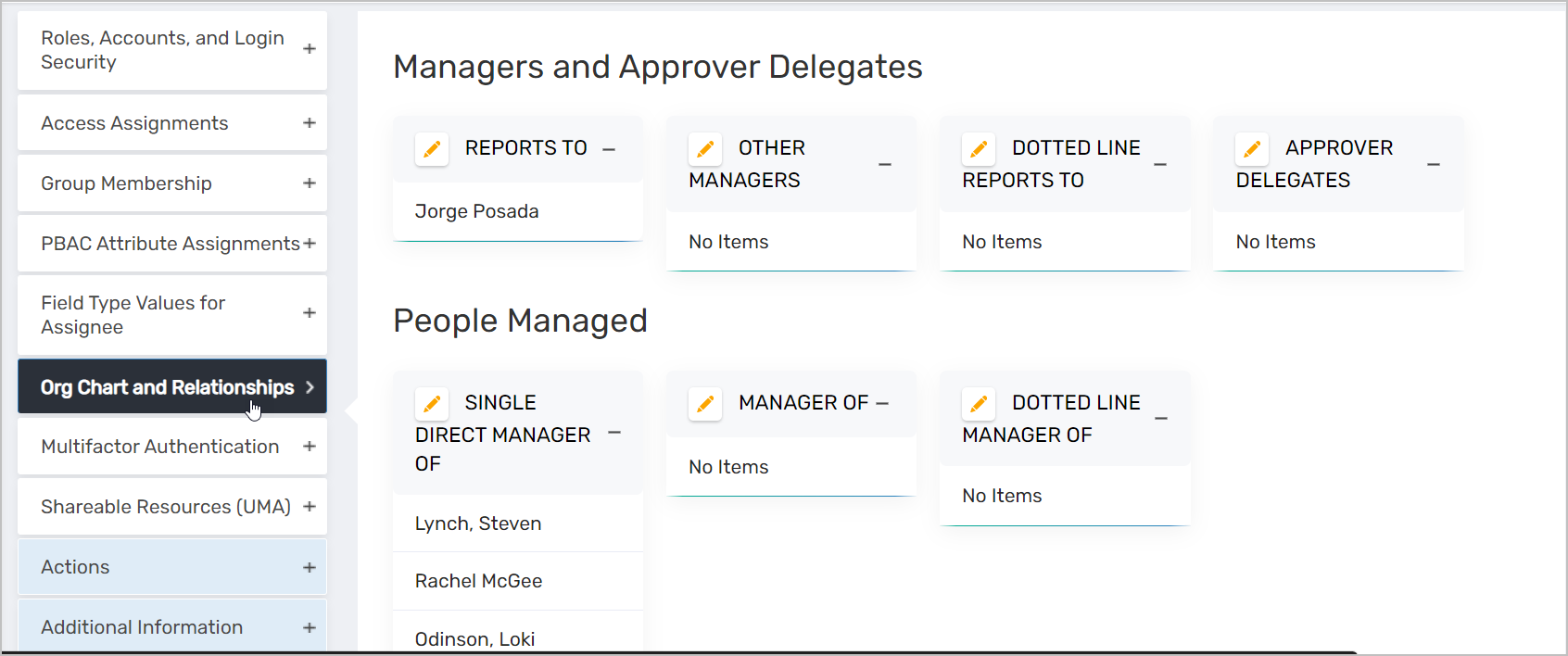
- Under Manager and Approver Delegates, click the Edit button next to Reports To.
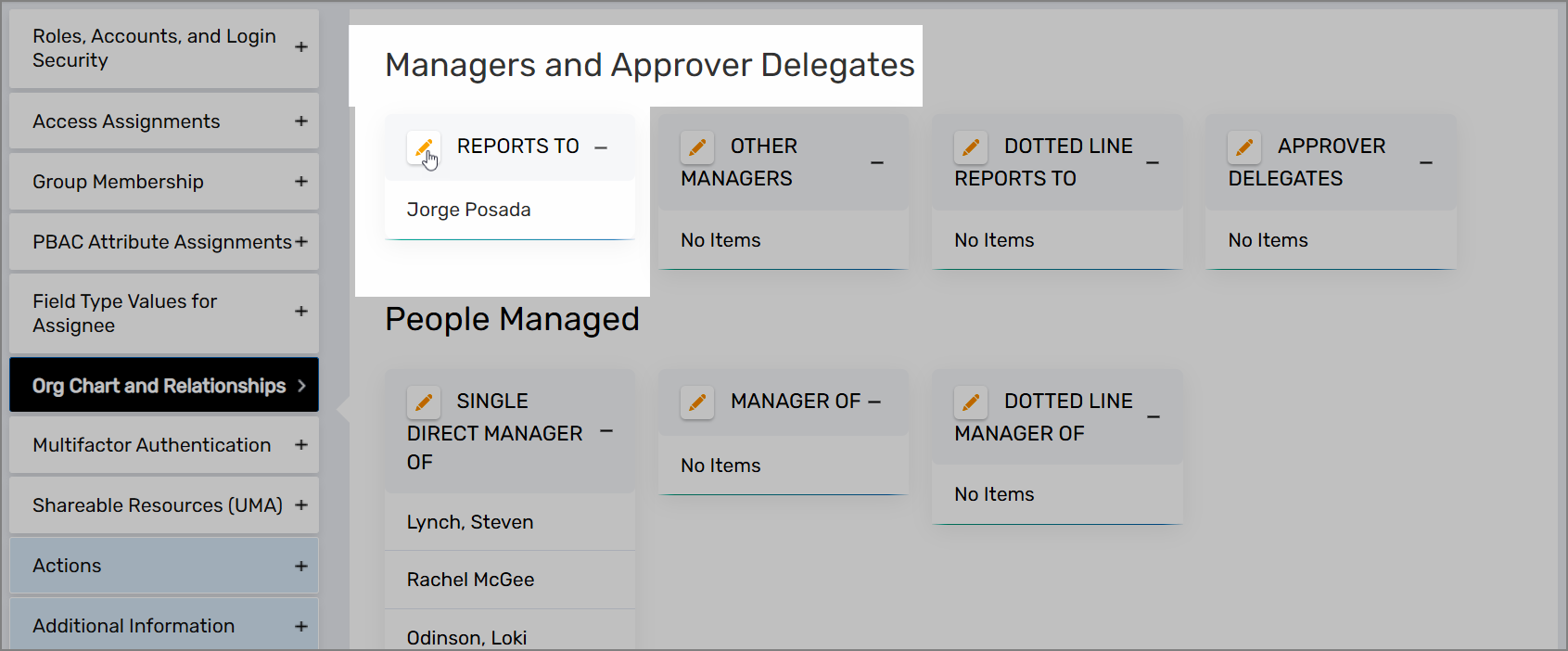
- Click the Trash Can icon to remove the current manager.
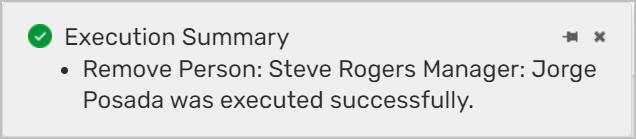
- Click Save.
A success message confirms the manager has been removed.
- To add the new manager, click the Edit button next to Reports To again.
- Enter the name of the new manager in the Search field and click the tile for that person.
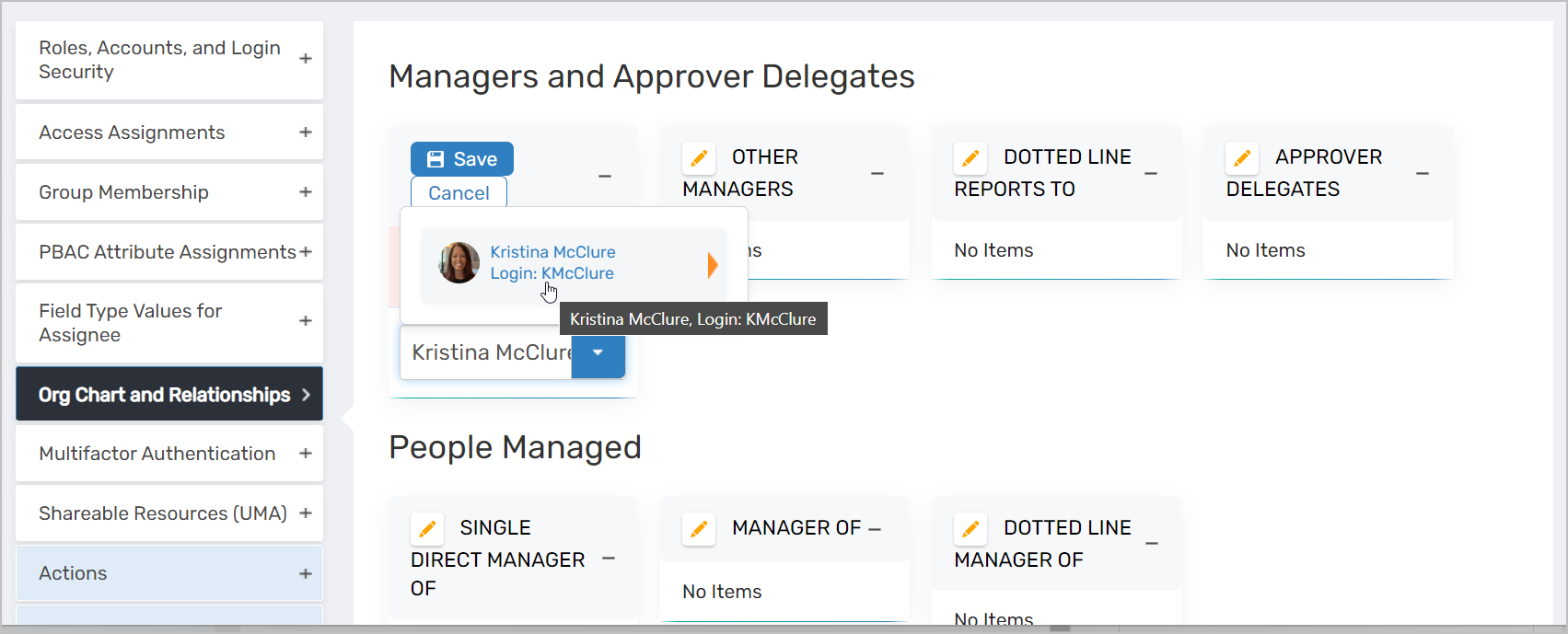
- Click Save.
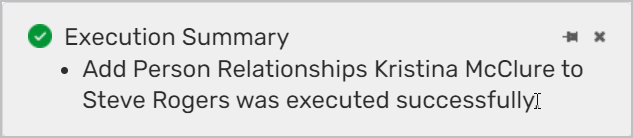
A success message confirms the update, and the new manager appears in the Reports To field.
Results
After completing this procedure:
- The person's manager is updated in EmpowerID
- The organizational hierarchy reflects the new reporting relationship
- If the person has user accounts in Active Directory or other connected account stores with attribute sync enabled, EmpowerID pushes the manager update to those accounts where a corresponding attribute exists
- The change appears in the person's audit log