Edit Person Attributes
This article explains how to edit the attributes of a Person object using the Manage Person Wizard in Resource Admin. When you edit a person's attributes, EmpowerID automatically synchronizes those changes to user accounts in connected account stores where attribute sync is enabled.
Prerequisites
- Access to the Resource Admin application
- Appropriate delegation to edit Person objects
Procedure
- Navigate to the portal for the Resource Admin app in your environment.
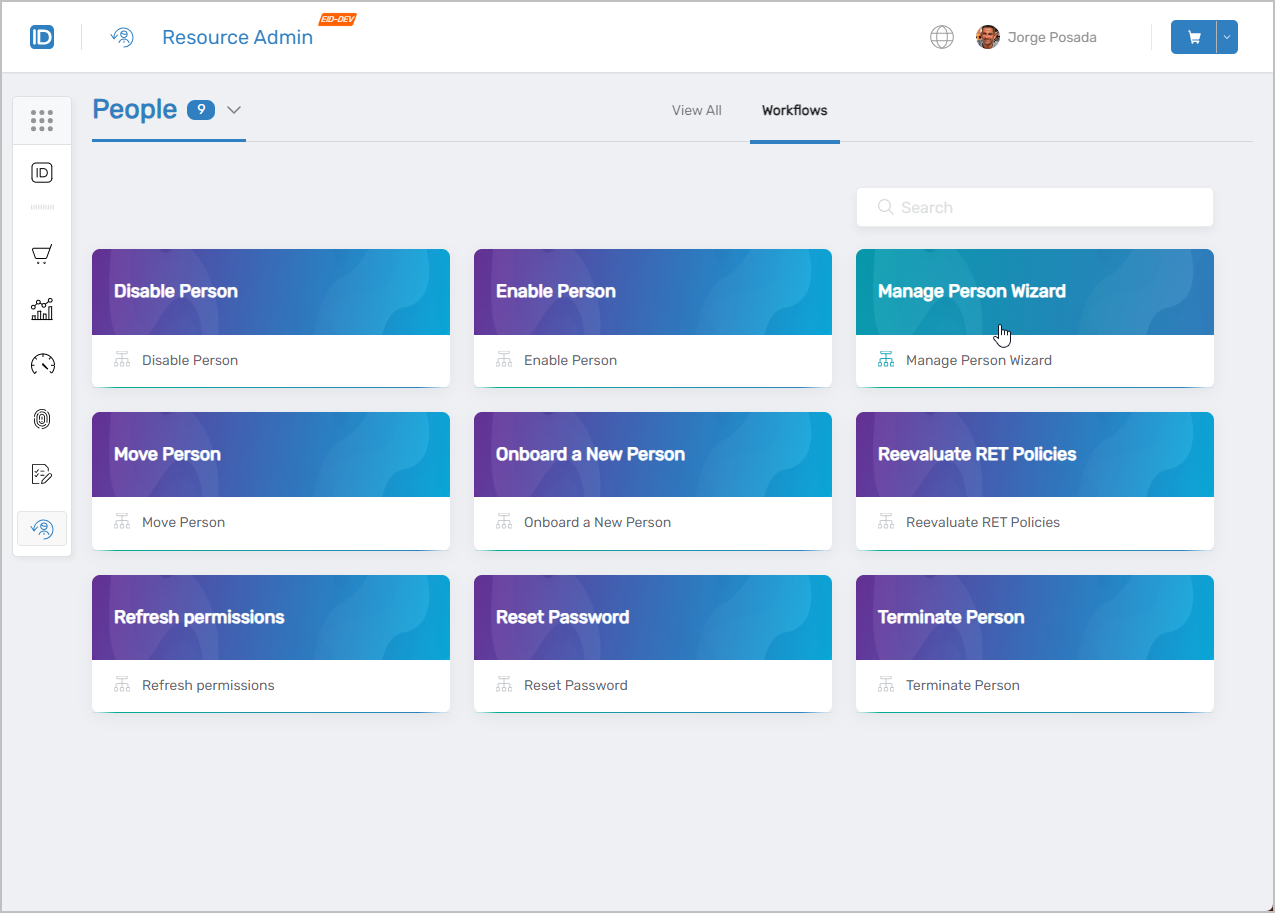
- In Resource Admin, select People and then select the Workflows tab.
- Click Manage Person Wizard.
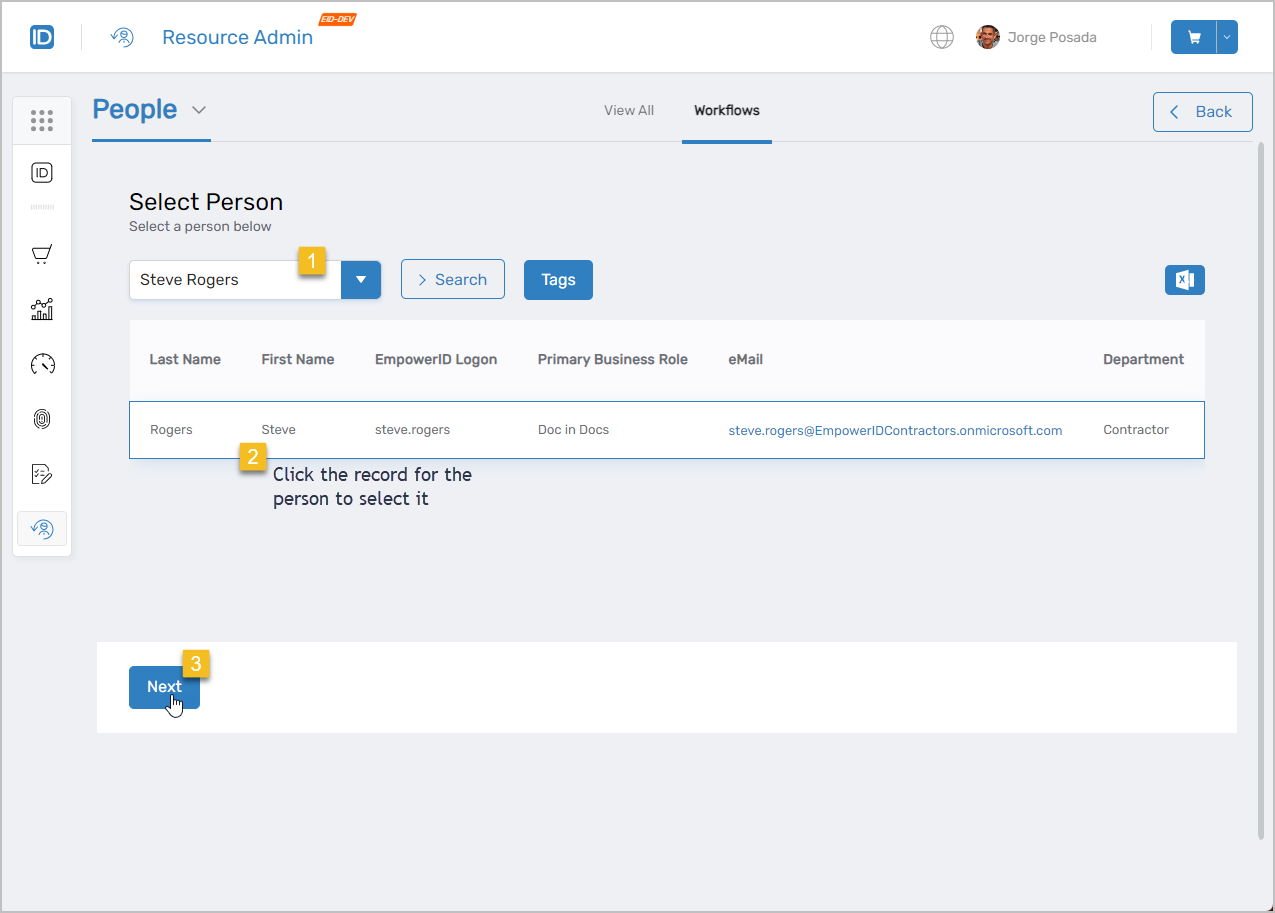
- Search for the person whose attributes you want to edit, click the record for that person to select it, and click Next.
 This opens the Edit Person form.
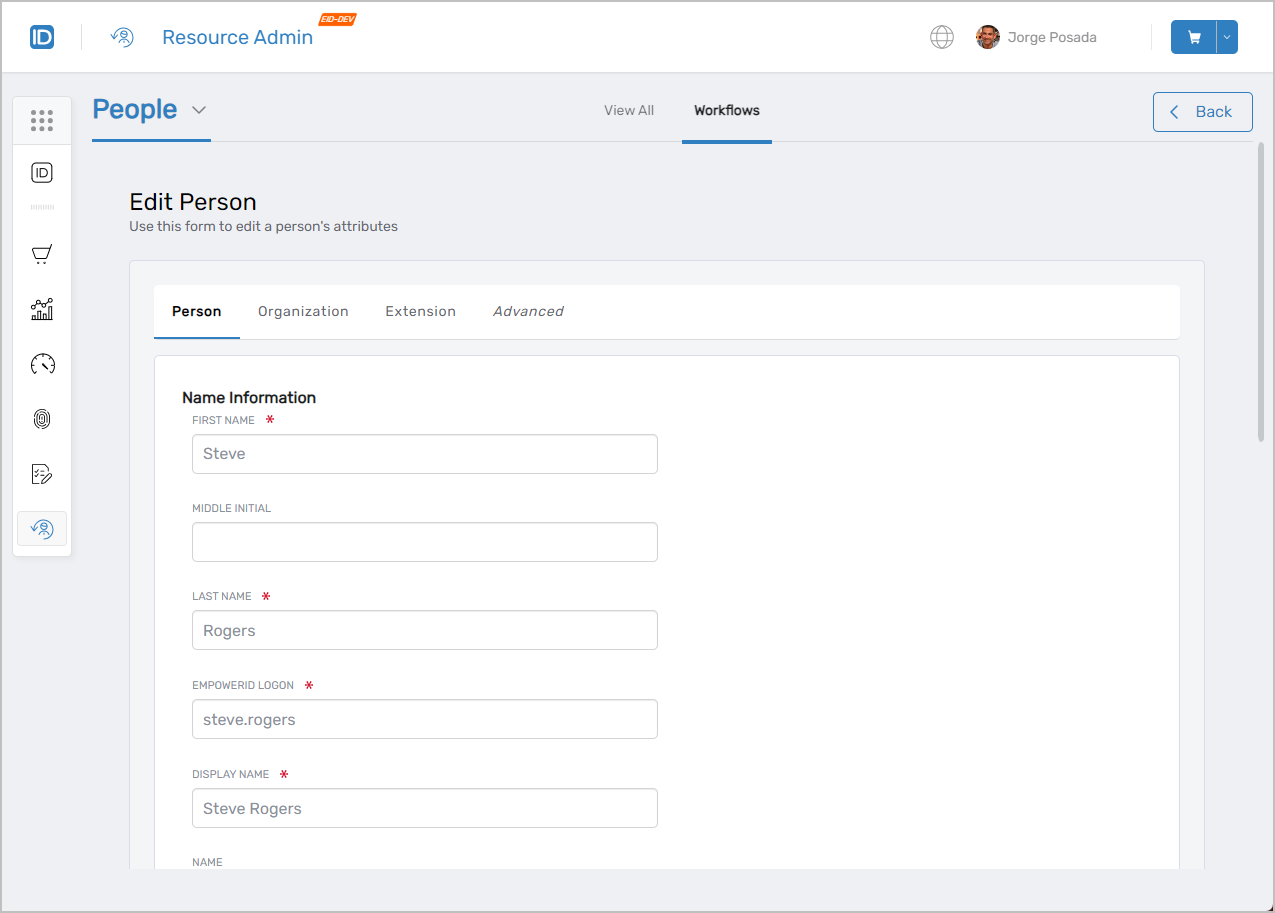
- Edit the attributes as needed and click Next when ready to submit your changes.
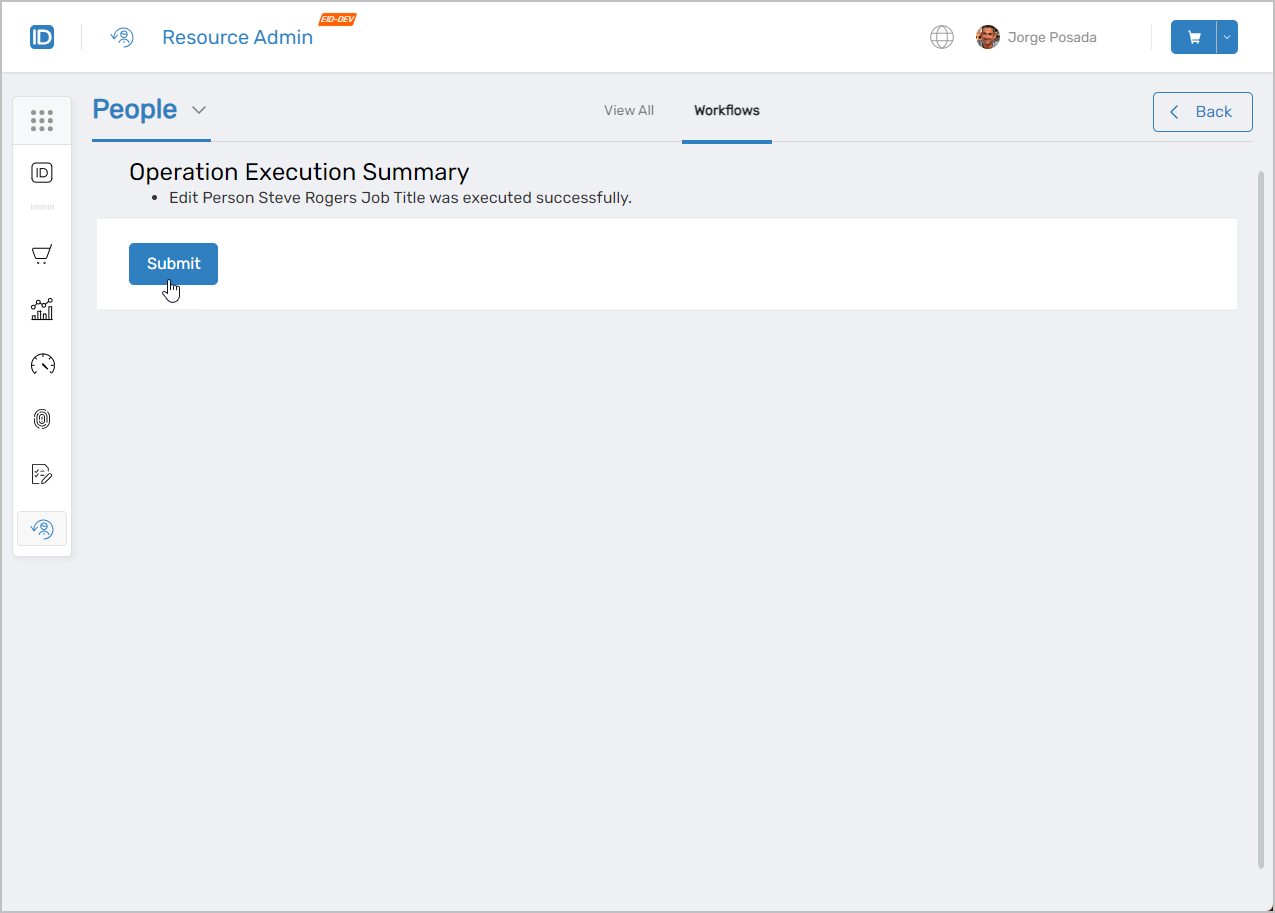
- Click Submit to close the Operation Execution Summary.
Results
After completing this procedure:
- The person's attributes are updated in EmpowerID
- If the person has user accounts in connected account stores with attribute sync enabled, EmpowerID pushes the attribute changes to those external directory accounts
- Changes appear in the person's audit log on the Activity History tab
Alternative Method
You can also edit person attributes directly from the View One Person page. Click the Edit button on the person's page, make your changes across the available tabs, and click Save.