Move Individual People
When someone gets promoted, transfers to a new department, or needs immediate access changes, you can update their primary Business Role and Location to ensure they have the right system access for their new responsibilities. This workflow handles immediate role changes that can't wait for automated HR system updates.
Access Requirements: The Move Person workflow tile appears only if you have the appropriate access to modify Business Role and Location assignments.
Use this workflow for immediate role changes including transfers, promotions, temporary assignments, emergency access changes, or when you need to fix discrepancies between someone's actual role and their system access.
Before You Start
You need access to the Resource Admin application to manage role assignments.
Make sure you have:
- The name or username of the person whose role is changing
- The new Business Role they should be assigned to
- The new Location they should be associated with
Get Started
- Navigate to the Resource Admin portal
- Select People from the resource type menu
- Click the Workflows tab
- Find and click Move Person
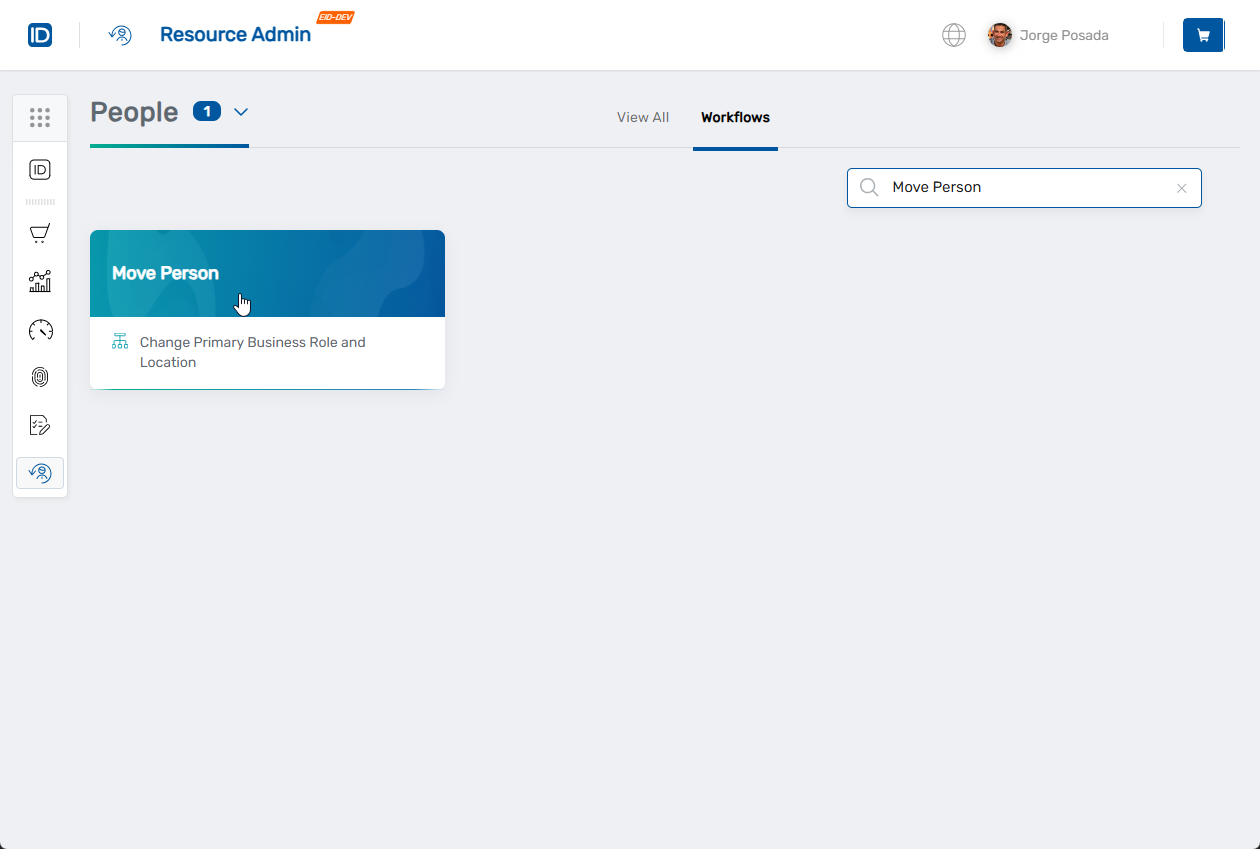
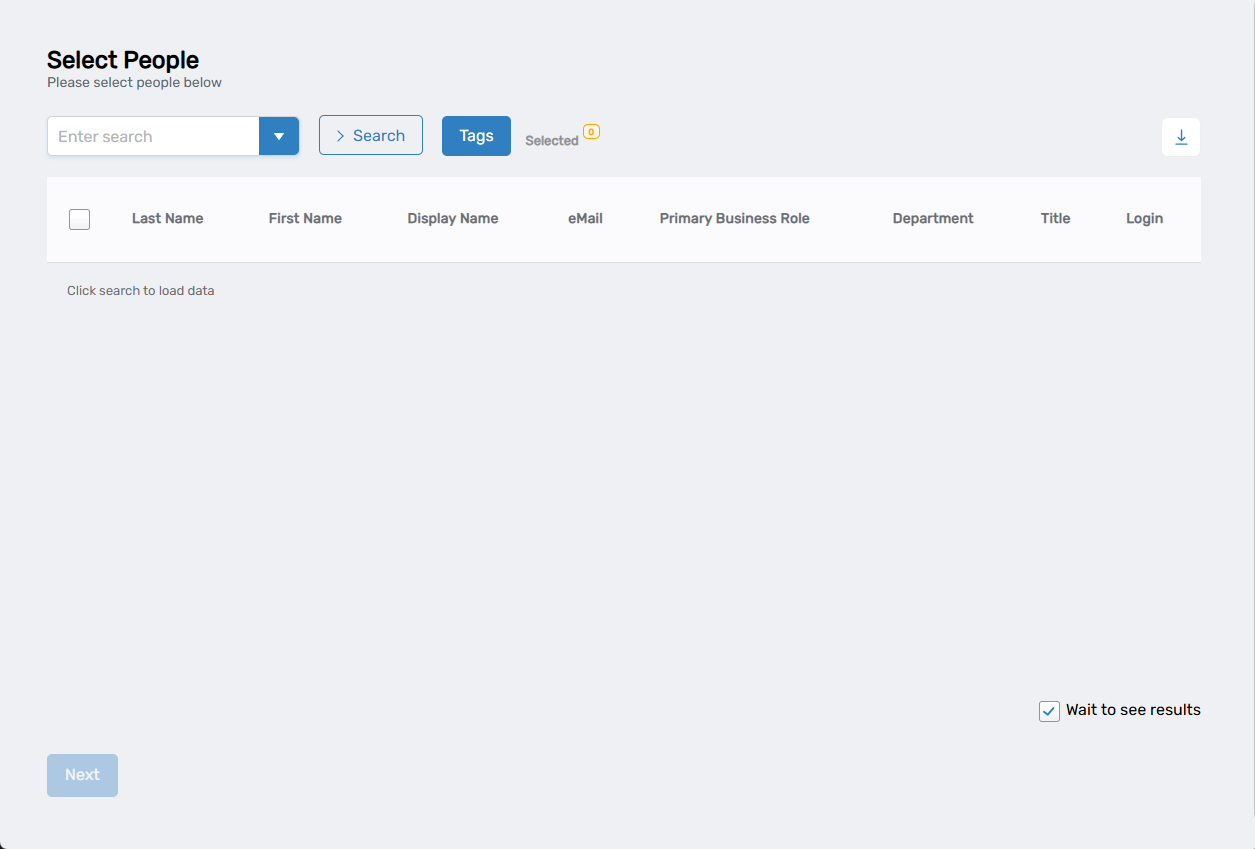
The workflow will open showing a person lookup where you can search for and select the people whose roles you want to change.
Move the Person
Step 1: Find and Select People
- In the search field, type a person's name or username
- Click Search to see results
- Check the box next to the person to select them
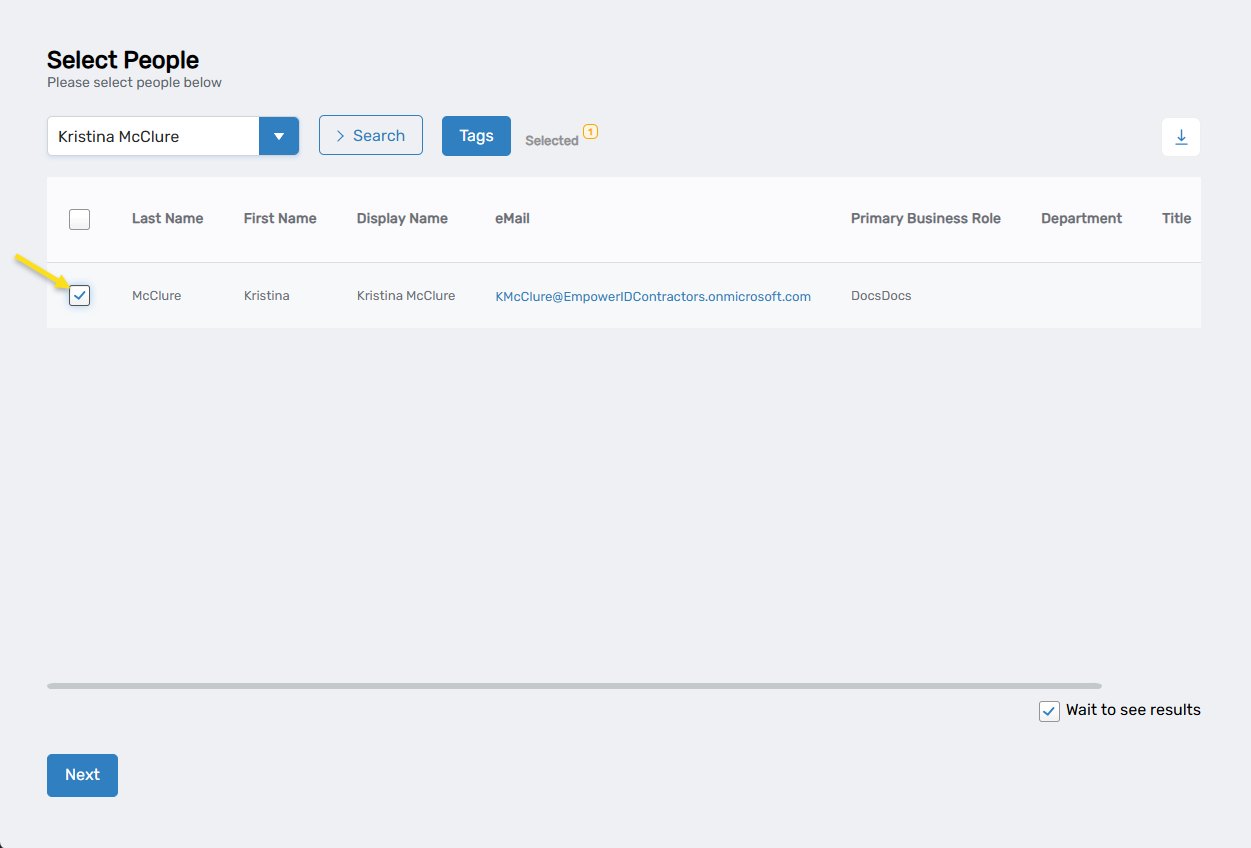
- To move additional people to the same role, search for them and check their boxes as well
Step 2: Choose New Role and Location
- When you're done selecting people, click Next
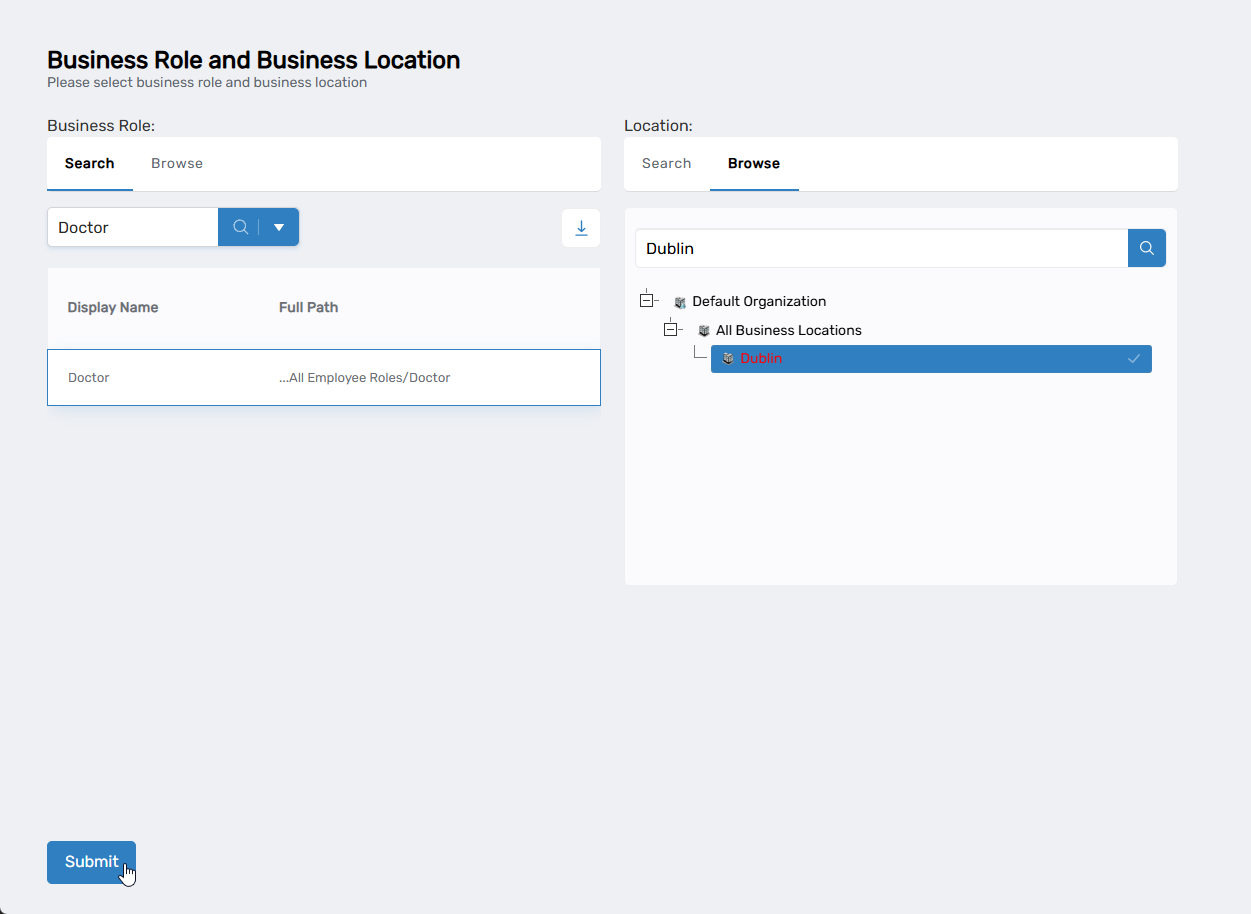
The Business Role and Location selection screen will appear
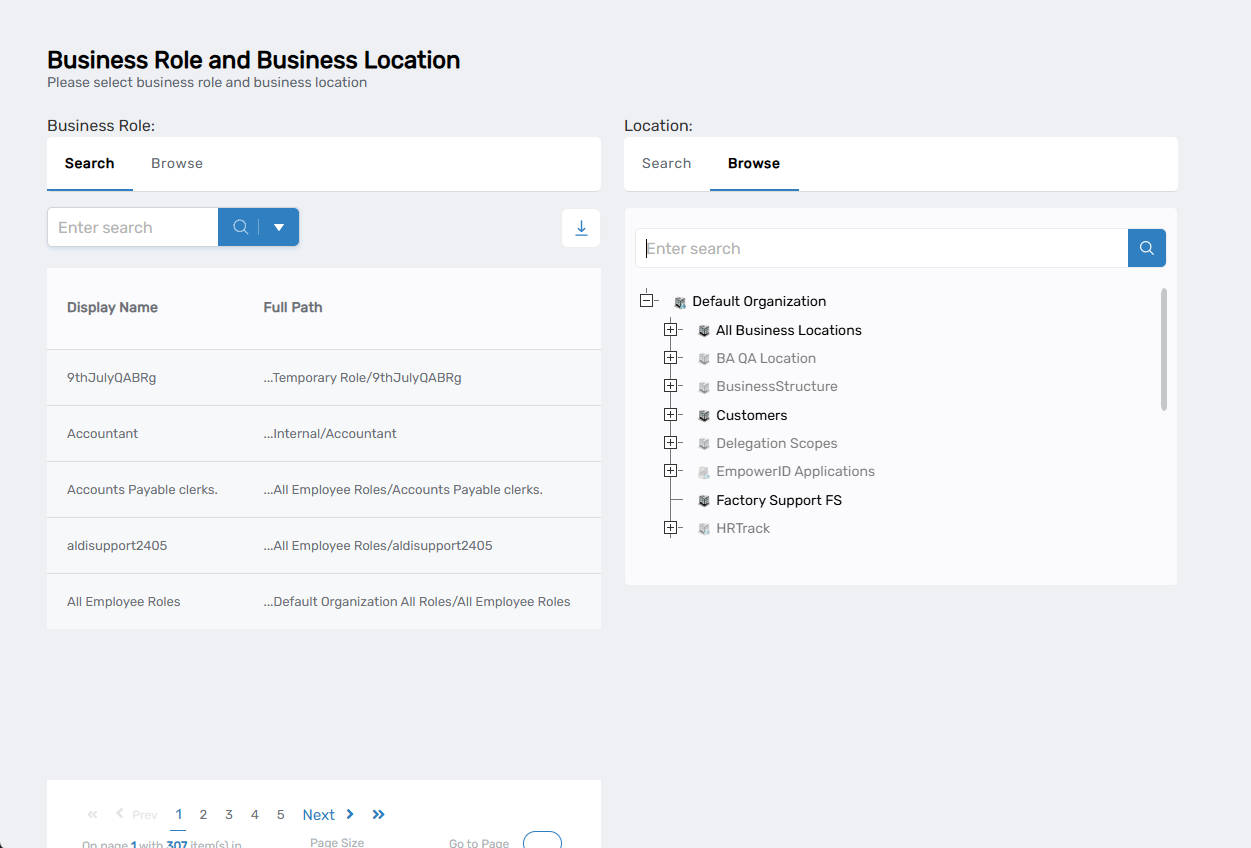
- Select the new Business Role:
- Use the Search tab to search for a specific role name
- Or use the Browse tab to navigate through the role hierarchy
- Click on the role to select it
- Select the new Location:
- Use the Search tab to search for a specific location
- Or use the Browse tab to navigate through the location hierarchy
- Click on the location to select it
- Click Submit to proceed
Step 3: Review and Confirm
- The system will display a Person Provision Summary showing:
- Person information (name, login, email, company details)
- List of resources the person will have access to

- Review the changes to ensure they're correct
- Click Submit to finalize the move The system will then process the move and show a success or failure message.
What Happens Next
- All selected people are immediately moved to the new Business Role and Location
- Their access permissions change based on the new role assignments
- Previous role-based access may be removed depending on system configuration
- New role-based access is granted according to the assigned Business Role and Location
- Changes take effect immediately but may several minutes to propagate to all connected systems
Important: This changes their primary role assignment which may affect their access to applications and resources. Make sure the new role is appropriate for their job responsibilities.
Related Actions
For bulk role changes using file upload, see Move People Bulk.
To completely remove someone from the organization, see Terminate People.