Transfer Responsibility
Transfer responsibility for resources from one person to another when someone leaves the organization, changes roles, or needs to hand off their responsibilities. This workflow automatically identifies all resources the person is responsible for and transfers that responsibility either to their manager (if configured) or to someone you specify.
The Transfer Responsibility workflow tile appears only if you have the appropriate permissions to perform resource transfers.
Use this workflow during employee transitions, role changes, or when someone needs to hand off all their resource ownership responsibilities at once. This is more comprehensive than individual resource transfers and is commonly used during offboarding processes.
Before You Start
You need access to the Resource Admin application to manage resource ownership.
Make sure you have:
- The name or username of the person whose responsibilities are being transferred
- The name or username of the target person (only needed if the person has no manager or manual selection is required)
Get Started
- Open the Resource Admin application
- Go to People > Workflows
- Find and click Transfer Responsibility
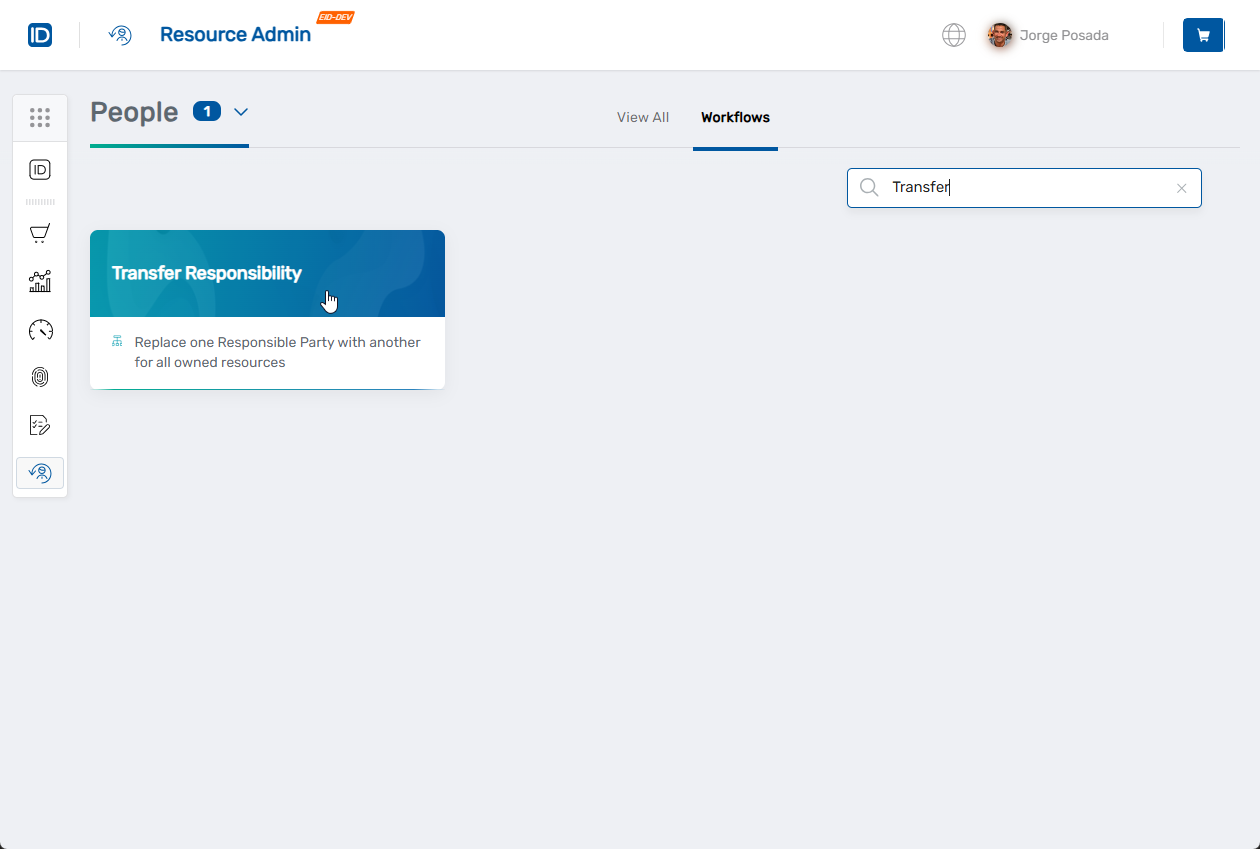
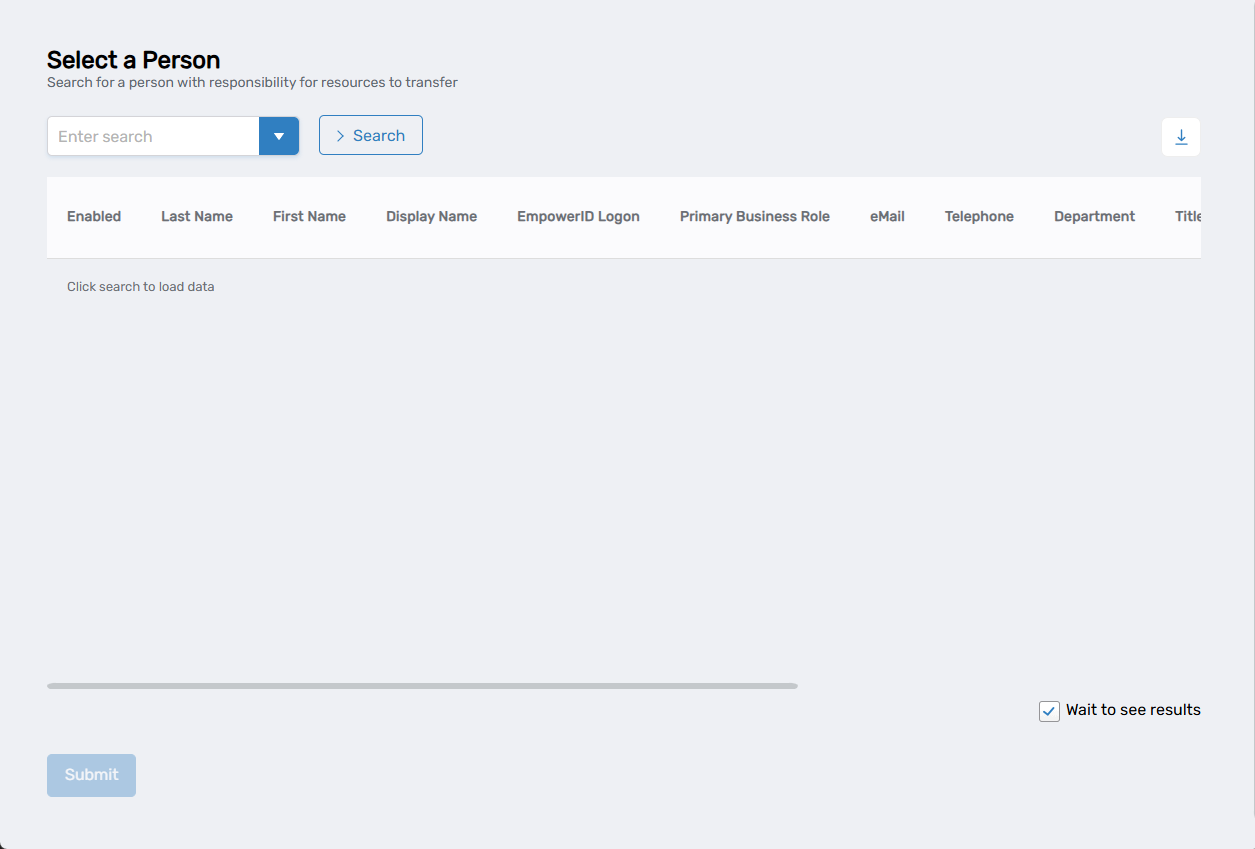
The workflow will open showing a person lookup where you can search for the person whose responsibilities you want to transfer.
Transfer the Resources
Step 1: Find the Source Person
- In the search field, type the name or username of the person whose resources you want to transfer
- Click Search to see results
- Click on the person's record to select them
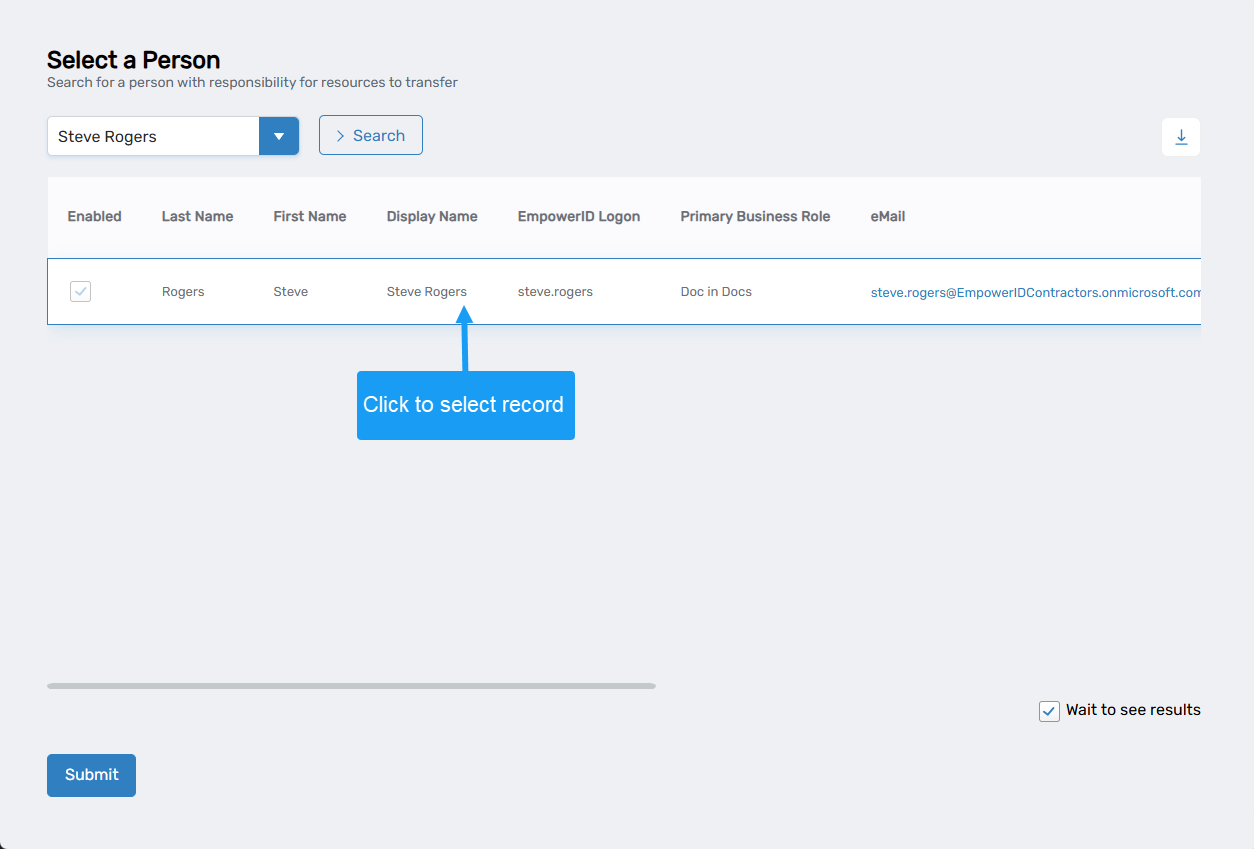
- Click Submit to proceed
Step 2: Review and Submit Transfer
- The system will display all resources the selected person is responsible for
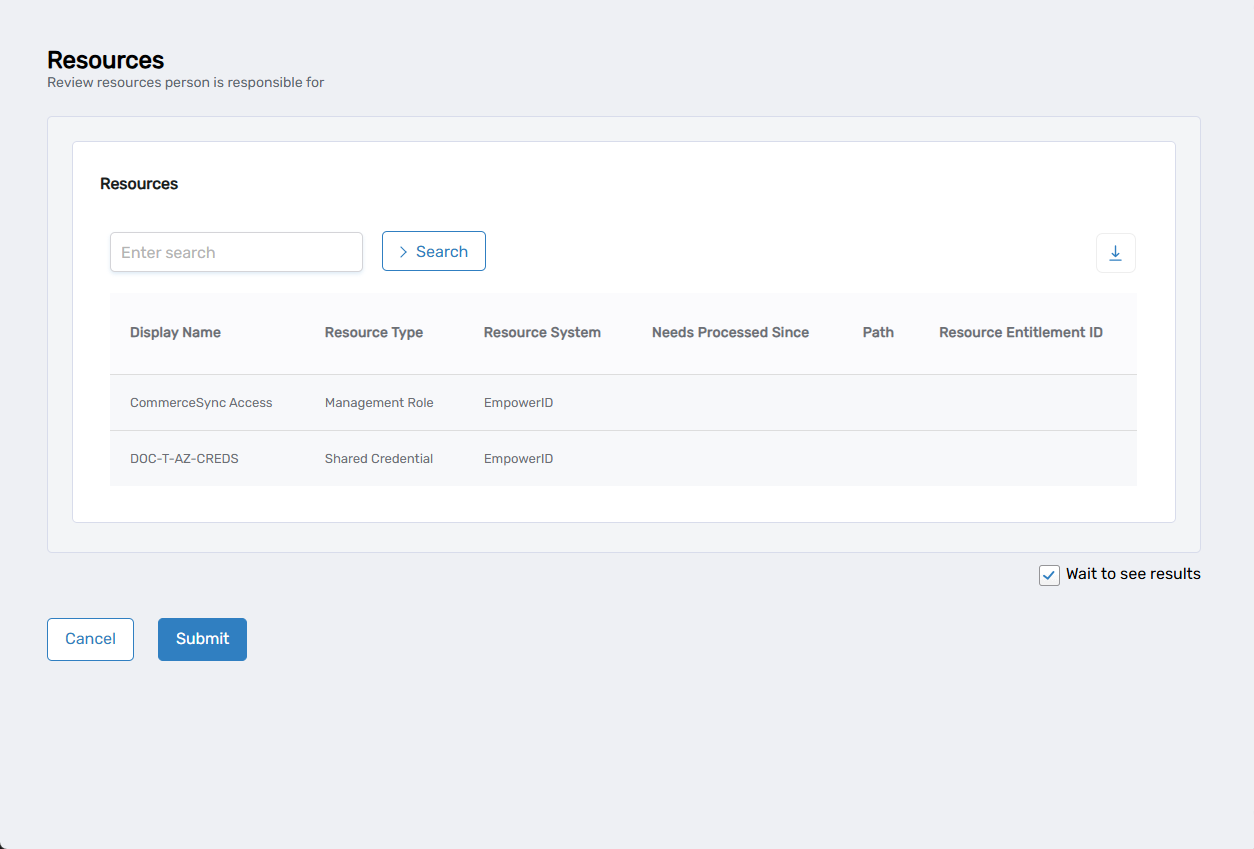
- Review the list of resources that will be transferred:
- Resource names and types
- Resource systems
- Current entitlements
- Click Submit to proceed with the transfer
- If the person has no manager or your organization requires manual selection: You'll see a person lookup to choose who should receive the resources:
- Search for and select the target person
- Click Submit to confirm the transfer
The system will then process the transfer and show a success or failure message.
What Happens During Transfer
The transfer behavior depends on your organization's configuration:
- Automatic transfer: If the person has a manager and automatic transfer is enabled, resources go directly to their manager
- Manual selection: If the person has no manager or manual selection is required, you'll choose the target person in step 4 above
What Happens Next
- Automatic transfer (to manager): All resource responsibilities are immediately transferred to the person's assigned manager
- Manual transfer: All resource responsibilities are transferred to the person you selected
- The target person becomes the new responsible party for those resources
- The source person no longer has responsibility for the transferred resources
- The transfer is immediate and cannot be easily reversed
Important: The transfer method depends on your organization's configuration and whether the person has a manager assigned in the system.
If You Run Into Problems
Can't find source person: Verify the person exists and currently owns resources in the system. Check spelling or try searching by username or email.
Can't find target person: Make sure the target person has an active account and appropriate permissions to own the types of resources being transferred.
Related Actions
To disable the source person's account after transfer, see Disable People.
For complete employee offboarding, see Terminate Person.