Move People Bulk
When your organization restructures teams, consolidates roles, or merges departments, you can move everyone from one Business Role and Location to another all at once. This workflow handles mass role changes efficiently instead of processing each person individually.
Access Requirements: The Move People Bulk workflow tile appears only if you have the appropriate access to perform bulk role assignments.
Use this workflow for organizational restructuring, role consolidation, department mergers, or when an entire team needs to move to new roles simultaneously. For individual role changes, see the Move Person workflow instead.
Before You Start
You need access to the Resource Admin portal to manage bulk role assignments.
Make sure you know:
- The source Business Role and Location (where people are moving FROM)
- The destination Business Role and Location (where people are moving tO)
Get Started
- Navigate to the Resource Admin portal
- Select People from the resource type menu
- Click the Workflows tab
- Find and click Move People Bulk
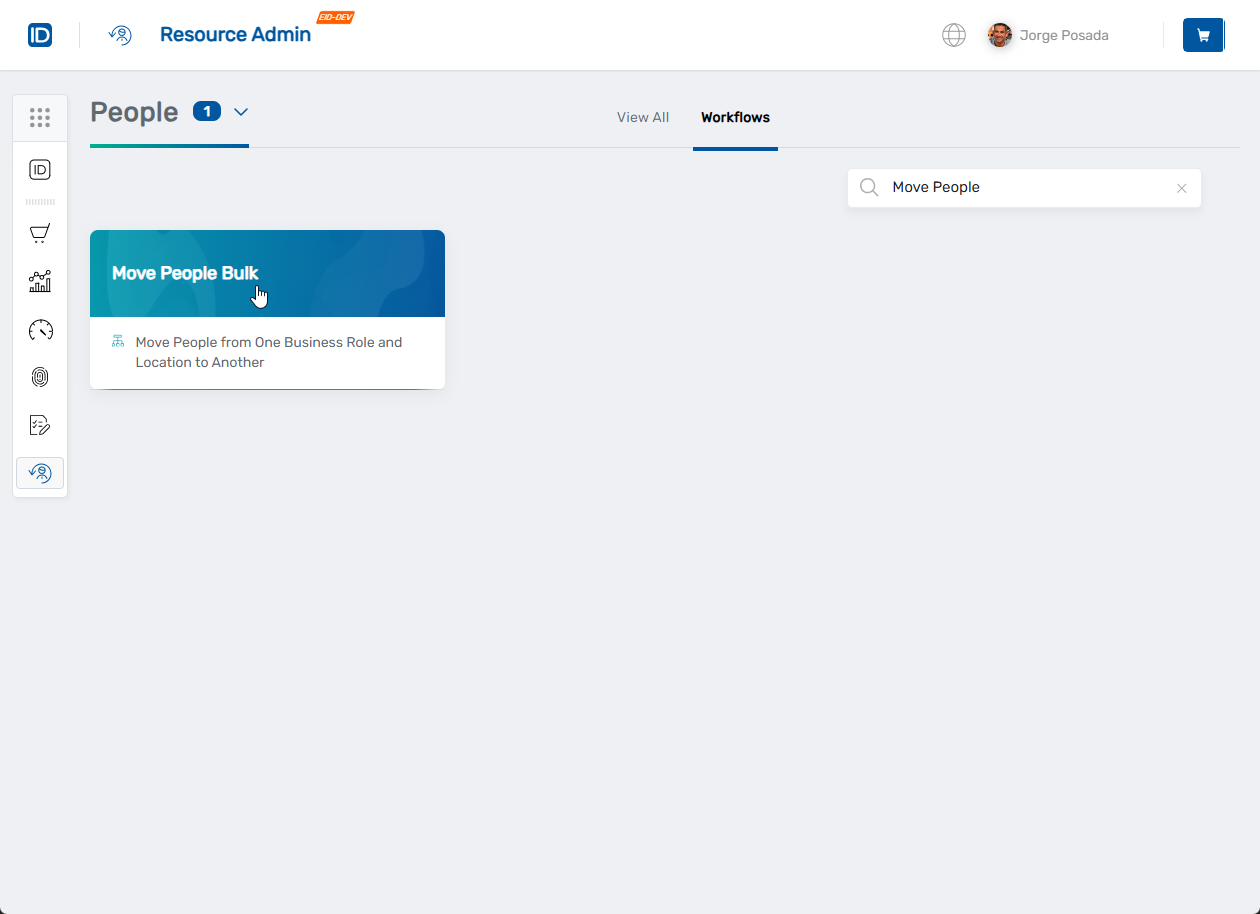
Transfer the People
Step 1: Select Source Role and Location
- The workflow will open showing the Source Business Role and Location selection
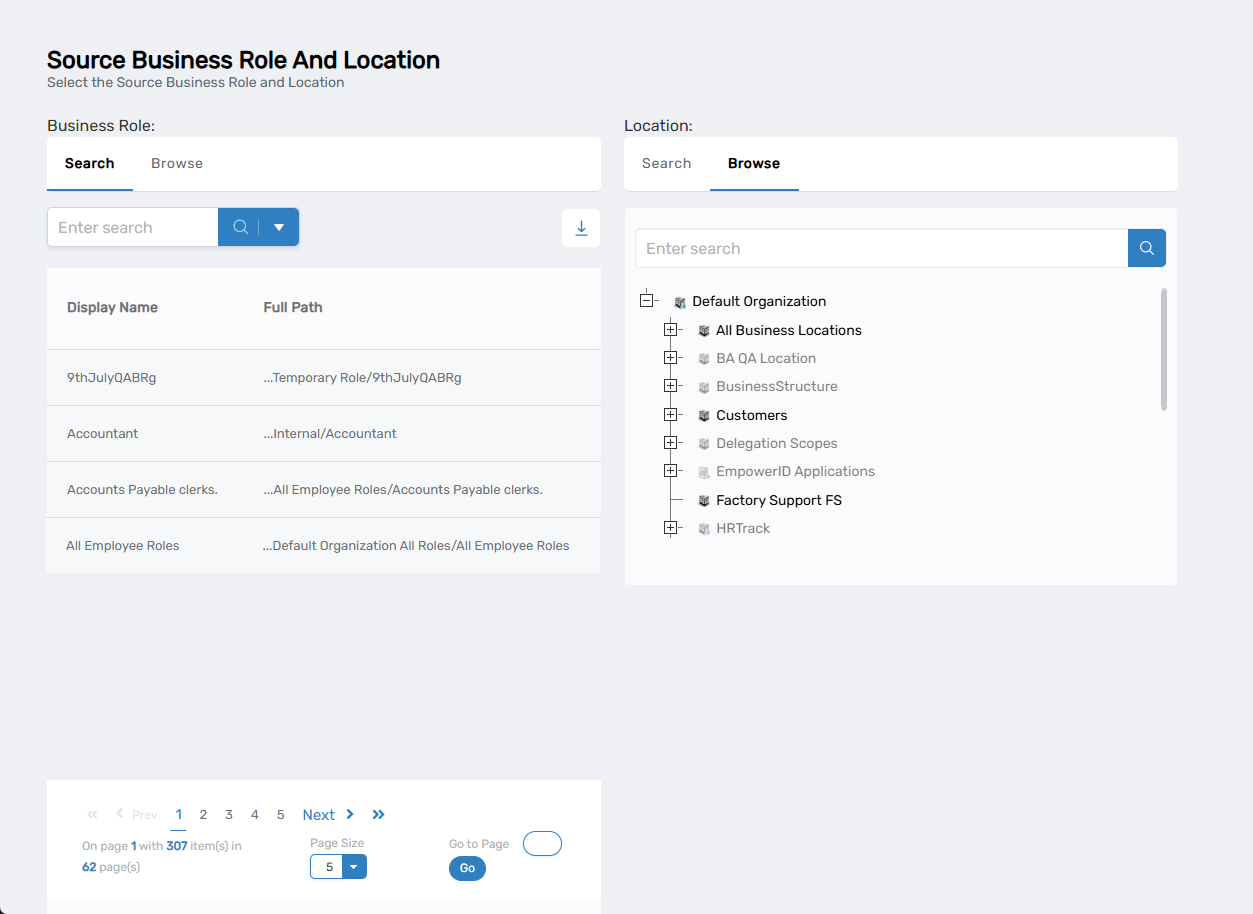
- Select the source Business Role:
- Use the Search tab to search for a specific role name
- Or use the Browse tab to navigate through the role hierarchy
- Click on the role to select it
- Select the source Location:
- Use the Search tab to search for a specific location
- Or use the Browse tab to navigate through the location hierarchy
- Click on the location to select it
- Click Next to proceed
Step 2: Select Destination Role and Location
- The Destination Business Role and Location selection screen will appear
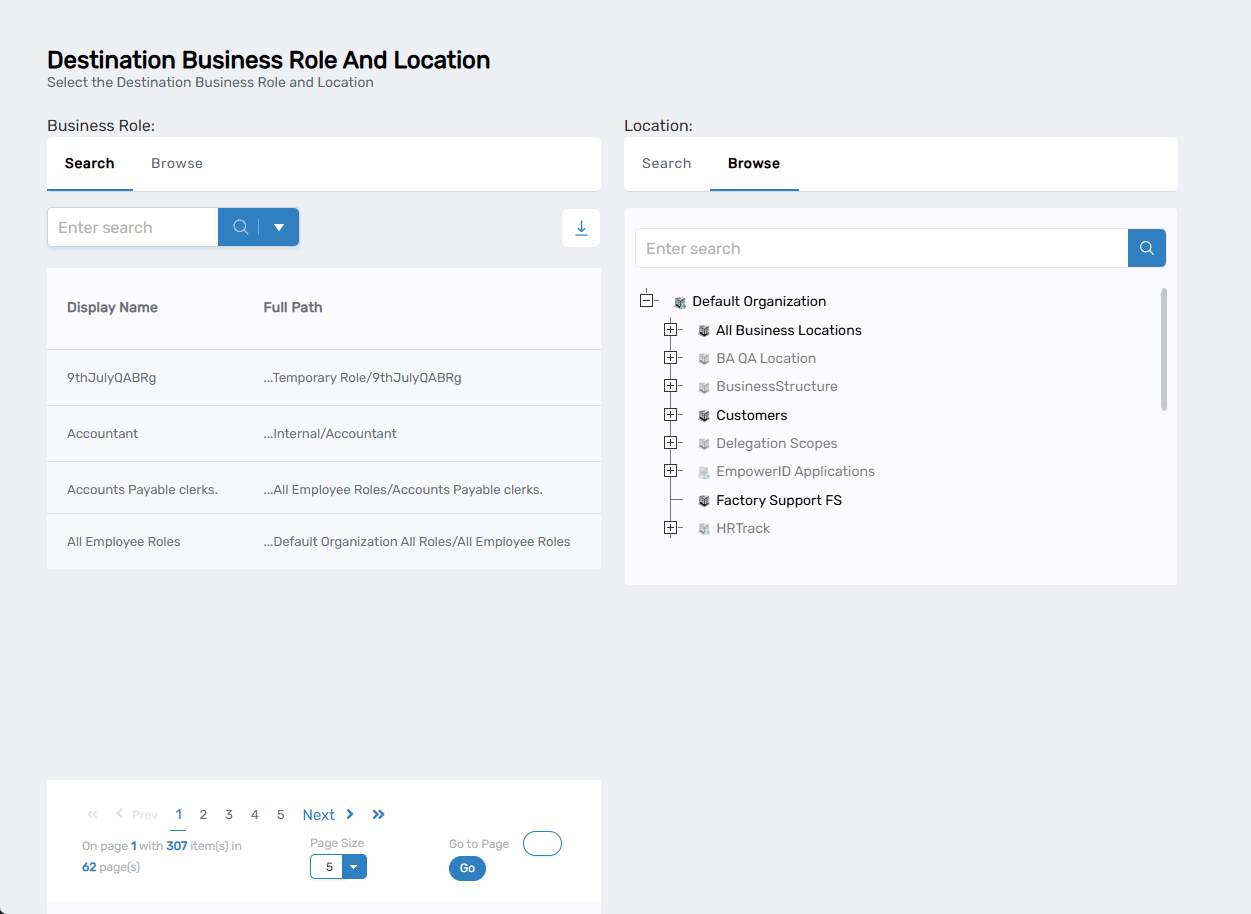
- Select the destination Business Role:
- Use the Search tab to search for a specific role name
- Or use the Browse tab to navigate through the role hierarchy
- Click on the role to select it
- Select the destination Location:
- Use the Search tab to search for a specific location
- Or use the Browse tab to navigate through the location hierarchy
- Click on the location to select it
- Click Submit to execute the bulk move
Step 3: Review Results
- The system will process the bulk move and display an Operation Execution Summary
- Review the results showing each person's move status (successful or failed)
- Click Submit to exit the workflow
What Happens Next
- All people in the source Business Role and Location are moved to the destination combination
- Previous role-based access may be removed depending on system configuration
- New role-based access is granted according to the destination Business Role and Location
- Changes take effect immediately but may take several minutes to propagate to all connected systems
Important: This affects everyone in the source role/location combination. Make sure the destination role and location is appropriate for all affected people before proceeding.
Related Actions
For individual role changes, see Move Person.