Add Item Type Scope (Data) to Recertification Policy
Adding an Item Type Scope to a Recertification Policy lets you specify which data within the policy target(s) should be collected during a recertification audit. For example, you could have a policy targeting multiple groups with an Item Type Scope that scopes the policy to only those group members belonging to a specific "High Security" Set Group.
Recertification audits will only generate data based on the Item Types configured in the policy. If no Item Types are added, no data will be collected. Always verify that the selected Item Types align with the business objectives of the audit.
Supported Item Types
The available Item Types depend on your Recertification Policy type. Select Item Types that are compatible with your policy configuration.
Business Role and Location Membership
- Group Business Role and Location: Includes all groups directly assigned to Business Roles and Locations
- Management Role Business Role and Location: Includes Management Roles directly assigned to Business Roles and Locations
- Person Business Role and Location: Includes persons directly assigned to Business Roles and Locations
- Set Group Business Role and Location: Includes Set Groups directly assigned to Business Roles and Locations
Group Membership
- Account Group Direct Member: Includes accounts directly assigned to a group
- Group Direct Member: Includes Groups directly assigned to another group
- Management Role Group Direct Member: Includes Management Roles directly assigned to a group
- Person Group Direct Member: Includes persons directly assigned to a group
- Set Group Group Direct Member: Includes Set Groups directly assigned to a group
Management Role Membership
- Business Role and Location Management Role Direct Member: Includes Business Roles and Locations directly assigned to Management Roles
- Person Management Role Direct Member: Includes persons directly assigned to a Management Role
- Set Group Management Role Direct Member: Includes Set Groups directly assigned to Management Roles
Management Role Access Assignment
- Management Role Access Assignment: Includes all the current members of a Management Role, including People, Groups, and Business Roles and Locations
Review the supported Item Types table above to ensure you select appropriate Item Types for your policy type. Selecting incompatible Item Types may prevent proper audit data collection.
Procedure
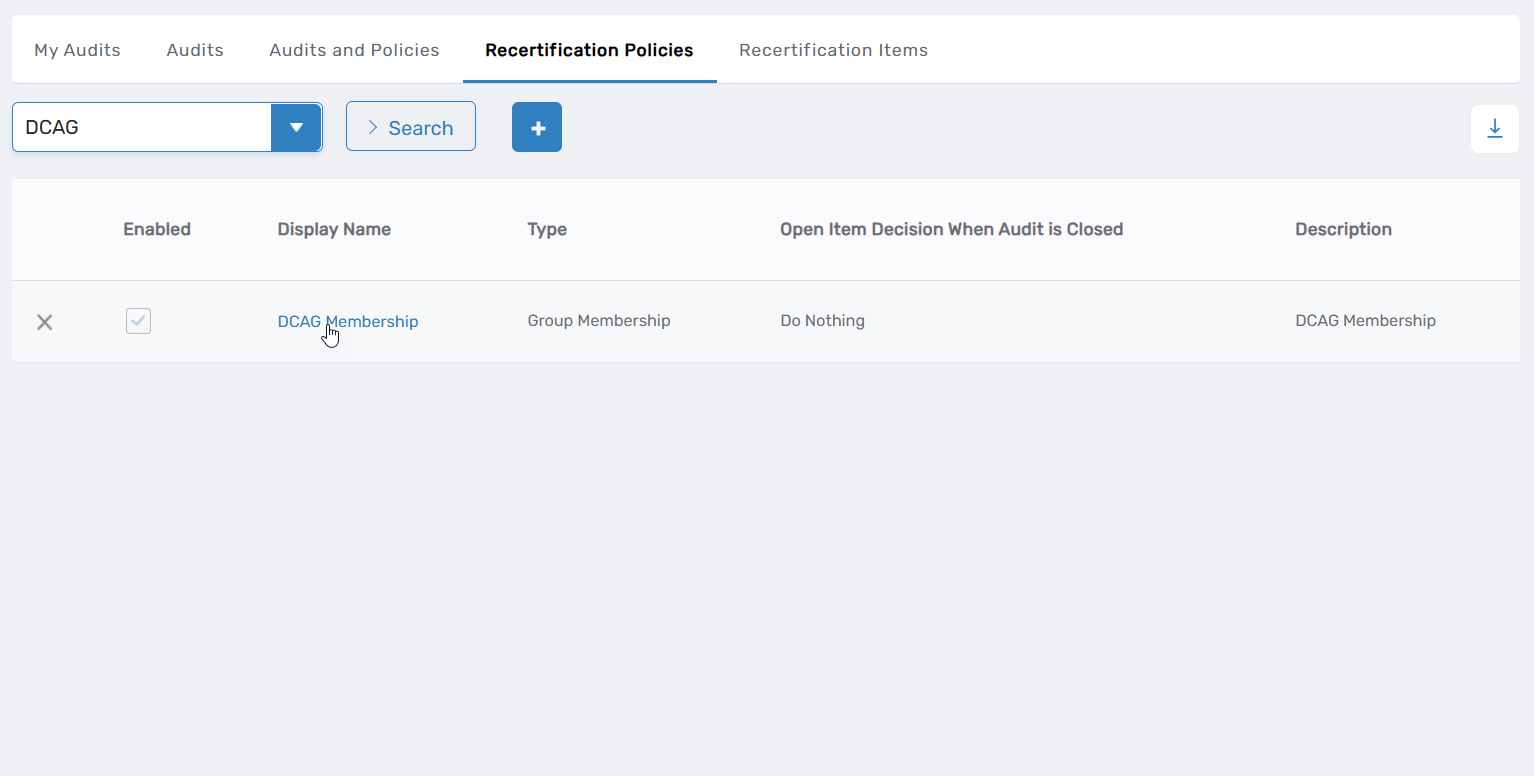
- Go to Compliance > Recertification and click the Recertification Policies tab.
- Search for the target Recertification Policy. You need to enter at least three characters to return results.
- Click the Display Name link for the Recertification Policy record.
 This opens the View One page for the policy.
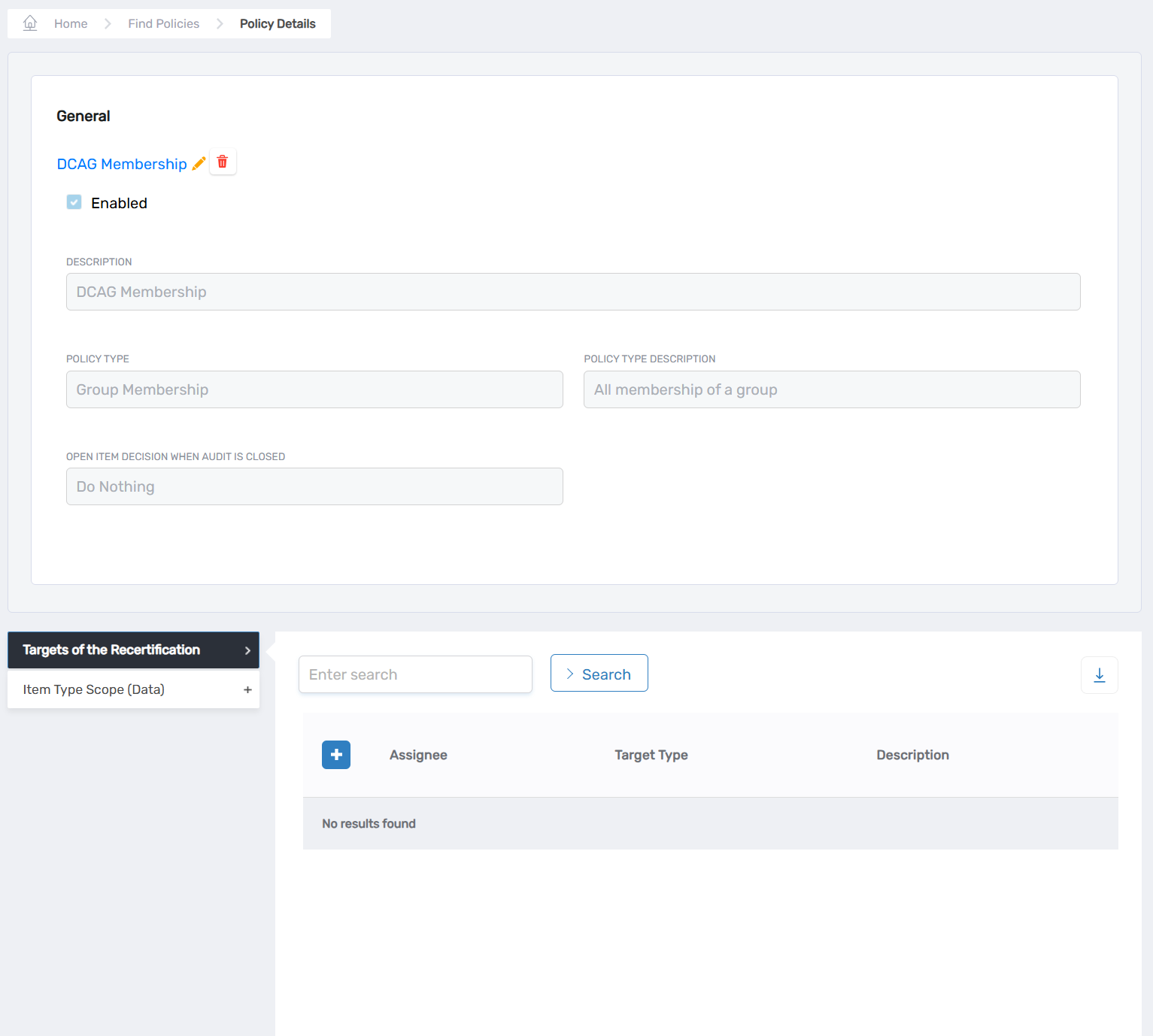
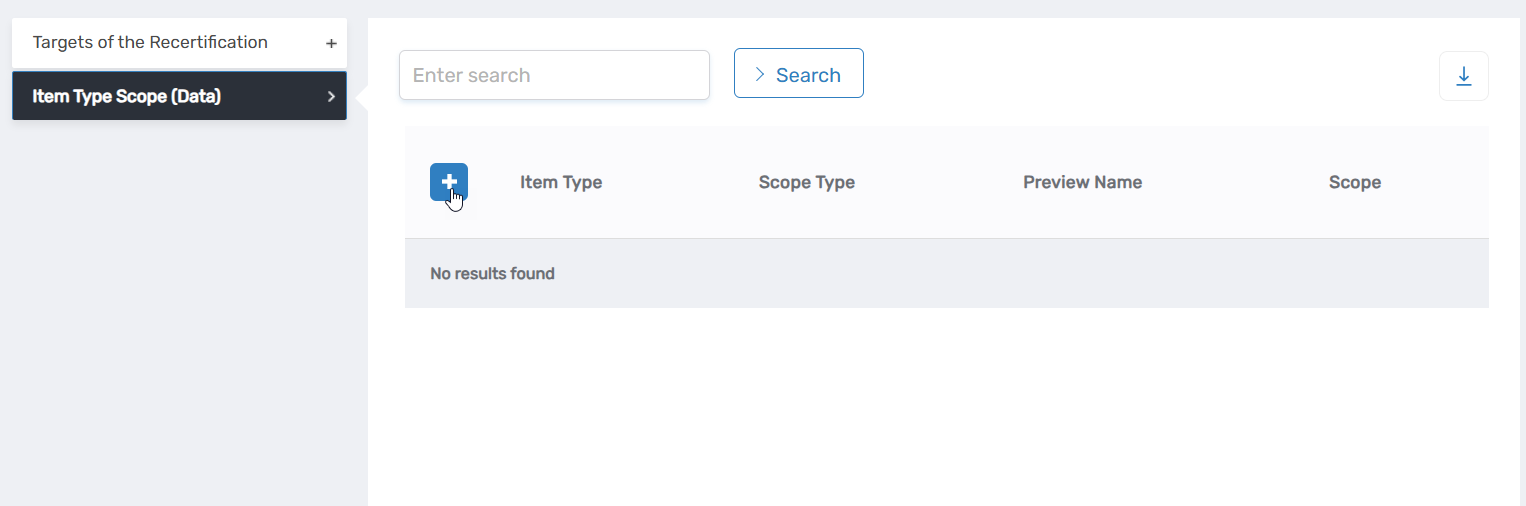
- Expand the Item Type Scope (Data) accordion.
- Click the Add New button.
 This opens the Add Definition window.
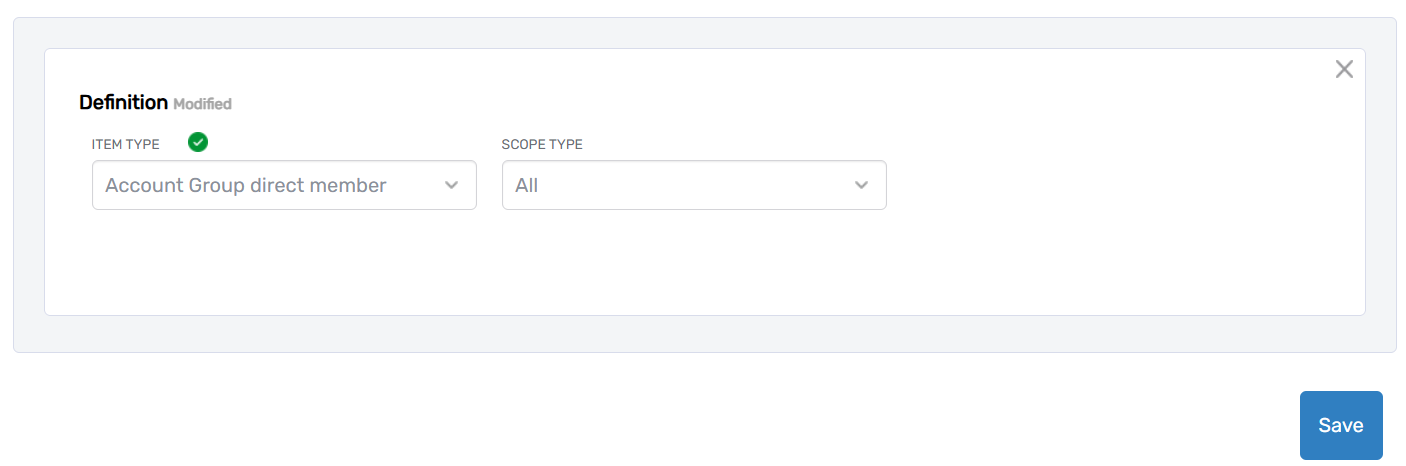
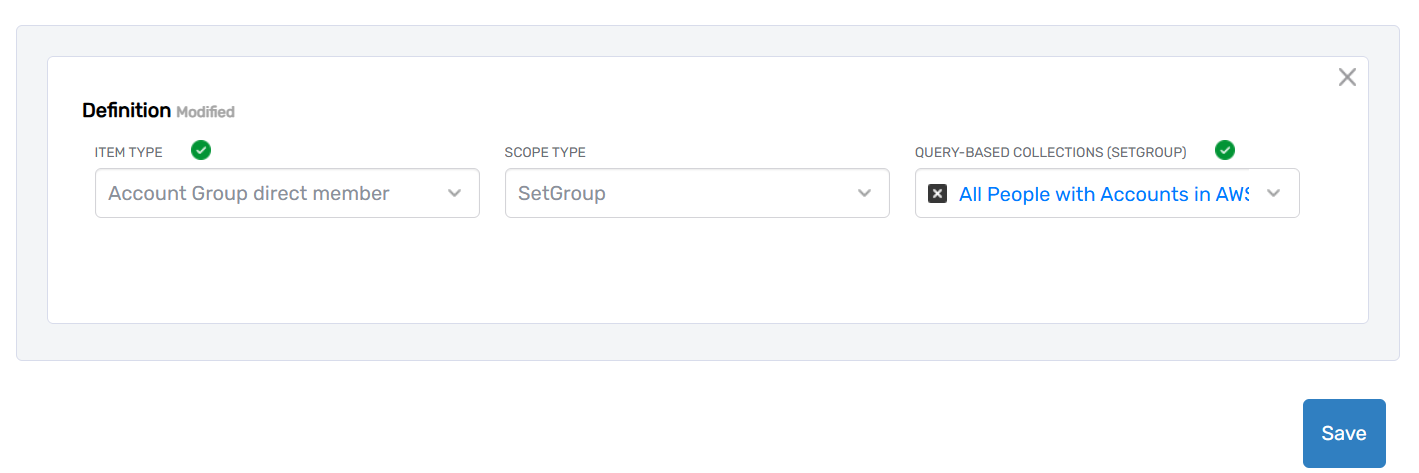
- Select the appropriate Item Type based on the Recertification Policy type. Refer to the 'Supported Item Types' section above for guidance.
- Choose the Scope Type, which determines the amount of data to be included.
- If you selected an option other than All for Scope Type, search for and select the specific object that corresponds to the Scope Type.
For example, if you selected SetGroup as the Scope Type, you would search for and select the desired SetGroup, as shown in the screenshot below.
- Click Save to add the Item Type Scope.
- Repeat steps 5-9 to add additional Item Type Scopes as needed.