Adding Targets to Recertification Policies
Adding targets to a recertification policy allows you to define the specific IT objects that will be audited as part of the recertification process. Targets vary according to the Recertification Policy Type.
note
Targets specify which organizational resources will be included in the recertification review. The available target types depend on the policy type you selected when creating the policy.
Understanding Policy Targets
Recertification policy targets define the scope of what will be reviewed during an audit. For example, if you're creating a Group Membership policy, your targets would be the specific groups whose memberships need to be certified. If you're creating a Management Role Membership policy, your targets would be the specific Management Roles to be reviewed.
Procedure
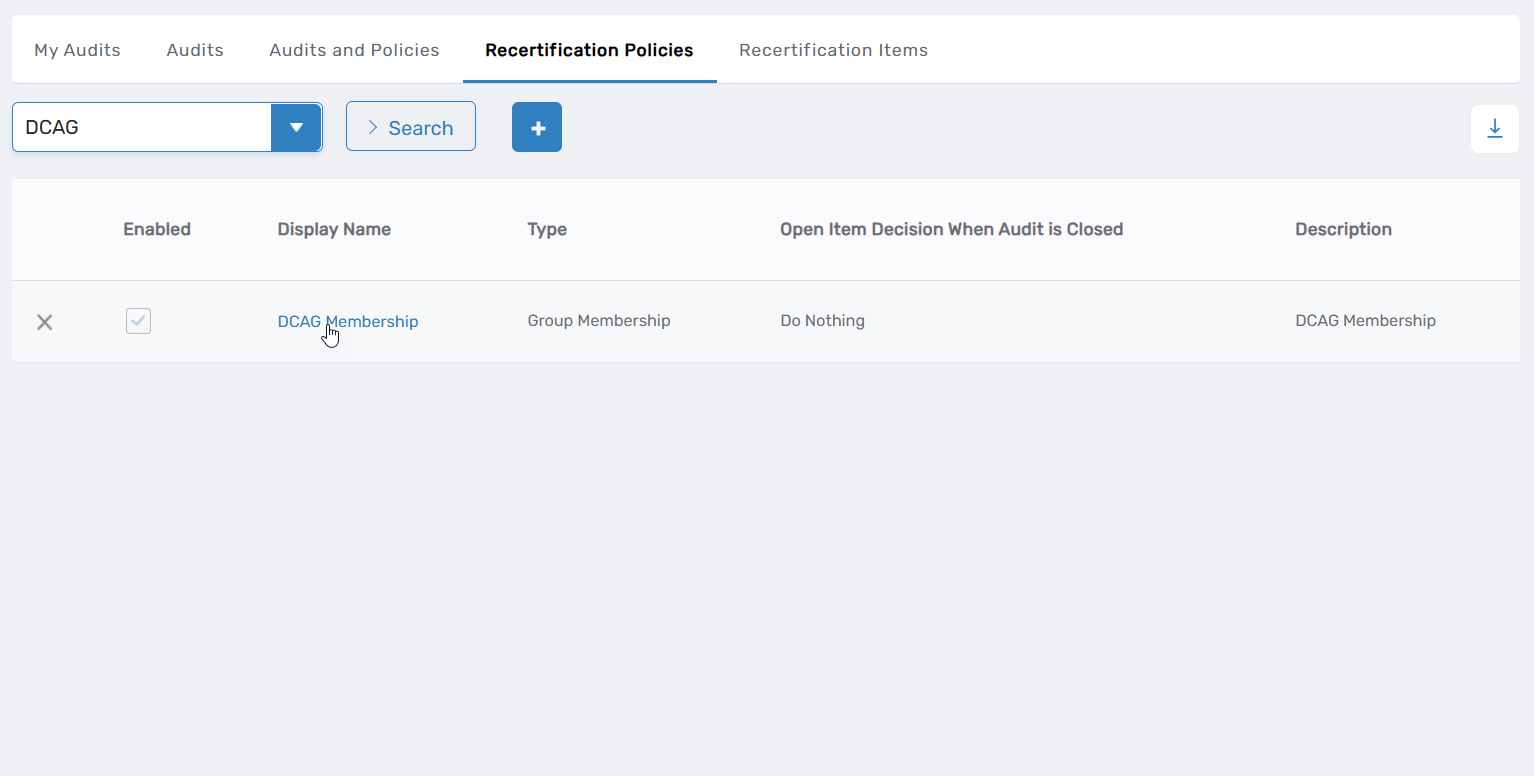
- Go to Compliance > Recertification and click the Recertification Policies tab.
- Search for the target Recertification Policy. You need to enter at least three characters to return results.
- Click the Display Name link for the Recertification Policy record.
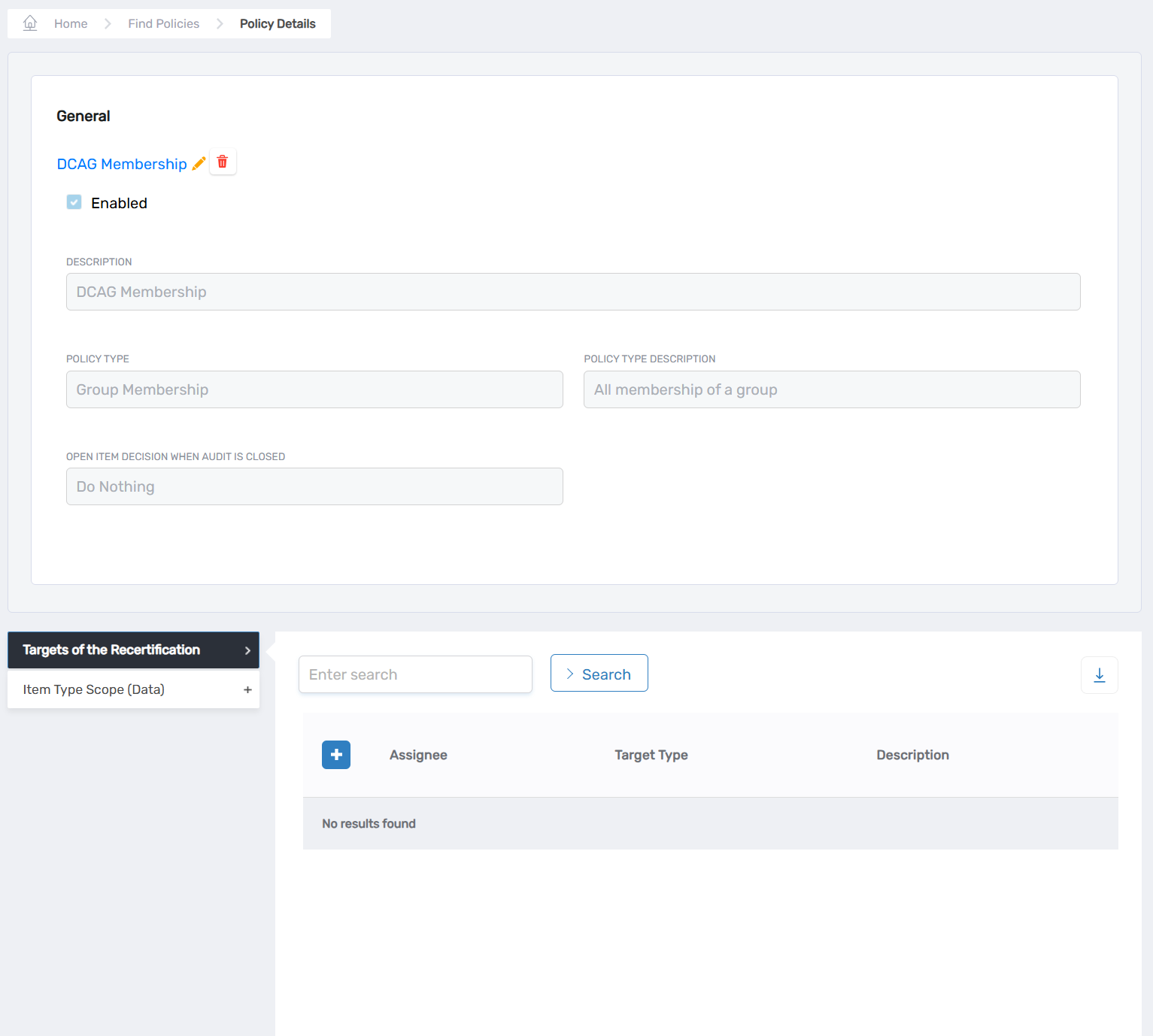
 This opens the View One page for the policy.
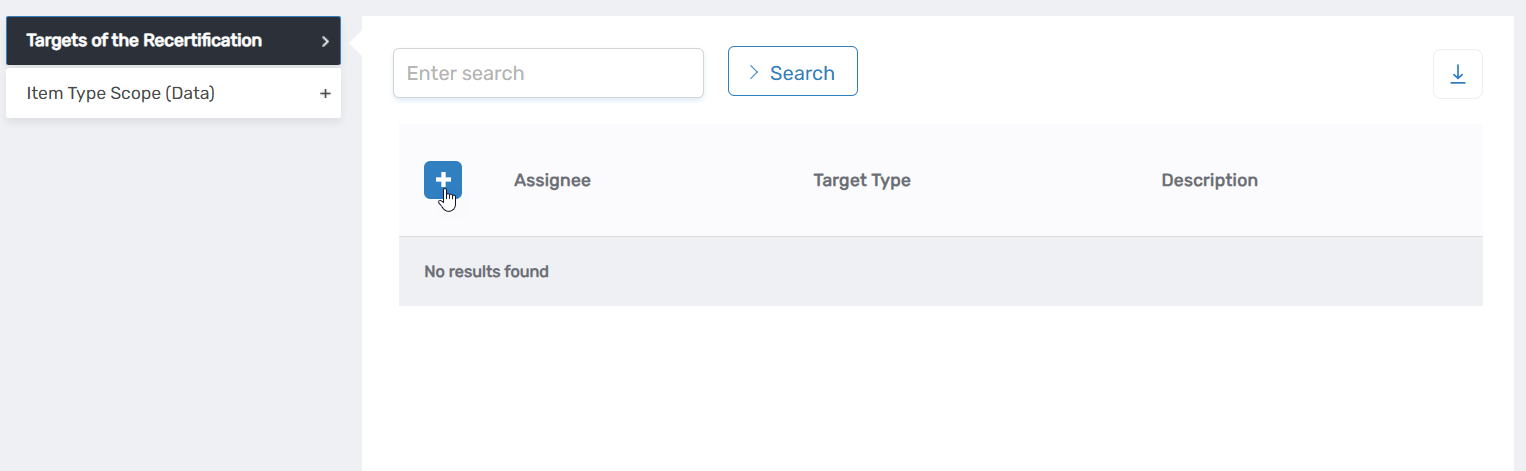
- In the Targets of the Recertification accordion, click the Add New button to open the Attestation Policy Target window.
- Select the appropriate target type from the Type dropdown and then search for and select the specific target belonging to the type. For example, if the target type is a Management Role, search for and select the particular Management Role.
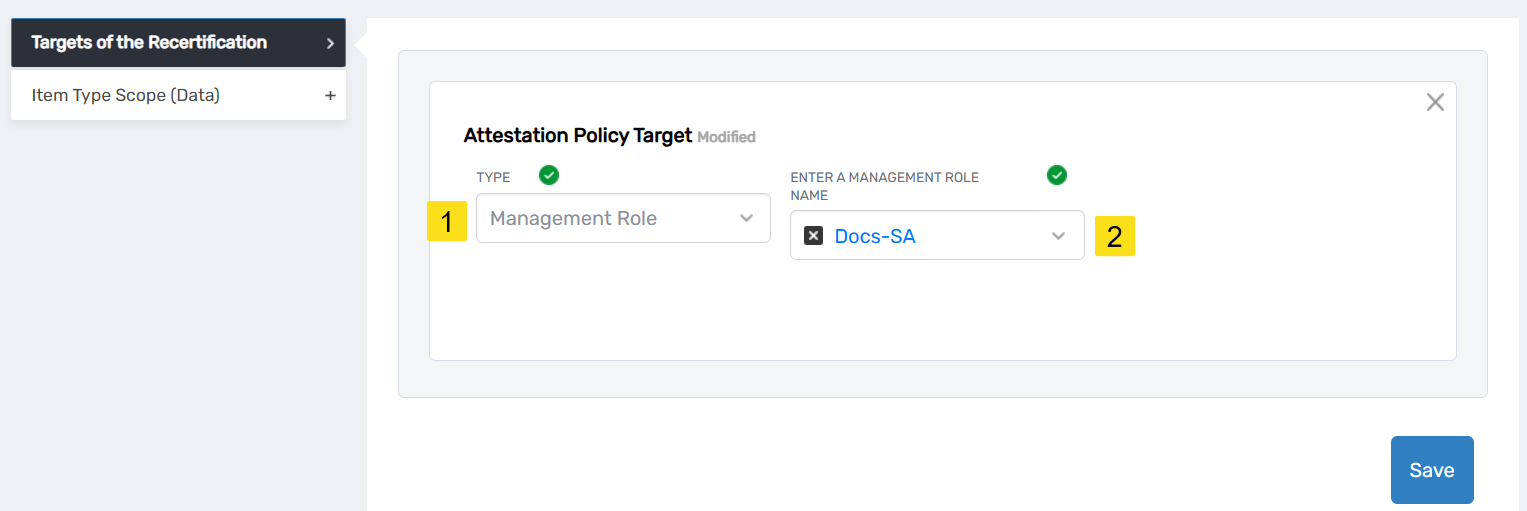
- Click Save.
- Repeat to add as many targets as needed.