Add People to Business Role and Location Combinations
Add people to Business Role and Location (BRL) combinations to grant them the permissions and resource access associated with that combination. People assigned to a BRL automatically receive all Access Level assignments and Management Role memberships configured for that BRL.
Prerequisites
Before adding people to BRL combinations, ensure you have:
- Access to Role Management with permissions to manage Business Role and Location combinations
Procedure
-
Navigate to Role Management > Business Roles and Locations.
-
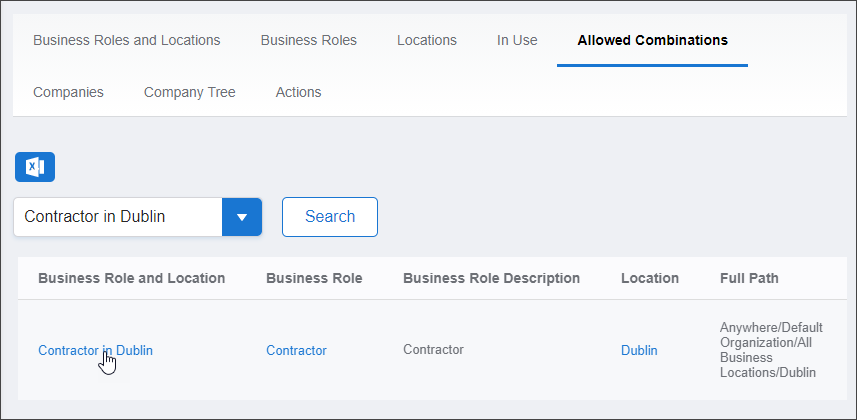
Select the Allowed Combinations tab.
-
Search for and locate the target Business Role and Location combination.
-
Click the Business Role and Location link to open its View page.
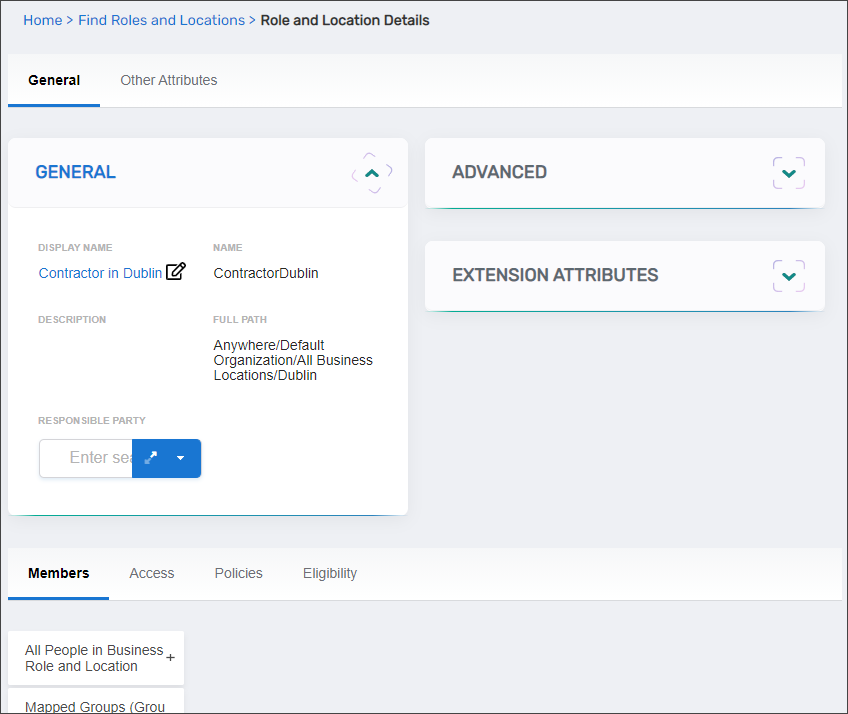
The View page displays all configuration and membership information for the BRL combination.
-
Select the Members tab.
-
Expand the All People in Business Role and Location accordion.
-
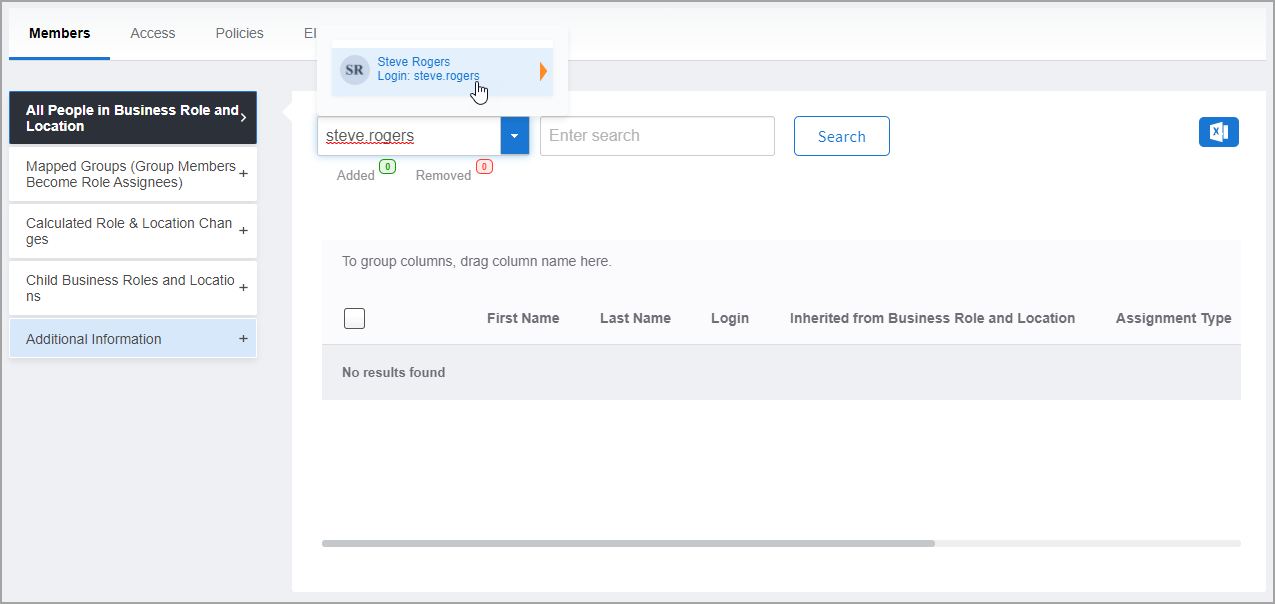
Search for and select people to add:
- Enter the person's name in the search field
- Click the person's tile in the search results to add them
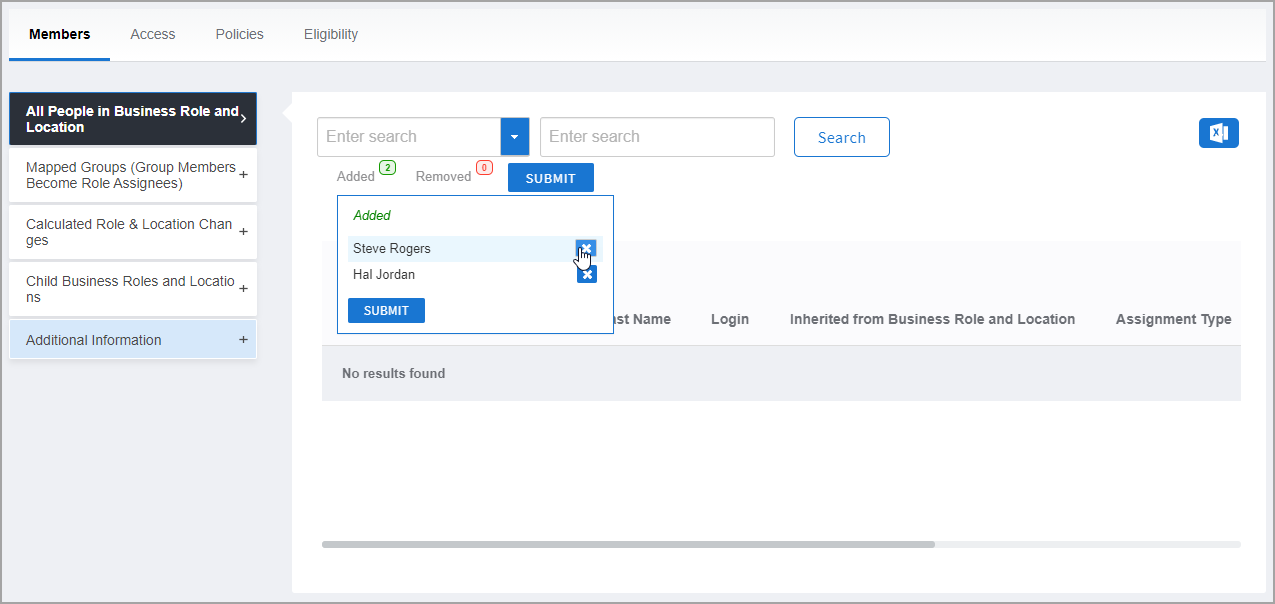
- Repeat for each person you want to add
- To remove someone before submitting, click Added and then click Remove next to their name
-
Click Submit to commit the changes.
Verify the Results
After submitting your changes:
- The View page refreshes and displays the updated BRL combination.
- In the All People in Business Role and Location accordion, verify the people you added appear in the members list.
- Click on a person's name to view their details and confirm they now have the BRL assignment.
- (Optional) Verify the person received expected access by checking their Management Role memberships or Access Level assignments in their identity profile.
Related Topics
- Create Business Role and Location Combinations — Create new BRL combinations
- Remove People from Business Role and Location Combinations — Remove people from BRL combinations
- About Business Roles and Locations — Understand BRL concepts and polyarchical access control
- Assign Access Levels to Business Role and Location Combinations — Configure permissions for BRL combinations