Create Business Role and Location Combinations
Create Business Role and Location (BRL) combinations to establish containers for assigning people, resources, and permissions based on both job function and organizational location. BRL combinations enable EmpowerID's polyarchical access control model by allowing a single Business Role to provide different access based on location.
Prerequisites
Before creating Business Role and Location combinations, ensure you have:
- Permissions to manage Business Role and Location combinations
- The Business Role and Location you want to combine already exist in EmpowerID
Procedure
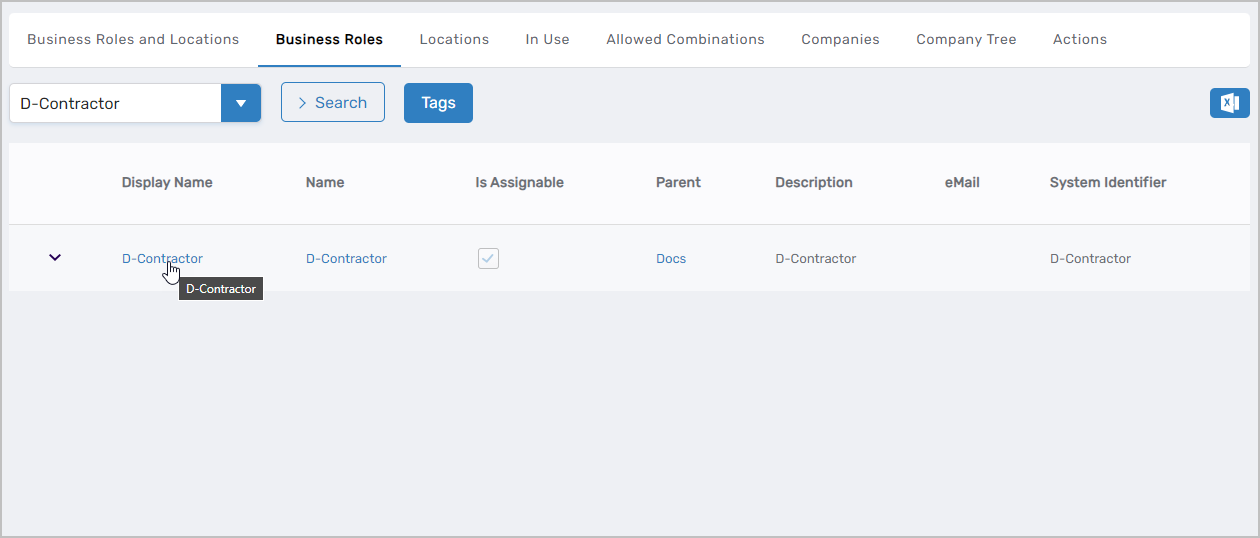
- Navigate to Role Management > Business Roles and Locations.
- Select the Business Roles tab.
- Search for and locate the Business Role you want to combine with a location.
- Click the Display Name link for the Business Role to open its View One page.
The View One page displays all configuration and relationship information for the Business Role.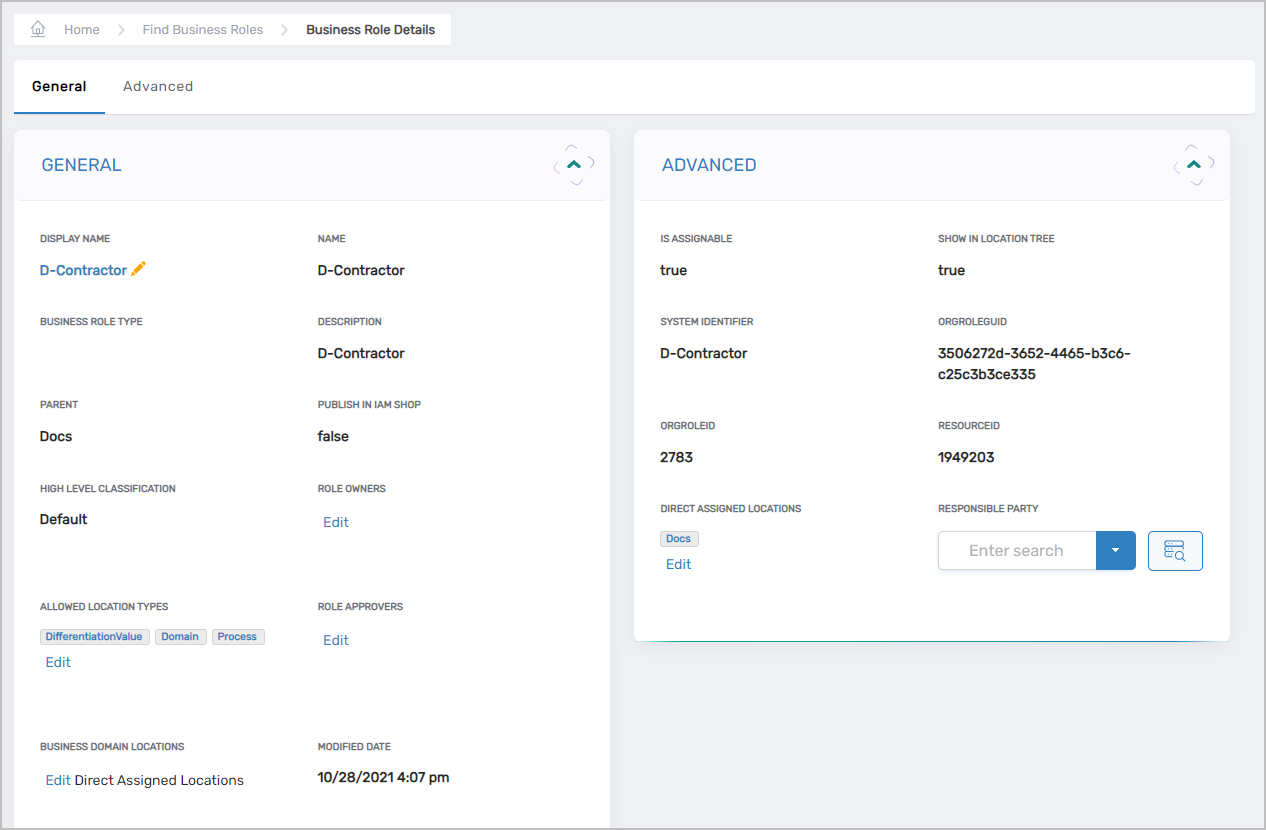
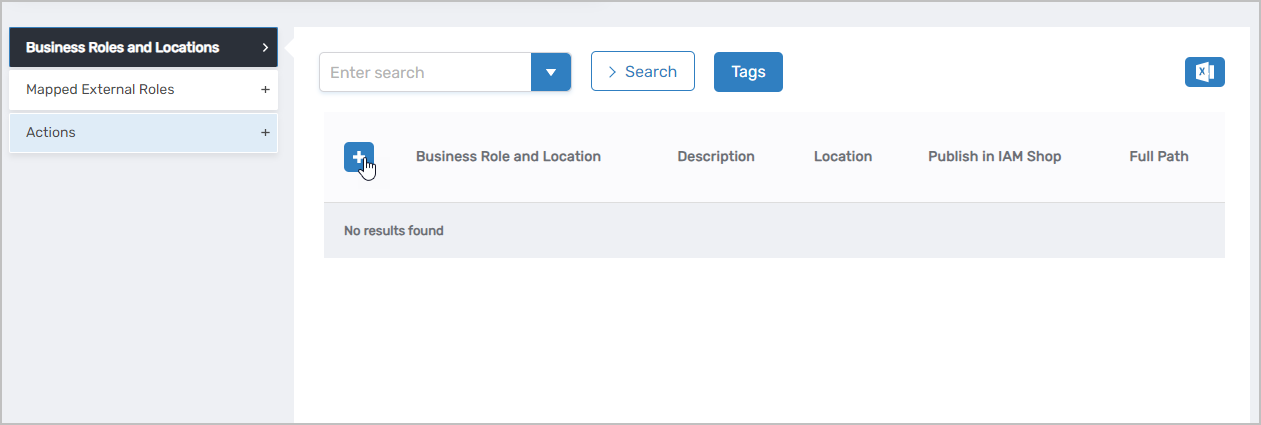
- Expand the Business Roles and Locations accordion.
- Click Add.
- In the location tree that appears, search for and select the location you want to combine with the Business Role.
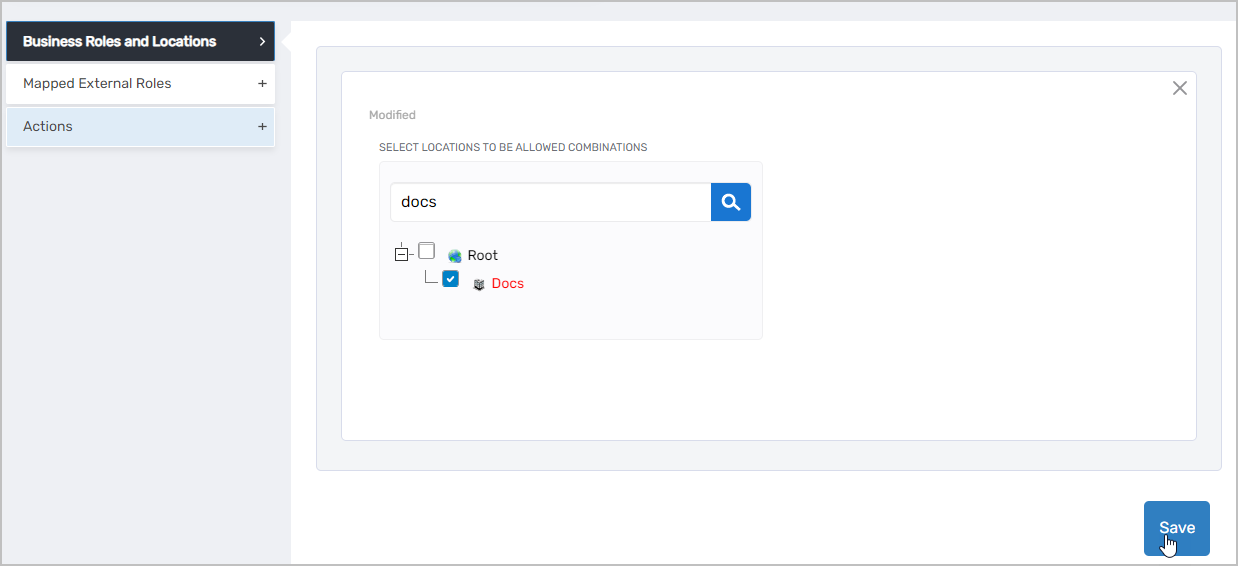
- Click Save to create the combination.
Verify the Results
After creating the Business Role and Location combination:
- The View One page refreshes and displays the updated Business Role.
- In the Business Roles and Locations accordion, confirm the new combination appears in the list showing both the Business Role and Location names.
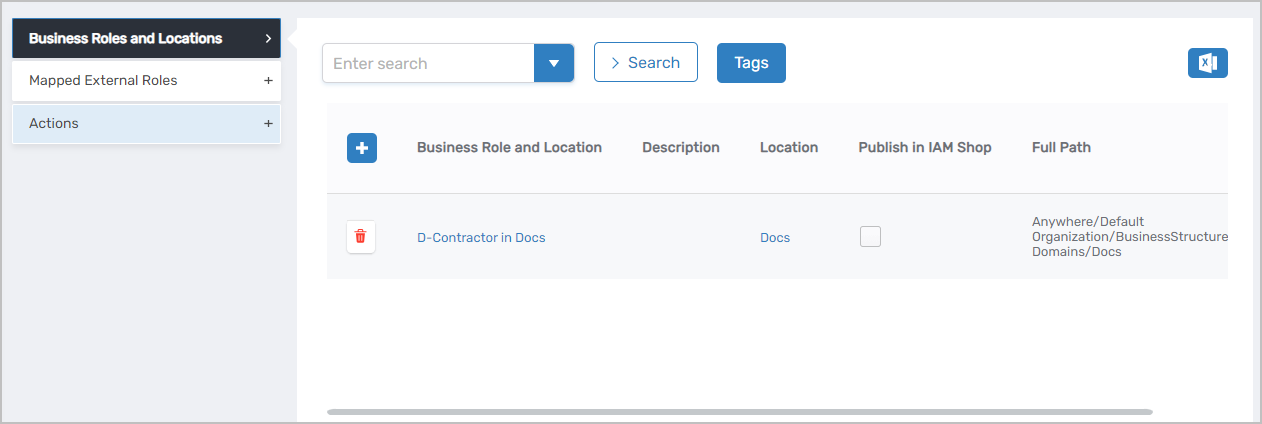
- (Optional) Navigate to Role Management > Business Roles and Locations and select the Allowed Combinations tab to verify the combination appears in the system-wide list.
Related Topics
- Add People to Business Role and Location Combinations — Assign people to BRL combinations
- Assign Access Levels to Business Role and Location Combinations — Configure permissions for BRL combinations
- Assign Management Roles to Business Role and Location Combinations — Assign Management Roles to BRL combinations
- About Business Roles and Locations — Understand BRL concepts and polyarchical access control
- Map EmpowerID Locations to External Locations — Configure directory-based location mappings