Create Organizational Units
Create Organizational Units (OUs) in Active Directory through EmpowerID to establish containers for organizing directory objects such as users, groups, and computers. OUs created through EmpowerID are automatically inventoried and available for resource management and delegation.
Prerequisites
Before creating Organizational Units, ensure you have:
- Permissions to create Organizational Units in EmpowerID
- Administrative rights in the target Active Directory account store
Procedure
- Navigate to Role Management > Business Roles and Locations.
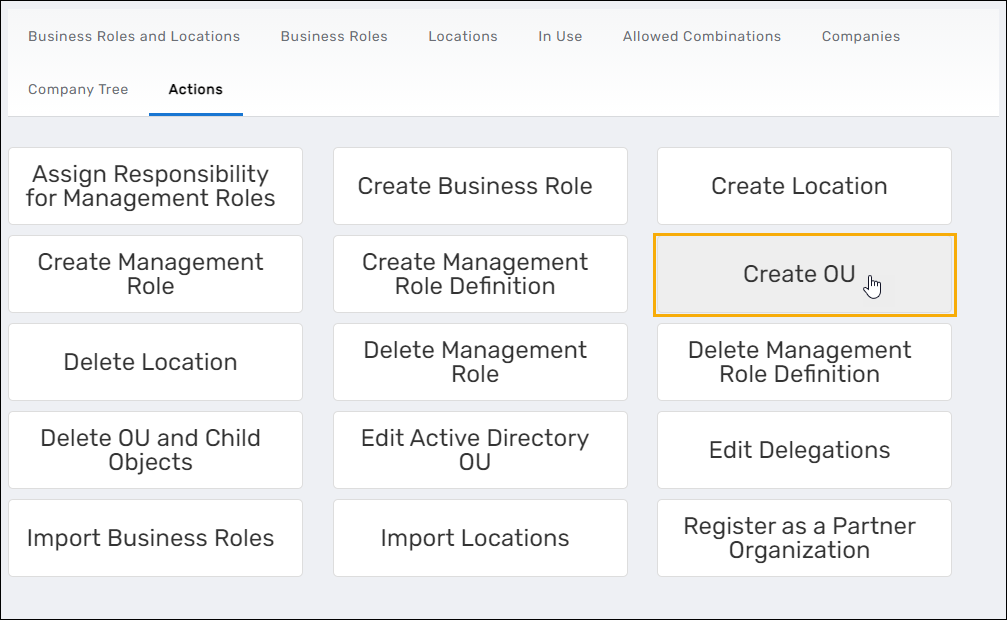
- Select the Actions tab.
- Click Create OU.
- In the Select Parent OU lookup, configure the OU location:
- Search for and select the account store where you want to create the OU
- Navigate the tree to find the parent OU under which you want to create the new OU
- Click the parent OU node to select it
- Click Submit
- In the Create OU form, configure the OU settings:
- Name: Enter a name for the new OU
- Description: (Optional) Enter a description for the OU
- Do Not Allow Delete in EmpowerID: Select to prevent deletion of this OU through the EmpowerID interface
- Click Submit
- The Operation Execution Summary displays, confirming the OU creation. Click OK to close the summary.
Verify the Results
After creating the Organizational Unit:
Verify in EmpowerID
- Navigate to Role Management > Business Roles and Locations and select the Locations tab.
- Search for the OU you created by name.
- Verify the OU appears in the location list.
- Click the OU name to open its View One page and confirm the settings are correct.
Verify in Active Directory (Optional)
To confirm the OU exists in Active Directory:
-
Open a PowerShell session on a server with the Active Directory module installed.
-
Run the following command, replacing
"YourOUName"with the actual OU name:Get-ADOrganizationalUnit -Filter {name -eq "YourOUName"} -
Verify the command returns the OU details, including:
- DistinguishedName: The full AD path of the OU
- Name: The OU name you specified
- ObjectClass: Should show "organizationalUnit"
- ObjectGUID: The unique identifier for the OU
Example output:
  DistinguishedName : OU=YourOUName,OU=ParentOU,DC=domain,DC=com
  Name              : YourOUName
  ObjectClass       : organizationalUnit
ObjectGUID : a1b2c3d4-e5f6-7890-abcd-ef1234567890 -
If no results appear, verify the OU name spelling and ensure the directory replication has completed.
Related Topics
- Create Locations — Create logical EmpowerID Locations
- Map EmpowerID Locations to External Locations — Map logical locations to directory OUs
- Create Business Role and Location Combinations — Combine roles with locations for access management
- About Business Roles and Locations — Understand location concepts and organizational structure