Assign Access Levels to Business Role and Location Combinations
Assign Access Levels to Business Role and Location (BRL) combinations to grant specific permissions and resource access to all members of that combination. When you assign an Access Level to a BRL, every person in that BRL automatically receives the corresponding access to the targeted resources.
Prerequisites
Before assigning Access Levels to BRL combinations, ensure you have:
- Access to Role Management with permissions to manage Business Role and Location combinations
Procedure
- Navigate to Role Management > Business Roles and Locations.
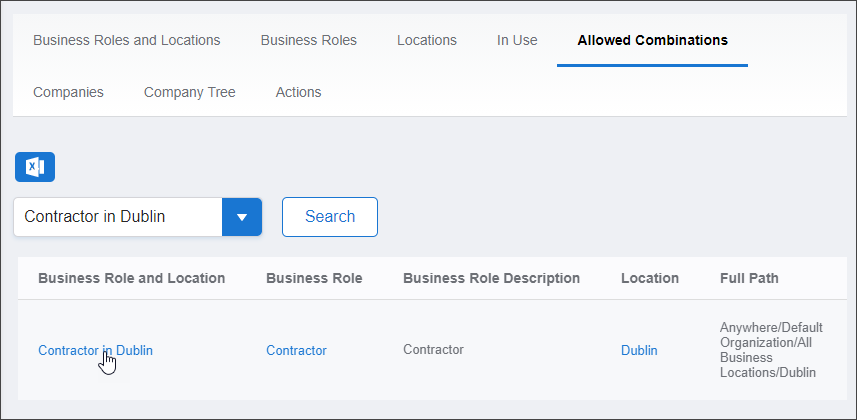
- Select the Allowed Combinations tab.
- Search for and locate the target Business Role and Location combination.
- Click the Business Role and Location link to open its View page.
The View page displays all configuration and access information for the BRL combination.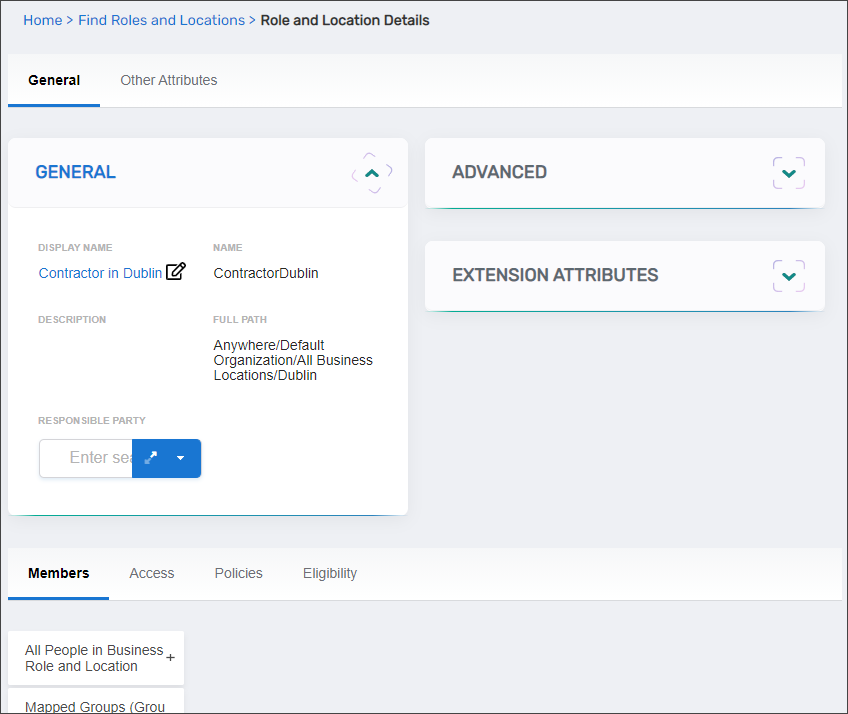
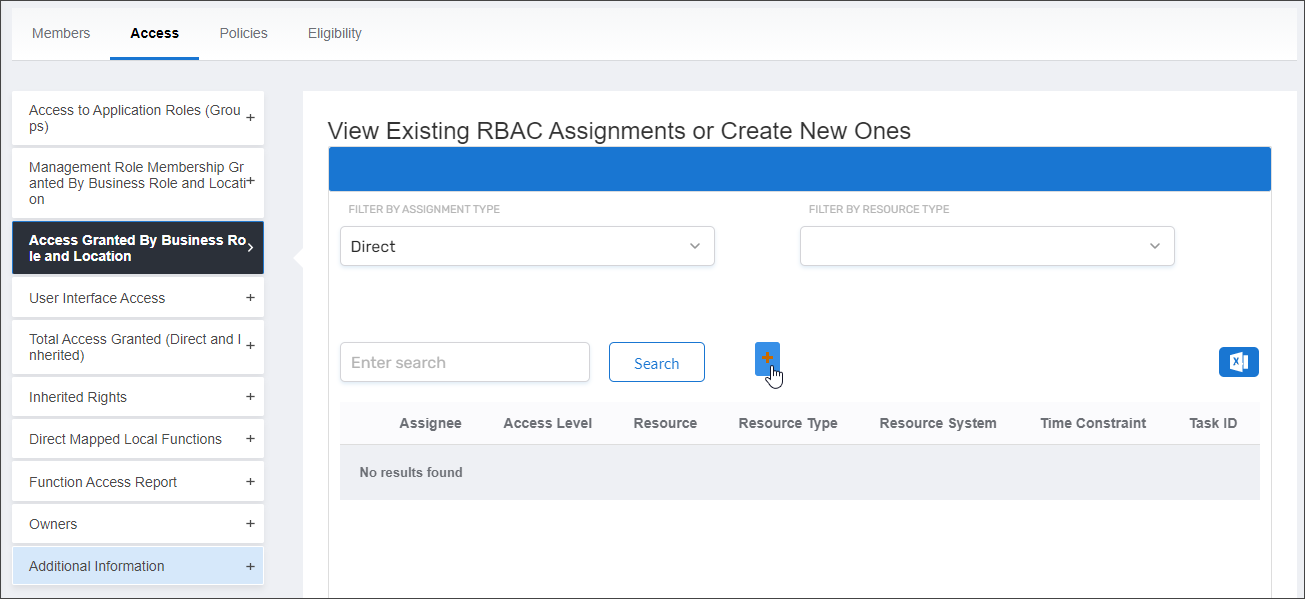
- Select the Access tab.
- Expand the Access Granted By Business Role and Location accordion.
- Click Add.
The Grant Actor Access page opens, allowing you to configure the Access Level assignment and its scope.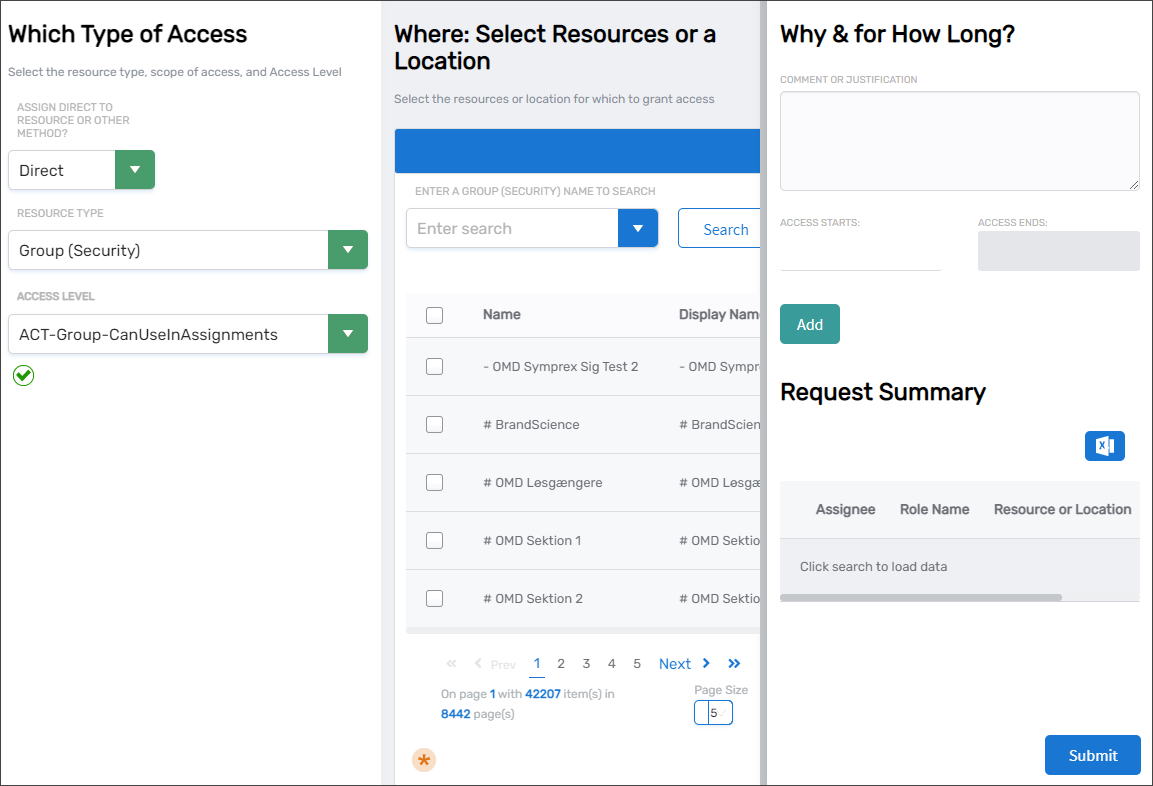
- In the Which Type of Access panel, configure the assignment parameters:
- Assign Direct to Resource or Other Method: Select the assignment scoping method:
- Direct — Assigns access to specific individual resources, such as a particular group
- By Location — Assigns access to all resources within a location and its child locations, such as all groups in Boston
- Relative — Assigns access to resources based on each member's location assignment, such as all groups in a person's locations
- Belonging to which group — Assigns access to all users and people who are members of selected groups
- Belonging to which Management Role — Assigns access to all people assigned to selected Management Roles
- Belonging to which Query-Based Collection — Assigns access to all objects in the selected Query-Based Collection
- Resource Type: Select the type of resource for which you are assigning access, such as Group (Security) or Account
- Access Level: Select the Access Level that defines the permissions being granted, such as Member or Owner
- Assign Direct to Resource or Other Method: Select the assignment scoping method:
- In the Where: Select Resources or a Location panel, define the scope of the assignment:
- For Direct assignments, search for and select specific resources
- For By Location assignments, search for and select the location that defines the resource scope
- For other assignment types, search for and select the appropriate groups, roles, or collections
- In the Why & for How Long? panel, configure justification and temporal settings:
- Comment or Justification: Enter a comment explaining the purpose of the assignment (optional but recommended for audit purposes)
- Access Starts: Select a start date and time from the calendar picker (leave blank for immediate activation)
- Access Ends: Select an end date and time from the calendar picker (leave blank for permanent assignment)
- Click Add to add the assignment to your pending changes
- Repeat steps 8 through 10 to add additional Access Level assignments as needed.
- When you have configured all desired assignments, click Submit to commit your changes.
Verify the Results
After submitting your Access Level assignments:
- The View page refreshes and displays the updated BRL combination.
- In the Access Granted By Business Role and Location accordion, confirm your assignments appear in the list.
- Verify each assignment displays the correct:
- Resource Type — The type of resource the Access Level applies to
- Access Level — The specific permissions granted
- Scope — The assignment method (Direct, By Location, etc.) and target resources
- Temporal settings — Start and end dates if configured
- (Optional) Verify a member of the BRL received the expected access by checking their access assignments in their identity profile.
Related Topics
- Create Business Role and Location Combinations — Create new BRL combinations
- Add People to Business Role and Location Combinations — Assign people to BRL combinations
- About Business Roles and Locations — Understand BRL concepts and polyarchical access control
- What are Access Levels? — Understand Access Level concepts and structure